Creating a product has never been so easy!
Introduction
In a PrestaShop online store, products are at the heart of your business. They attract visitors, trigger sales and largely determine your site's performance. Their presentation and structuring are therefore strategic.
1. Products drive sales
A structured catalog will help…
Attract customers via the SEO data
Convert visitors onto customers
Retain customers with nicely presented products
Without well-managed products, an e-shop can neither sell nor survive.
2. Direct Impact on customers experience
Well-structured products improve navigation and help your visitors through the purchase process tunnel
Clear and convicing description
High quality images
Up to date prices, stock and combinations
Visible customer reviews
Potentional customization options
The customers is well informed, and feels confident.
3. Catalog’s structure and logic
A good product catalog provides:
A smooth navigation through an intelligent categorization
An efficient search using filtered data
With Store Commander, you can streamline the process of creating your product sheets, while saving time thanks to its intuitive, easy-to-use interface.
✏️ Creating a new product
Store Commander is designed to save you time in your daily tasks. The creation of a product is no exception to this rule, with all product information in a single web tab.
Enough talking, let’s create!
In the Sc Catalog Interface :
Select the category you want to add the product into - this step is mandatory
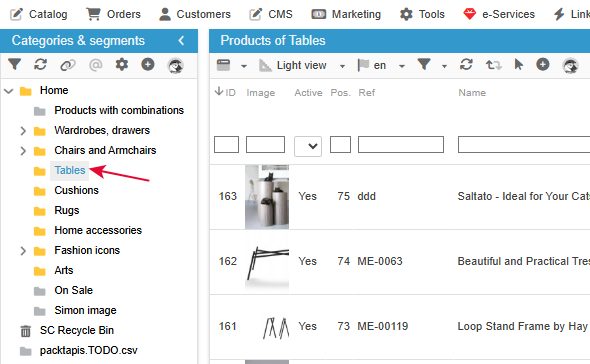
In the central column (product list), click the ➕ on the toolbar to create the new product

The new product exists, and you can now add all required information, by editing the columns
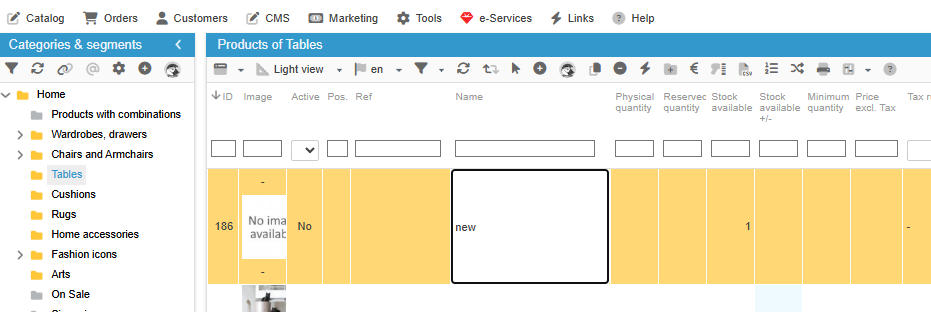
✍️ Completing the product information
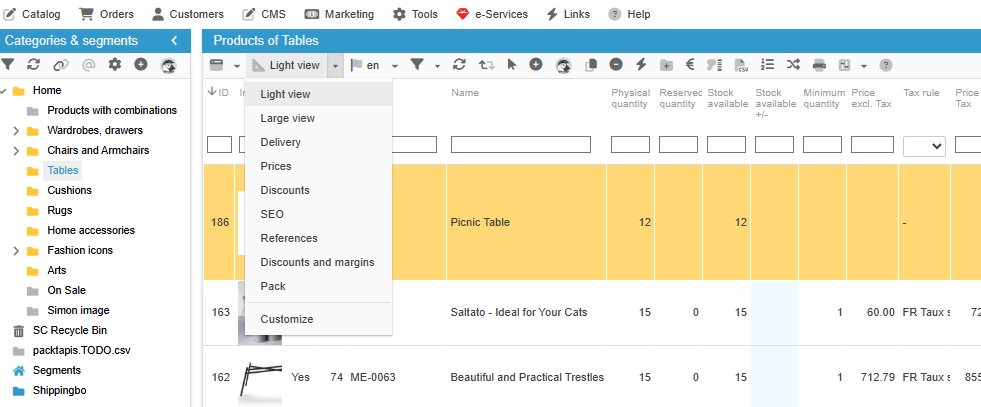
Quite a bit of information is available in the central column, and located in the various views.
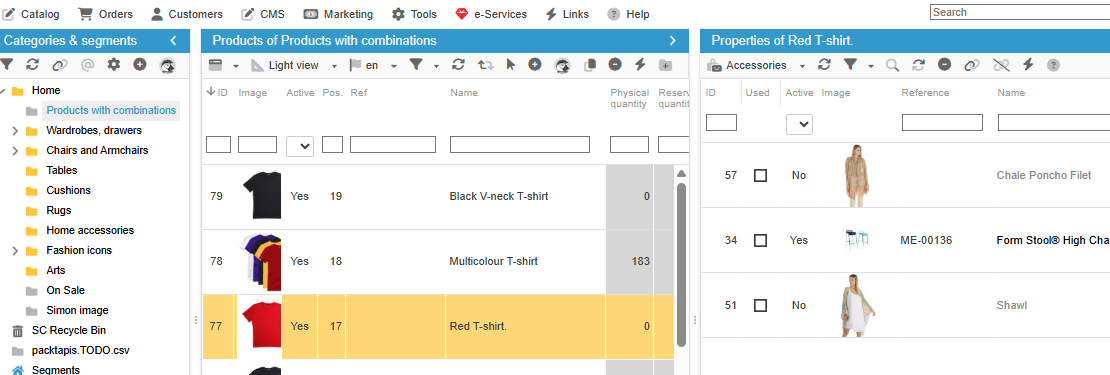
The below screenshot shows the Light view, which is the default view, but you can switch to another view from the dropdown list, of customize any of these views, to suit your specific needs.
You can now switch to the right handside column, where various properties are available:
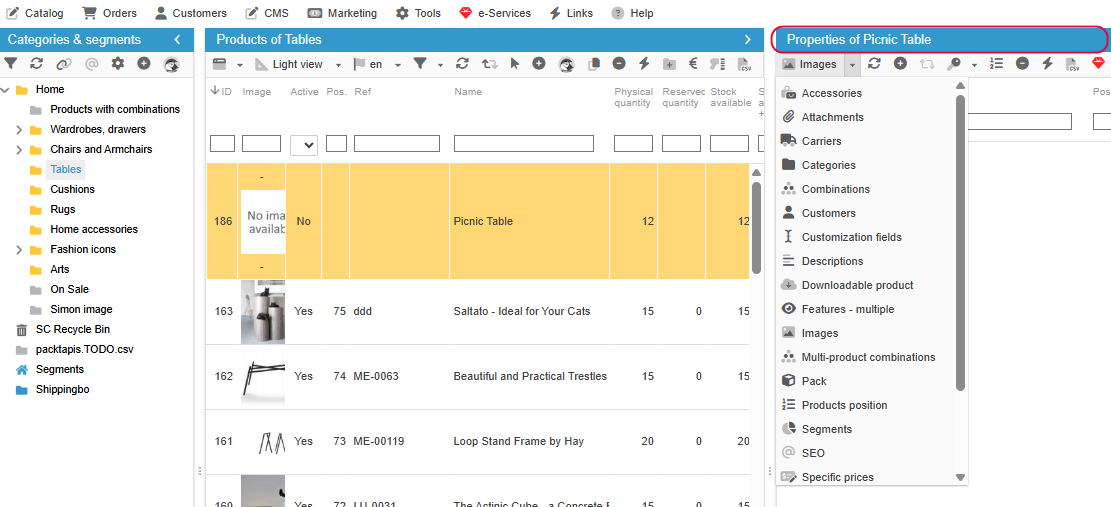
You can therefore complete your product by adding any type of information, and to name a few:
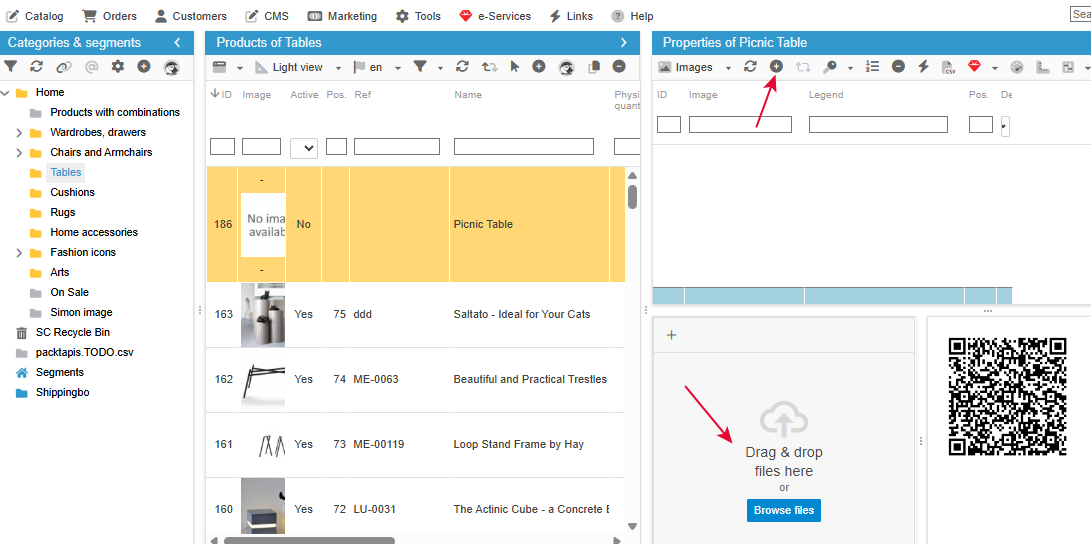
🖼️ Images
Drag/drop images, or click the ➕ to add images
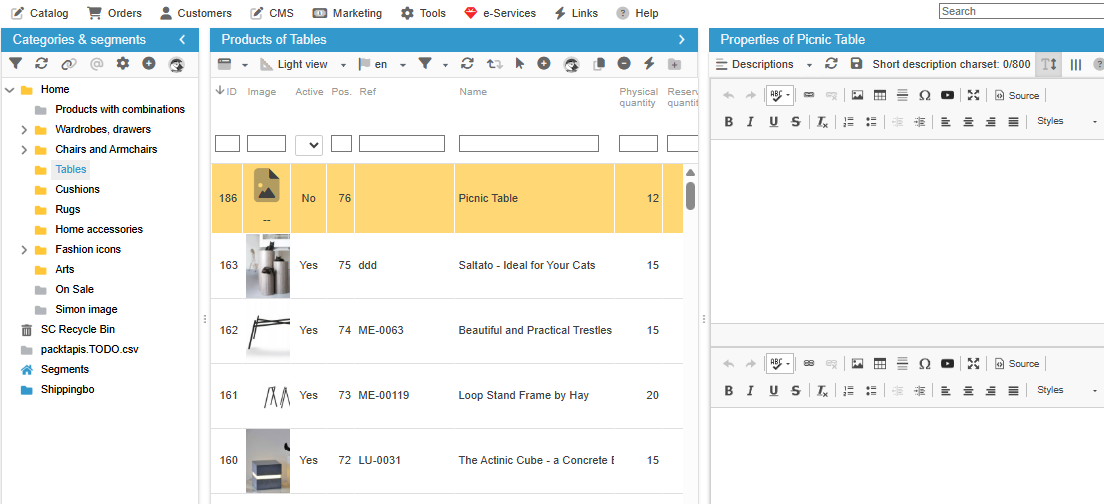
🧾 Descriptions
Write the short description (summary) as well as the long description in this panel.
Note that you can also translate them if languages are available on your shop.
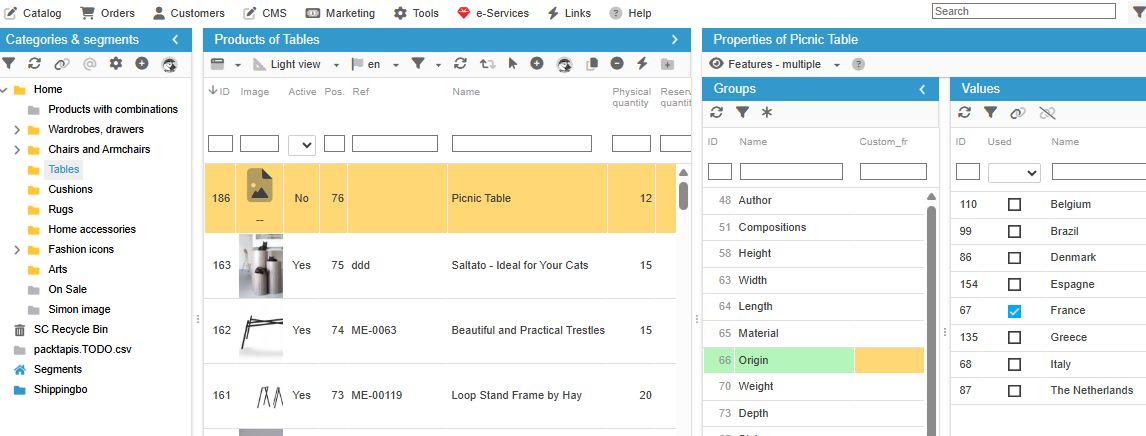
📦 Multiple Features
A must to optimize the filtering tool on your front office, which ease the navigation for your visitors
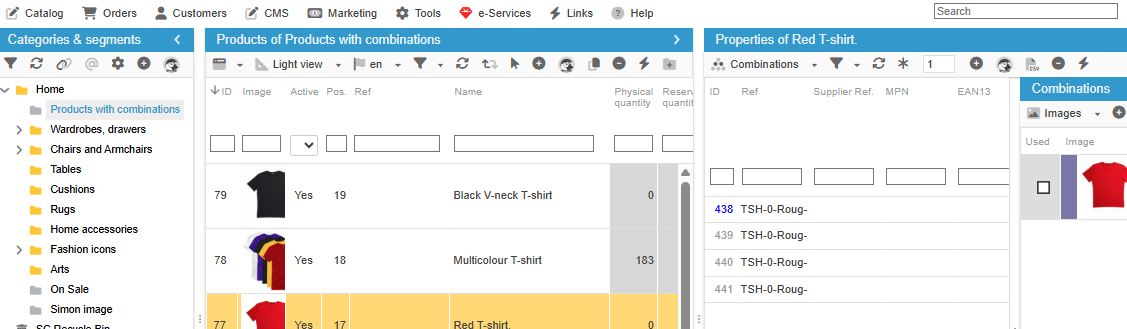
🧩 Combinations
If your products are available in various colors, sizes, etc, you can add combinations to your products in this panel
🔗 Accessories
Essential for cross-selling and increasing your customers shopping cart
And there are many more properties available for your to optimize the product information your visitors will see.
Browse all fields dispatched in the central views as well as the properties of the right handside column.
💡Tip
Make use of the copy/paste or the duplication functions to save time when create similar products.
You can also use the csv import tool if you have lots of products to create.