Managing product features with Store Commander
Introduction to product features
Improved User Experience
Easy comparison: Customers can compare multiple products based on objective criteria (size, weight, material, etc.).
Easier buying decisions: Shoppers quickly understand if a product meets their needs.
Better SEO (Search Engine Optimization)
Enriched content: More data on the page = richer content for Google.
Keyword targeting: Some features can be optimized for specific search queries (e.g., "black leather shoes size 42").
Filtering and Navigation
Faceted navigation: Allows customers to filter products by characteristics (e.g., color, material, power).
Smooth shopping experience: Reduces the time to find the right product.
Better Catalog Management
Centralized information: Features help structure product data.
Standardization: Ensures consistent presentation, especially in large catalogs.
Difference with Attributes
Don't confuse them with attributes, which are used to create product combinations (interactive choices like size, color, etc.).
👉 Features are informative, not interactive.
General Feature Management
You can add and modify your product features in the dedicated interface of your Sc interface > Catalog > Feature management
In the window, two columns to display all existing features on your store: groups and values.
You can add new groups and new values using the ➕ in the toolbar
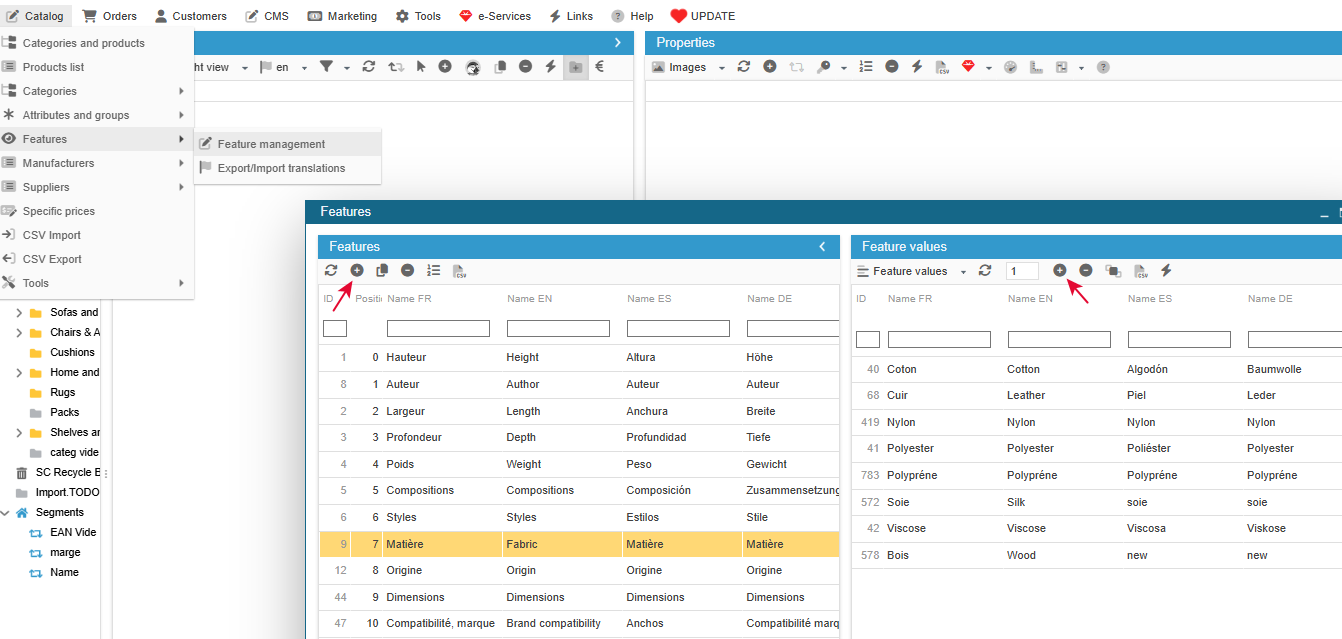
To remove, hit the ➖ but be careful, this will delete off your database, no CTRL+Z possible.
To edit a group or a feature name, simply double click the cell and modify.
The modification will be automatically applied and visible on products using that feature, no need to find or rework those products.
To reorder the feature groups that are displayed on the product pages on your site, you can drag/drop the corresponding lines, and validate with the icon on the toolbar.
Or like the below tutorial, sort your list before validating.
Adding features to your products in Sc interface
To associate features to your products in an efficient manner, meaning not repetitively, the feature property in Sc will help you add this crucial information onto your products.
Let’s watch the video to see how efficient you’re going to be 🤩
Importing features to your products in bulk
Associating features to products can also be done via a csv file to import with Sc.
Whether you need to add one or multiple feature values to products, the import fields are available.
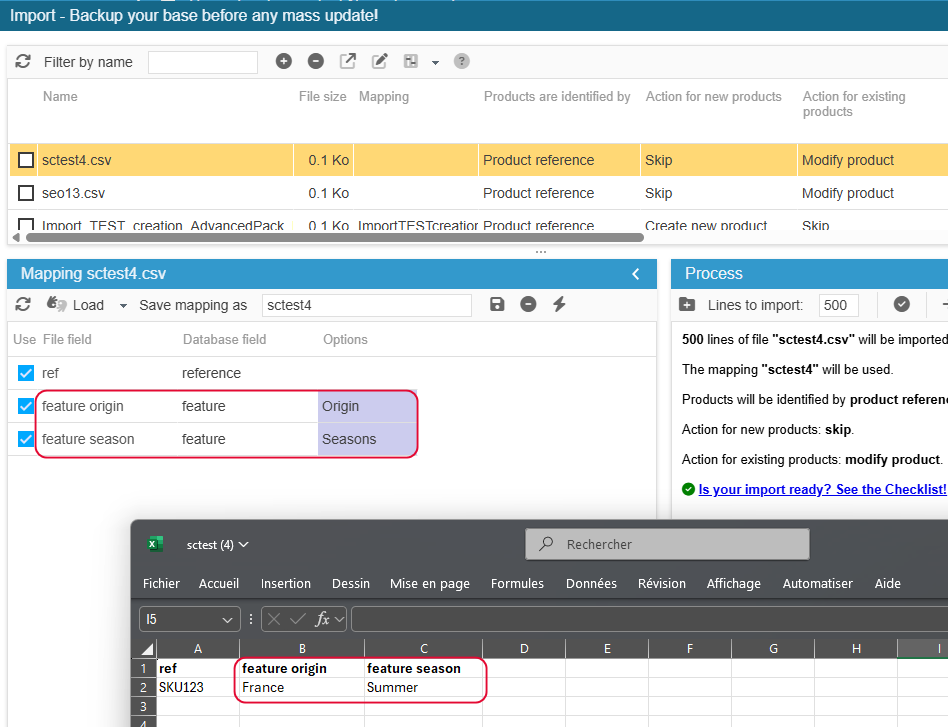
In the case where you add only one value (per group), the file and its mapping will be:
In the case where you add only multiple values (per group), the file and its mapping will be:
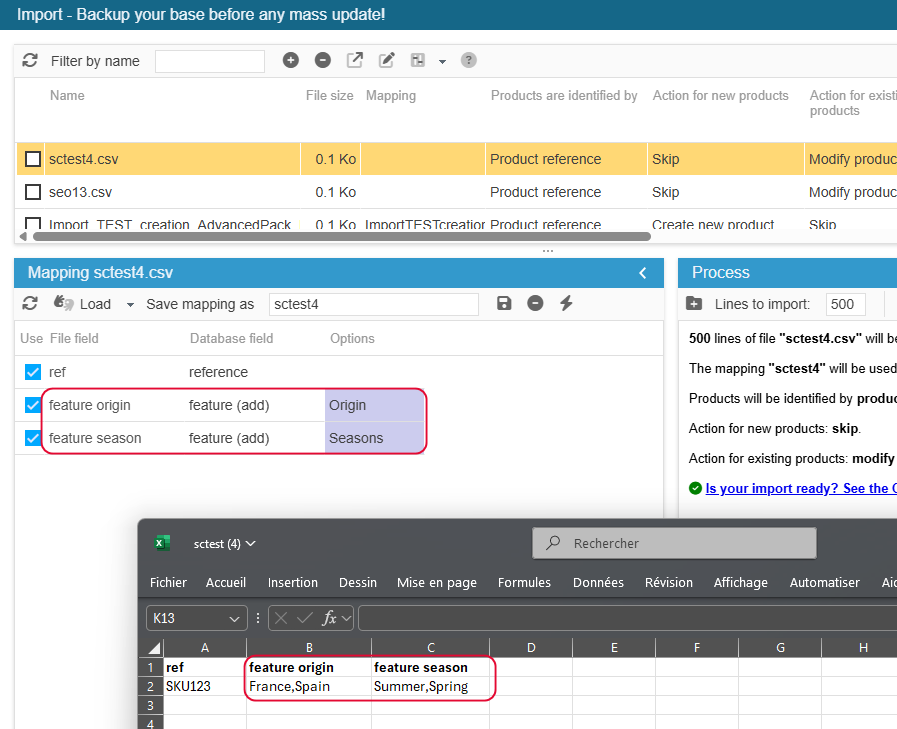
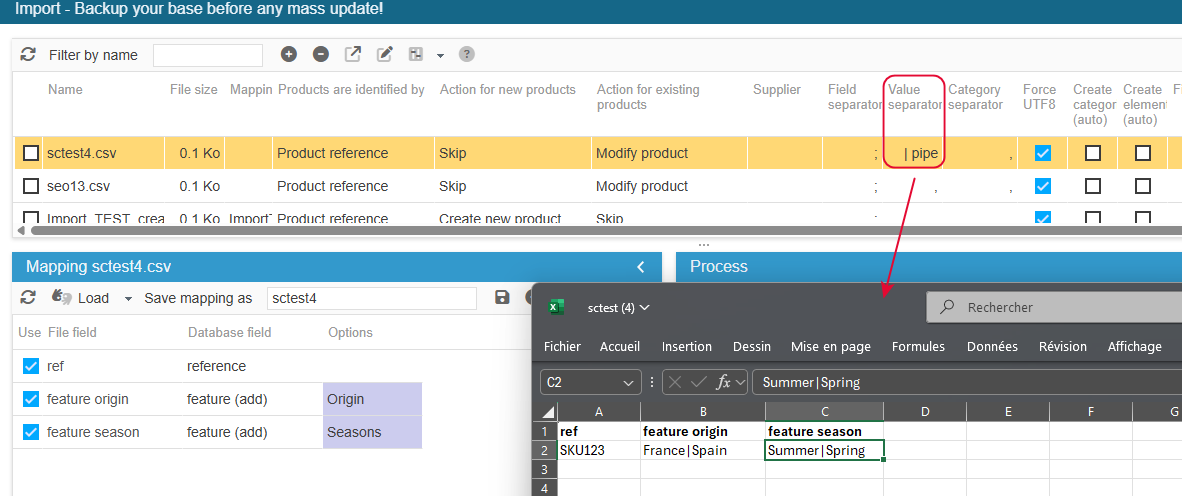
Multiple values in the below example are separated by a comma. You can use | (pipe) instead but don’t forget to set it as the value separator in your import configuration:
Note that if your file contains features that exist and others that do not, Sc will only create those that don’t exist, avoiding duplicated values
💡Creating new feature groups with a csv import
When importing features with Store Commander, new features values detected in the csv file wil automatically be created, thanks to the option 'Create elements (auto)'.

As soon as the import process starts, feature values present in the csv file will be checked. If they exists, they'll be used, if they don't exist, they'll be created automatically.
It's also possible for new feature groups to be created during an import process, but this requires to have very specific column titles in your csv file beforehand.
The column title needs to be: Group Name EN

Then, once the csv file is uploaded in the import window, in the Mapping panel, click straight away on the icon 'Load fields by name' on the toolbar.
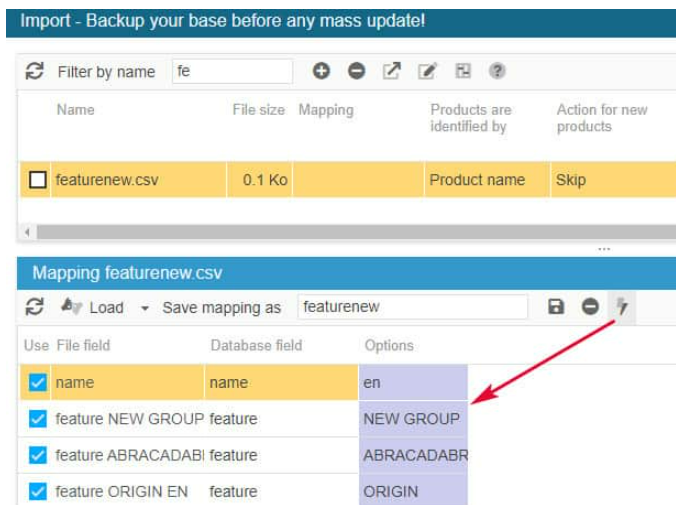
This is when the feature fields will be automatically filled in with the name of the group in the Options column.
Using the 'Load fields by name' to automatically fill in the feature group name is what's going to create the new group. It's therefore necessary to respect the correct syntax in the column title if you want new feature groups to be created during the import process.
If the names of the new groups are not automatically completed in the Options colunm after clicking on the 'Load fields by name' icon, this means that the column titles of your files are not correct.
Removing features off products
You can dissociate features off products by simply unticking the corresponding boxes via the Features property column in the interface.
If you need to do this action in bulk, meaning all features on a large number of products, you could use the import tool. Indeed, there is a specific action to dissociate all features off products.
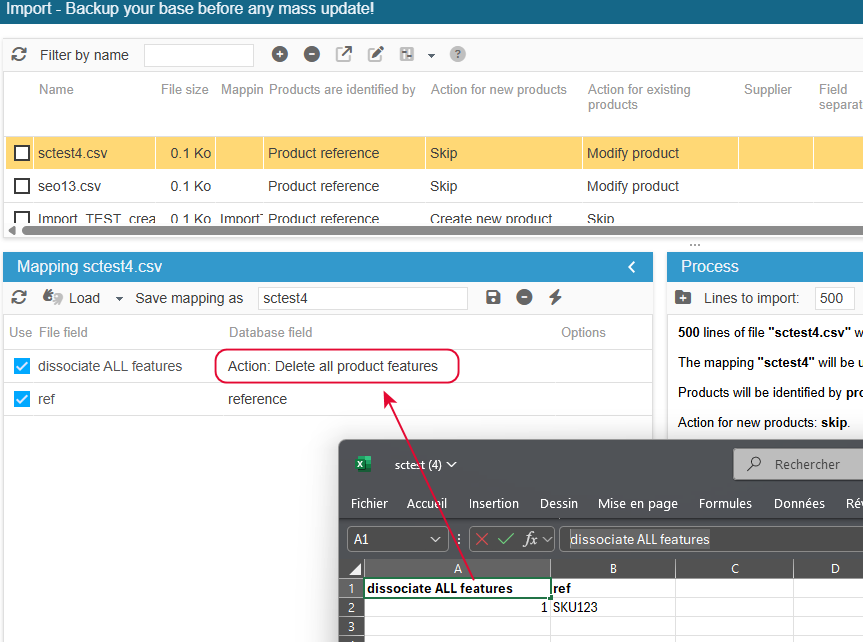
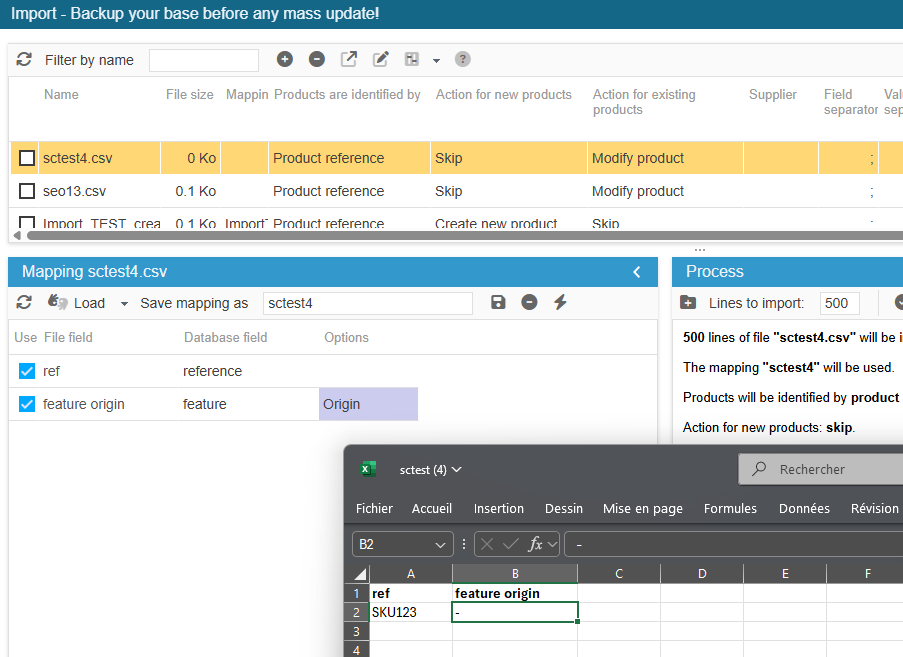
In the case where you don’t want to dissociate all features off the product, but only the values of a specific group, you can use this configuration by adding the symbol" “ - ” in the file:
Applying features from one product to another
If products use a large number of feature values, which are usually the same by product type, it might be a little tedious to add the same features to new products.
But Sc has a solution for you: copying all feature values of a product and pasting them onto multiple others!
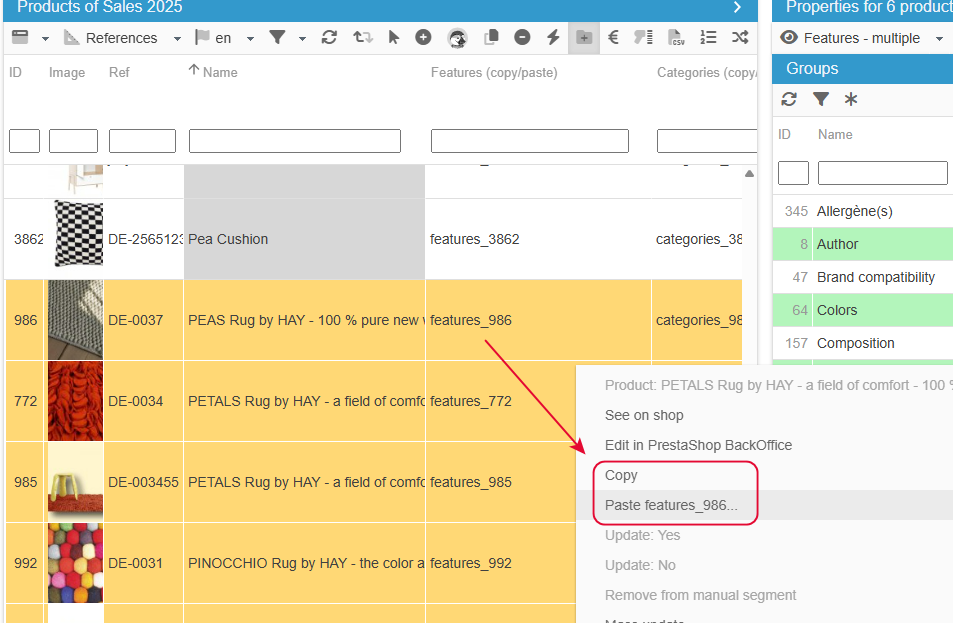
This option is a specific column called ‘Features (copy/paste)’ located in the References view (but can be added to any other view of course).
The information in the cell (features_986) corresponds to all features associated to that product.
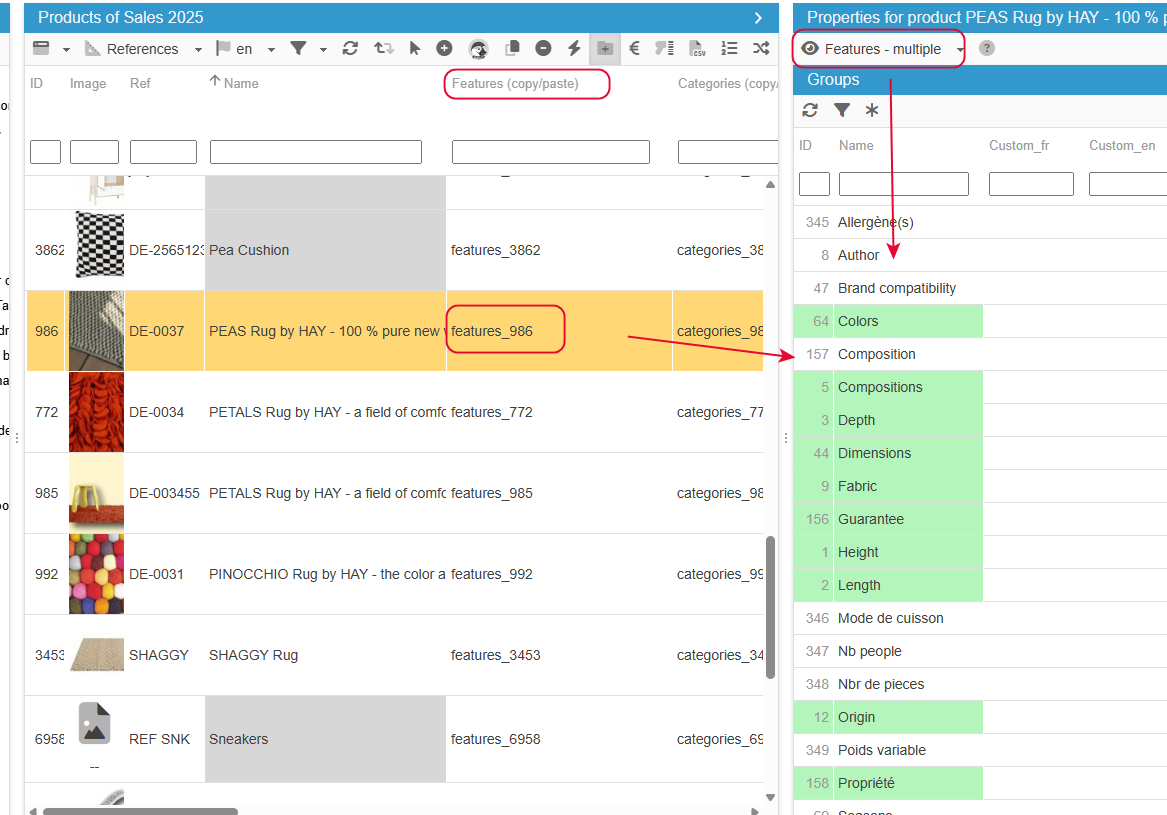
You can apply the infamous copy/paste option to apply them to other products 🤩
💡Cleaning duplicated features
Feature names are case sensitive and duplicates can easily be created, either manually or via an import.
With Store Commander, you can quickly tidy up duplicated features by using the 'merge' option
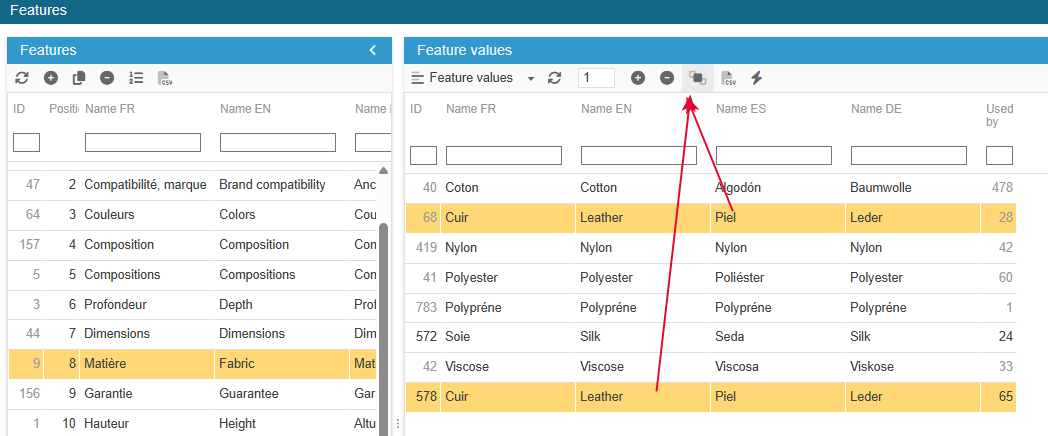
The older value (lower ID) will be kept and the other(s) deleted.
All products using the deleted duplicated features will automatically be updated after merging, so no action is required on products.
💡Remplacing custom to preset features
When products are using a mix of custom and preset features, it could lead to display issues on the front office if you're using a layer filtering tool. Because you could have the same custom feature multiple times on your website.
We therefore advise to use only preset features: one value used on multiple products.
Fixing this means replacing all custom features with preset features.
The most efficient and fast way of doing so, is to export the current features associated to products (custom and preset), and then import the file by using the feature preset fields in the import mapping.
It's rather simple because no modification is required once the file is exported, and no action is required on products either - the import process will do that for you.
Below are the instructions for you to follow.
Create an export script with a mapping including the following fields:
id_product + all features existing on your shop
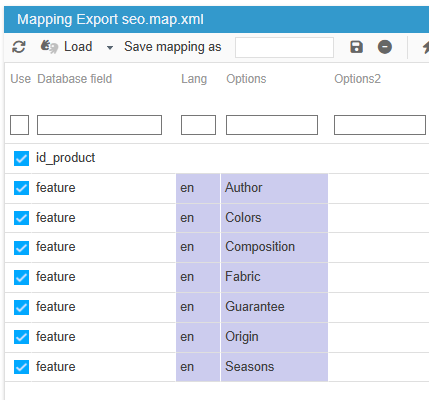
Note: don’t forget id_shop_list if working in multistore mode
You'll then get a file with all your products and associated features (custom & preset).
Once the file is exported, without any modification, load it in Sc csv import tool.
To complete the mapping in a click and choose the actions + options (as shown below).
Modify the number of lines if necessary.
Start importing.
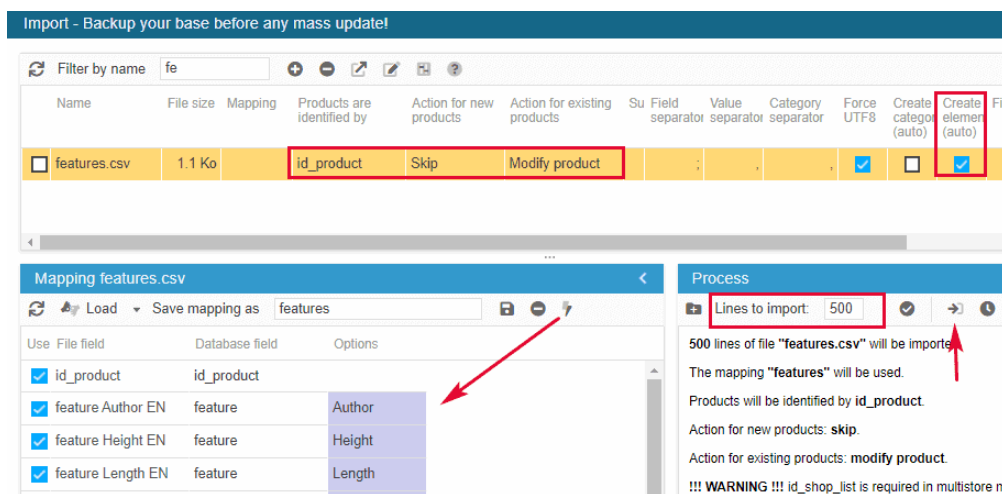
The option ‘Create elements (auto)’ will create all new values as preset values
💡Using combination attributes as features
Your products have combinations and you'd like to use the combination attributes as product features, to optimize the filtering tool of your website?
This modification is ever so simple, as well as fast using Sc CSV export and import tools!
First step is to create a CSV export with the database fields id_product and the combination attributes you need to add as product features (color, size, etc).
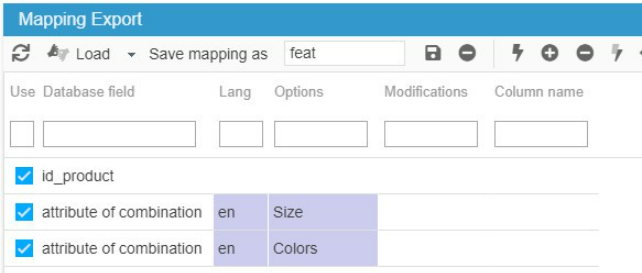
Then, without having to modify the exported file (unless you want to modify some values), import the file, mapping the combination attribute fields with the feature fields.
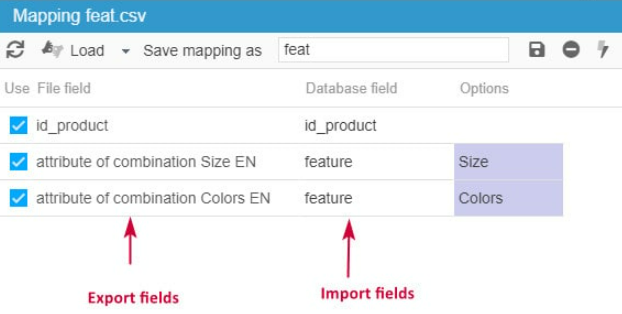
In this example, the attributes Color and Size will be added as features onto the same prodauct IDs.
The opposite is of course possible: export feature fields and map them with the attribute field to import.