Opitmizing product descriptions
Introduction
There are two types of descriptions: the short description or summary, and the long description.
You'll find these descriptions in the properties column, in two panels:
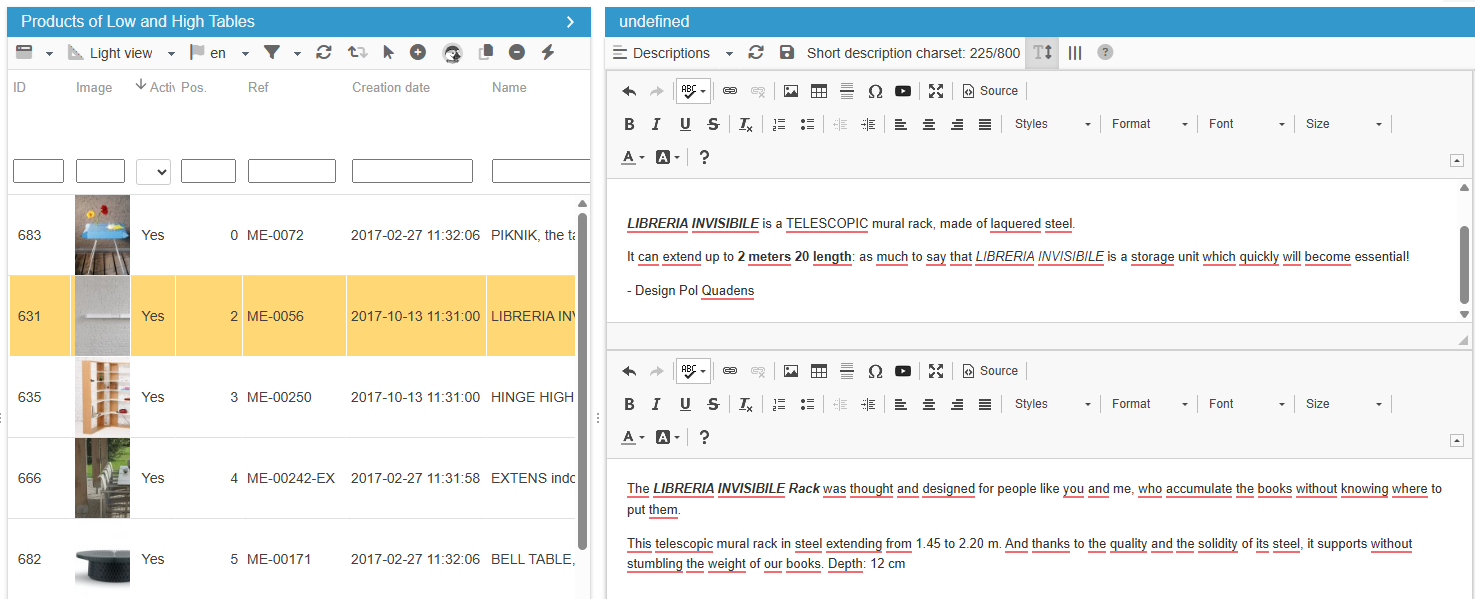
You can also display descriptions in the central column - useful to filter data and copy/paste onto other products 😍
If you manage several languages on your shop, you'll also be able to view and optimise the descriptions in all the languages thanks to the ergonomic Sc interface.
Descriptions are also available for Sc csv export and import, allowing them to be modified en masse by csv file.
All these points and more are explained in a little more detail in this article.
Writing product descriptions confortably
Using the icon on the toolbar, open the long description wide to provide more space for entering text.
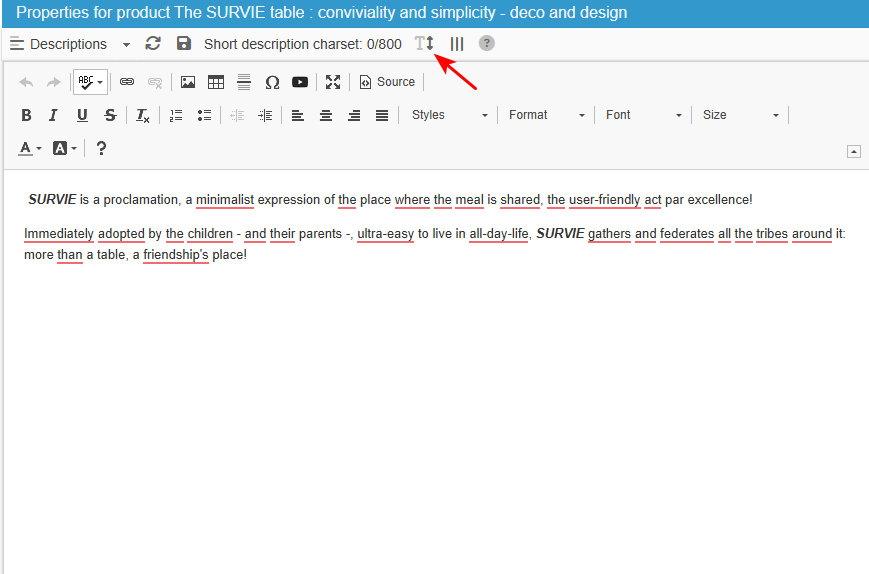
And don't forget to change the size of your columns using the icon: double the ‘Descriptions’ column so that you can enter the long description on one side and the short description on the other, still using the enlarged view of course.
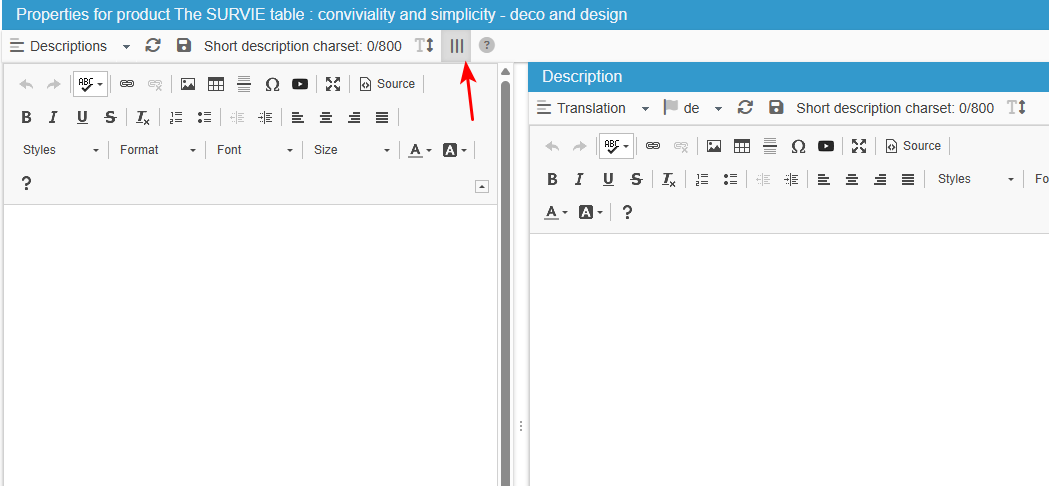
Pictures are better than words, so here's the video:
Enhancing your descriptions with images and videos
1. Add Images
It is pretty easy to add images to your product descriptions with Store Commander. You need to follow the steps below.
Click on the image symbol in the editing toolbar, so that you can browse your server to fetch the image you want to add
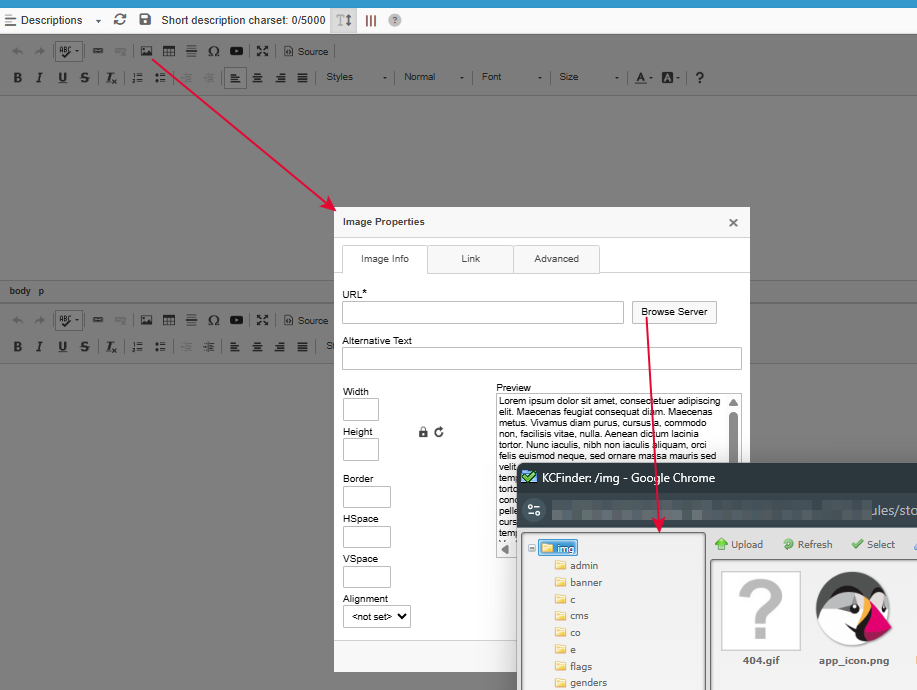
Please note that copying/pasting images directly into the description do not work because images need to be present on your server.
To be more efficient and save time, if the images are stored in the same location, you can indicate this location in a Sc preference. The location will then be automatically selected when the ‘browse server’ window opens.
Display the preference (Tools > Preferences) and as an example in the screenshot below, I enter c/ so that the default directory is /img/c/.
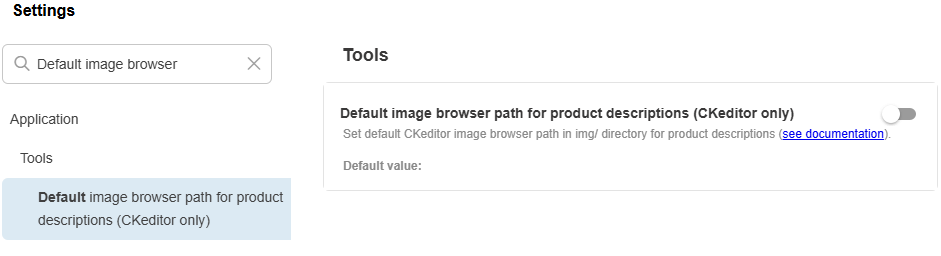
The location indicated will be opened by default when you add images to your descriptions.
2. Add videos
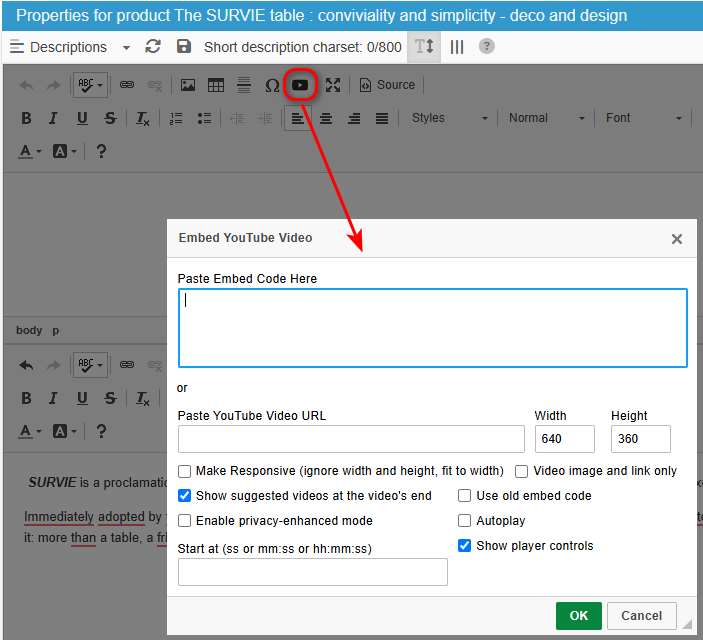
You can add videos to product descriptions either by indicating the full url link in the source code of the description, or by using the ‘video’ icon:
Translating descriptions
If your shop is available in several languages, you will be able to translate the descriptions in the Store Commander interface, in the 4th column. The Description grid will be in the shop's default language, selected by default, and to be able to translate easily, this 4th column is ideal:
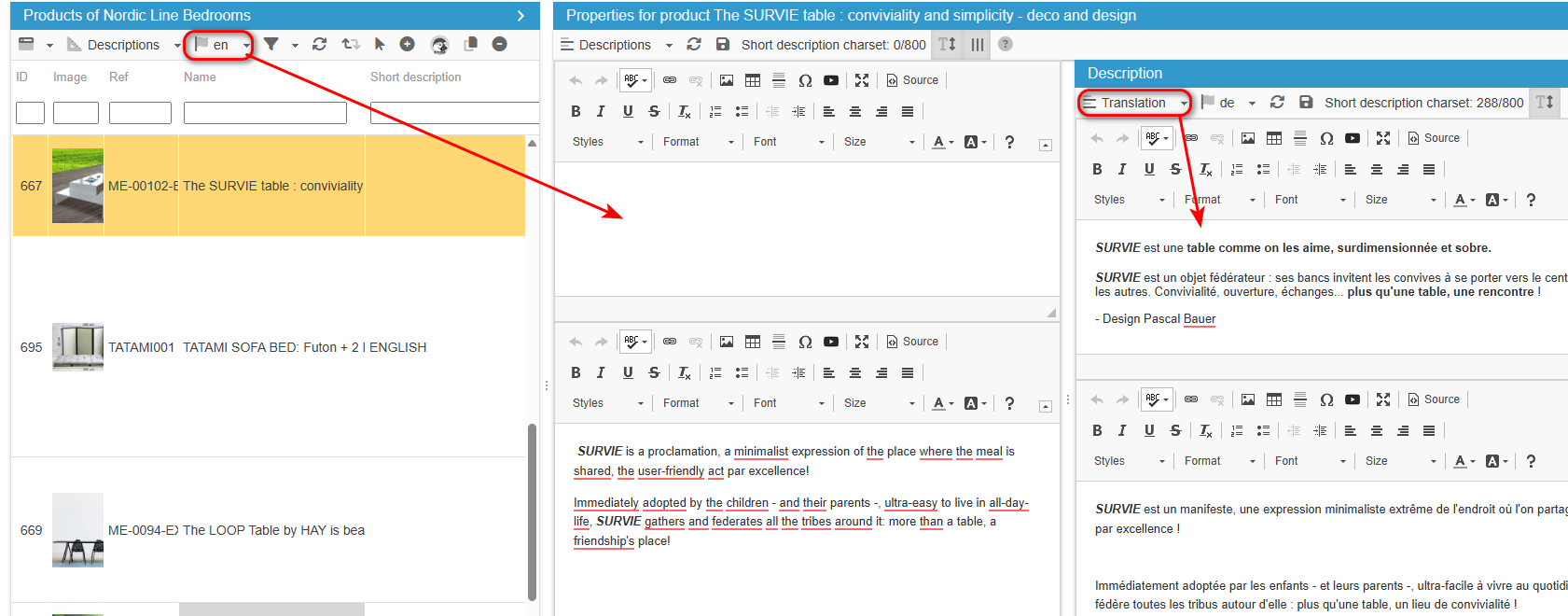
Don't hesitate to use the display option, the ||| icon on the toolbar, which is explained in the second part of this video:
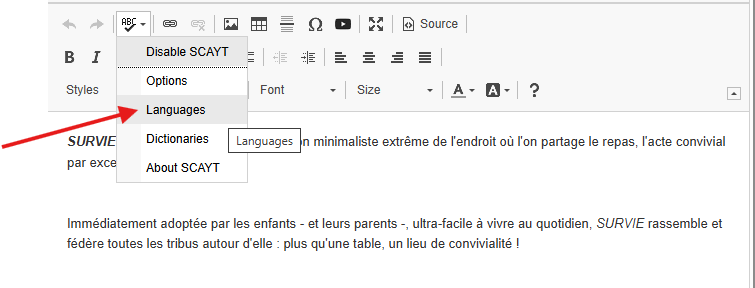
You can also use the spellchecker available in the text editor options:
Exporting descriptions
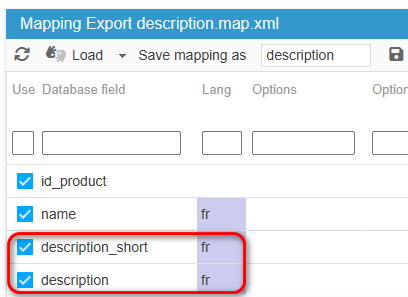
Store Commander's built-in csv export tool lets you export your product descriptions in any language if your shop is multilingual.
The fields are called ‘short description’ and ‘description’, and the languages can be selected in the Languages column of the mapping:
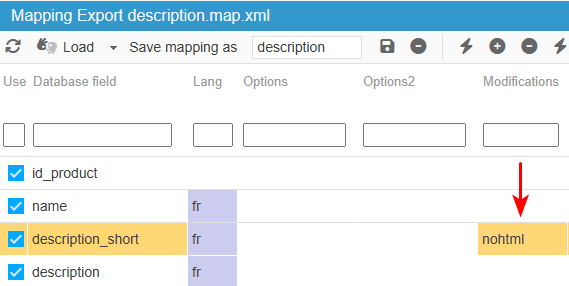
Note that by default, the texts will be exported with html tags to preserve the formatting. This is useful if you want to import the same text for another shop or another product. If you prefer to export as plain text, simply enter nohtml in the ‘Modifications’ column.
Importing descriptions
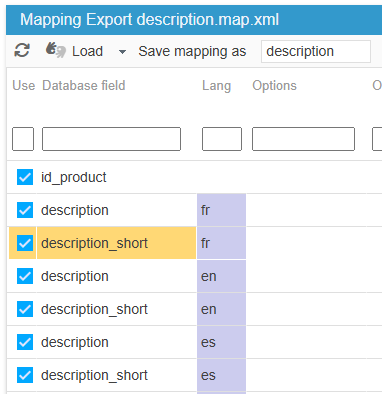
You can add or modify the descriptions and short descriptions of your products en masse by csv import, integrated into your Store Commander interface, and also in all the languages if you use several languages on your shop.
Your csv file will have one column per description and per language, which will be mapped to the fields of the same name and the languages selected in ‘Options’:
Please note: if you wish to include formatting (bold, paragraph, etc) in your descriptions, you will need to integrate the corresponding html tags. This is not easy. Tip: import as plain text, then rework the formatting in the Sc interface.
Following the subject of formatting, the same applies to line breaks, which must be written using the corresponding html tags, i.e. </br>.
Excel offers a formula that you can apply to your descriptions in the file, whether you want to keep them or delete them.
To convert in a quick and easy way (A1 is the concerned cell):
To remove carriage returns, use the Excel formula:
=SUBSTITUTE(A1;CHAR(10);" ")To keep carriage returns in html format, use the Excel formula:
=SUBSTITUE(A1;CAR(10);"<br/>")
Here is a concrete example:
The CSV file includes a description with carriage returns in cell A2

In cell B2, insert the formula =SUBSTITUE(A1;CAR(10);"<br/>")
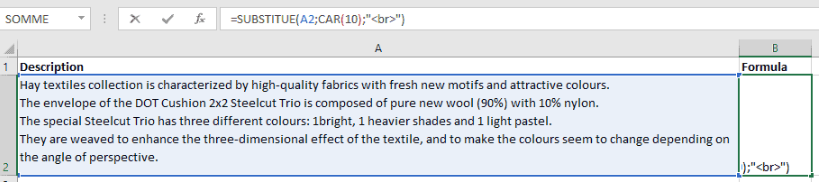
Copy cell B2 (where you added the formula)
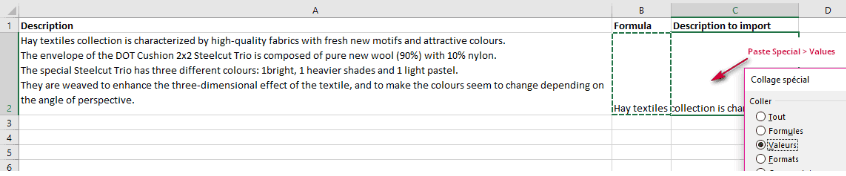
In cell C2 right-click to choose Paste Special > Values
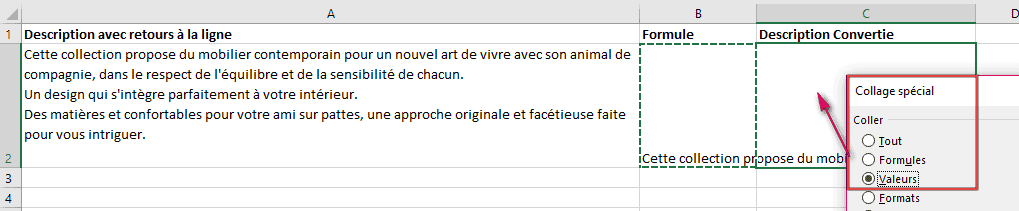
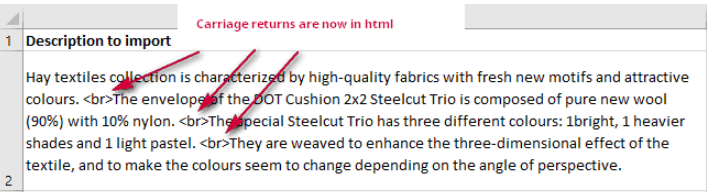
Delete columns A and B. Only keep column C with the converted description that will be imported.
You can see the html codes corresponding to carriage returns.
Tip: Open the CSV file in Notepad++ or in SublimText to verify whether there are carriage returns in the file.
💡Searching descriptions with a specific word
Identify description using a specific word to the modify it - such as ‘sales’ when the sales period is finished - thanks to a manuel expression search segment!
The setup in the video below: