Mastering the Sc import methodology
Tutorial to import csv files
Adding a file to import
With Store Commander, importing a CSV file is very simple, thanks to our dedicated import interface.
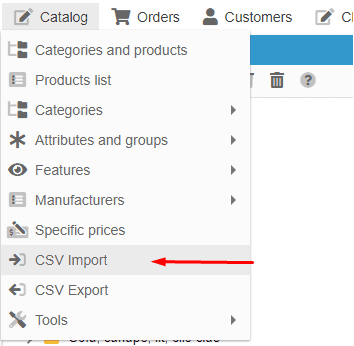
To do so, go to Catalog > CSV Import
Once you are in the import interface, add your CSV file by clicking on the ➕ then upload it.
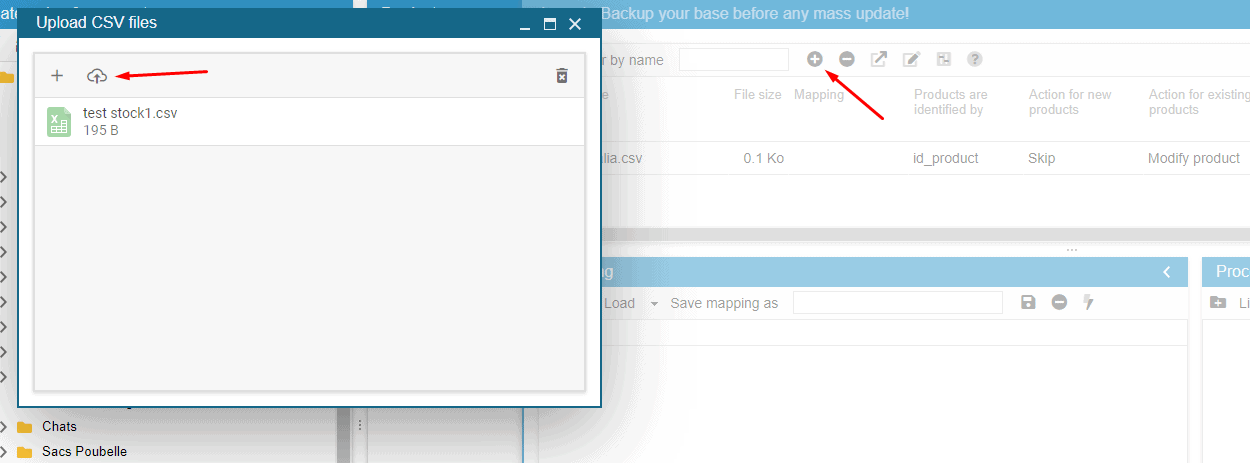
Once the file is loaded, you will find it in the top part of your import window, with the list of all import files.
There are 3 elements to define in order to import a CSV file:
the identifier: the key element used to find the product in the shop
the actions: decide wether to create or modify
the mapping: what information to import
The most important configuration point: the identifier
The point the most important when importing is the identifier, which is used to find the product to update.
There are multiple identifiers available in the drop down menu (in the import window), such as name, reference, ean13, upc and even the product ID.
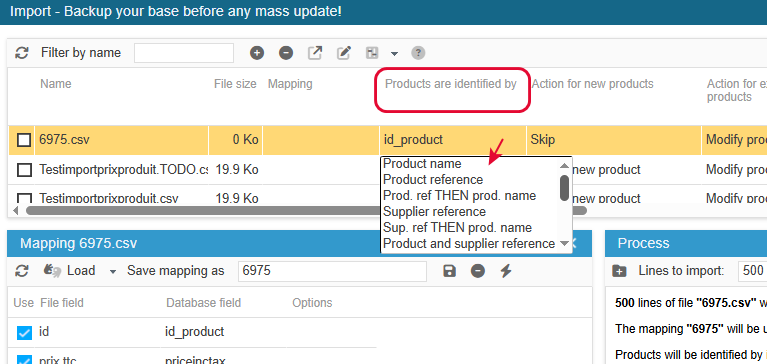
This identifier is a key point, as it must be unique if the import process is to modify the correct product.
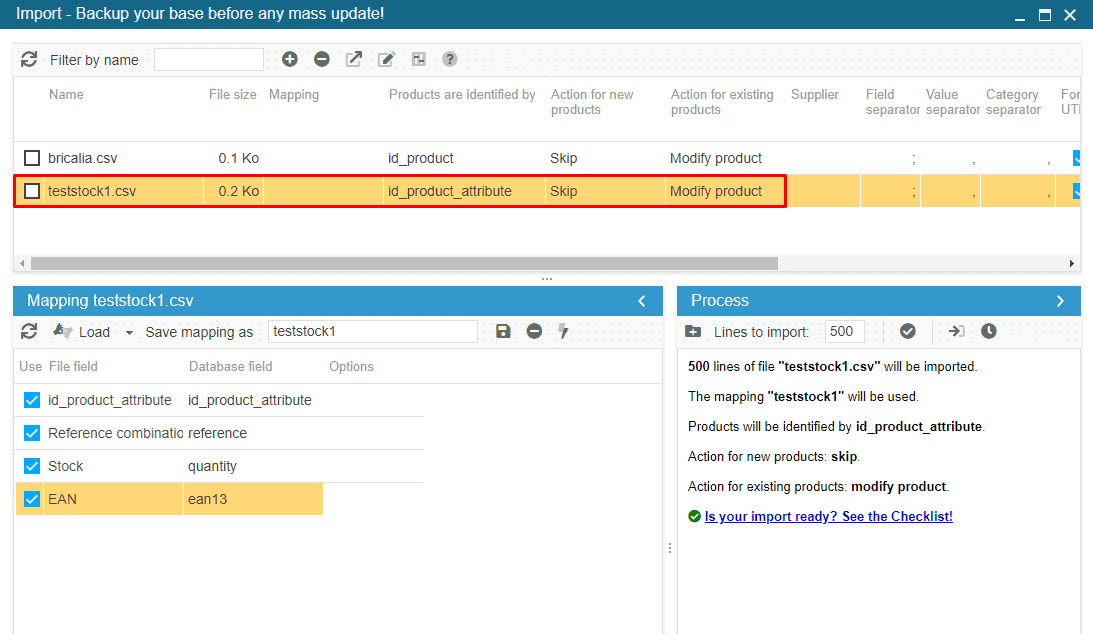
In this the example, I want to update information on combinations, I’m identifying them by their id, which corresponds to id_product_attribute.
The second part of the configuration: choosing the actions
In this example, we’re aiming at updating stock, reference and ean13 on combinations, therefore the actions to choose are ‘skip’ + ‘modify’
The mapping: information to import
When you select the file, its information is displayed in the Mapping panel.
This is where you will specify which information to import.
Each column in your file is displayed as a row, and each row must be filled in with the name of the PrestaShop field. For example, product name with “name”, stock with “quantity”, etc.
For your file, double-click the cell in ‘Database field’ to select the corresponding field, for every line you want to take into account for your import.
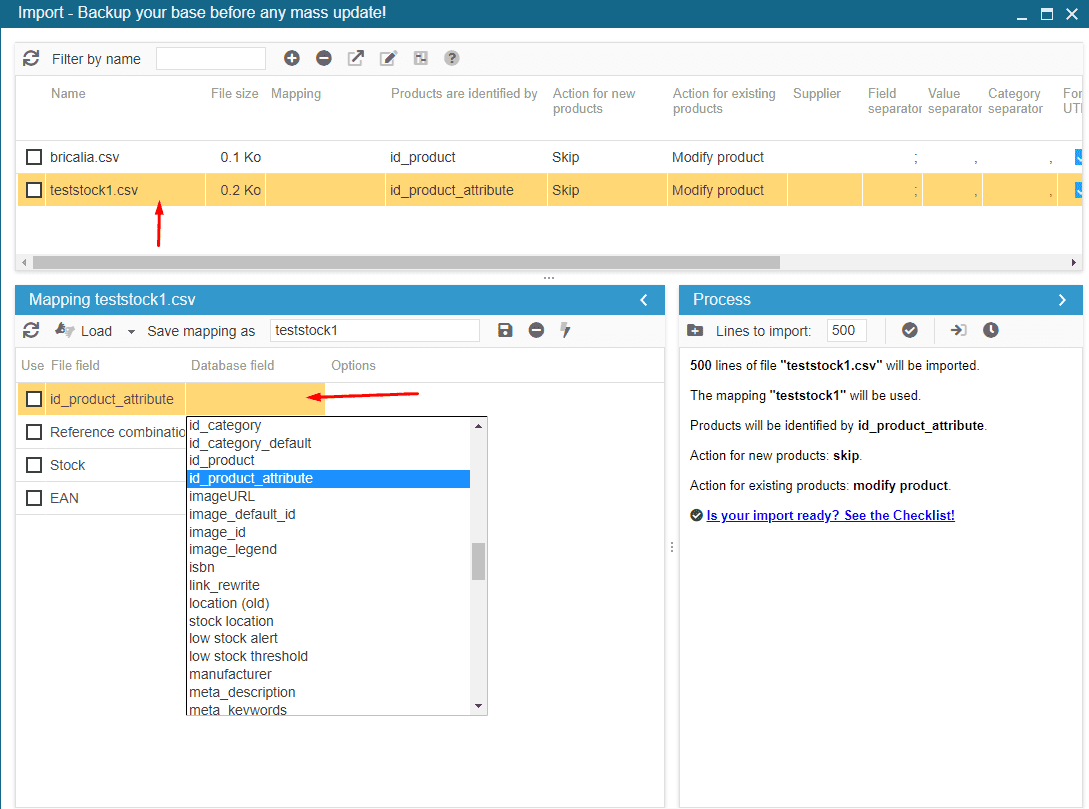
That's it, your mapping is done. You can save it if it is a regular import (this will save you from having to do it again each time you import).
👉🏼 Starting the import
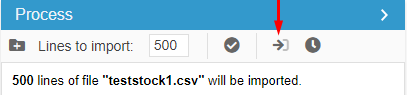
That's it, all that's left is to start the import from the "Process" window via the button !
500 is set by default:
- if your file contains less than 500 lines, you can keep 500.
- if your file contains more than 500 lines, modify the value
Do note that it’s not necessary to enter the exact number of line, as long as it’s above, it’s fine.
And finally, start your import by clicking on the corresponding icon:
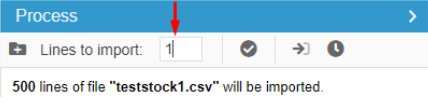
Note: we advise you to test your import by importing 1 line from your file. If the import works, then you can run it again from the TODO.csv file.
✅ The Checklist
Here is a summary in pictures of the import steps:
⏲️ Importing batches of lines with auto-import
The auto-import function is one of the most time-saving features of the CSV import tool in Store Commander, especially to process large csv files.
It allows you to:
import large files, and
is also recommended when importing images that usually uses significant system resources
The auto-import allows you to space out the import process by setting a time interval, and thus import in batches of lines the GLOBAL FILE.
You first need to enter the number of lines to be processed and hit the icon.
Then choose the time interval (not over 60 sec).
And finally start the import by clicking on the Start button.
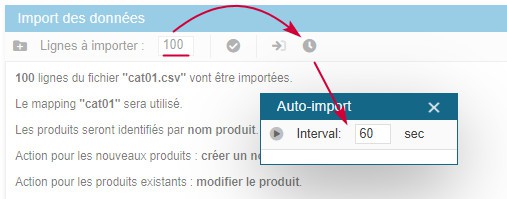
Taking the example of the above screenshot, the import will process your CSV file by batch of 20 lines every 60 seconds. And this until the end of the file.
Once the file has been fully imported, the auto-import process will finish automatically.
Because your server will process the import, you first need to run a test to find out the best possible values to use in the auto-import.
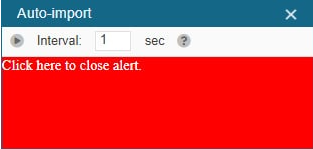
For instance, choose to process 20 lines of your CSV file every 60 seconds. If your server takes 30 seconds to process these lines, you can setup the auto-import tool to run every 40 seconds to give a leeway before launching the import process again. If an error occurs, the import process will stop and a red alert will be displayed to inform you.
❓What’s a TODO file?
As soon as you start the import process, Store Commander automatically creates a copy of your CSV file named “yourfile.TODO.CSV”.
Store Commander will use this file to import the data, line by line. When a line has been processed correctly, it is deleted from the TODO file, and so on. If Store Commander cannot process a line, the import process will stop automatically and a message will be displayed in the “Data Import” panel.
This means that you can download the TODO.CSV file to see which product is causing the problem.
This will be visible on the first line of the file, with correctly processed lines being automatically deleted.
If all lines in the CSV file have been imported, then the TODO file will be empty and automatically deleted.
🚩 Some options are missing
You get this message when saving your import mapping:
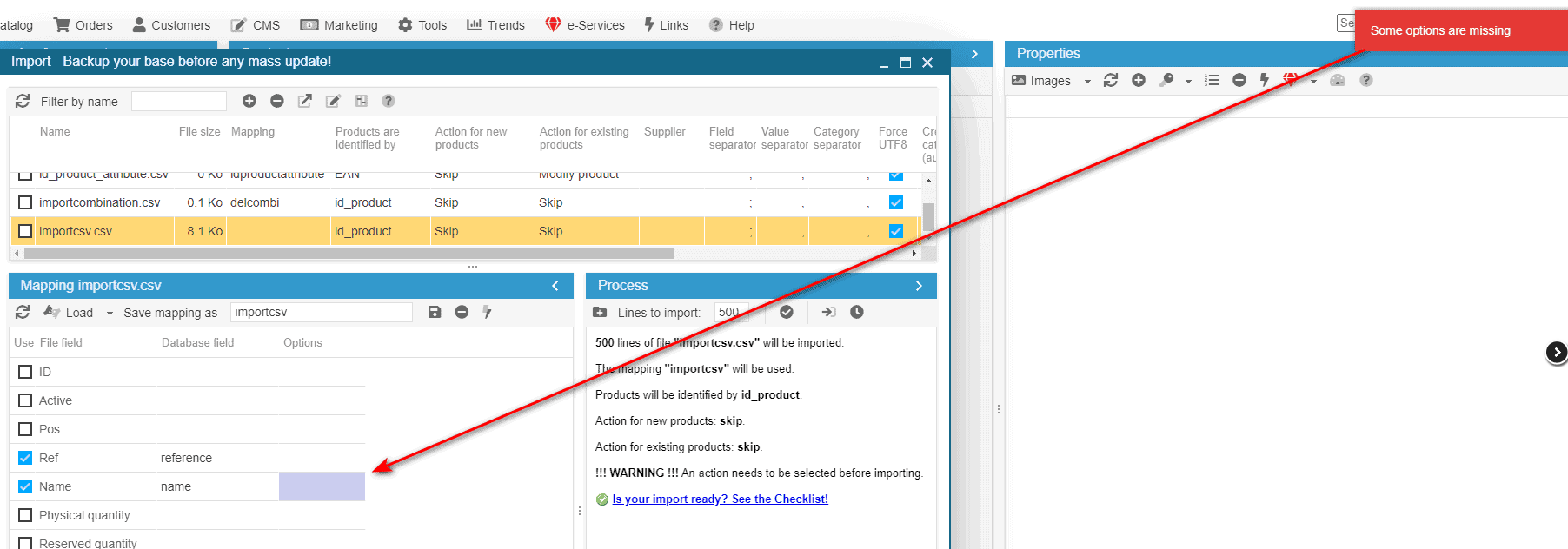
In the mapping panel, there is a column called 'Options'. Some fields require an option and when this is the case, the corresponding cell will be colored.
Check for example the Wholesale Price or the Supplier Reference.
💡Keeping the leading 0 (zeros) in numerical series with Excel
When you open a csv file with Excel, and some of the numeric fields use 0 (zero) at the beginning of the serie, Excel will ignore them because of the automatic detection of the format, and these 0 will be removed form your numeric serie.
This can happen with EAN13 codes starting with 0, or with product references.
There is a solution explained in this video: https://www.youtube.com/watch?v=Gx5fwAt64NY
Please note that this is a issue related to MS Excel only, and the Store Commander team will not be able to provide more detailed information on this, nor assist you in applying the solution provided in this article.
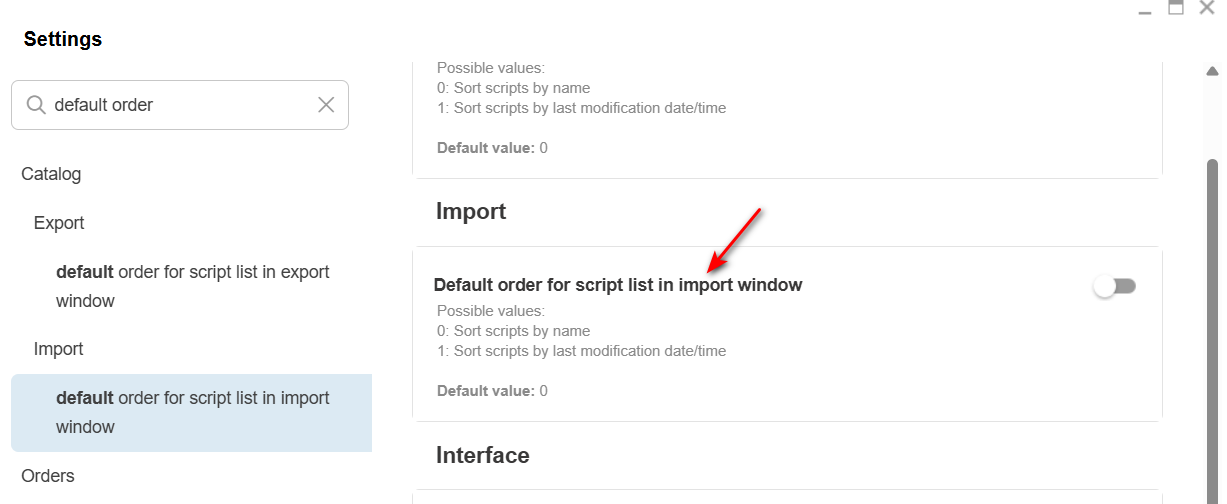
💡Changing the display order of import files
The list of your import files are listed alphabetically within the csv import window in Store Commander.
You can change this by listing the files by add dates.
Select your option in Sc Settings, Tools menu:
Also note that you can still sort the information by column, by clicking the title of the column you want to sort.
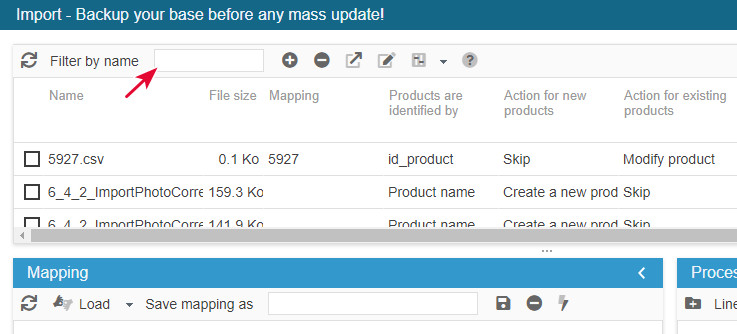
Don't hesitate to use the search tool at the top of the window as well.
💡Import CSV:Quick Edit
When importing a file, Sc creates the TODO file (copy of your file) and processes it line by line, one after the other and deleting them as they are processed correctly.
When an error occurred, the import stops and the error is displayed in the bottom right panel.
The line of the TODO file is being processed => error occurs => the line is not processed
Therefore, the error comes from that first line of the TODO file that Sc cannot process (the previous ones processed correctly have neen deleted).
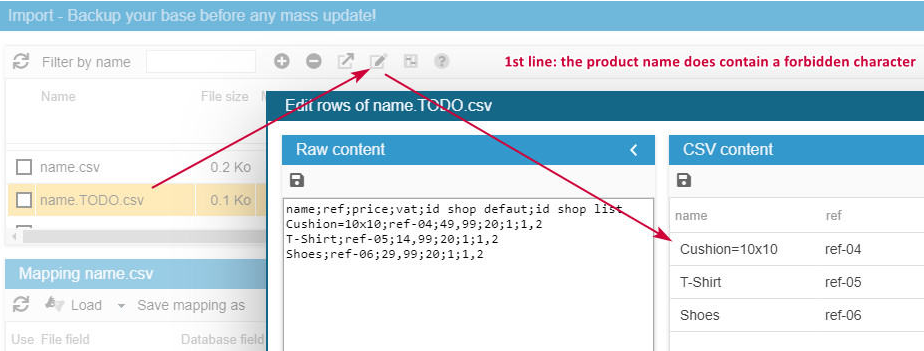
To find out which product is on that first line, you can select the TODO file in the top panel, and hit the 'quick edition' icon on the toolbar - the first 20 lines will be displayed.
This quick edition mode allows you to quickly edit the TODO file to check the information of that first line generating the error.
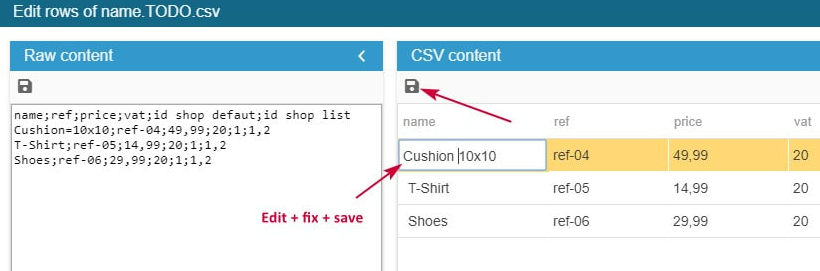
If the problem comes from the information in the file, then fix it in the quick edition mode interface, save and restart your import. The process will restart where it started, meaning the first line of the TODO file that you just fixed.
Taking the example of the error 'name is not valid' stopping the import, we select the TODO, open the quick edition window => check the product name on the first line => edit + fix => save => restart the import (TODO file).
Exception: sometimes the first line of the TODO file is not the line generating the error when it's a skipped line - check article below explaining skipped lines.