Managing Carriers in Store Commander
Why Carriers Are Essential
✅ A Key Driver for Conversions
The choice of carrier strongly influences purchasing decisions:
Clear and fast delivery times = increased trust
Competitive shipping costs = fewer abandoned carts
Multiple options (standard, express, pickup points) = more flexibility for the customer
➡️ A well-managed shipping setup increases your conversion rate.
🛒 Impact on the Customer Experience
A reliable carrier = a satisfied customer:
On-time delivery = reassurance after the purchase
Real-time tracking = peace of mind
Fast delivery = immediate satisfaction
➡️ A good shipping experience builds loyalty and generates positive reviews.
📦 Logistics and Cost Optimization
By properly configuring zones, weights, fees, and delivery times, you can:
Reduce shipping errors
Better control your profit margins
Avoid losses due to incorrect shipping fees
➡️ A smooth logistics process improves your profitability.
🌍 Expand Your Business Internationally
Adding international carriers allows you to:
Sell abroad more easily
Automatically calculate fees by shipping zone
Adapt delivery times based on destination
➡️ Increased global sales potential.
Carriers within Store Commander
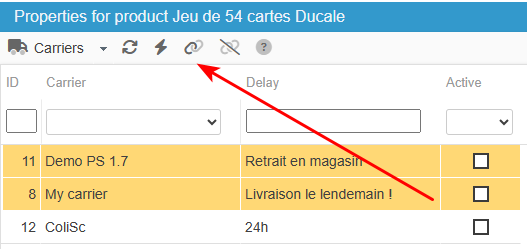
You will find a Carriers panel in the Properties column (right handside) in Store Commander's interface.
This is where you can associate/dissociate products and carriers by simply ticking/unticking the corresponding boxes in the panel.
Alternatively, you can select the lines of the carriers in the list and then hit the association icon on the toolbar - this will tick the boxes for you.
Carriers through CSV import
You could also add carriers to products using a csv file, useful when creating products for example.
Simply add the carrier names in the dedicated column of your csv file, and map that column with ‘carriers’ within the import configuation.
Separate carrier names by a comma (or pipe) to associate multiple carriers to your products.
There’s also an option called 'Action: Dissociate carriers' that allows you to dissociate carriers from a product, usually to associate new ones.
Your CSV file should include this dissociation column at the very beginning of the file (because it will be the first action that will be taken into account during the import process), with the value 1 (for yes), and possibly a 'carriers' column to associate the new carriers.