Offer more, sell better: set up your product bundles
The purpose of selling Packs in PrestaShop
Increase the average cart value:
By selling multiple items together, you encourage customers to buy more than they would individually.
Make grouped purchases easier:
For example, instead of searching separately for a toothbrush, toothpaste, and mouthwash, the customer can just buy a dental care pack.
Clear out inventory more easily:
By including less popular products together with best-sellers.
Offer an attractive deal:
Packs often have a discounted price compared to buying the products separately → which appeals to customers.
Create seasonal or promotional offers:
Example: Christmas pack, Back-to-School pack, Mother’s Day pack, etc.
Creating packs in Sc
Managing product packs (PrestaShop native functionality) is available in Store Commander installed on PrestaShop versions 1.6.1.14 onwards.
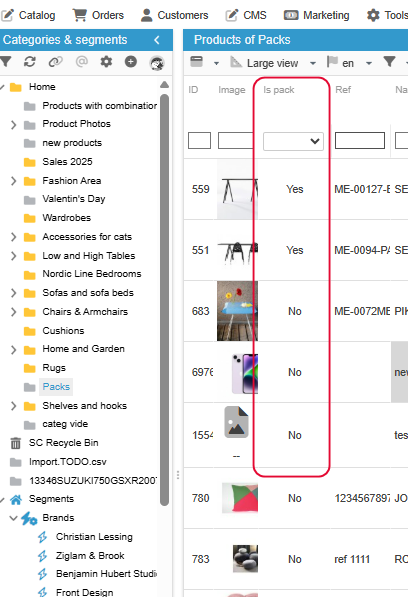
The central panel in Sc includes a column called 'Is Pack?' indicating whether a product is a pack or not. Easy to identify and to filter.
Note that this field will automatically enabled when products are added via the 'Is Pack?' grid in the Properties column (right handside), and disabled if no products are present or are removed from this Pack property.
So, no need to worry about setting this option, Sc will do it for you :)
To create a Pack, you first need to create a product, to then add products that will compose this pack.
You can do so in the Pack panel in the Properties column (right handside).
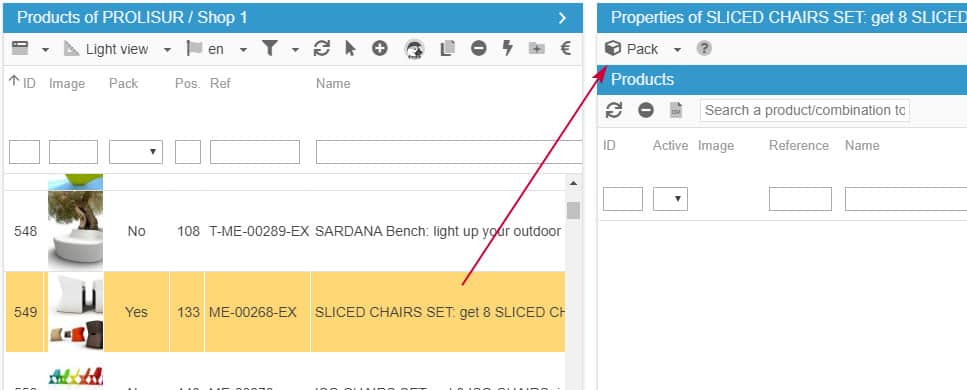
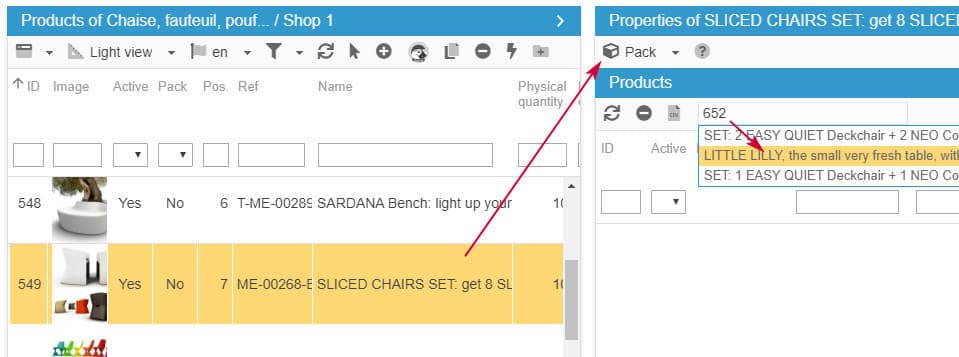
Use the search field on the toolbar. You can search for products and combinations using: name, reference, ean, id_product and id_product_attribute
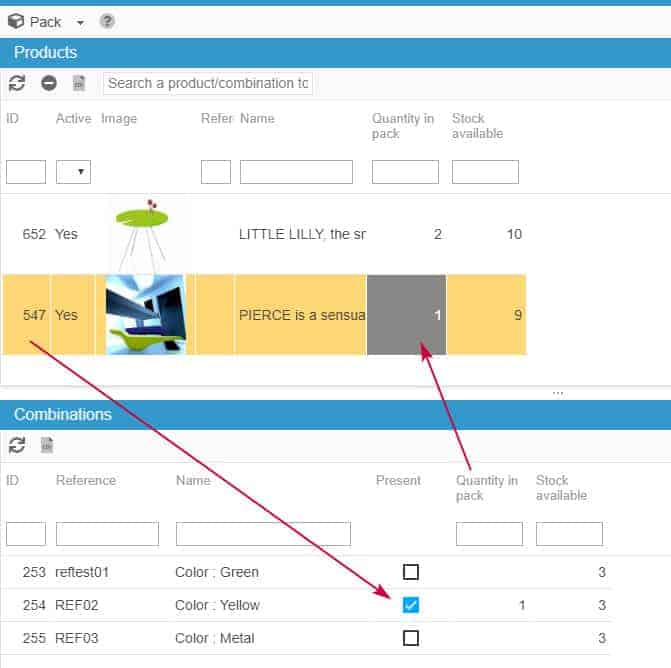
In the below example, we'll look for id_product (652) : the product is showing in the list to be selected.
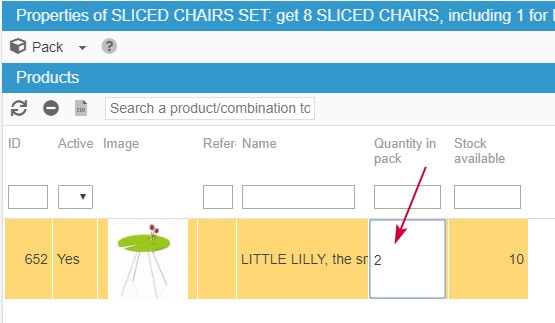
Once the product is found and added, you can specify the quantity to make available in this pack - the 'Stock available' column indicates the current stock for that product.
When you add combinations, you add the parent product in the top list, and then select the desired combination in the 'Combinations' panel below, and specify the quantity you want to add to the pack.
When a combination is part of a pack, the quantity field will be on a grey background in the Product panel, for you to quickly identify that the pack includes combinations.
You can now easily create and manage product packs very easily with Store Commander 😊
Setting up pack via a csv import
To add products to a pack, you need to use the id_product as well as the quantity (included in the pack) with the format id#quantity
For example: 649#2
The product ID 649 will be added to the pack with a quantity of 2
You can also add specific combinations to a pack, and in this case, the format to use in your css file will be id product_id combination#quantity
For example: 357_24#1
The combination ID 24 (belonging to product ID 357) will be added to the pack with a quantity of 1
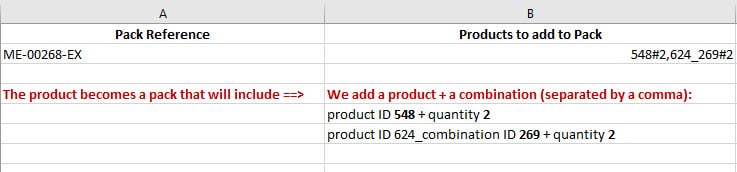
Below is an example of a csv file with which we'll set product reference ME-00268-EX as a pack.In this pack, we'll add 1 product and 1 combination: product ID 548 + combination ID 269 (belonging to product ID 624) - each will have a quantity of 2.
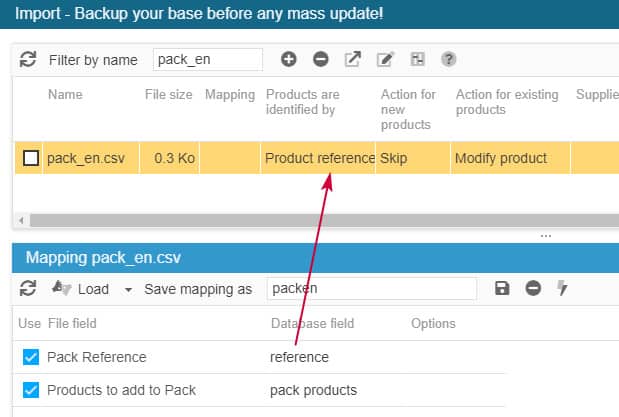
Once the file is loaded in Sc import window, the configuration will be:
💡 In the same import, you could also set the number of packs you want to make available to sell, meaning the stock, as well as the price.Simply add these 2 columns to the CSV file :
