Introduction to the Order interface
Getting to know the interface and how it works
Introduction to order management
Store Commander allows you to manage orders in a fast and simple manner.
Accessible from the Orders menu, the interface allows you to:
Access orders fast on a single page without having to scroll endlessly
Manage orders entirely or partially
Have a global view to prepare orders on a daily basis
Perform orders picking/preparation a lot faster on a single page
Filter orders by date, year, status
Change/edit orders status in bulk
Identify orders awaiting payment
Quickly export orders to a spreadsheet
Print invoices and delivery slips fast
And so much more.
Visualizing all products of an order
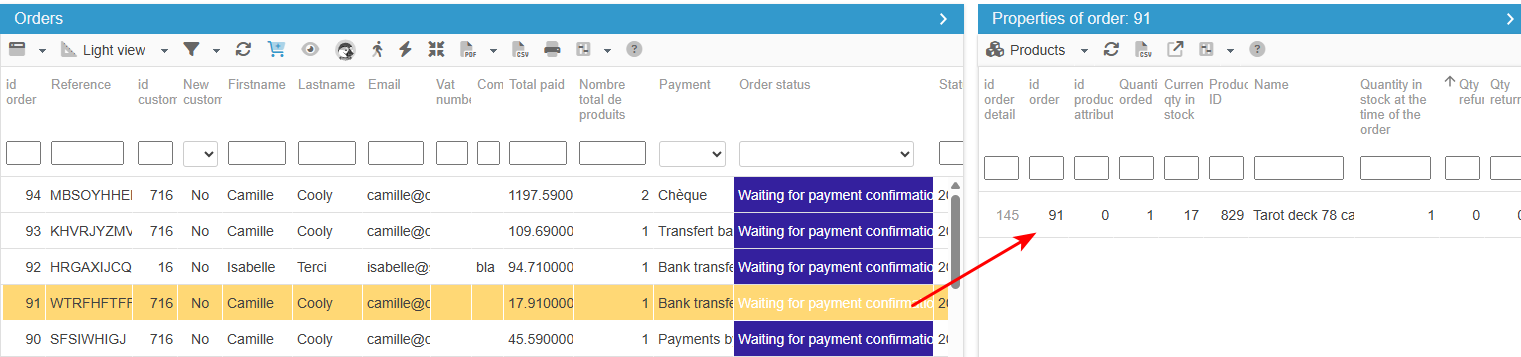
The orders management interface in Store Commander allows you to see all products included in a single order in a blink of an eye.
From the Orders interface, select an order in the central panel, and open the Products panel in the Properties column (right handside).
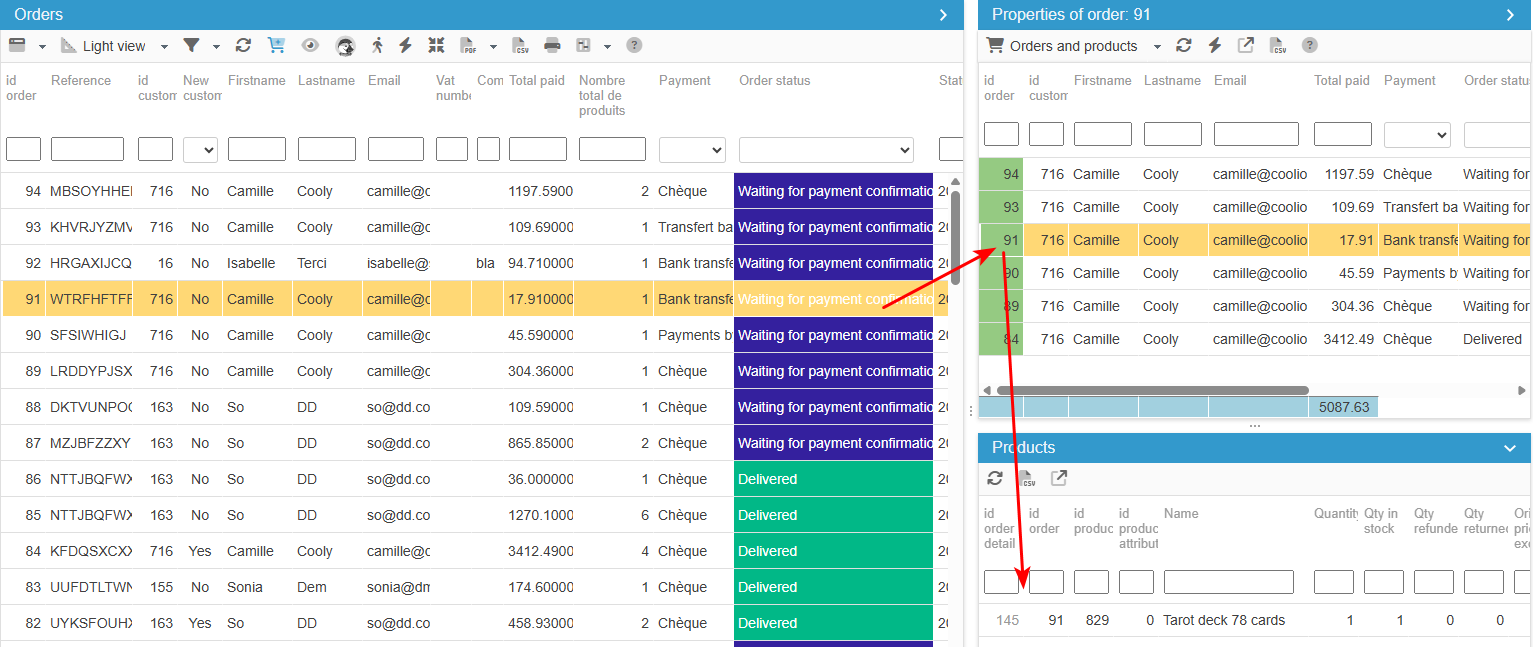
You can also use the panel called Orders & Products, where all orders and products associated to the customer are displayed.
Displaying a specific range of orders
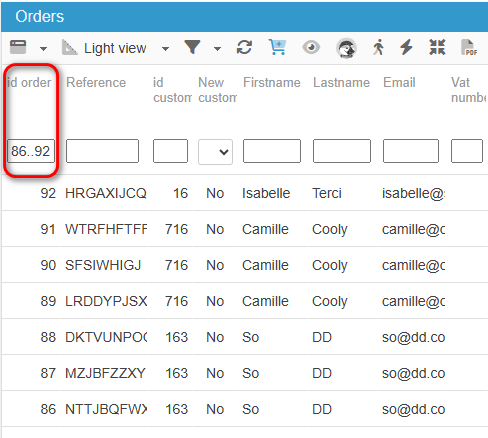
The filtering tool within the Order interface in Sc, specifically for id_order column, can be used to display a range of orders by entering specific operators.
Indeed, you just need to specify the ID of the first order..ID of the last order, like 86..92 to display orders ID 86 to 92 :
Other operators can be used to display specific orders:
Filtering your orders
Did you know that you can filter orders by status as well as period?
And remember to save your filtering options to be even more efficient!
Saving filtered orders
Work faster with orders by saving filtered lists!
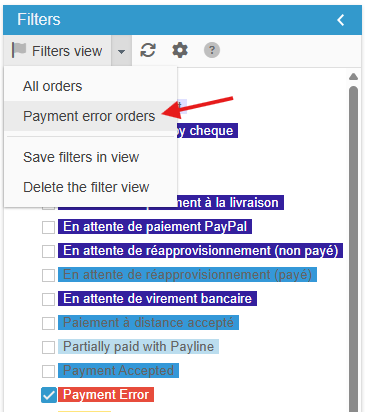
Indeed, the Filters column within the Order interface in Store Commander allows you to save status/date filters, so that you don't have to make the same selection again and again.
First select the order status and the dates you wish to filter, and then select the option 'Save filters in view' to give it a name.
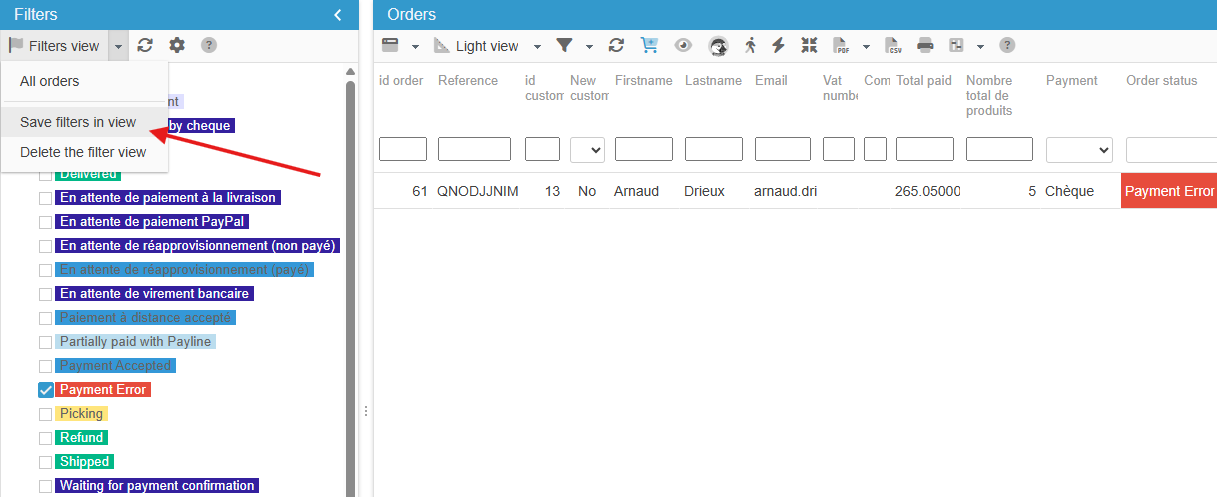
This new view is now available to select in the drop down menu at any time :
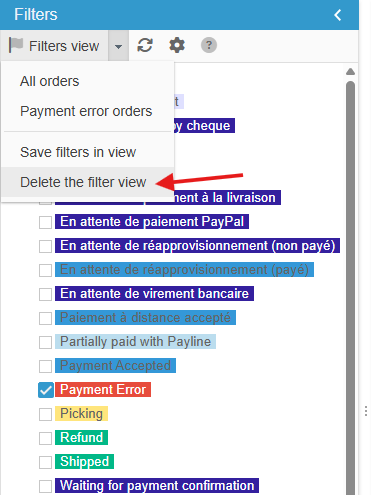
To delete a filtered view, select it first to load it and then select the option 'Delete the filter view' :
Creating orders in Store Commander
This advanced functionality is included in Solo+ and MultiStore+ plans
When a customer calls to order your products, you can create these orders directly in Store Commander's interface thanks to its simple and optimised order creation interface!
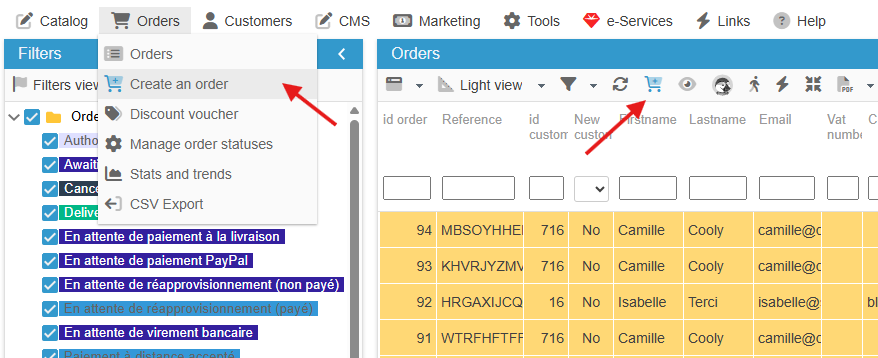
You can access this interface by clicking on the 🛒 icon on the toolbar in the Orders and Customers section of Sc.
This icon is also available on the Customer interface toolbar, as well as in the main “Orders” menu.
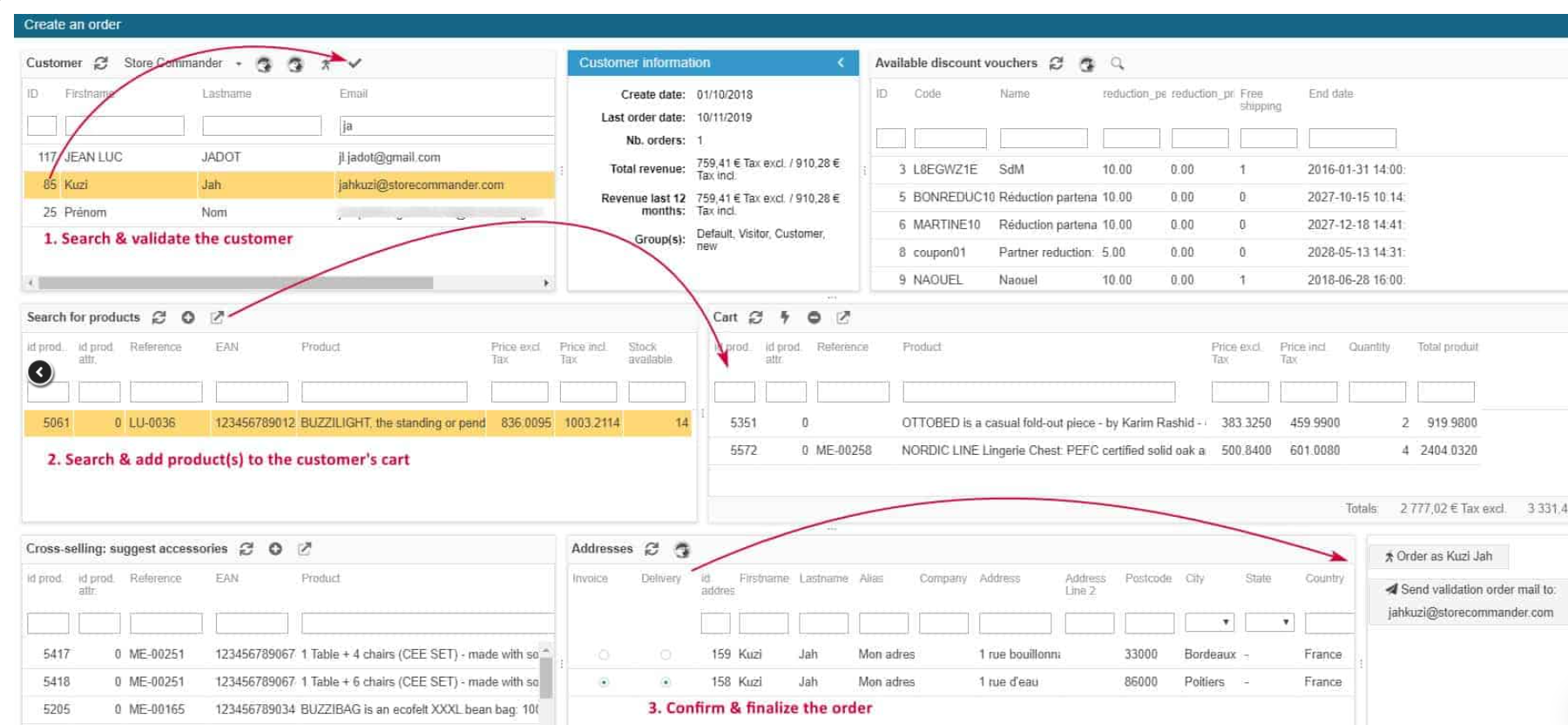
Information in this window are to be read from left to right, top to bottom.
> Find and select your customer > the account history is displayed
> Find the product(s) to add them to the cart > modify quantities if required
> Suggest accessories to boost the cart
> Select the invoice and delivery addresses
> Choose from:
Send the order validation email to the customer: the customer will finalize the order on his side
Finalize the order by connecting to the customer's account directly
Logging onto a customer's shopping cart
You will find an option in the Orders interface that allows you to connect to the cart/account of a specific customer.
Indeed, once you have selected an order, you can hit this icon on the toolbar, and you will automatically be redirected to the customer's shopping cart on his account.
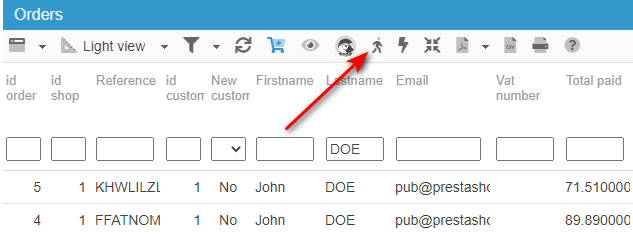
Very useful to quickly identify a problem or the issue the customer is having and fix it and validate the order rapidly.