Introducing additional fields to the Order interface
Access the PRO part
First, access the Interface customization tool from Menu Tools > Interface customization.
Then, you can access the PRO part of the tool to add custom fields by clicking on + on the right hand side :

Product name
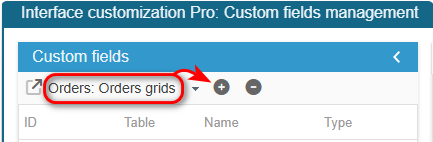
To add ‘product name’ field, select the ‘Orders grids’ on the left and click on the Add icon to enter the ID : orderproductsnames
The field row has been created in the list.
You now need to fill in the information in the Custom fields on the left handside.
From the ‘Advanced Properties’ panel on the right handside, select the menu ‘SQLSelect’ :

And enter :
return ' , (SELECT GROUP_CONCAT(product_name SEPARATOR " ")
            FROM `'._DB_PREFIX_.'order_detail` order_detail
            WHERE order_detail.id_order = o.id_order) as orderproductsnames ';
Exit the editing window. You have to refresh to see the new field in the list of available fields and you can add it to your Order grids.
Manufacturer name
To add ‘manufacturer name’ field, select the ‘Orders grid’ on the left and click on the Add icon to enter the ID : manufacturer_name
The field row has been created in the list. You now need to fill in the information :
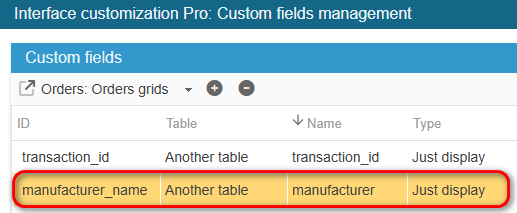
From the Advanced Properties panel on the right handside:
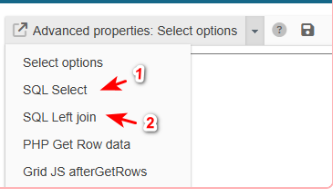
1 - Select the menu SQL Select and enter:
return ' ,manu.name AS manufacturer_name';2- Select the menu SQL Left Join and enter:
return " LEFT JOIN "._DB_PREFIX_."manufacturer manu ON (manu .id_manufacturer = p.id_manufacturer)";Make sure the id_order_detail field is in the grid, otherwise it won't work.
Exit the editing window. You have to refresh to see the new field in the list of available fields and you can add it to your Order grids.
Image
To add ‘image’ field, select the ‘Orders grids’ on the left and click on the Add icon to enter its ID: image.
The field row has been created in the list. You now need to fill in the information :
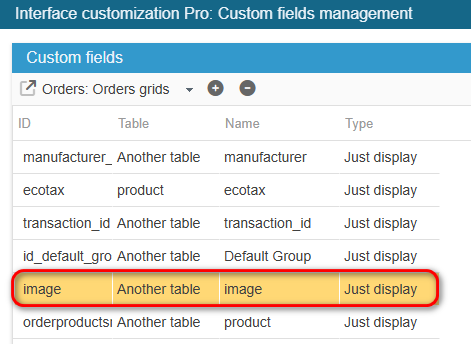
From the ‘Advanced Properties’ panel on the right handside:
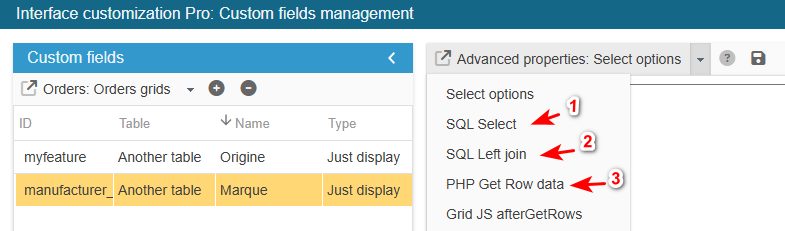
1- Select the menu SQL Select and enter:
return ' ,i.id_image';2- Select the menu SQL Left Join and enter:
return " LEFT JOIN "._DB_PREFIX_."image i ON (i.id_product= p.id_product AND i.cover=1) ";3- Select the menu PHP Get Row Data and enter:
if ($col == 'image' && !empty($orderrow['id_image']))
{
    $tmp = explode('-', $orderrow['product_id']);
    $id_product = (int) $tmp[0];
    $url = SC_PS_PATH_REL.'img/p/'.getImgPath((int) $id_product, (int) $orderrow['id_image'], _s('CAT_PROD_GRID_IMAGE_SIZE'));
    $orderrow[$col] = '--';
    if (file_exists($url))
    {
        $orderrow[$col] = '<img src="'.$url.'" />';
    }
}
Make sure the id_order_detail field is in the grid, otherwise it won't work.
Exit the editing window. You have to refresh to see the new field in the list of available fields and you can add it to your Order grids.
Ecotax value
To add ‘ecotax’ field, select the ‘Orders grids’ on the left, click on the Add icon to enter its ID: ecotax.
The field row has been created in the list. You now need to fill in the information on the left :
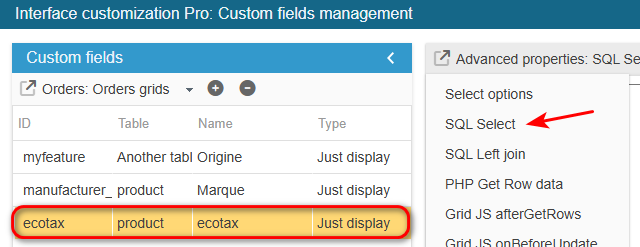
From the ‘Advanced Properties’ panel on the right handside, select the menu SQL Select, and enter:
return ' ,p.ecotax';Make sure the id_order_detail field is in the grid, otherwise it won't work.
Exit the editing window. You have to refresh to see the new field in the list of available fields and you can add it to your Order grids.
Order id_transaction
To add ‘id_transaction’ field, select the ‘Orders grids’ on the left and click on the Add icon to enter its ID:transaction_id.
The field row has been created in the list. You now need to fill in the information :
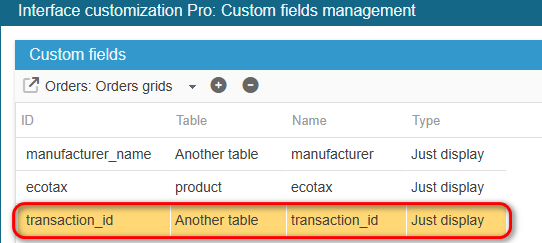
From the Advanced Properties panel on the right handside:
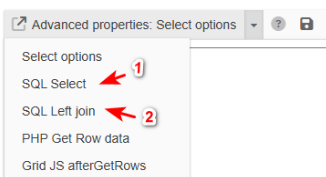
1- select the menu SQL Select and enter:
return ' , sc_op.transaction_id ';2- select the menu SQL Left Join and enter:
return " LEFT JOIN "._DB_PREFIX_."order_payment sc_op ON (sc_op.order_reference=o.reference)";Exit the editing window. You have to refresh to see the new field in the list of available fields and you can add it to your Order grids.
Customer Default Group
To add ‘customer default group’ field, select the ‘Orders grids’ on the left and click on the Add icon to enter its ID : id_default_group.
The field row has been created in the list. You now need to fill in the information :
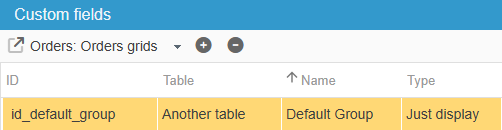
From the Advanced Properties panel on the right handside select the menu SQLSelect:
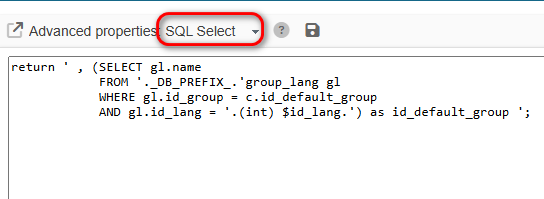
and enter:
return ' , (SELECT gl.name
            FROM '._DB_PREFIX_.'group_lang gl
            WHERE gl.id_group = c.id_default_group
            AND gl.id_lang = '.(int) $id_lang.') as id_default_group ';
Exit the editing window. You have to refresh to see the new field in the list of available fields and you can add it to your Order grids.
Product VAT
To add ‘product VAT’ field, select the ‘Orders grids’ on the left and click on the Add icon to enter its ID:tax_name.
Sc creates the field, you now need to select the grid with:
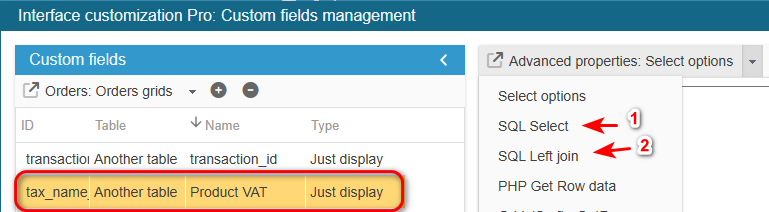
From the Advanced Properties panel on the right handside:
1- Select the menu SQL Select and enter:
return ', IF(od.tax_name != "", od.tax_name, trg.name) as tax_name';2- Select the menu SQL Left Join and enter:
return 'LEFT JOIN '._DB_PREFIX_.'tax_rules_group trg ON p.id_tax_rules_group= trg.id_tax_rules_group';Make sure the id_order_detail field is in the grid, otherwise it won't work.
Exit the editing window. You have to refresh to see the new field in the list of available fields and you can add it to your Order grids.
Order VAT
To add ‘order VAT’ field, select the ‘Orders grids’ on the left and click on the Add icon to enter its ID:tax_name.
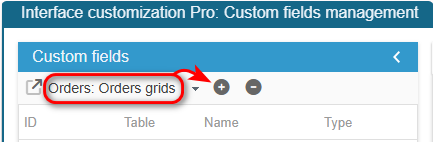
Sc creates the field, you now need to select the grid with:
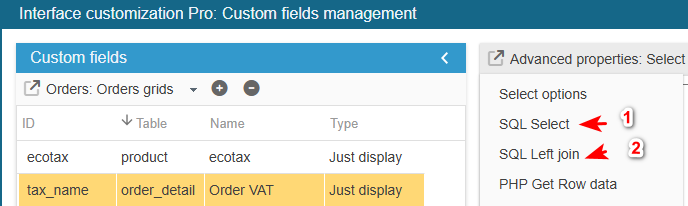
From the Advanced Properties panel on the right handside:
1- Select the menu SQL Select and enter:
return ', taxl.name as tax_name';2- Select the menu SQL Left Join and enter:
return 'LEFT JOIN ps_order_detail_tax odt ON (od.id_order_detail = odt.id_order_detail) LEFT JOIN ps_tax_lang taxl ON (odt.id_tax = taxl.id_tax )';Make sure the id_order_detail field is in the grid, otherwise it won't work.
Exit the editing window. You have to refresh to see the new field in the list of available fields and you can add it to your Order grids.
Discount code
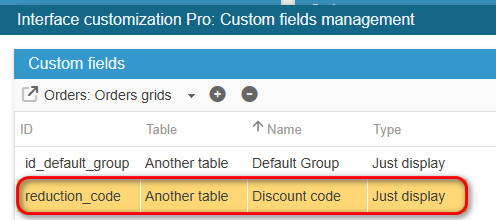
To add ‘discount code’ field, select the ‘Orders grids’ on the left and click on the Add icon to enter its ID:reduction_code.
Sc creates the field, you now need to populate the grid with:
From the Advanced Properties panel on the right handside:
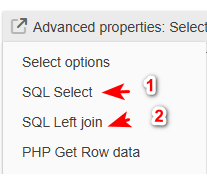
1- Select the menu SQL Select and enter:
return ', GROUP_CONCAT(DISTINCT(cr.code)) AS reduction_code';2- Select the menu SQL Left Join and enter:
return ' LEFT JOIN '._DB_PREFIX_.'order_cart_rule ocr ON ocr.id_order = o.id_order
        LEFT JOIN '._DB_PREFIX_.'cart_rule cr ON cr.id_cart_rule = ocr.id_cart_rule AND cr.code <> "" ';
Exit the editing window. You have to refresh to see the new field in the list of available fields and you can add it to your Order grids.
'If out of stock' field
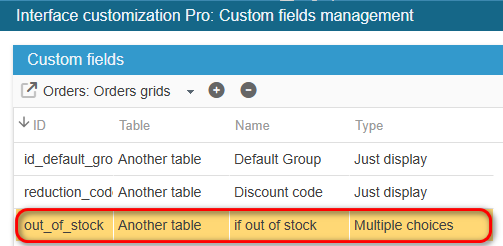
To add ‘out of stock’ field, select the ‘Orders grids’ on the left and click on the Add icon to enter its ID:out_of_stock.
Sc creates the field, you now need to populate the grid with:
From the Advanced Properties panel on the right handside:
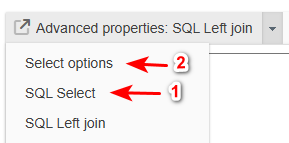
1- Select the menu SQL Select and enter:
return ' , sa.out_of_stock as si_hors_stock';2- Select the menu Select options and enter:
return array(0 => _l('Deny orders'), 1 => _l('Allow orders'), 2 => _l('Default(Pref)'));Make sure the id_order_detail field is in the grid, otherwise it won't work.
Exit the editing window. You have to refresh to see the new field in the list of available fields and you can add it to your Order grids.
Product Feature
To add ‘Feature’ field, select the ‘Orders grids’ on the left and click on the Add icon to enter its ID:myfeature.
Sc creates the field, you now need to populate the grid with:
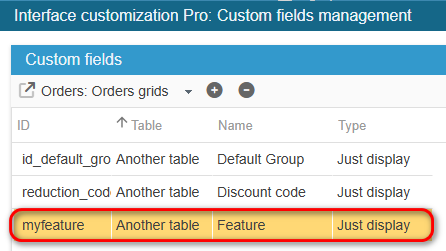
From the Advanced Properties panel on the right handside:
- select the menu SQL Select and enter:
return ', (SELECT GROUP_CONCAT(fvl.value)
            FROM '._DB_PREFIX_.'feature_product fp
            RIGHT JOIN '._DB_PREFIX_.'feature_value_lang fvl ON (fvl.id_feature_value = fp.id_feature_value AND fvl.id_lang = '.(int)$id_lang.')
            WHERE fp.id_product = od.product_id
            AND fp.id_feature = 2) AS myfeature';
Important : you have to adapt the feature group ID to your need.
For example, here ID group is : 2
Make sure the id_order_detail field is in the grid, otherwise it won't work.
Exit the editing window. You have to refresh to see the new field in the list of available fields and you can add it to your Order grids.
The shop name when in multistore mode
To add the ‘shop name ’ field, select the ‘Orders grids’ on the left and click on the Add icon to enter its ID:shop_name. That will display the name of the shop or shops in which the products in the orders are located.
SC creates the field, you now need to enter the following information in the grid:
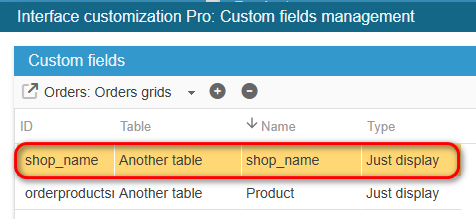
In the Advanced Properties panel on the right :
1- select the SQL Select menu and enter :
return ', `shop`.`name` AS shop_name ';2- select the SQL Left join menu and enter :
return ' LEFT JOIN '._DB_PREFIX_.'shop shop ON (o.id_shop = shop.id_shop) ';Exit the editing window. You have to refresh to see the new field in the list of available fields and you can add it to your Order grids.