A Clear View of Your Order Trends
The Statistics and Trends module in Store Commander provides you with a concise and immediate overview of your sales evolution. With just a few clicks, access the key metrics of your orders and easily identify the trends impacting your business.
For example, you can add specific fields to refine your analysis, as explained in this article.
The customized trends of your shop
In the Trends menu in Store Commander, you will find a panel showing the sales trends of your own shop. Trends that you can customize as you wish using the data and filters available.
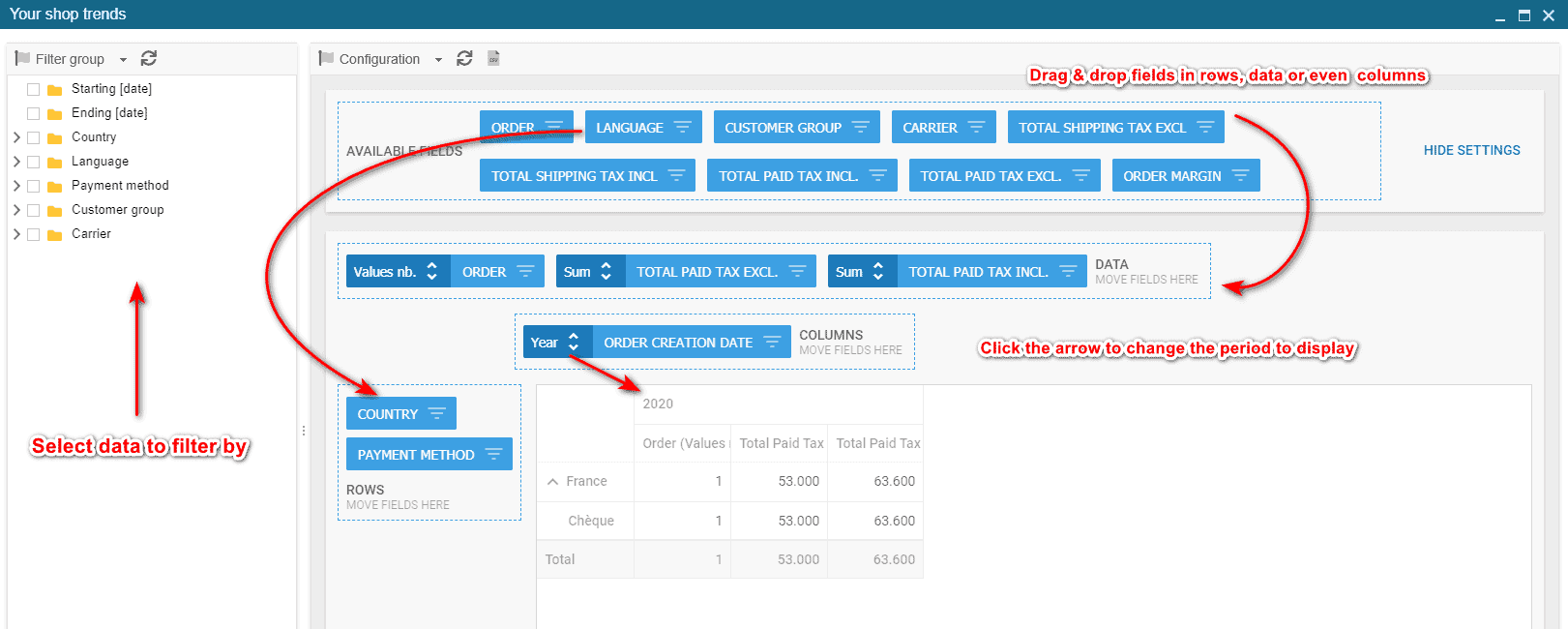
All available fields are listed in top of the central panel.
To add a field, drag and drop it in the part you need: Data, columns or rows.
To remove a field from the table, drag and drop it into the 'Available Fields' block.
Each group of data displayed in the table can be sorted by clicking on the double arrows:
The column on the left handside is dedicated to the various filters you can use to customize the trends of your shop.
Some various options are already available, and you can save your own filters to work faster on the trends.
We have also added a few configurations in the drop down menu:
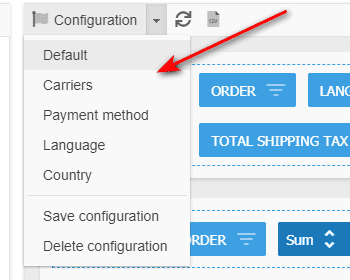
This is also where you can save your own configuration, again saving time when working on trends.
Once you've clicked on the CSV icon, hit CTRL+C on the little popup window, open a spreadsheet (Excel, OpenOffice, LibreOffice, etc) and hit CTRL+V to paste.
Here you go! This Quick Export option is a simple copy/paste function.
Creating a pivot table to display specific data
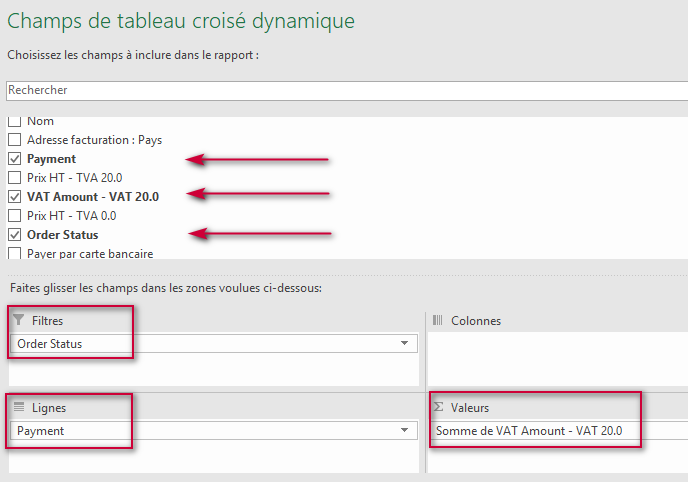
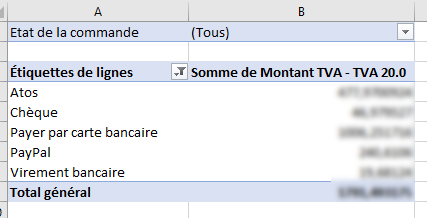
In this example, we will create a pivot table to show VAT totals by payment method, with the option to filter by order status.
In the CSV file generated with Order Export Pro....
1. Select the data (do not include the last line showing totals)
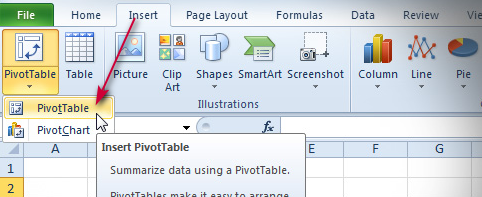
2. Click on Insert > Pivot table
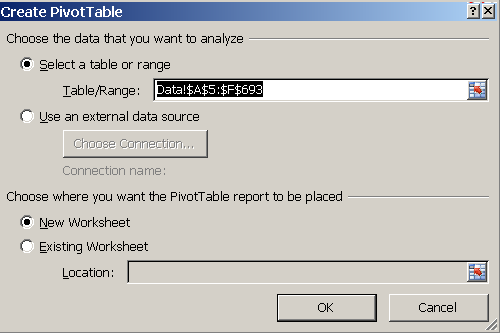
3. Keep the default options
4. In the new sheet that automatically opens us, select the fields to include
5. In realtime, the information and values are displayed
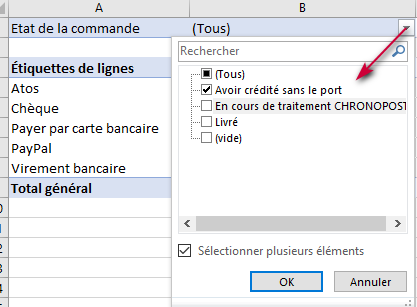
6. You can then choose to filter by order status (top line)
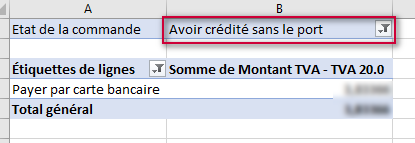
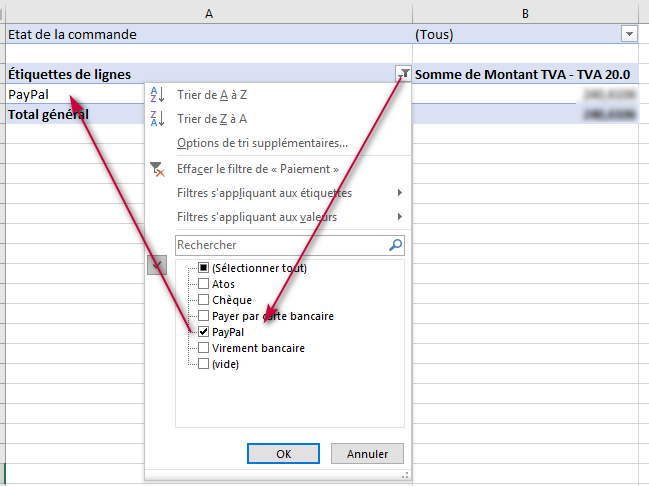
7. And/or by payment method(s)
Refer to this article to learn more on pivot tables.