Importing product images: format and best practices
Introduction
The CSV import tool allows you to add images to your products and combinations, whether you are creating or editing your products.
A specific image format must be used in the import file, which we will explain in this article, along with the appropriate import configuration.
The file format
Prestashop and Store Commander are 100% web-based platforms, which means that the images to be imported must be located on a server. The import process cannot retrieve images from your desktop, a USB stick, for example, or from an FTP or any other external storage tool that requires login details.
The images must be stored on a server, as the URL of their location will be used in the import file. This URL will be of the following type: https://www.mabelleboutique.com/mesimages/monimage01.jpg
If the images you want to import are not stored on any server, you can add them to this location: /modules/storecommander/import/images/myimage02.jpg
Depending where the images are stored, your file will have:

It is, of course, possible to have both scenarios in the same import file: images stored in the Store Commander directory and images stored elsewhere, either on the same server or on a remote server.
Importing images on products
As with any CSV import with Sc, the point the most important when importing is the identifier, which is used to find the product to update.
There are multiple identifiers available in the drop down menu (in the import window), such as name, reference, ean13, upc and even the product ID.
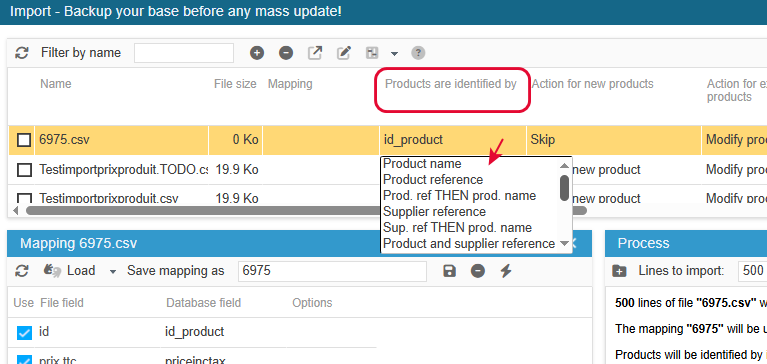
This identifier is a key point, as it must be unique if the import process is to modify the right product or combination.
To then add the images to the products, your file will contain the identifier of your choice and the urls of the images.
If several images need to be added to the same product, you can enter all the urls in the same cell, separated by commas, or the names of the images if they are stored in the Store Commander directory.

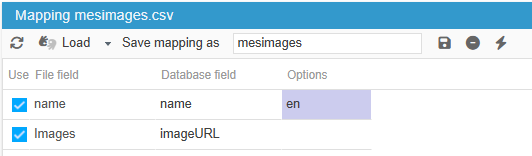
Once you have added the file to the Sc import window, the mapping field for images is imageURL:
Setting the default image on products
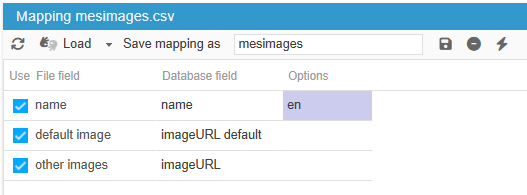
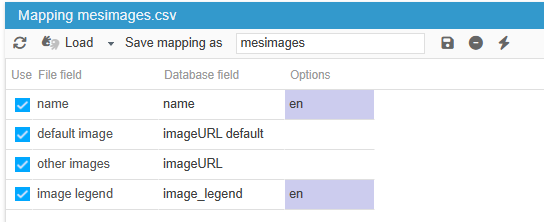
When adding images to products via csv import, whether you're creating or modifying products, you can decide which image will be the default/cover image: by specifiying its url in a column called 'Default image' in your csv file.
Another column will use urls of other images.

This column will correspond to the field called 'imageURL default' in the mapping of your import:
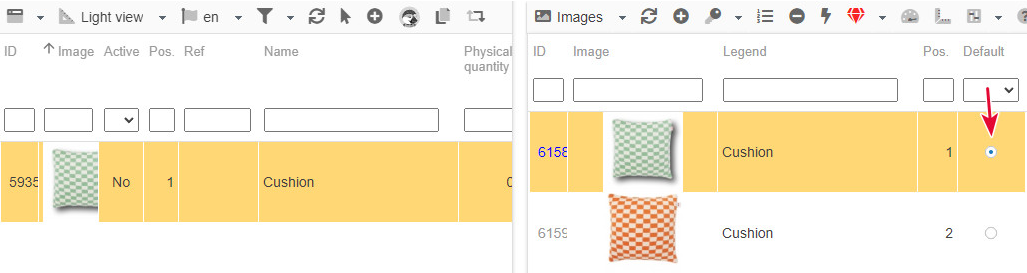
The image you indicated in your file is then set as default.
Indicating the legend on images
By default, as soon as an image is added to a product using Store Commander (whether manually or via csv import), the product name will automatically be used to define the legend for its images.
You can define the legends for your images yourself as soon as they are added by import, simply by adding an “image legend” column to your file and filling it in with the tags you want. The field to be mapped will be image_legend.
Replacing legends on existing images
If the images already exist on your products and you want to optimise the image legends, the procedure is to export the legends, edit them in the exported file, and then import to apply the changes.
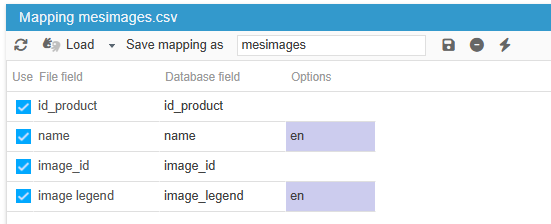
Replacing image legends via import requires the image ID and an identifier for the products associated with the images.
Your export will include
unique product identifier (id_product is recommended)
product name
image_id
image_legend
In the CSV file obtained, modify the legends in the corresponding cells.
Then load this file into the Store Commander import window to apply the changes.
Modifying the legend of multiple images associated to the same product
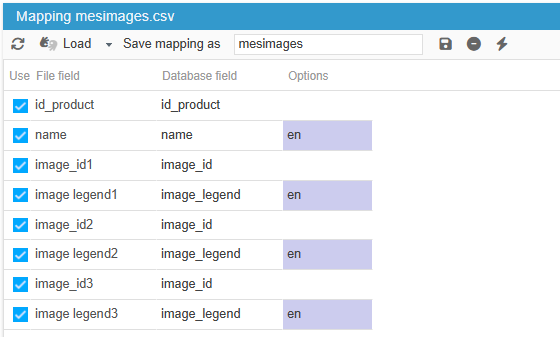
To modify the legend of several images of the same product, you will need an image_id column and an image_legend column for each image: 2 per image.
In this example, we added columns for 3 images:
Using the same image onto multiple products
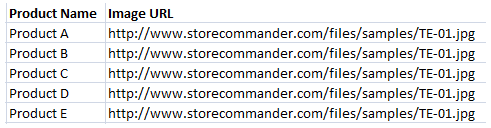
The URL of an image can be used to add it to multiple products.
Simply enter this URL on the lines corresponding to the products concerned in your import file:
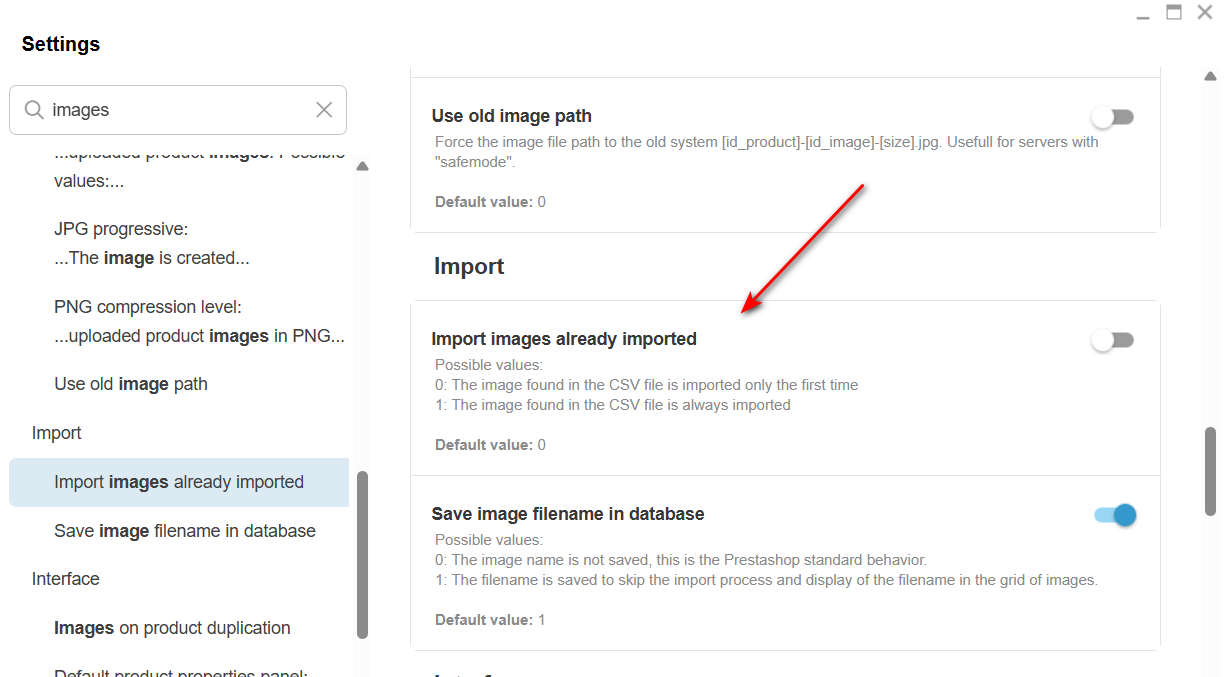
You will also need to set the option to 1 in the corresponding Sc setting, located in Sc menu Tools > Settings > Import > import images already imported = 1
➕Adding images onto combinations
You can import images directy onto your combinations, whether when creating combinations, or simply adding images to combinations already present in your catalog.
We have dedicated this article to this specific topic.
➖Deleting all images in bulk
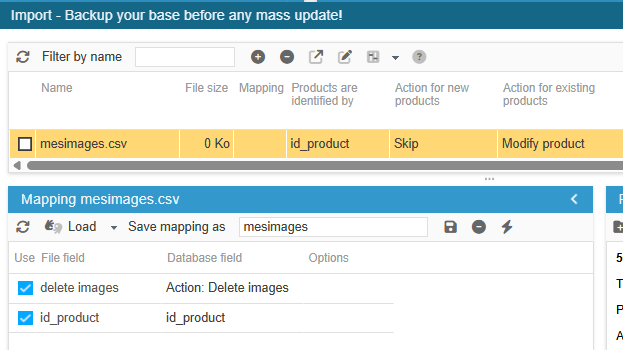
It is possible to delete images from your products in bulk via a CSV import file, using the “delete images” action available in the Store Commander import mapping options.
Important note: this action will delete all images on the products specified in the import file.
It’s not possible de deled specific images.
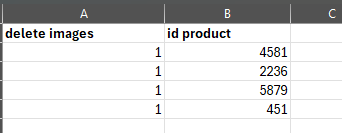
Your csv file will include only 2 columns:
delete images: indicating 1
the product identifier (id, referene, ean, etc)
The configuration of this import will be:
🔄️Replacing product images easily
You need to update your product images and replace them with new ones, but you have hundreds or even thousands to replace?
You can replace your images in no time with Store Commander's CSV Import tool.
Indeed, you can use the “delete images” action available in the Store Commander import mapping options.
Your csv file will include 3 columns
delete Images with a value of 1
product identifier (name, reference or ID)
URL of the new images to add

The configuration of that import will be:
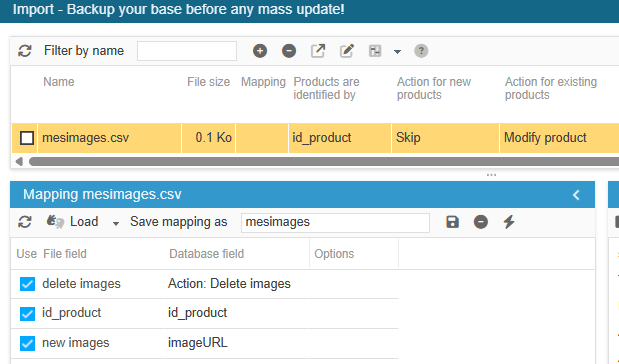
During the import process, all images associated to the products specified in your file will first be deleted, and then the images specified in the image URL column will be added.
The order of the columns is crucial. The deletion needs to occur before adding the new images, therefore the column 'delete images' has to be placed before the column containing the new image urls.