Manage product images like a pro
Introduction
Product image management is key to ensuring an attractive and successful online store. With Store Commander, you can quickly and easily manage images on your products and combinations, directly from the Sc interface.
Whether you want to add, edit, delete or rearrange images, and more, Store Commander greatly simplifies these operations, even when done in bulk.
This page will guide you through the features offered by Sc to optimize the visual presentation of your product catalog.
Simple and fast management
The Store Commander interface contains a grid dedicated to images in the properties column.
You will see the product images as soon as you select a product in the central column, or all the images of several selected products, of course.
In this image grid, you can add, delete or replace images. You can also optimize the SEO on legends, and even rearrange their positions.
We have created this video to show you all these possibilities.
Summary of image editing options
To reiterate the explanations in the video above, here are the actions you can perform on your product images in the Store Commander interface.
Adding images
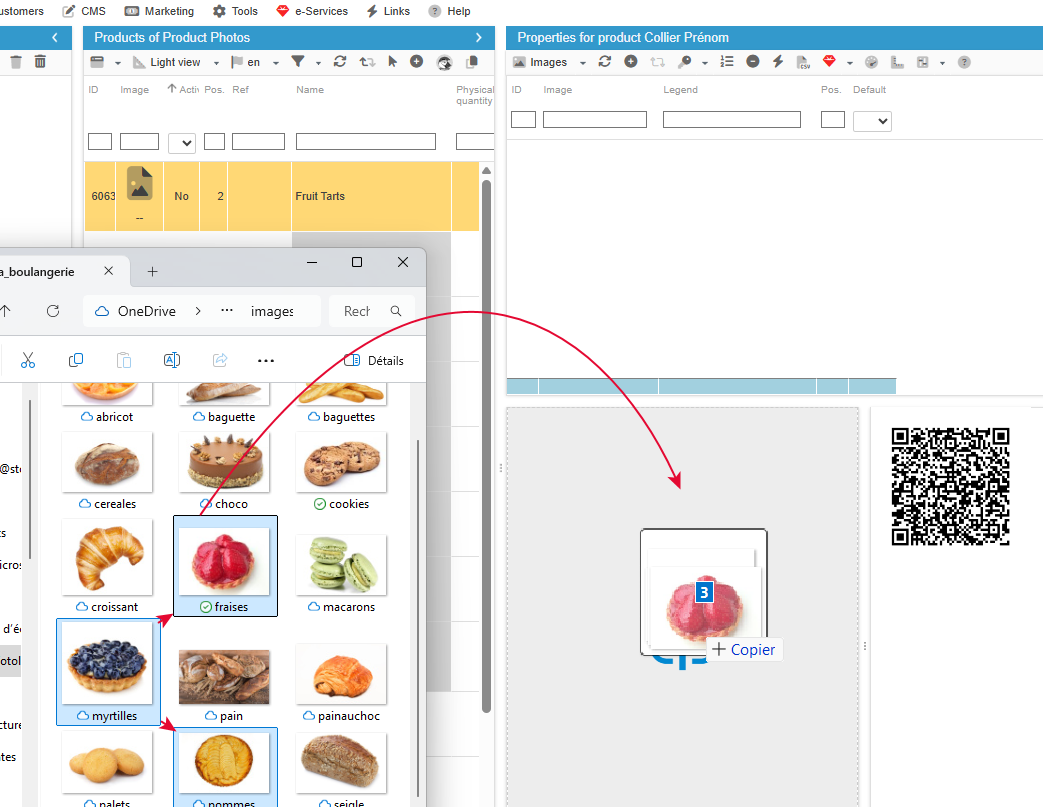
You can add one or more images to one or more products simultaneously with a simple drag and drop in the dedicated panel of the image grid.
Or you can use the QR code displayed to retrieve images stored on a smartphone - more details in this chapter.
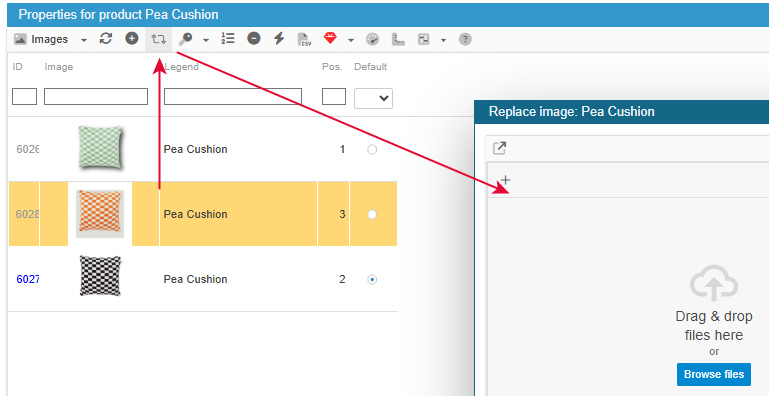
Replacing images
It is possible to replace a product image using this option:
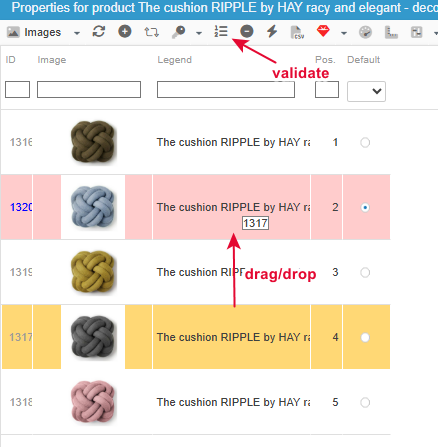
Repositionning images
You can rearrange the order of the images by simply dragging and dropping them.
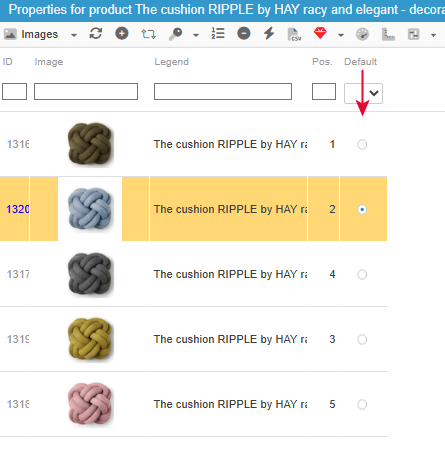
Setting the default image
Choose the main image with the radio button.
Opitmizing the legends
Image legends are a key element for your shop's Search Engine Optimisation.
See the dedicated section below for more information.
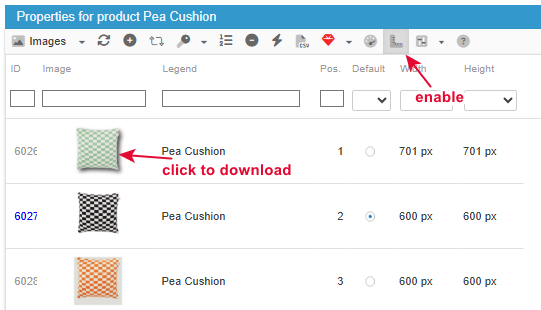
Downloaging images
You can download a product image from Sc by activating this option in the toolbar
Reworking images
There is a tool integrated into the image grid that allows you to edit your images: change the background, resize, add effects, etc.
We have dedicated an article to this essential tool.
Compressing images
Store Commander offers a tool to reduce the weight of product images of your shop to its maximum, to improve the loading time of pages for your visitors, as well as boosting your SEO and even reducing the carbon footprint.
Read this article to learn more about this service.
💎 Bonus: adding product photos with a smartphone
We have added a QR code to the image grid that allows you to retrieve images stored on your smartphone and add them to products of your PrestaShop store.
Simply scan the code with your mobile phone and follow the instructions displayed to use your images or even take a photo on the spot!
The selected image(s) will then be added to the product(s) you have previously selected from the Store Commander list.
Here is a screenshot of the image addition interface after scanning the QR code:
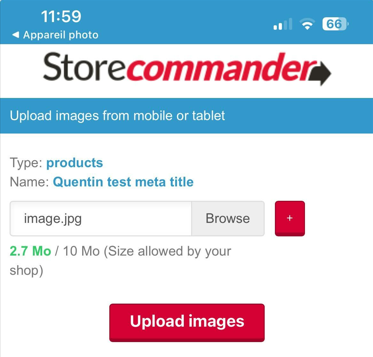
Use the “Browse” option to select photos and “Upload” to add them to your product.
The image is instantly added to the product, and visible in the Sc. Images grid.
🔎 Optimizing image legends for a better SEO
The image legends associated with your product photos are not just a minor detail: they play a key role in the search engine optimisation (SEO) of your PrestaShop store.
Why? Because search engines analyse the ALT tag, a description embedded in each image, to better understand the content of your site and index it.
👉 A well-written legend = better positioning in Google Images and increased visibility for your products.
The legends are displayed in the Sc image grid.
Double-click to edit and modify.
Store Commander also offers an option that allows you to fill in the legends of several images (all those previously displayed and selected) automatically using their product name. This option is represented by the key icon on the image toolbar.
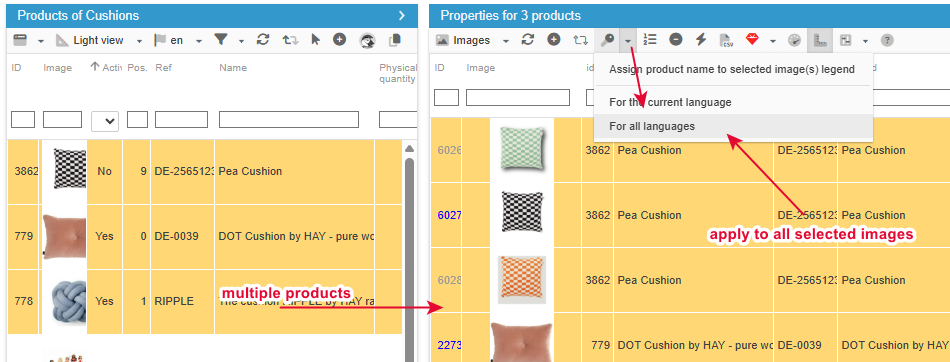
It is also possible to optimize the legends in a CSV file, which you will have generated beforehand using the Sc export tool, and thereafter modify them in bulk via the Sc CSV import.
👉 Check this dedicated article to see the step by step procedure.
Don’t forget to use FixMyPrestaShop to identify images without legends!

✂️ Simply rework the images
There is also a tool integrated into Store Commander, directly accessible in the image grid, which allows you to optimise the visual appearance of your images. You can precisely crop your images, define a background, resize them, and enhance the visual appearance with drop shadows!
And yes, all of this is also available in your Store Commander!
Follow the link to this article to learn more about this essential feature 🌟
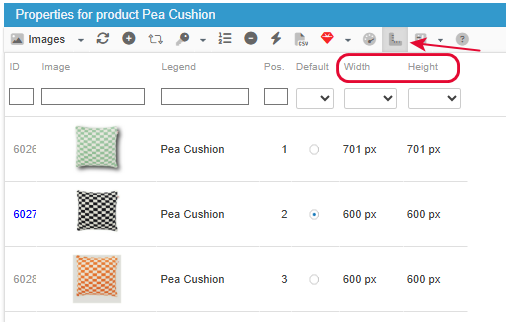
💡 Showing image dimensions
You can view the images size in your Store Commander interface, by activating this icon on the toolbar
💡 Identifying products with no images
You know you have products without images, but they are dispatched in various categories, making identification a long and tedious process.
Fortunately, Store Commander offers a simple and effective solution for identifying and displaying products with missing image: segmentation.
You can create an automatic segment that will contain products with no image.
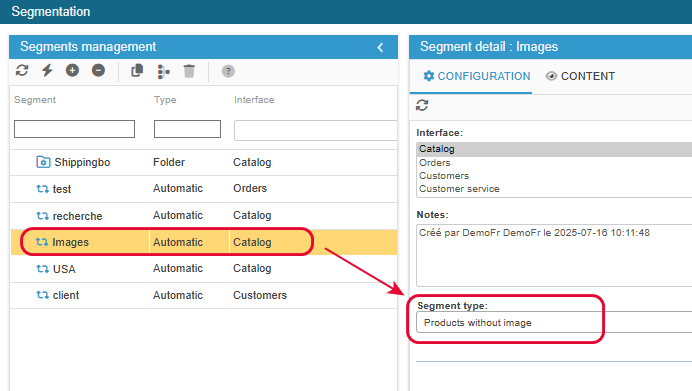
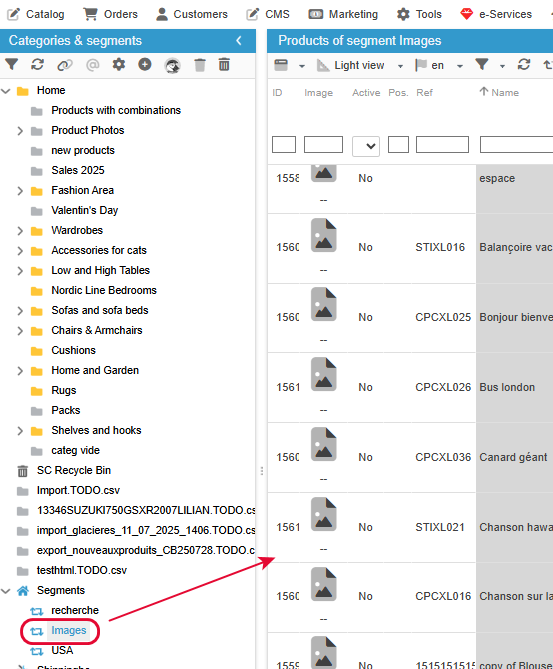
There is no need to browse through all the categories in the shop; simply select the segment. To then, simply drag and drop the images onto these products.
An automatic segment is also dynamic. As soon as the image is added to the product, the product will disappear from the segment, as it will no longer meet the criterion of “products without images”.
Segmentation is included in Solo PLUS and MultiStore PLUS plans