What is segmentation in Store Commander?
Definition & Usage
The Store Commander segmentation tool allows you to create ‘segments, internal work folders’ directly in the Store Commander interface. These internal folders (segments) are specific to your SC; you will not find them in your PrestaShop back office or in your shop's front office.
1.Organise your internal work efficiently
Create groups of products, customers or orders according to specific criteria: suppliers, missing prices, categories, sales, etc.
Work in batches without having to filter or search each time, for example, segments such as ‘Products without images’, ‘VIP customers’ or ‘Orders to be followed up’.
2.Automate updates
Dynamic segments are automatically updated according to your rules (e.g. products from supplier X, customers who have ordered 3 times, etc.).
No more manual searching, items automatically appear or disappear from the segment.
3.Save time on bulk actions
Apply group actions: change a price, image, description, availability, or send a marketing email.
Export targeted data in just a few clicks.
4.Target your marketing campaigns more effectively
Create segments such as: ‘Customers who have purchased brand X’, ‘Customers who have been inactive for 6 months’, ‘Orders over £100’.
Export these lists for email campaigns, SMS messages, or personalised advertisements.
5.Analyse your activity in greater detail
Visualise your strengths and weaknesses:
Which suppliers have the most stock shortages?
Which products are missing descriptions?
Which category performs best by manufacturer?
Which products with a low selling price?
There are 3 types of segments you can use, click the type to open the corresponding article.
🎥 The webinar
A webinar dedicated to the segmentation tool is available as a replay on this page of our website.
The Segmentation tool is available in the Solo PLUS and MultiStore PLUS plans.
Exporting the content of a segment
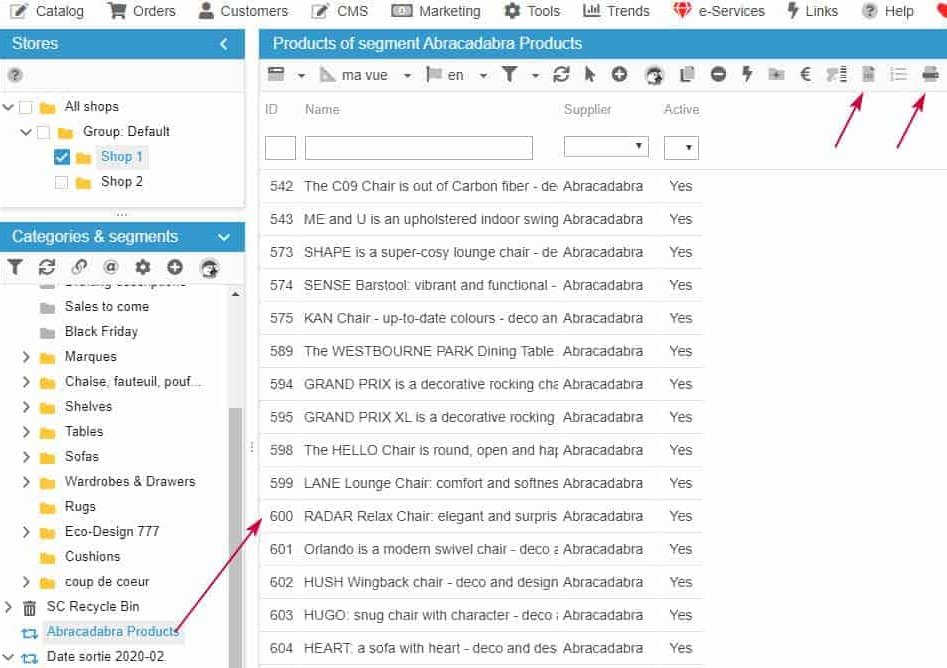
Segments you created are present in Sc interfaces (catalog, orders, customers) and their contents are displayed in Sc central column (light, large view, etc.).
If you need to export the contents of a segment, you can simply use the quick export option which is the icon on the toolbar, or eventually the if you want a printable format.
You could also create your own view using Interface Customization (Tools menu) if you want to define exactly the information you want to export/print.
My segment is not displayed in the interface
You have created a new segment but it is not visible in the interface?
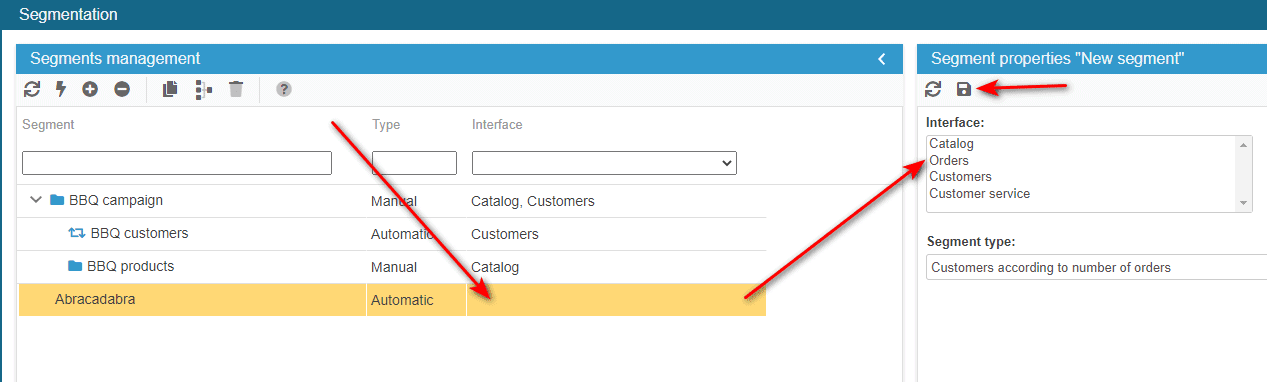
Check that the interface the segment should be displayed in, is correctly associated to the segment. If the interface is not associated, select it and hit the 'save' icon.
Why is the 'Interface' field of a segment highlighted in red?
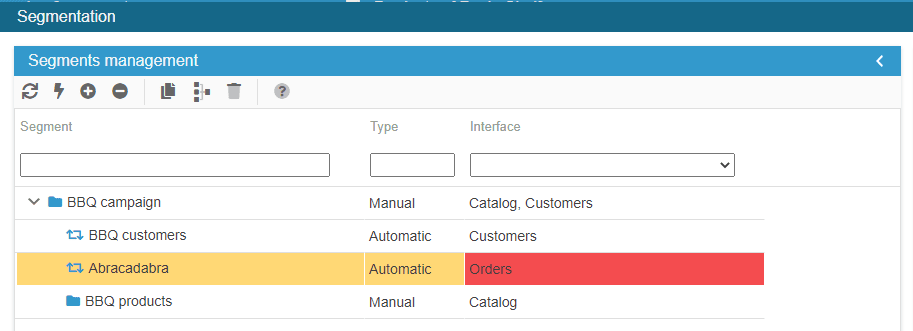
The 'interface' field of a segment is highlighted in red to alert you that there is something inconsistent within the interface association of your segments.In the below example, the child segment is associated to an interface that is not associated to the parent segment.
You will therefore need to add this interface to the parent folder (or remove it from the child segment).