How does a manual segment work?
Definition
A manual segment is a folder specific to your Store Commander interface, where you can add items such as products, orders or customers in order to organise your daily tasks efficiently.
Setting up manual segment
Within the segment panel, accessible from the Tools menu of your Sc interface:
Click the Add icon to create your segment
Select Manual type
Name the segment
Select the interface where you want the segment to be
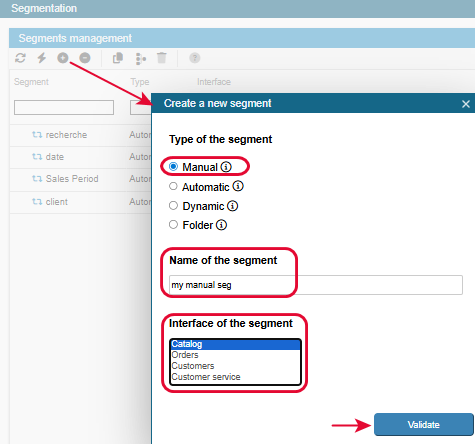
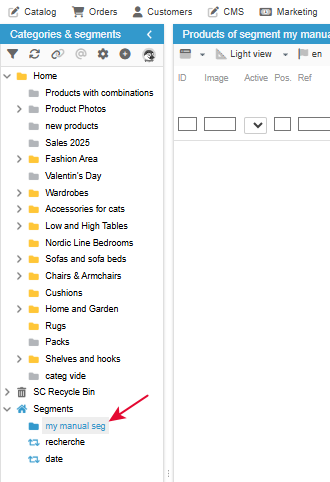
Once validated, the segment is visible under your categories.
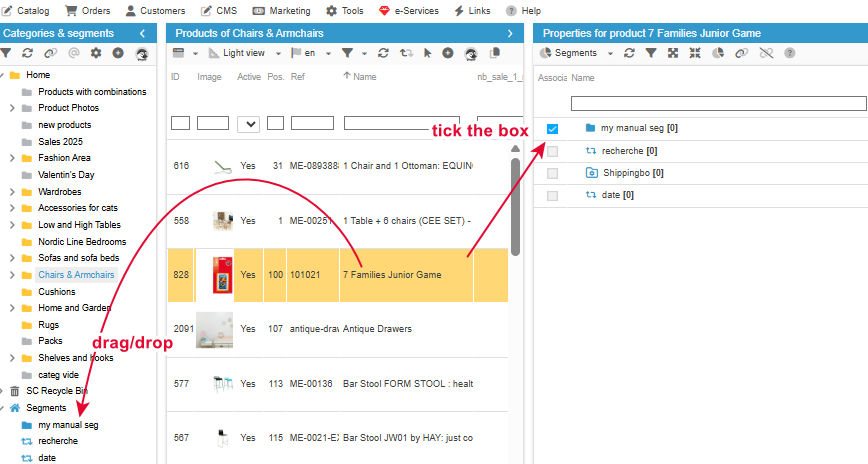
Now to add elements to your segment, in this example products, you can either drag/drop them in the segment, or tick the segment in the property column.
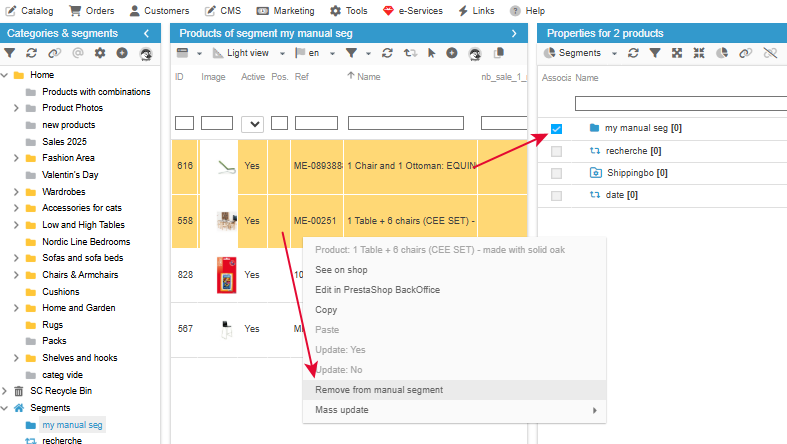
On the opposite, to remove product(s) from a manual segment, right click the product(s) to select ‘remove from the manual segment’, or untick the segment in the property column.
Some examples
A simple working folder
The descriptions of many products need to be reworked.
We use a manual segment in which we add these products throughout the day or the week. This will allow your colleague who is in charge of reworking the descriptions to find the list of products concerned in this segment.
An efficient organisation for perfect content 😁
Associated to an automatic segment
You regularly need to view orders for specific products, and these products change all the time.
Here, we will use an automatic segment that will be displayed in the Orders interface (to view the relevant orders) and will be linked to the products you have added to the manual segment in the Catalogue section.
Setting up these two segments is quick and easy, and adding/removing products from the manual segment allows you to update the associated orders in real time.
Flexibility and efficiency are guaranteed 🤩
This article is dedicated to automatic segments.
🎥 The webinar
A webinar dedicated to the segmentation tool is available as a replay on this page of our website.
The Segmentation tool is available in the Solo PLUS and MultiStore PLUS plans.