Mastering Sc interface
Store Commander Search tool
Did you know that you find/display a product in Sc very simply and quickly too using the search tool in Store Commander?
The tool is located at the top right of the interface:
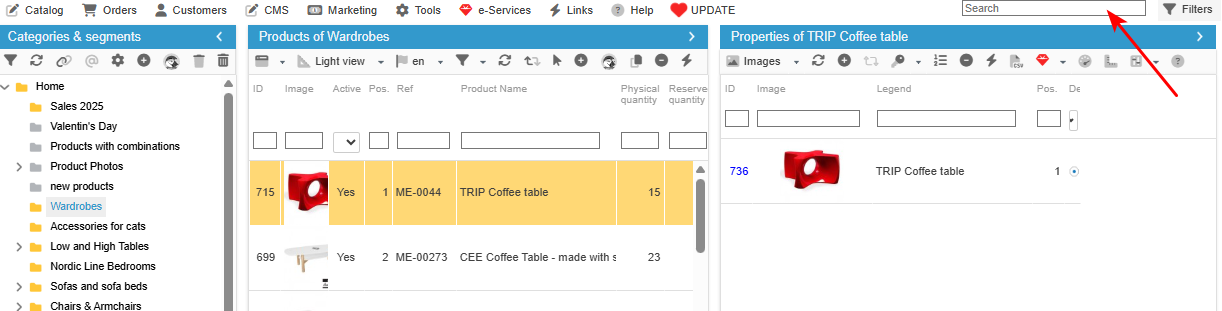
We have also added multiple search criteria to customize your search:
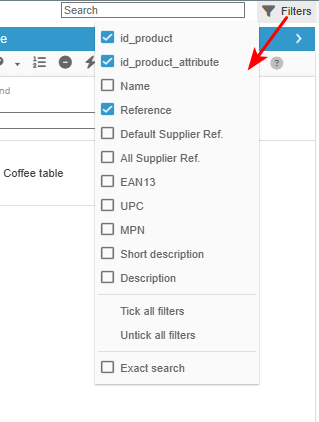
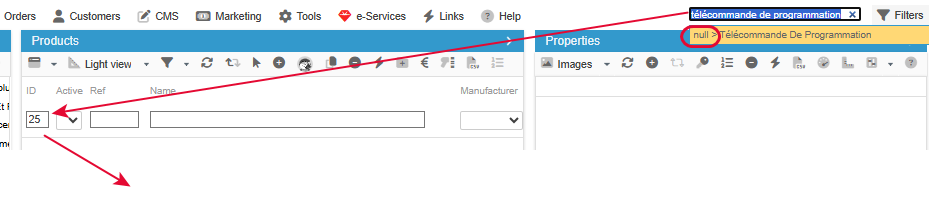
A link to the found product will be displayed in the box, and all you need to do is click on it to display the product in its default category.
Here's an example on this short video:
It sometimes happen that the Sc Search finds the id product but doesn't display the corresponding product in the grid.
Sc Search tool always displays the found product in its default category. When the id product is found but not displayed, this means that the default category is not set on the product.
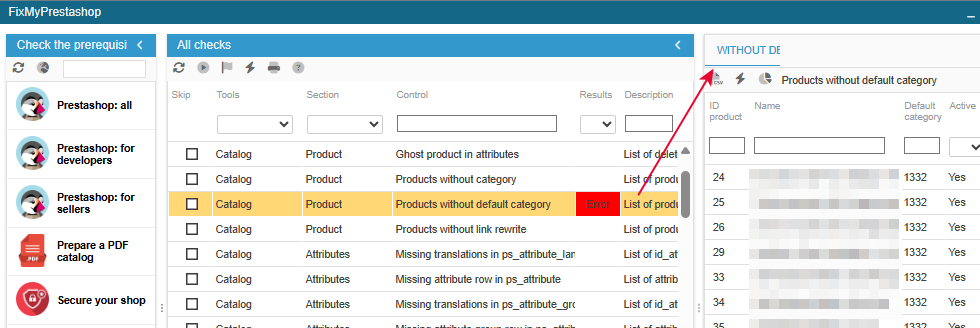
To identify and correct these products without a default category, use the FixMyPrestaShop dedicated control (Tools menu in your Sc):
Fast & Efficient Filtering tool
One of Store Commander's key feature is the Filtering tool.
Indeed, you will find in all views, grids and other windows in the entire interface a filtering line, that will allow you to get a precise display of the information shown in panels.
Here you can see the filtering line in the Light view of the Product interface:

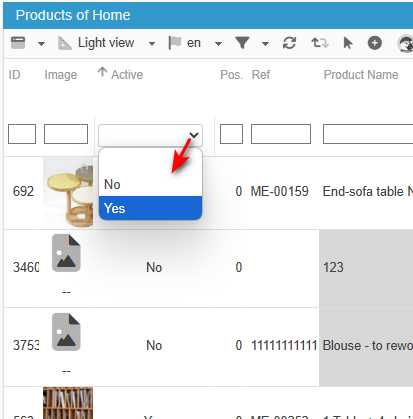
You can then decide to filter the list of products to display only active products, by selecting 'yes' from the drop down menu in the Active column:
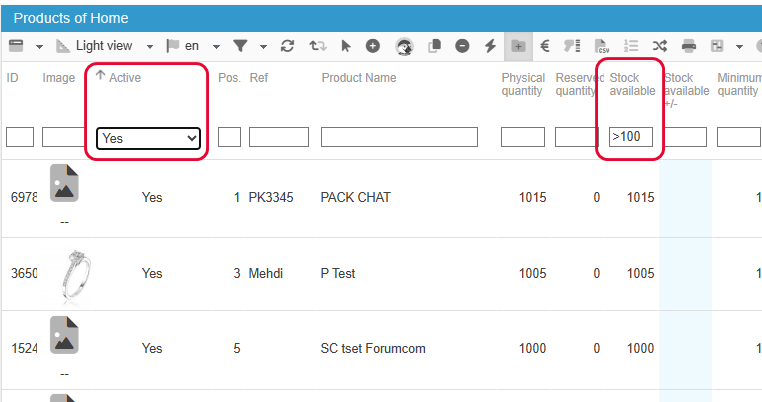
All filters are cumulative, so you can also apply a filter on a filtered list. Here we want to display products with no stock, quantity lower than 1:
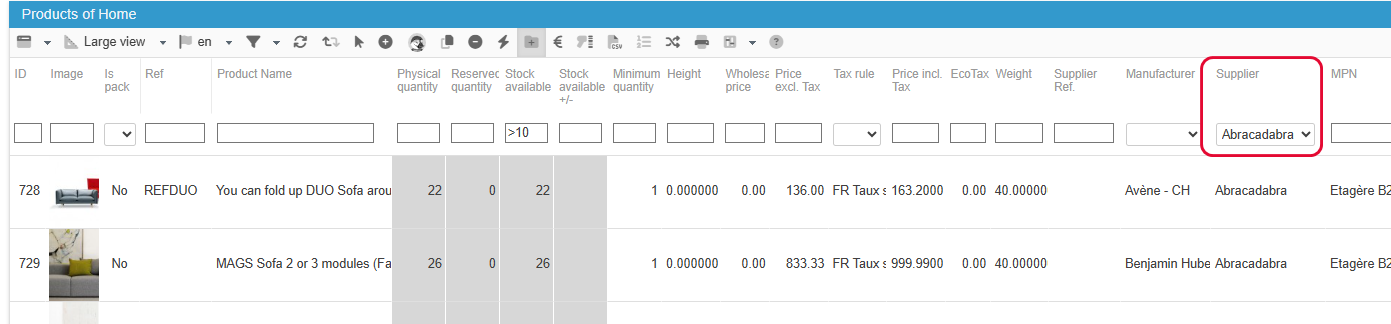
You can then change the view to go onto the Large view - the filters will still be active - to filter by a specific supplier:
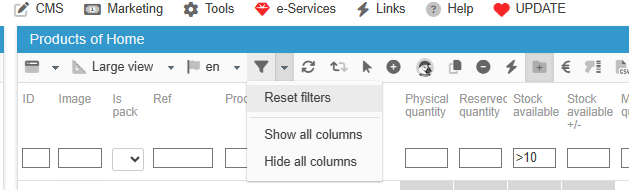
Note that you can reset all filters used in a second, using the option on the toolbar:
This filtering tool allows you to display specific products you need to work onto, avoiding changing from one view to another, endless scrolling to find the products.
In this article, we used the filtering tool in the Product interface, but it is available in the Order interface as well as the Customer interface, and of course in all grids and windows across Store Commander!
An efficient time saving tool!
Quick export option: sheer power!
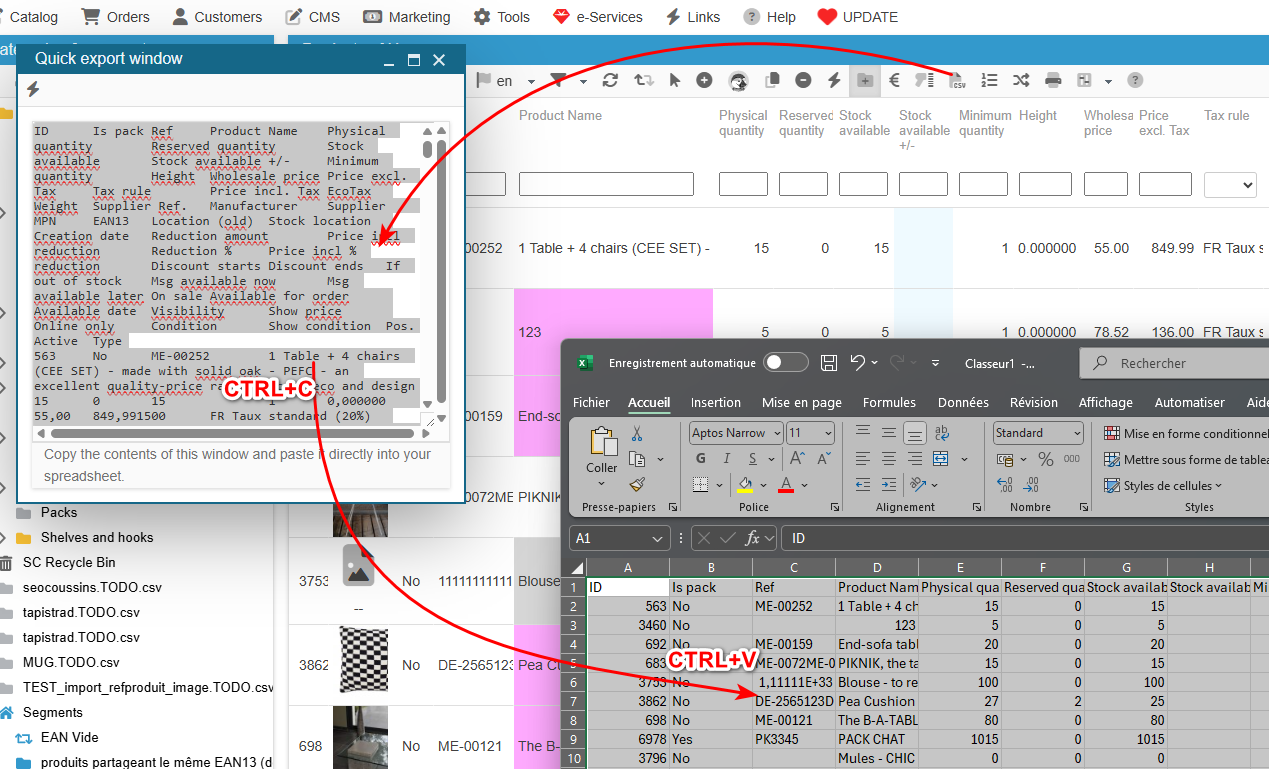
In all views and grids of Store Commander interface (catalog, orders, customers, CMS, etc) you will find an icon on the toolbars allowing you to export the information displayed in just seconds!

This is the Sc Quick export function which is a simple copy/paste of the data displayed in the view/grid onto a spreadsheet (Excel, OpenOffice, LibreOffice, etc).
To get the information onto a spreadsheet, simply click on the quick export icon.
A window will popup automatically that contains the grid information, on a colored background (meaning the data is selected).
You can now use your keyboard to copy with CTRL+C or CMD+C if you are a Mac user.
Open your spreadsheet and paste with CTRL+V or CMD+V.
That's it! the Store Commander view/grid is now on your Excel, OpenOffice spreadsheet.
This quick export option is very useful to extract your customer email addresses to run a promotional campaign for example - see Related Articles below.
It can also be used to get the current product information on a spreadsheet in order to modify it, and then apply the modifications by importing the file (once saved as a CSV file).
Tip: before using the quick export option, you can sort or filter the information in the grid, like filtering by manufacturer to only export products associated to that specific manufacturer - see Related Articles below.
On the other hand, hidden columns will still be exported.
Another time saver for you :)
💡Copy/paste: Guaranteed time-saving
One of Store Commander key functionality is the copy/paste.
Indeed, with this option, you can apply modifications to dozens, hundreds of products in just a few clicks!
You can for example enable a whole range of products, as follow:
Once the concerned products are displayed in the central column, enable the first product. Then you can right click on 'yes' to then paste onto the other products you would select before hand. This takes just seconds!
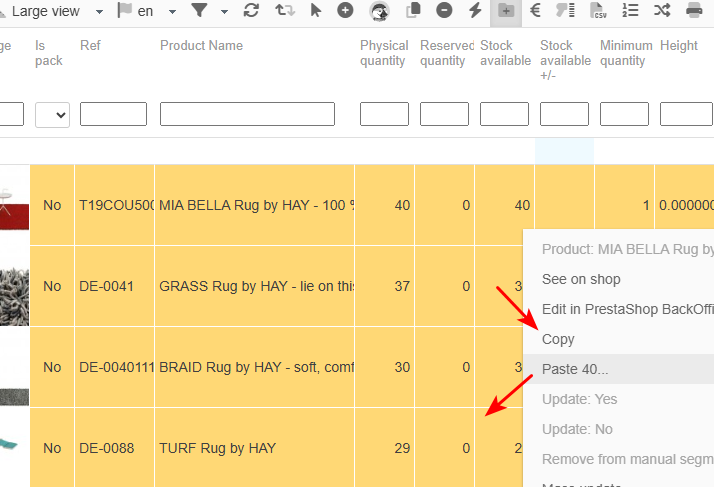
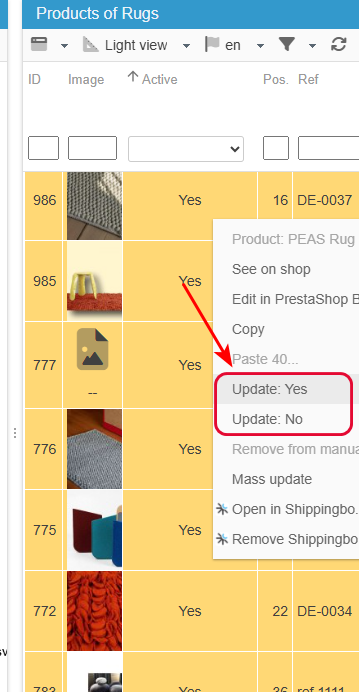
As another example, you can activate an entire product range with the same copy/paste, or even more quickly by using the context menu option 'Modification: Yes' or 'Modification: No'.
For all fields that use YES/NO values, you can apply the change with a single click.
After selecting products, right-click > Modify: Yes ==> all selected products with a status of 'no' will be activated in seconds!
This copy/paste option also allows you to fix some information very quickly.
For instance you can see that some products are not using the correct tax rule. Fix it on one of the products, copy/paste the correct tax rule onto the other products. Ultra fast!
You can use the copy/paste option on all fields of the central views (except ID and image), but also in some properties panels like combinations, specific prices and SEO.
Working faster and more efficiently is or motto that we like to share with you :)
Modification History
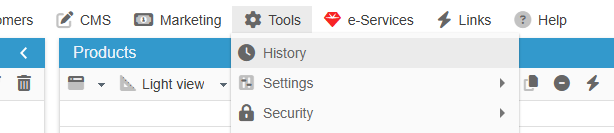
Most modifications made manually within Store Commander's interface (80%) are logged under 'History', accessible from Tools menu.
In this window you will find:
The employee ID who made the modification
The modification date
The product or order ID that was modified
The product or order property that was modified (image, price, category, feature, etc)
The previous and current value
The shop ID onto which the modification was made (in Multistore mode)
and other information
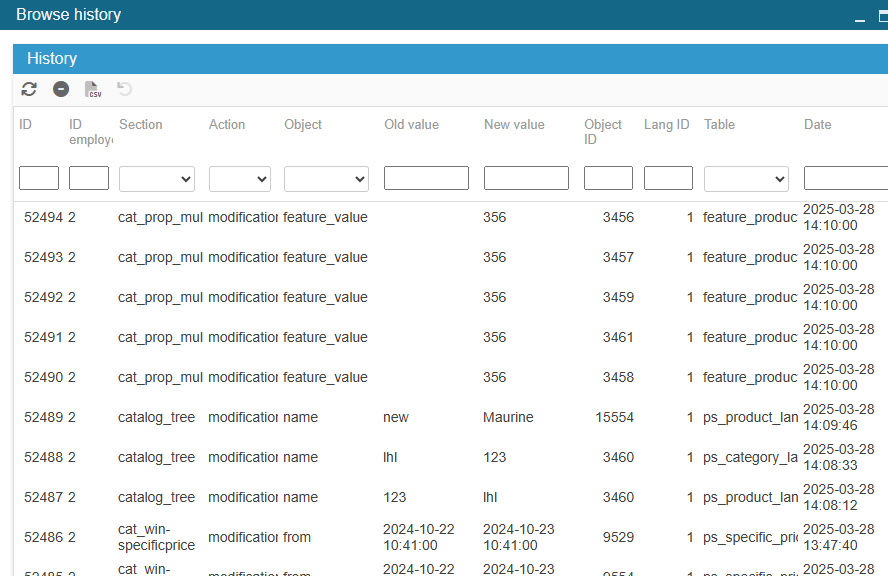
You can use the filtering tool to look for a specific product for example, by entering the product ID in the ID object column.
Cancelling a modification
Some modifications can be cancelled, meaning reverting back to the previous value, using the icon on the toolbar, once you have selected the action to cancel.
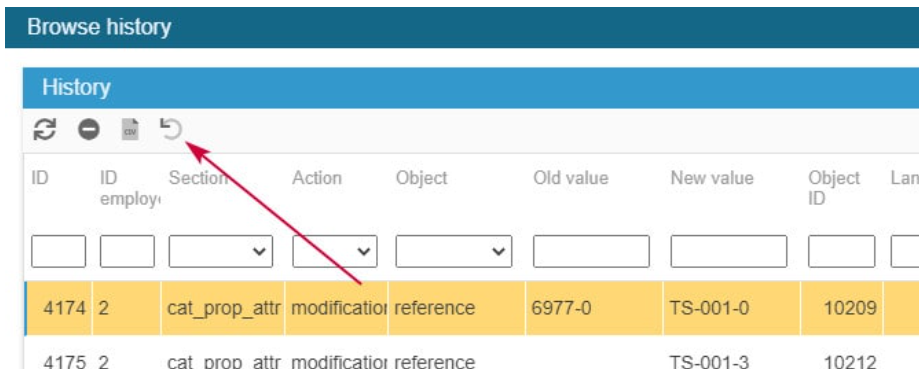
Note that not all modifications can be cancelled, and when it is not possible, the icon will be greyed out.
🖍️Notepad in Store Commander
Sc interface has a little notepad available on the status bar, accessible from all interfaces (catalog, orders, customers, etc).
Click to open and write your own notes that you can save/delete.
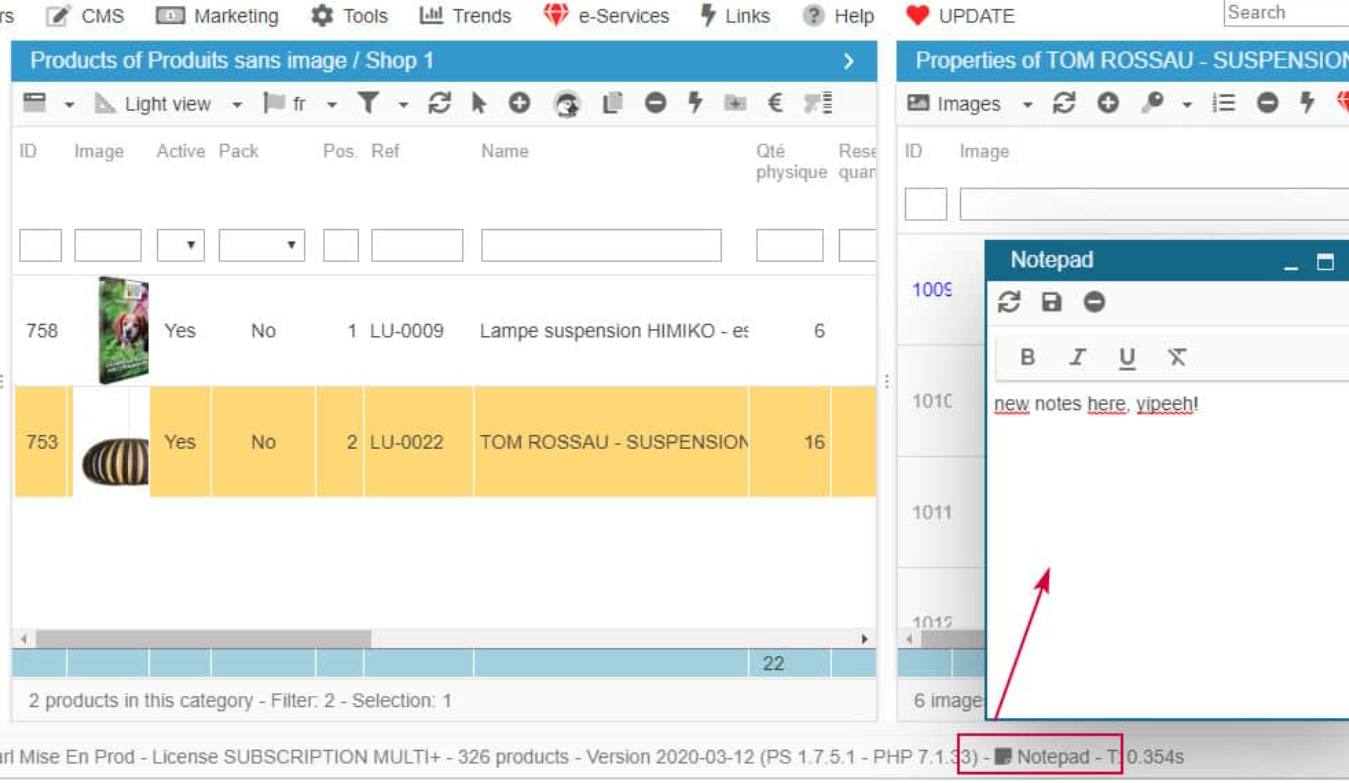
The notes you'll write in this notepad are only visible to you and any other person logging onto PrestaShop with the same employee account.
Filtering a numeric column
You can filter values using operators like > or < in the filtering box of numeric columns.
It's also possible to display a range of information such as prices for instance, by separating values by 2 dots, no space, like this: x..xx
Do you need to swap from the catalog to the order interface without loosing what you were doing?
Do you need to swap from the Catalog interface to the Order management without losing what you are doing?
Simple :) Hold on to the CTRL key and click the Orders menu: a new tab will open up to display Sc Order interface while the Product Catalog is still open.
This tip is applicable to any interface; orders to customers, customers to CMS, etc. Very useful!
Customizing your favicon
Did you know that you could customize the icon used on your Sc browser tab?
Simply upload your image in *.ico format in yoour PrestaShop backoffice > Customize > Appearance > Theme: Favicon section
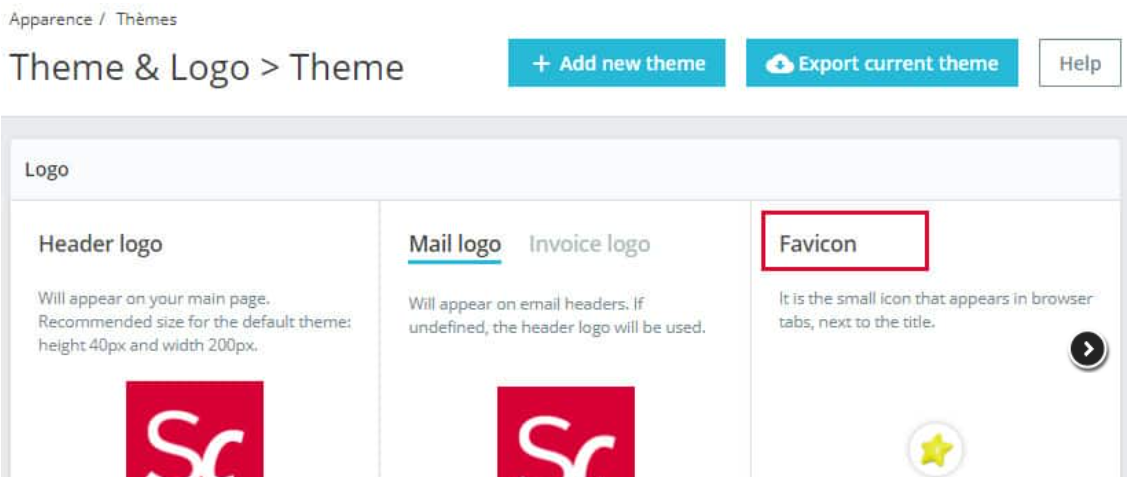
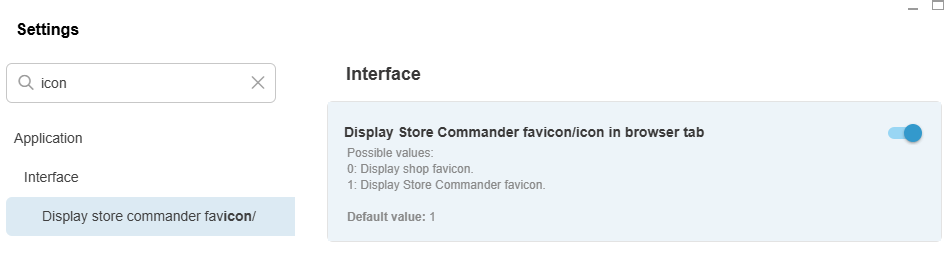
And then change the value to 0 in Sc Tools > Settings to apply it to your Sc tab:
Color codes used in Sc interface
Main colors
A few color codes are used within Store Commander's interface to identify some product information quickly. The main color codes are:
Line is Orange: line selected
Product name field is greyed out: the product is disabled (non visible sur la boutique)
Stock available field is greyed out: the product uses combinations (quantities are managed on combinations)
Red line in combinations panel: duplicate combination
Wholesale price field is red: the wholesale price is higher than the price excl. tax
Meta fields in orange: the number of characters used goes over the limit set in PrestaSshop
Meta field in blue: the number of pixels used is below the number set in PrestaShop and won't be taken into account by Google
Specific colors
Other specific color codes are used, and explanation can be found on the following articles:
Discount view
For a fast visual identification of your products with a reduced price in the Discounts view, Store Commander uses 2 colors:
Light Purple: A promotion is configured but NOT active. The discount information is displayed in the Specific prices grid only.
Dark Purple: A promotion is configured and IS active. The discount information is displayed in the Discounts view & in the Specific Prices grid.
🪙Fizz: Store Commander’s currency
We provide tools in the Store Commander interface that require micro-invoicing: rather than creating hundreds of 0.004 € invoices, you can buy batches of Fizz that will be decremented as you use them.
The Fizz value is closed to the Euro.
It depends on the quantity of Fizz that you buy.
I want some!
You can purchase Fizz directly in your Store Commander interface, under e-Services > e-Services list
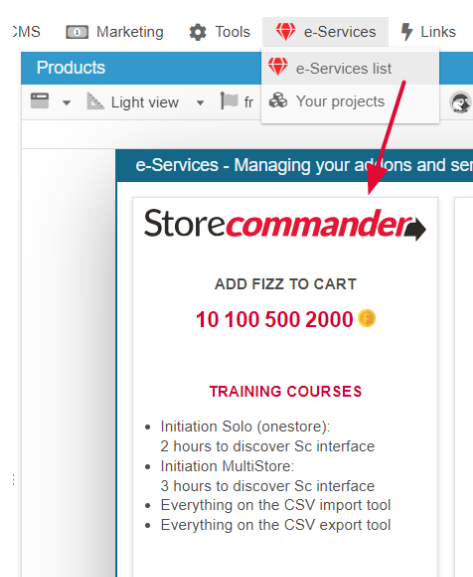
Once you've selected the pack you needed, you'll be redirected to the cart of your account on our website to complete your order.
Fizz pack tarifs are as follow:
