Everything you need to know about Specific prices
Introduction
Specific prices are designed to set up all your promotional campaigns with numerous criteria, such as specific customer groups, or even for a particular customer, for a set quantity, a selected shop, etc.
All these options are displayed and available in the Specific Prices property in the right-hand column of your Store Commander interface.

Setting up a discount
Setting up a promotion or discount on a product couldn't be easier.
The product is selected from the product list and the Specific Prices property is displayed.
On the toolbar, click + to create a new line.
Then simply enter the desired criteria, such as the discount rate (amount or percentage), the start date and the end date, which are the three main criteria.
And that's it, the discount is in place.
Do note that all other fields not selected will use the default values.
The tutorial in this video:
What about combinations?
PrestaShop allows you to set discounts on products but also on specific combinations.
If you create a discount on a product that has variations, then it applies to all combinations of that product.
If, on the other hand, you wish to set up a promotion on one or more specific combinations, you can use the Specific Prices available in the combinations grid directly:

To schedule a promotional campaign for a specific combination attribute, and therefore used on multiple combinations, don't panic! The Multi-Product combinations grid allows you to display, filter and select the combinations you want, to then apply a discount in that same Specific Prices panel.
Here’s a real example in this video:
Specific prices for customer groups
One of the criteria available in specific prices is the customer group. This allows you to create reduced prices that will only apply to customers belonging to the chosen group.
In the Specific Prices property, select the name of the group in the corresponding column:

Discounts in multistore mode
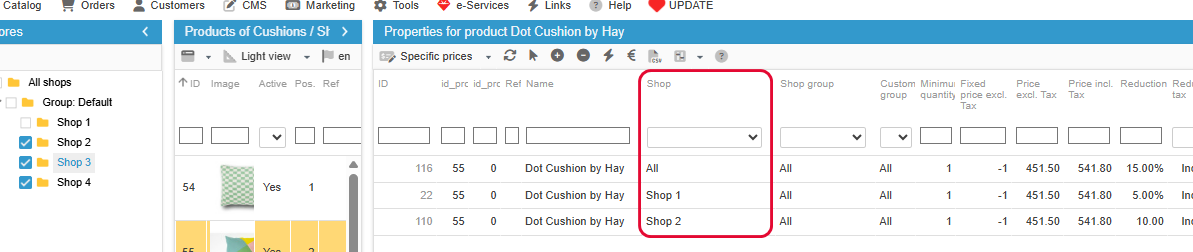
When your PrestaShop backoffice is in Multistore mode, you can decide which shop(s) to apply your discounts to.
There is a dedicated field in the Specific Prices grid: Shops.
You can there set up an X% discount for shop 1 and a Y% discount for shop 2.
Or, if the discount is the same for all shops, you can select “All”.
Volume discounts: reduced prices based on quantities
Volume discounts allow you to offer reduction on a product (or a combination) when the customer orders multiple units. The higher the quantity purchased, the lower the unit price.
This is a type of discount, but it is more permanent in nature, unlike a promotional campaign, which is temporary.
You’ll find more detailed information on quantity-base discounts fro products on this article, and specific to combinations in this article.
Applying existing discounts on other products
If you need to apply the same promotional campaign (or volume discount prices) from one product to others, there is no need to recreate these prices for the other products! Use Sc copy/paste function 🤩
You can use the copy/paste on the field called ‘Specific prices’ located by default in the Prices view.
The information corresponds to all the special prices for the products.
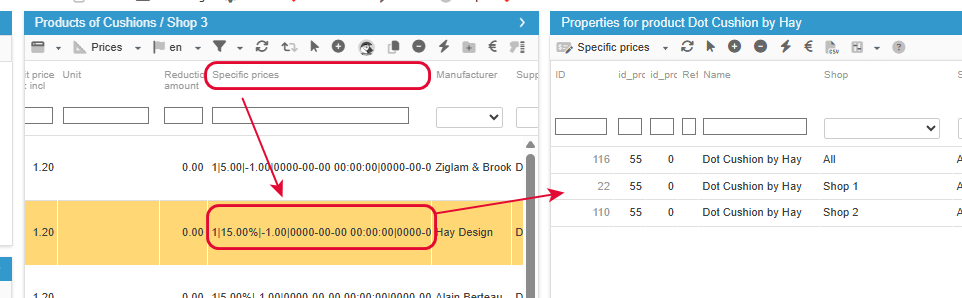
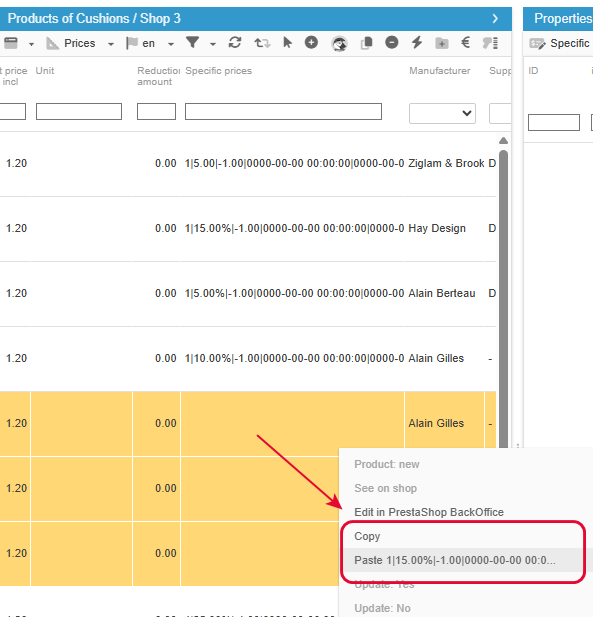
Simply right click > Copy
Then select the products you want to apply the same discount prices, right click > Paste
And you’re done!
💡Tip: setting the final price, including the discount
The Specific Prices property in Sc displays the price after the discount (excluding VAT and including VAT), allowing you to view the final price after the discount on the products.
This final price after discount is a calculated field (price excl. VAT/incl. VAT - % discount), and when a percentage discount is applied, the rounding of the final price will no longer be the same as the rounding set on the initial price.
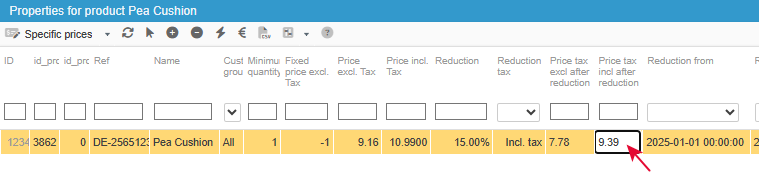
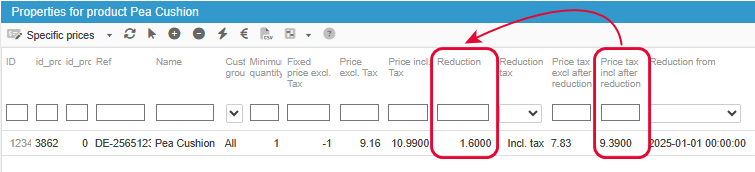
For example, a price of 10.99€ onto which you apply a 15% discount will show a final price of 9.34€
A calculated price is normally not editable, but Sc goes further by allowing you to edit and modify this final price after discount, in the Specific Prices property.
However, please note that this value is a calculated field, so changing it will affect the calculation criterion, which is the reduction value
Using the example of the product priced at €9.34 after discount, if we change it to €9.39, the discount rate will automatically be changed to the discount amount. This is because it is not possible to have a percentage with decimals, so we convert the percentage discount into an amount.

💡Tip: increasing the reduction value
Several special price fields can be edited, such as the discount rate (or amount).
Towards the end of a sales period, it is common to increase the discount value in order to clear out the season's stock.
With Store Commander, you can apply this change easily and, above all, very quickly.
Once you’ve displayed and selected the relevant products in the central column, the Specific Prices property opened showing all the lines for the selected products, you can edit and modify the discount for the first line.
Then right-click on the new value > Copy
Select the other lines to be modified, right-click >Paste
You’re done 🤩
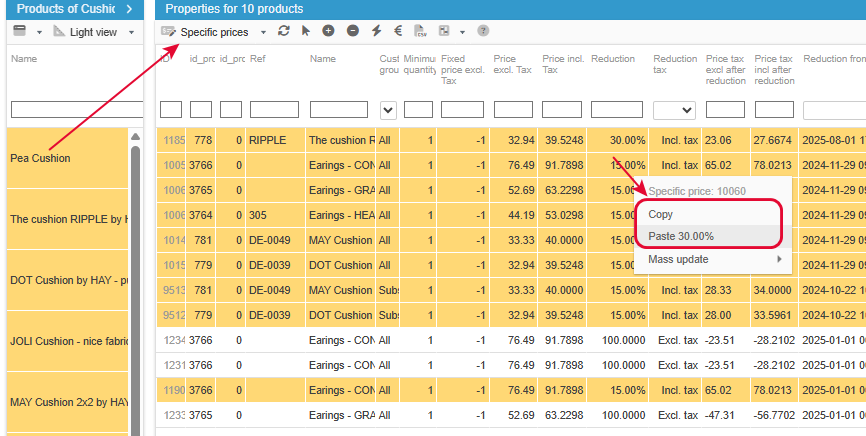
In the case where the concerned products are dispatched in various categories (difficult ot find/display), use the interface dedicated to specific pices - see section below
💡Tip: extending the duration of a campaign
The start and end dates of the promotion can be changed, allowing you to add a few extra days to your promotional campaign!
With Store Commander, you can apply this change easily and, above all, very quickly.
Once you’ve displayed and selected the relevant products in the central column, the Specific Prices property opened showing all the lines for the selected products, you can edit and modify the end date for the first line.
Then right-click on the new date > Copy
Select the other lines to be modified, right-click >Paste
You’re done 🤩
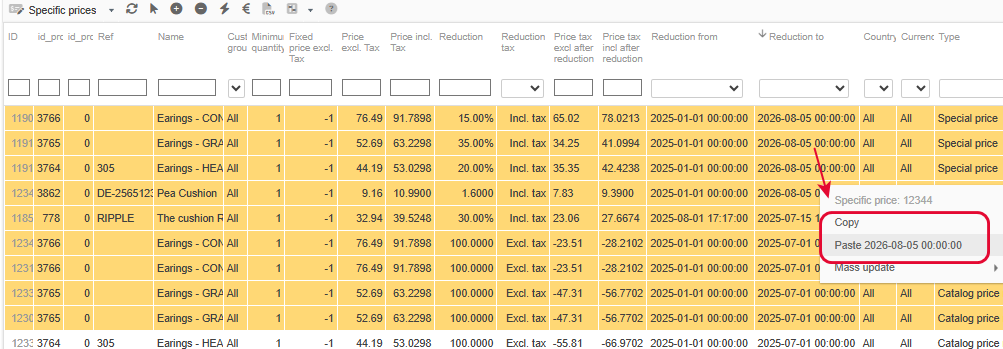
In the case where the concerned products are dispatched in various categories (difficult ot find/display), use the interface dedicated to specific pices - see section below
🚮Deleting discounts
To delete a promotion, you must delete the corresponding line from the Specific Prices grid.
Because, deleting the discount amount/percentage or the dates does not delete the promotion, but replaces the discount value with 0, and the dates will become the default ones, i.e. unlimited.
You can select multiple products to display the associated specific prices and then delete them in bulk.
You can also use the dedicated specific prices interface to find and delete all old, obsolete discounted prices.
The dedicated interface
You can view and manage special prices in the corresponding property for pre-selected products, but Store Commander also offers a dedicated interface for specific prices!
This means that you do not need to display or select your products; this interface allows you to view, modify, and delete specific prices that exist in your entire shop, whether past, present, or future 🤩
This interface is accessible from the Sc menu Catalog.
To view specific prices, select your category from the tree structure and use the filters below if necessary.
The corresponding prices will be displayed in the interface.
🧹For example, you can filter the end dates to delete all old prices in order to clean up the database.
Or modify the price reduction associated with to particular customer group: filter the group, modify the reduction on the first line, then copy/paste it onto the other lines concerned.
This interface displays all information related to specific prices, allowing you to find the prices you want to change.
Please note that by default, only specific prices associated with products are displayed.
To display specific prices that are configured on your combinations, you will need to activate this icon on the toolbar:
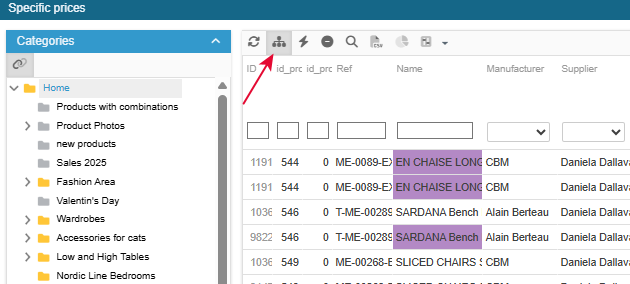
This interface allows you to see and modify existing specific prices, it’s not possible to create new ones - this needs to be done on a product via the specific prices property.
💡Tip: Depending on the number of prices you wish to display in this grid, which contains a lot of information, loading times may be long or even very long.
To speed up loading, you can remove columns you do not need using the interface customization tool (Tools menu of your Sc):
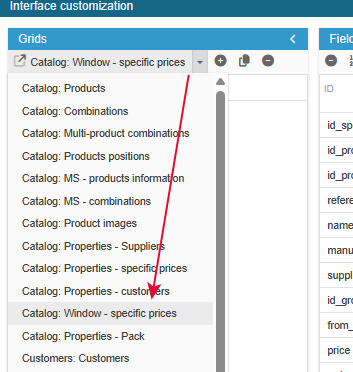
🎥 A presentation video is also available:
Exporting specific prices
The fields dedicated to specific prices are not available in Store Commander's CSV export for technical reasons.
The alternative is to display all your products in the central column of Store Commander, then display the special price grid from the propertiy column on the right. Then use the quick export option on the toolbar to copy/paste its content into a spreadsheet.
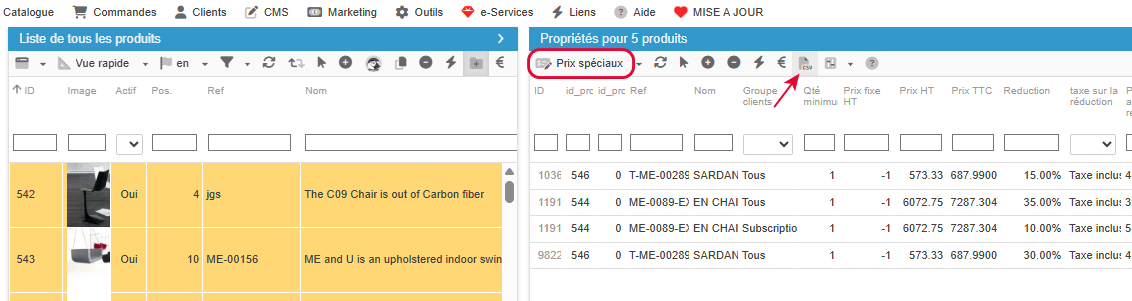
The quick export option is alsao available in the interface dedicated to all specific prices ; better to display and filter the information you want to export.
Creating specific prices using the csv import
You can create all your promotional campaigns in bulk by importing a CSV file.
All specific price fields are available, allowing you to set up discounted prices for all occasions!
With all these possibilities, we have dedicated an article on importing specific prices with Store Commander, which you can find here.