Pricing your combinations
Managing the prices of your PrestaShop combinations can quickly become time-consuming... unless you use Store Commander!
Thanks to its optimised grid, you can make mass price changes to all your product combinations in just a few clicks, without having to open each product file individually.
What's more, PrestaShop uses price impacts to define prices for your combinations, which can quickly become complicated and tedious. With Store Commander, on the other hand, you simply enter the final price (excluding or including VAT), no calculations required :)
Setting base prices on combinations
Once you’ve selected a product that has combinations in the central column, you can open the Combinations property in the right handside column.
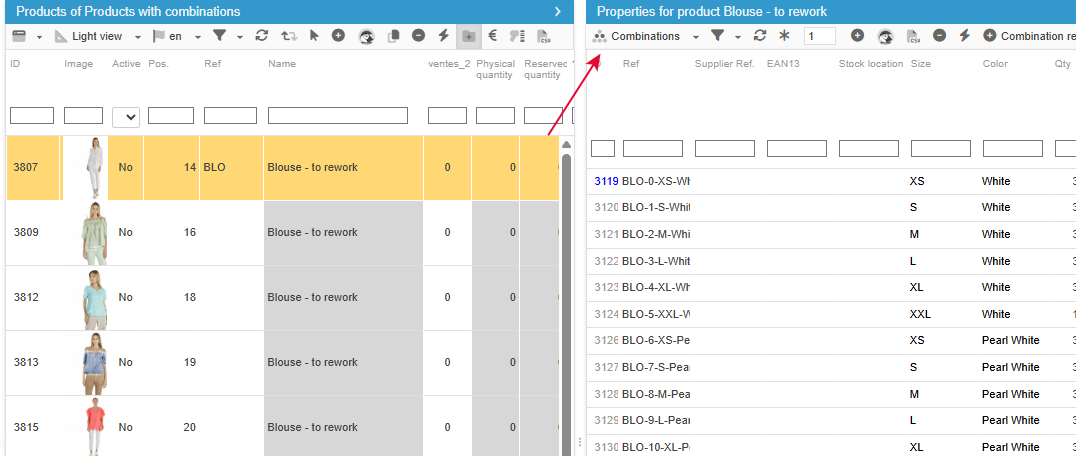
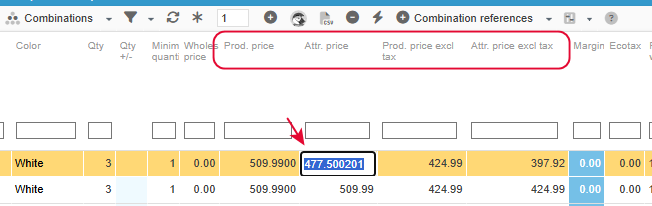
The Combinations panel includes price excl. and incl. tax set on the parent product (read only) as well as the price excl. and incl. taxe set on combinations.
This data is differentiated by its title:
Prod. price: parent product price (prod = product)
Attr. price: combination price (attr = attribute)
Double click to edit Attr. price or Attr. price excl. tax to set the combination final price.
Modifying combination prices in bulk
Applying the same value: copy/paste option
If multiple combinations of the same product need to have the same price, then save time by using the Sc copy/paste feature to apply that same price value on all these combinations :)
Do a right click on the price to apply > copy, select the other combinations you want to apply that price onto, another right click > paste. You’re done!
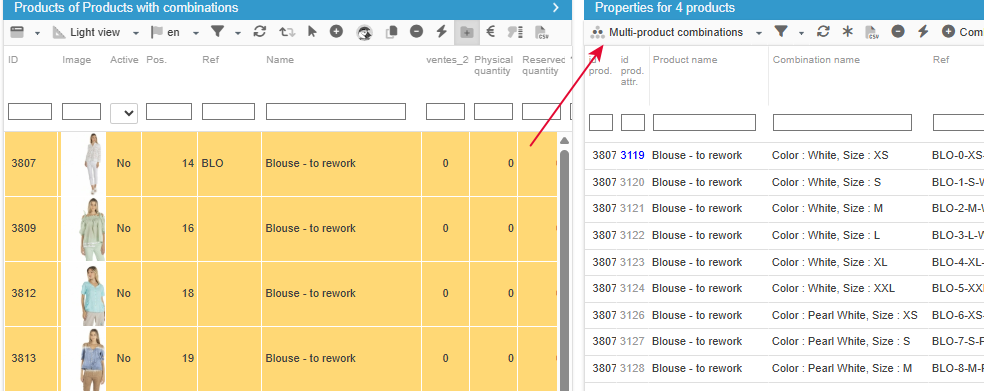
This procedure can be applied in bulk, meaning on combinations of mulitple products. First select the products in the central column and open the MultiProduct Combinations panel: all combinations of all selected products are displayed.
Applying a percentage increase: mass edit option
If you need to apply a price increase on combinations using a percentage, you can then use the corresponding Sc mass edit option.
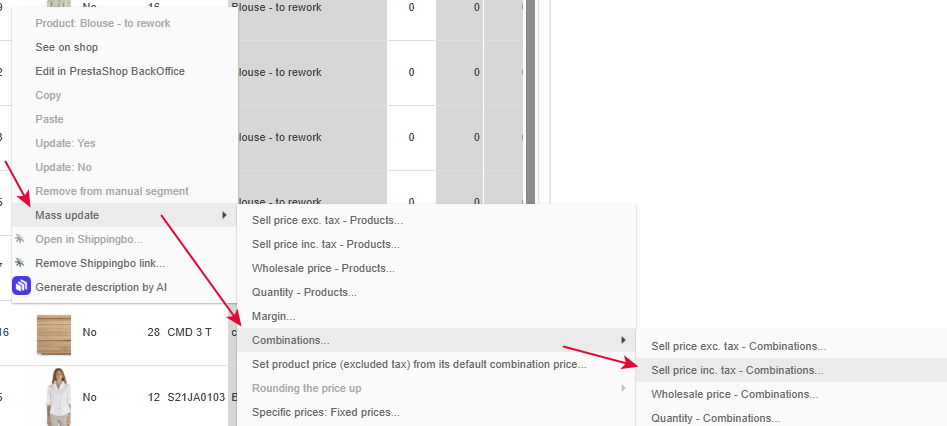
Once you’ve selected the corresponding products in the central column, do a right click to display the popup menu and select Mass update > Combinations > Sell price inc. tax or exc. tax
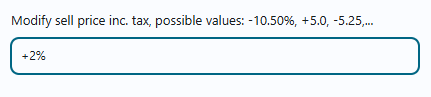
In the popup window, enter the percentage value you want to apply, and ok to validate, done 😊
Rounding up combination prices
There is an option in Sc to quickly rounding off the price of products, as well as those of their combinations.
You’ll find the rounding up option in the popup menu (right click) when your mouse is in the price incl. or price excl. tax column.
And select one of the round up options in the list, validate and it’s done!
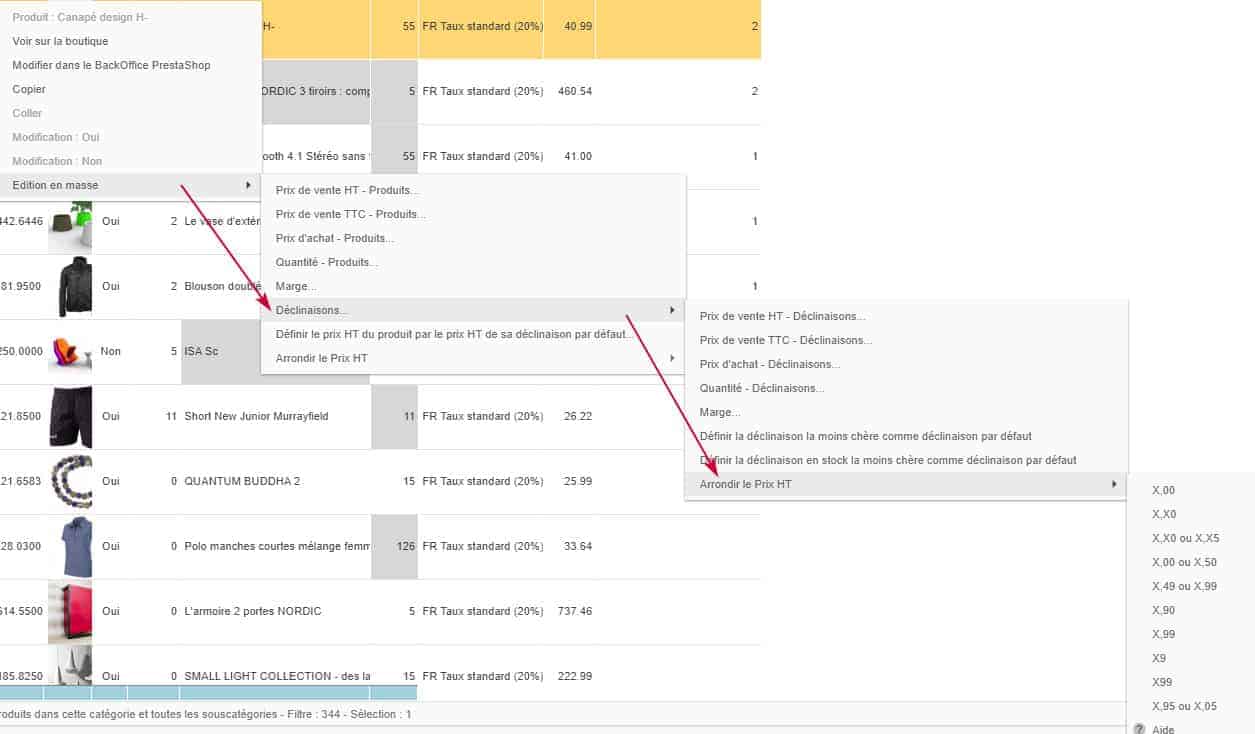
Please note that the option will grayed out, unavailable, if you click in a column other than the prices columns.
Applying discount on combinations
With Store Commander, you can not only offer discounts on products, but also on specific combinations.
When you create a discount price on a product that has several combinations, the discount will be applied to all the combinations of the product.
If on the other hand you want to setup a discount on specific combinations but not all, you can do so via the Specific Prices panel included in the Combinations grid.
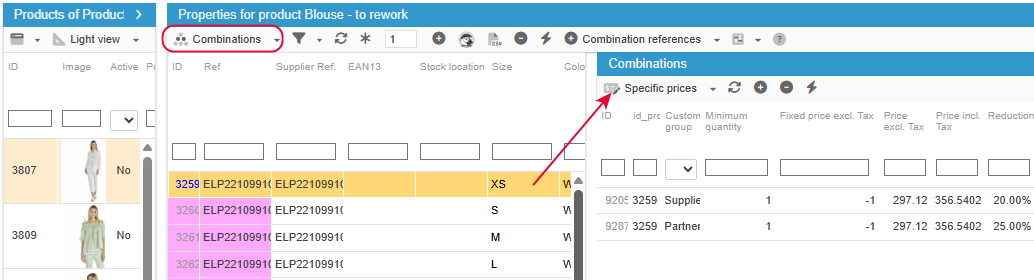
You have the same options as the specific prices on products, such as customer groups, set dates, discount amounts or percentages, etc.
You can also create a discount on a specific combination for a specific shop when your PrestaShop store is in multistore mode.
The main advantage of this grid is that it allows you to create specific prices for several mass combinations!
In the combination grid, select the combinations onto which you want to add a specific price, and hit the ➕ to create a new discount price.
You’ll see the IDs of all selected combinations in the ‘ID’ column.
Now you can enter the information such as the discount value/percentage, the dates, and any other data you want to apply to this discount price.
When you’re done, simply refresh the panel to then display all the specific prices; one per combination (the selectedones).
This is it! You just setup a promotional campaign on multiple combinations in just a few clicks!
Please note that all fields in the panel can be edited (except the ID), so that you can extend the promotional campaign duration, or increase the percentage discount for example.
This procedure can be applied to multi-product combinations by displaying the Multi-Product Combinations grid, after first selecting the products in the central column.
Deleting specific prices on combinations
This same specific prices property in the combinations grid can also be used to remove old promotions, but the combinations concerned must first be selected (to display the corresponding prices).
An alternative we'll look at here is to delete the specific prices associated with the combinations en masse in the Specific Prices interface - without having to select products or combinations.
Go to Catalog > Specific Prices
On the left handside column, select a category where you have combinations with a discount, and enable this icon on the toolbar - to take combinations into account:
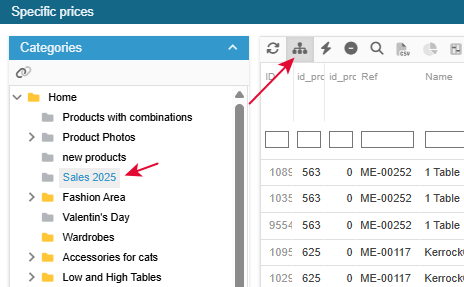
You’ll then have all specific prices associated to products as well as combinations (of the selected category) displayed in the interface.
You can now filter any information to look for the specific prices you want to delete, like the old end dates for example.
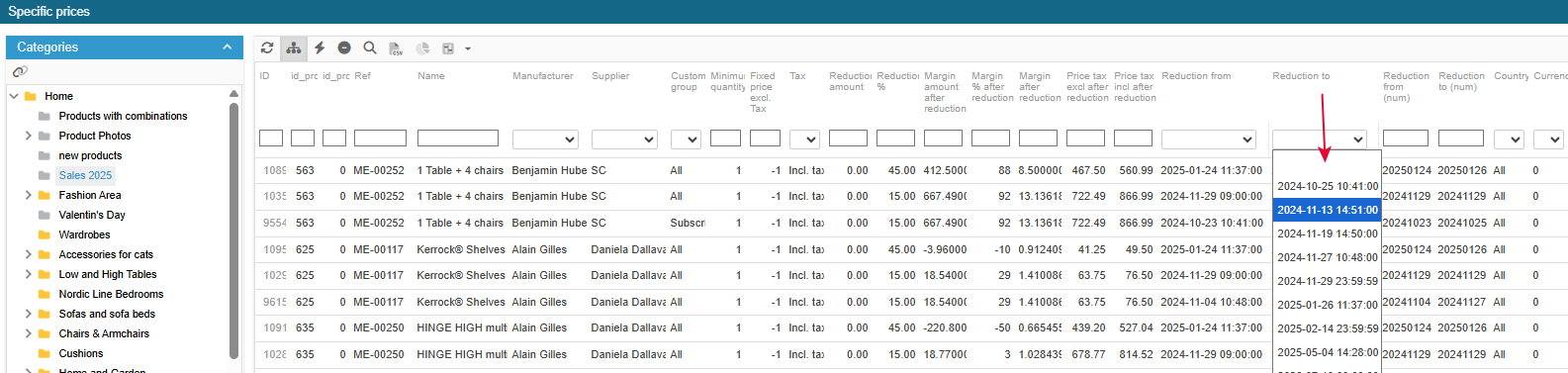
Do note that deleting specific prices in that interface removes specific prices only. It does not delete products nor combinations.
💡In this interface, you can also modify specific price data, such as increasing the percentage discount at the end of the sale period, or extending the period of your promotional campaign by changing the end date.
Double-click to edit and modify this information, and copy/paste to apply to several specific price lines.
Introducing sliding-scale prices (discounts on quantities)
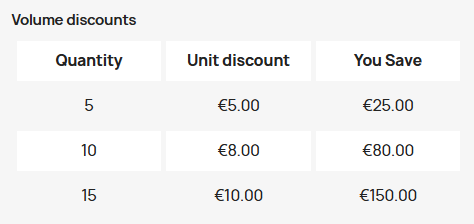
Sliding-scale pricing allows you to offer discounts on a product when the customer buys several copies. The greater the quantity purchased, the lower the unit price.
For example, taking a product priced at €10 each. With defined sliding-scale prices, this would give:
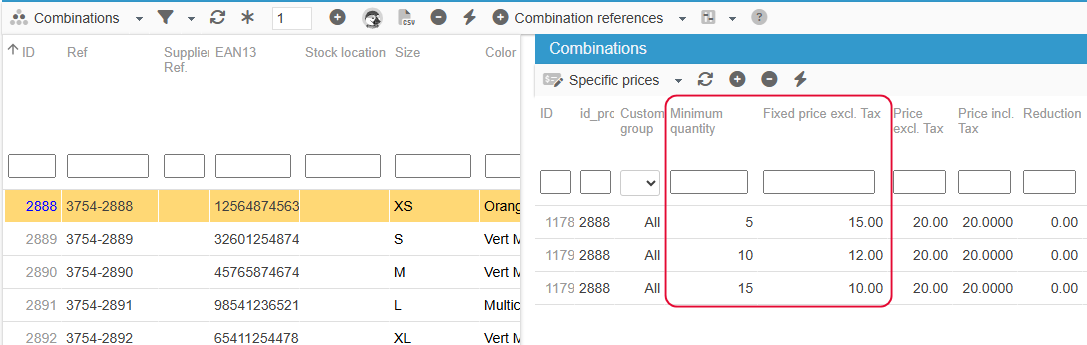
These sliding-scale prices use the PrestaShop specific price fields available in Store Commander, in particular the Specific Prices grid in the combinations grid.
These prices use ‘minimum quantity’ and ‘Fixed price (HT).
You simply need to create a line per price/quantity, like this example:
The information displayed on the product page of the concerned combination: