Setting up discount using csv import
Introduction
You can set up your promotional campaigns in bulk using a CSV file that you can import with Store Commander.
All specific price fields are available and easily recognisable in the list of fields in the import mapping panel.
Here is the list with their definitions.
Importante note: “specific price: from quantity” is mandaroy. If it’s not present in your import, no specific price will be created.
Please also note that Excel has an unfortunate tendency to automatically change date formats in csv files.
Therefore, you must remember to set the format of the date columns to YYYY-MM-DD hh:mm:ss. Save the file, and load it into Sc.
If you close and reopen it, Excel will not have retained your change and will use its default format.
What are the differences between specific prices and discounts?
There are fields entitled ‘discount’ which correspond to the discount fields displayed in the Discounts view in Sc.
These fields can of course be used with an import to set a promotional campaign: a discount amount or percentage, a start date and an end date.
However, there are two important points to consider before opting for discounts rather than specific prices.
Reductions only applies to products (never on combinations specifically)
If a discount already exists, importing a new one will replace the current one. Which can have a real impact if you are apply a yearly discount (known as unlimited discounts).
On the contrary:
specific prices can apply to combinations
importing specific prices does not impact any existing discount prices
specific prices can be applied to a customer group, for a set quantity, to a specific customer, or to a country or even to a currency, which is really interesting if you’re selling internationally 🌍
Importing a new discount
As with any CSV import with Sc, the point the most important when importing is the identifier, which is used to find the product to update.
There are multiple identifiers available in the drop down menu (in the import window), such as name, reference, ean13, upc and even the product ID.
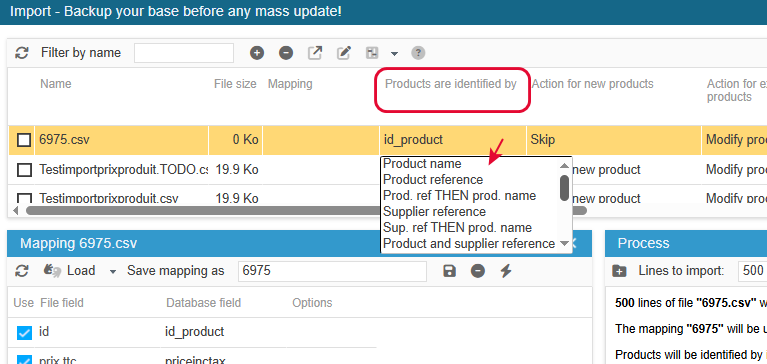
This identifier is a key point, as it must be unique for the import process is to modify the right product or combination.
To then create the promotion using the specific prices fields, your file will contain the mandatory field “specific price: from quantity”.
Adding to it, the field ‘specific price: reduction’ together with ‘specific price: reduction type, to set the discount in either amount or percentage.
The other specific prices fields are not compulsory, you’re the one deciding whether to include them if required, such as the dates, a customer group, etc.
For all unused fields, default values will be applied, like id group: all (not a specific one).
Remember that importing specific prices will create new specific prices, they will not replace existings ones. If you wish to replace, refer to the section below.
Setting up a discount for a specific customer group
To apply a discount to a specific customer group, you will need to add the field “specific price: id_group to your import file.
This will of course, be added to the mandatory field “specific price: from quantity”.
And to the field “specific price: reduction” to apply a discount amount/percentage.
Or to the field “specific price: price” to define the pre-tax price to be applied to the product for the customer group concerned.
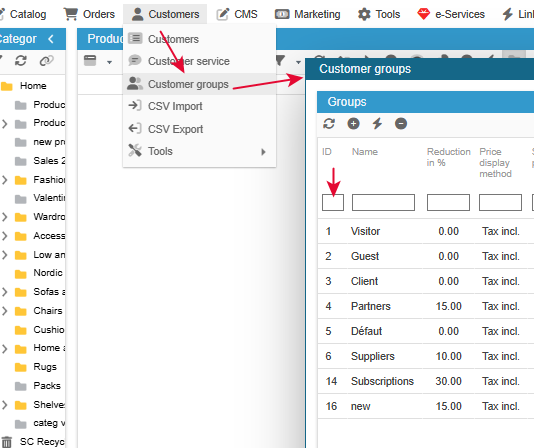
The file will need to use the cutomer group ID, not its name.
You can find the IDs in the list of groups accessible from the Customers > Customer groups
Creating a promotion for a specific shop (multistore)
When working in multi-store mode, you can create promotional campaigns that apply to all shpps, or to specific shops.
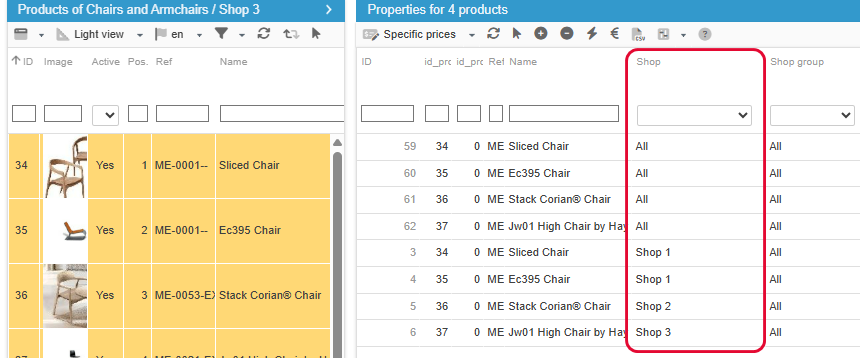
This will be decided with the dedicated field called ‘specific price: id_shop’
To which you will be adding the mandarory field ‘specific price: from quantity’, and all other fields required to set your promotional campaign.
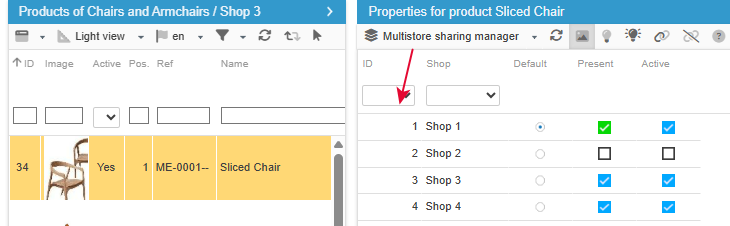
The id_shop will use the shop id you want to discount to be applied onto.
If it needs to be applied to all shops, the the id to use is 0 (that corresponds to ‘All’ in the specific prices property:
You can find the shop IDs in the Multistore Sharing Manager property:
Can discounts be modified in bulk by csv import?
Importing specific prices will never replace exsiting ones, but always create new ones.
One solution is to delete old discounts (after importing the new ones) using the interface dedicated to specific prices.
Another solution would be to replace existing discount prices with new ones, which will technically delete and create. More detailed information in the chapter below.
How to replace discount prices in bulk?
There is a procedure using the Store Commander import tool to replace existing specific prices on products, or on combinations.
The action will be to delete the existing specific prices and create new ones, all in the same import process.
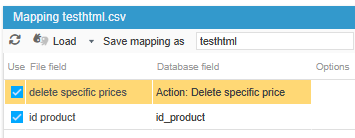
You will need to use the ‘action: delete specific prices’ available as an import mapping option.
Your file will contain the delete action in the very first column, followed by your product identifier (id, name, reference, etc.), and then the specific price fields containing the new values to be created.

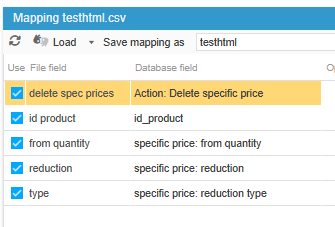
The order of the columns is crucial. The deletion needs to occur before adding the new prices, therefore the column 'delete specific prices' has to be placed before the column containing the new specific prices values.
Can we delete specific prices by csv import?
It’s indeed possible to delete specific prices on products and combinations in bulk using the csv import tool in Store Commander.
You’ll need to use the ‘action: delete specific prices’ available as an import mapping option
Important note: this action will delete all specific prices on the products specified in the import file.
It’s not possible de deled specific prices.
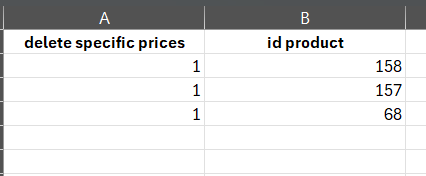
Your csv file will include only 2 columns:
delete specific prices: indicating 1
the product identifier (id, referene, ean, etc)