Installation & subscriptions
Module installation procedure and user guide
Installation prerequisites
To install Store Commander on your PrestaShop store, here are the main prerequisites.
PrestaShop versions
Store Commander can be installed on any server able to host a PrestaShop version 1.6.1.x and above.
PrestaShop backoffice access and permissions
You need to required access permissions to your backoffice to install and configure Store Commander. SuperAdmin rights will be required, or any other role with the corresponding permissions.
Compatible web server
Make sure your hosting plan meet the PrestaShop general requirements (php version, php extensions, MySQL database).
Store Commander doesn’t require anything more than PrestaShop prerequisites.
Store Commander License
Besides the initial 7 days free trial period, you will need a Store Commander active license through a subscription plan that you can choose on our website, of via PrestaShop Marketplace.
Stable internet connection
A stable internet connection is recommended, especially when importing large files, or updating the module, and for the daily use of Sc functionnalities.
High performance web browser
Use a modern browser (such as Chrome, Firefox or Edge) to access the back office and use Store Commander's advanced features without display or performance problems.
Once these prerequisites have been met, you can install Store Commander like any other PrestaShop module and start optimising the management of your shop 😊
Step by step installation
Once you’ve downloaded the installation file from our website, the installation will be very quick and very easy.
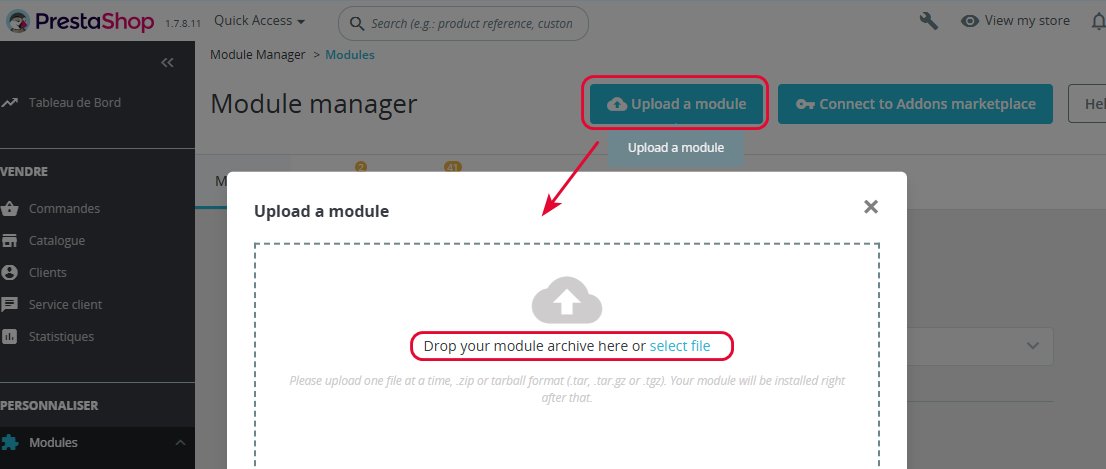
From the Modules page of your PrestaShop backoffice, hit the Upload a module button on the top right of the page, and add the sc.zip downloaded previously.
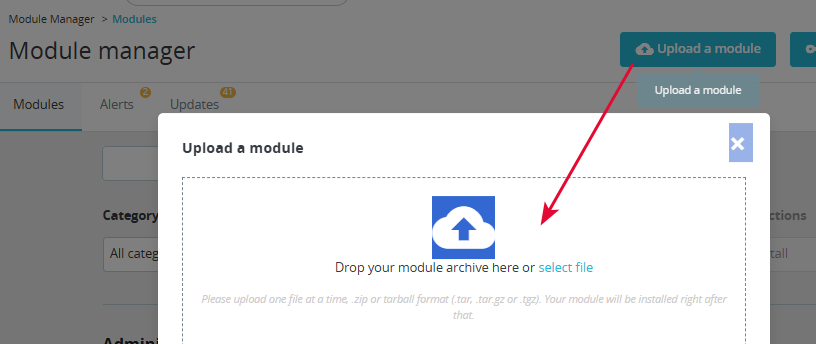
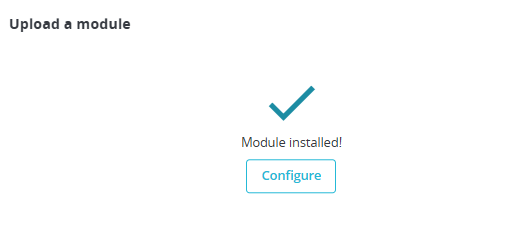
Once the file is loaded, you’ll be prompted with ‘Configure’ - continue on Configure
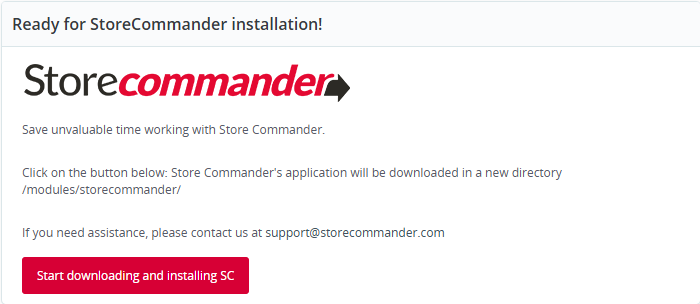
Next step is to download the files:
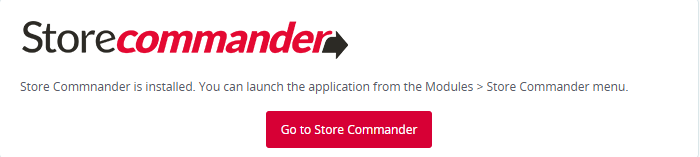
A few seconds later, the installation is done, you can open Store Commander:
One last step; choose to start your free trial period by creating your account, or enter your license if you already have one.
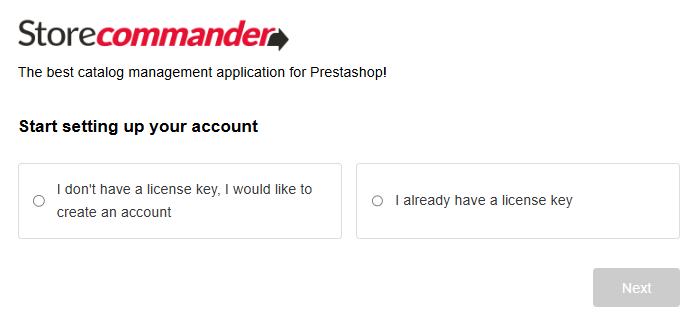
Fill in the information on the chosen page.
You are now all set to manage your shop at lightning speed🎉
My subscription
Startin my subscription
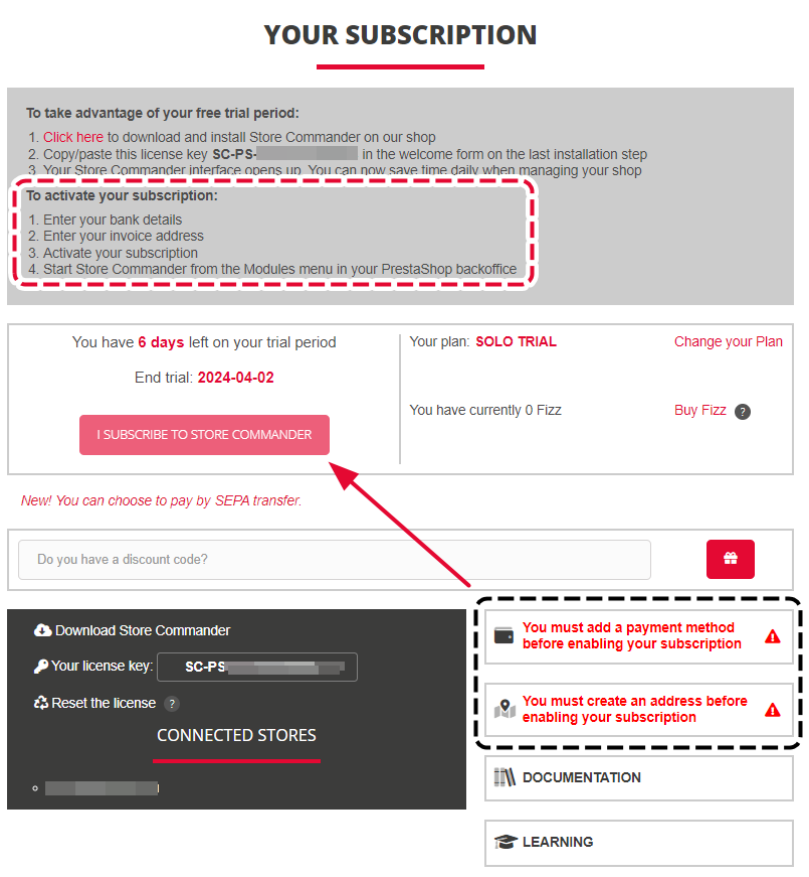
As soon as your account is created on our website, you can select My Susbcription menu on the left handside.
On this page, you’ll find all details such as your license key, your plan, as well as your payment information.
Just a few steps to activate your subscription, explain on this screenshot:
Changing my subscription
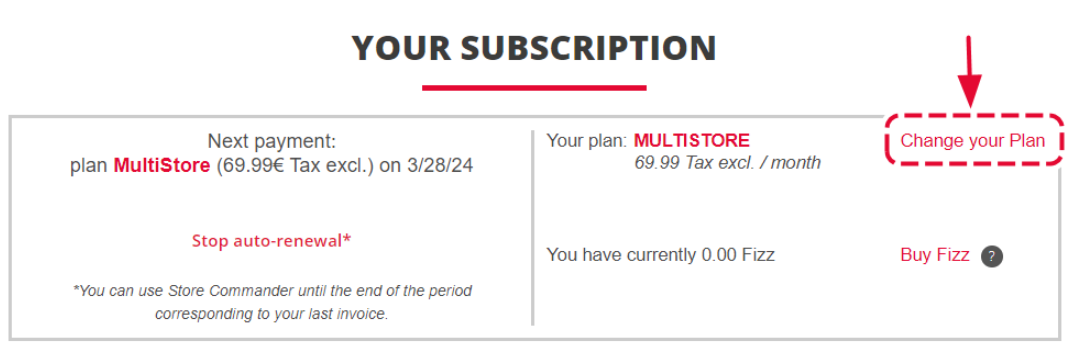
If you want to change your current plan, from Solo to Solo+, or Solo to MultiStore or even MultiStore+, open your Subscription page on your account and click on the link 'change your plan'.
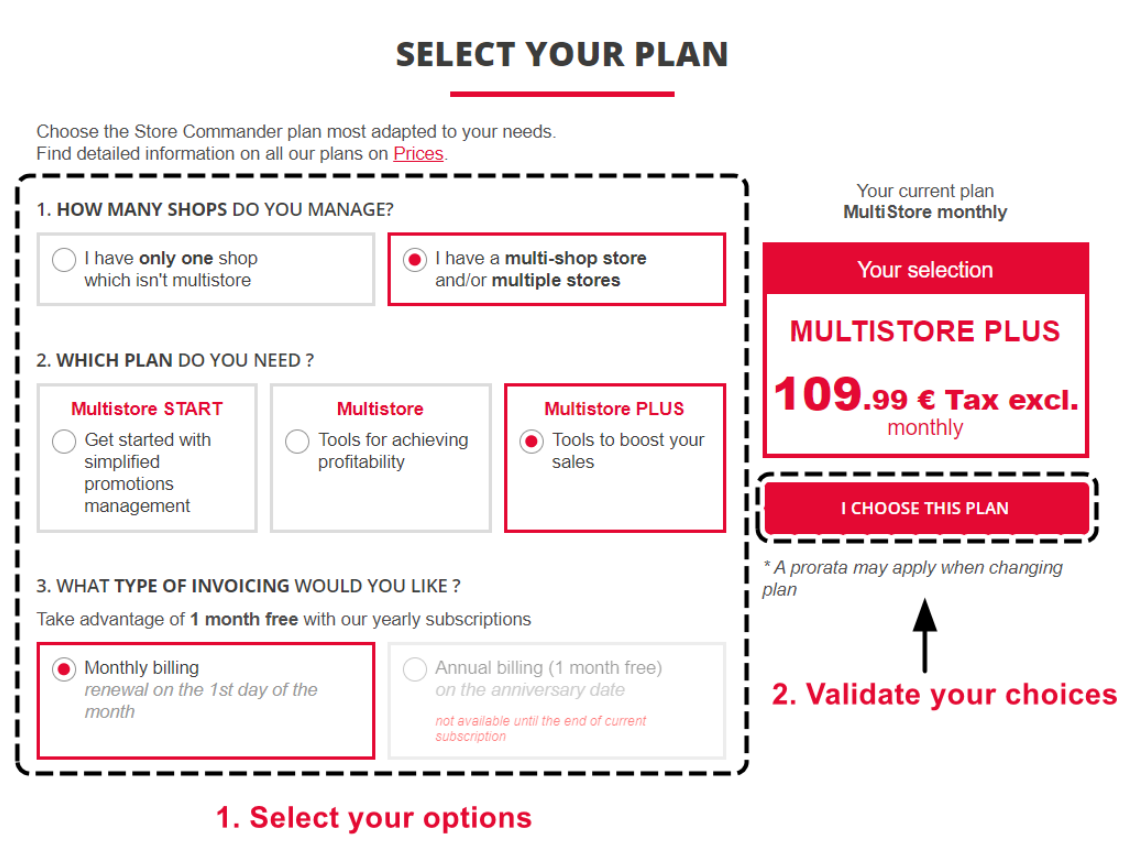
On the following page, choose your options. The price will refresh on the righ handside, and you can finally validate on the red button.
A change of plan does not impact your license which remains unchanged.
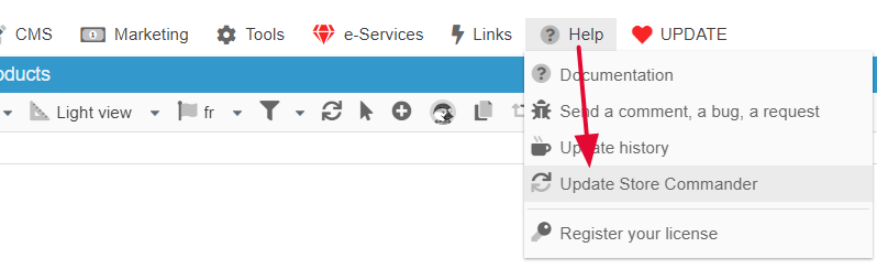
The very last step for you to do is to apply an update within you Store Commander interface > Help > Update.
Can I change my current plan from yearly to monthly?
If you want to switch your subscription plan from yearly to monthly, you need to wait your anniversary date to apply this modification.
You can beforehand click the option 'stop the auto-renewal' on the Subcription page of your customer space.
When your subscription is then stopped, you can modify your plan to change it from yearly to monthly.
What should I do if I come across a payment error?
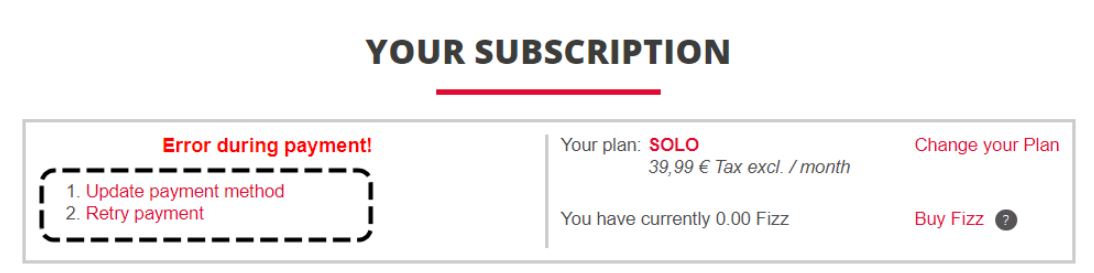
Payment errors may occur, in which case you will receive an email with details of the error. This email also invites you to log onto your account to apply one of the two solutions displayed on your Subscription page:
Please don't hesitate to contact our team if you have any questions or need more
information.
Resetting my license
You might be sometimes prompted with a reset license message.
This happens if the IP of your hosting server has changed, or if the URL of the PrestaShop backoffice you’re trying to open Sc is different from the URL already associated to your license key.
The solution is to reset the license, which is a clickable link at the bottom of the Subscription page of your account.
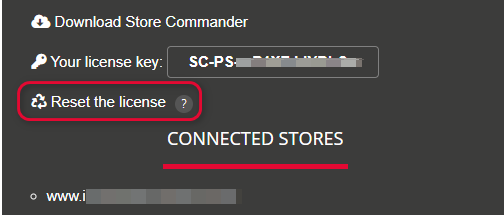
Resetting a license does not impact your shop, nor your database, nor your Store Commander.
Resettng allows to dissociate to then associate your license key to the PrestaShop backoffice you are using Store Commander onto.
Updating Sc interface
As a web application, it’s important that your Sc is always up to date.
And one of our mission is to make sure you are working with a stable tool, hence the publication of regular updates.
Whenever an update has been released, you’ll be notified by a red heart popping up on your Sc toolbar. Click it to apply the update.

A shortcut to the contents of the update is also provided ‘Update History’.
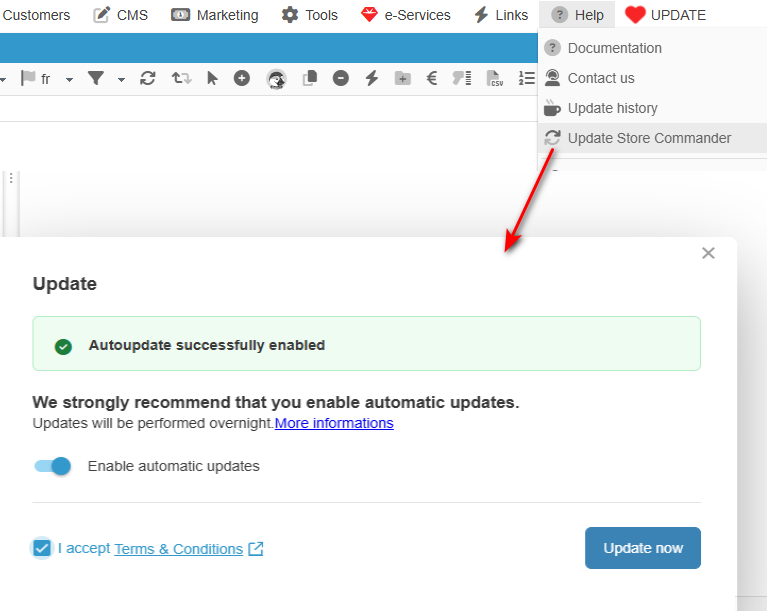
Alternatively, if you don’t want to bother with the manual update, you can choose the automatic option 😉
Click on Help > Update Store Commander and enable the automatic update option
Updating Sc installation module
It's sometimes necessary to update the version of the installation module, which is différent from the version of Store Commander interface.
It refers to the installation module located in the list of modules in your PrestaShop backoffice (Module manager).
To update this module version, download the lastest version from our website:
https://www.storecommander.com/en/content/46-store-commander-download
Then on the Module manager page of your PrestaShop backoffice, click on the "Add/Install a new module" at the top right.
Drag/drop or fetch the zip file you just downloaded.
That's it, all updated!