Your control tower made in Store Commander
Discover an essential tool for keeping your shop in tip-top shape!
FixMyPrestaShop - what is it?
This article explains just about everything on FixMyPrestaShop.
1- Installation
FixMyPrestaShop is included in all Sc subscription plans, so after installing Store Commander and validating your license key, FixMyPrestaShop will be activated and accessible from the Tools menu.
2- What is the purpose of the module?
FixMyPrestaShop allows you to check the integrity of several tables in your database in order to detect possible problems.
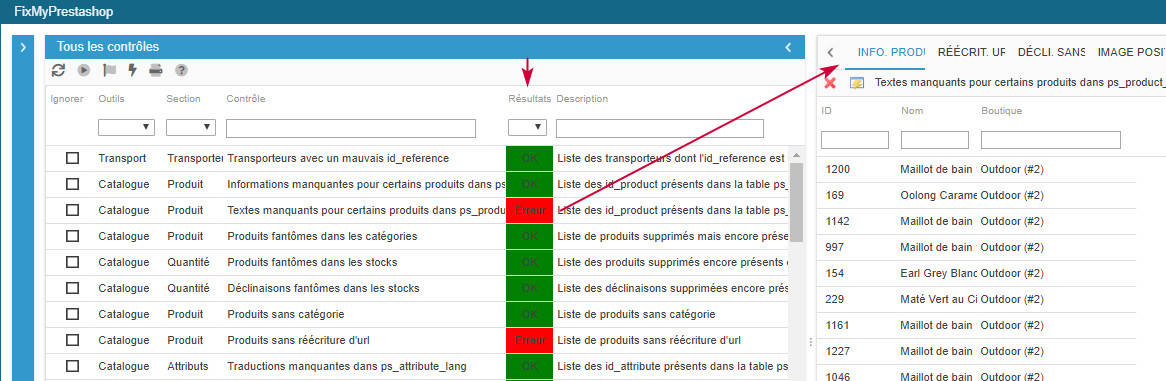
When a problem is found in a specific table, the cell in the “Results” column will display “Error” on a red background.
At the same time, a corresponding tab is displayed in the right-hand panel with the item or items in error.
3- What are the controls?
The module checks numerous tables. Each check is detailed by its name and its definition in the “Description” column.
4- Running the checks
Hit the Start icon to run the all checks in the list:
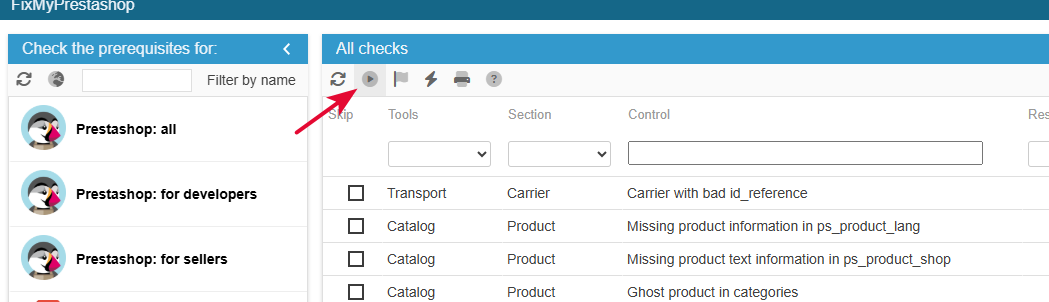
You can also choose specific controls by selecting a type from the list in the “Section” column, or by using the filter tools.
For example, you just want to run the check on all the “missing” data by entering the term in the filter cell in the “Control” column.
Note that running a check does not pose any risk to your database, as the check in no way modifies the elements in the database. The module will suggest appropriate actions for each error found, which you will have to apply manually.
5- Understanding and applying the fixes
For each error found, a corresponding tab opens up in the right handside panel.
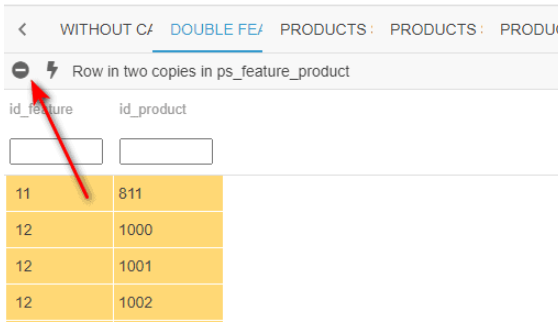
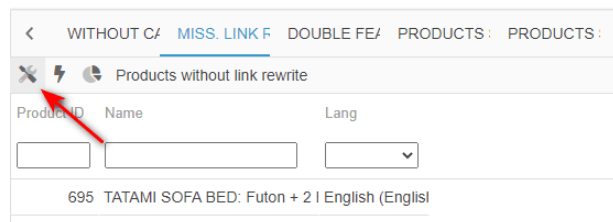
And each tab will display the list of elements in error, and the fix will be available as icons on the toolbar (+ or -).
You will know what the fix action is by hovering over the icon with your mouse.
In the below example, to fix the error found is to delete the ghost products listed in the panel. You will then need to select them (using the mass-selection icon) and click on the available option, in this instance to delete the products :
Here’s another example of a error and how to fix it:
When the fix is applied, FixMyPrestaShop automatically runs the verification again on the corresponding control.
Do not hesitate to contact your webmaster if you are unsure about the error(s) found and/or the fix to apply.
6- What should I do if the fix doesn’t work?
If the error remains after you've applied the fix, then please contact our support team using our contact form.
FixMyPrestaShop is constantly evolving. Should FixMyPrestaShop not be able to fix problems detected, we will be able to add the necessary tools to fix these issues on your database. This would then be beneficial to all other FixMyPrestaShop users.
Watch FixMyPrestaShop in action in this video
Detecting duplicated reference, ean13 and upc
Source of errors, duplicated references can have a serious impact when it comes to managing your stock and orders....
With our addon FixMyPrestaShop, you can identify products using the same reference, or same ean13 and even UPC code, and of course fix them!
Simply run the corresponding controls within the interface.
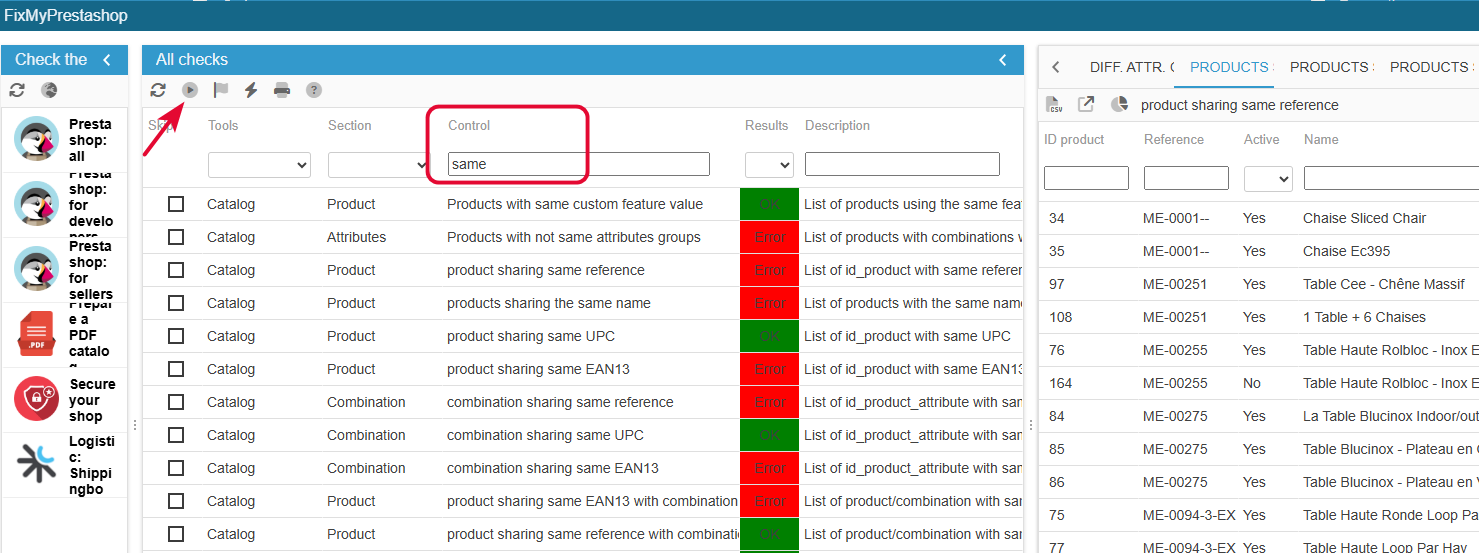
To save time, note that you can use the filter tool in the main grid to display EAN13 controls, for example. Above we have used “deduplicate” to display only deduplicate checks.
The duplicates detected will be displayed in a specific tab in the right-hand panel.
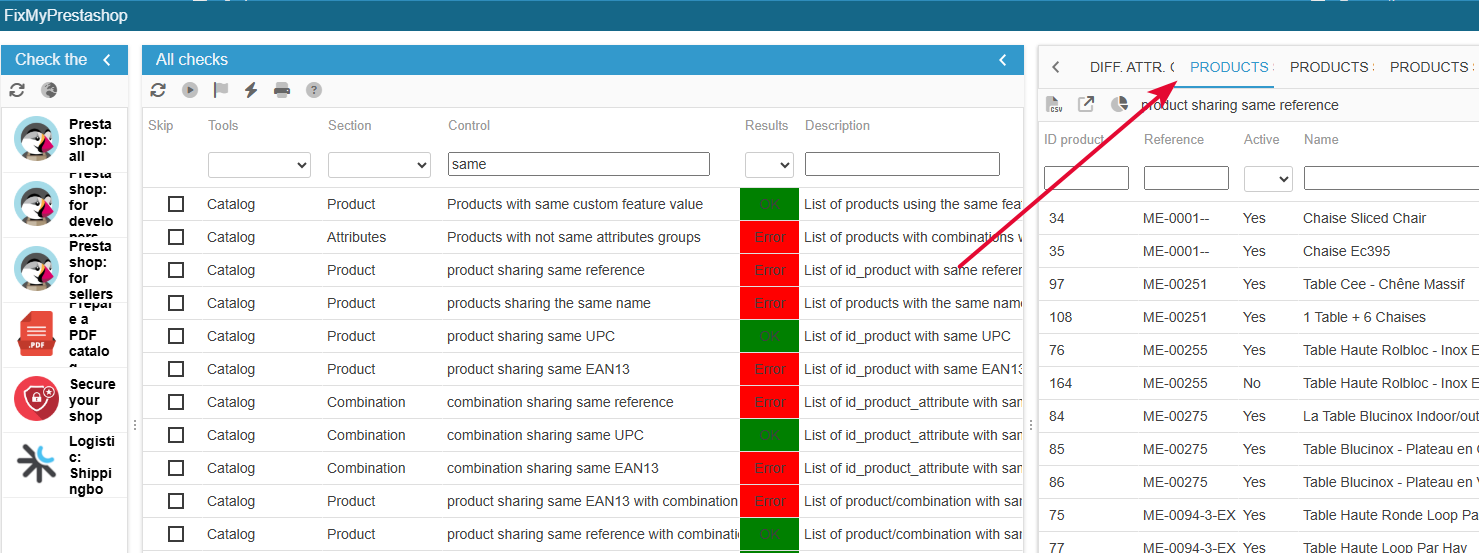
In the corresponding tab, you can use any of the 3 solutions displayed as icons on the toolbar:
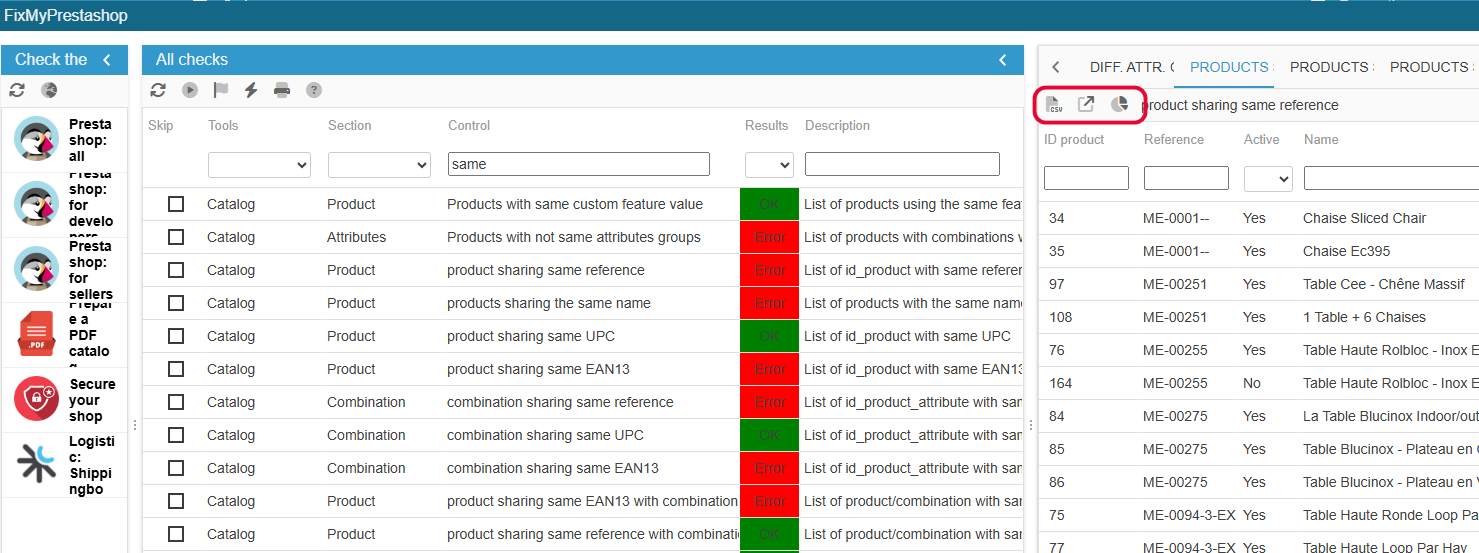
Exporting the list onto a spreadsheet using the quick export option is the best method if the list is rather long. This wil allow you to modify the references/ean13/upc in the spreadsheet, and then apply the changes by importing the file with Store Commander.
Of course, we also detects duplicated reference, ean13 and upc on your combinations.
FixMyPrestaShop is also very useful to detect potential integrity issues within your database, and these problems can be fixed very quickly using the solutions available.
Configuring specific controls
1- Set the period for customer account creation date
FixMyPrestaShop includes a check to detect customer accounts created X months ago that have not placed orders on your shop since then.

When you run this check and customers are found, the result will be “Error” and the list of corresponding customers will be displayed in the right-hand panel.
You can then export this list (copy/paste) to check/delete these customer accounts from your shop if you want.
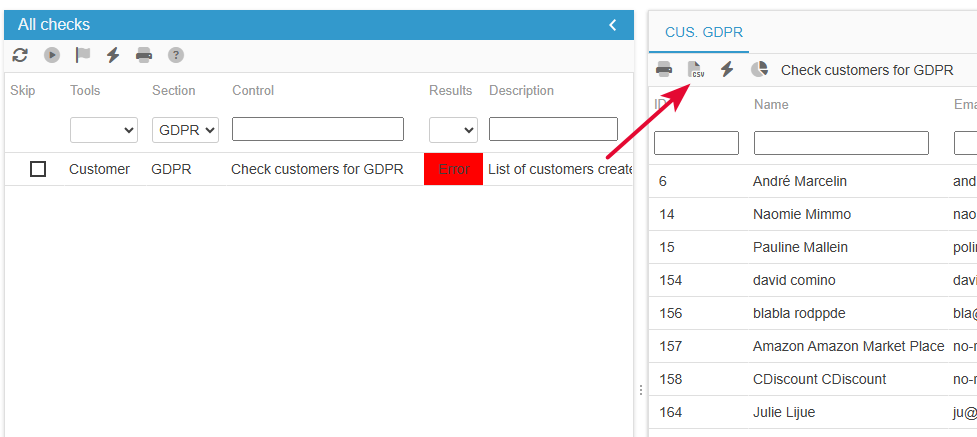
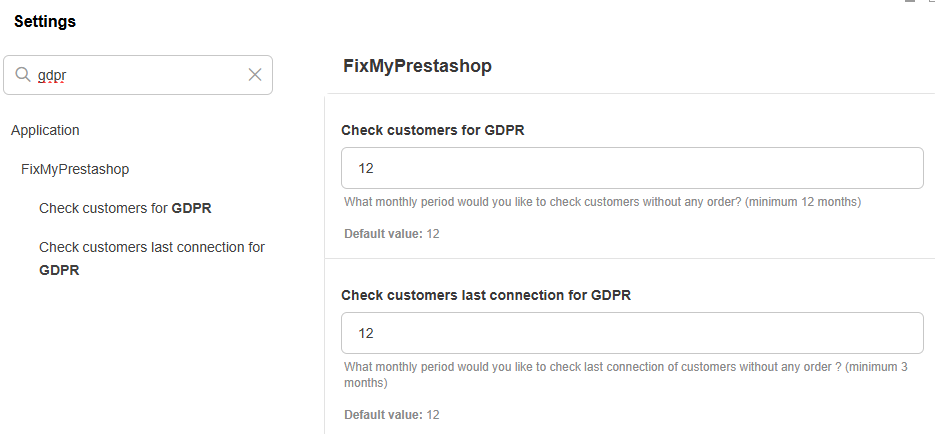
The default period is set to 12 months for the date the accounts were created as well as the last connection date.
You can change this in Sc > Settings if you wish.
User permissions in Store Commander
You can easily allocate specific permissions to each person using Store Commander within your company and even external providers such as SEO experts, photographers, etc.
Options in Store Commander Users Permissions interface allow you to restrict or allow access to various menus, grids and actions within Store Commander.
For instance, you can grant only access to the Delivery view to the person in charge of the logistics.
Here's an introduction video.
The Users Permissions interface is accessible from Tools > Security > Users Permissions
Profiles and associated employees are displayed on the left-hand-side column.
The central panel displays the list of all Store Commander's elements which you can allow or restrict access to, for each employee individually.
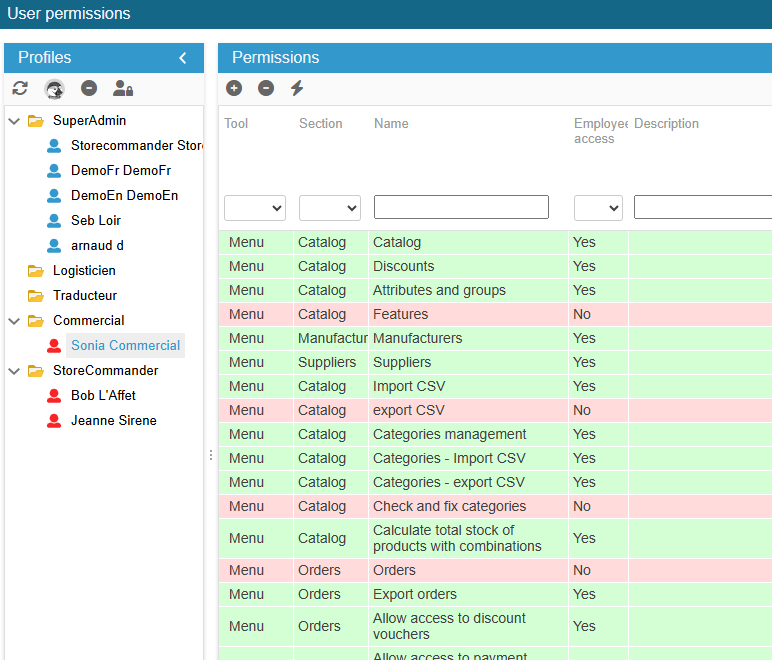
Profiles and employees displayed on the left-hand-side column exist in the PrestaShop backoffice. If you need to add another profile/employee, you would then need to create them via the Prestashop backoffice (Administration) beforehand. Without forgetting to grant access to Store Commander in PrestaShop > Administration > Profile > Logistician (for instance):
User management in multi-shop mode
If you need some of your employees to only access specific stores, you will need to select these shops within their profile in PrestaShop > Administration > Employees > Modify
Resetting PrestaShop employees’ passwords
The interface dedicated to user permissions in Store Commander (Tools menu) includes an option allowing you to reset the passwords of all your PrestaShop store employees.
You'll find the option on the toolbar:
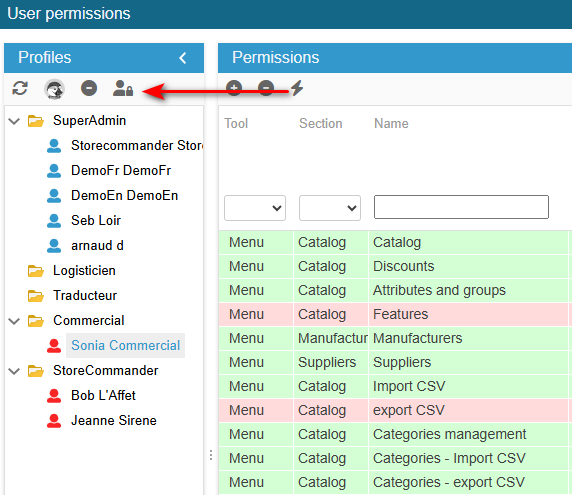
You can either reset the password of a specific employee (by selecting the corresponding line), or all employees of the same profil (by selecting the profil name).