Customizing your Store Commander
Creating your own views
With the Interface customization tool, you can customize existing views, but also create new views, in all 3 interfaces: products, orders and customers.
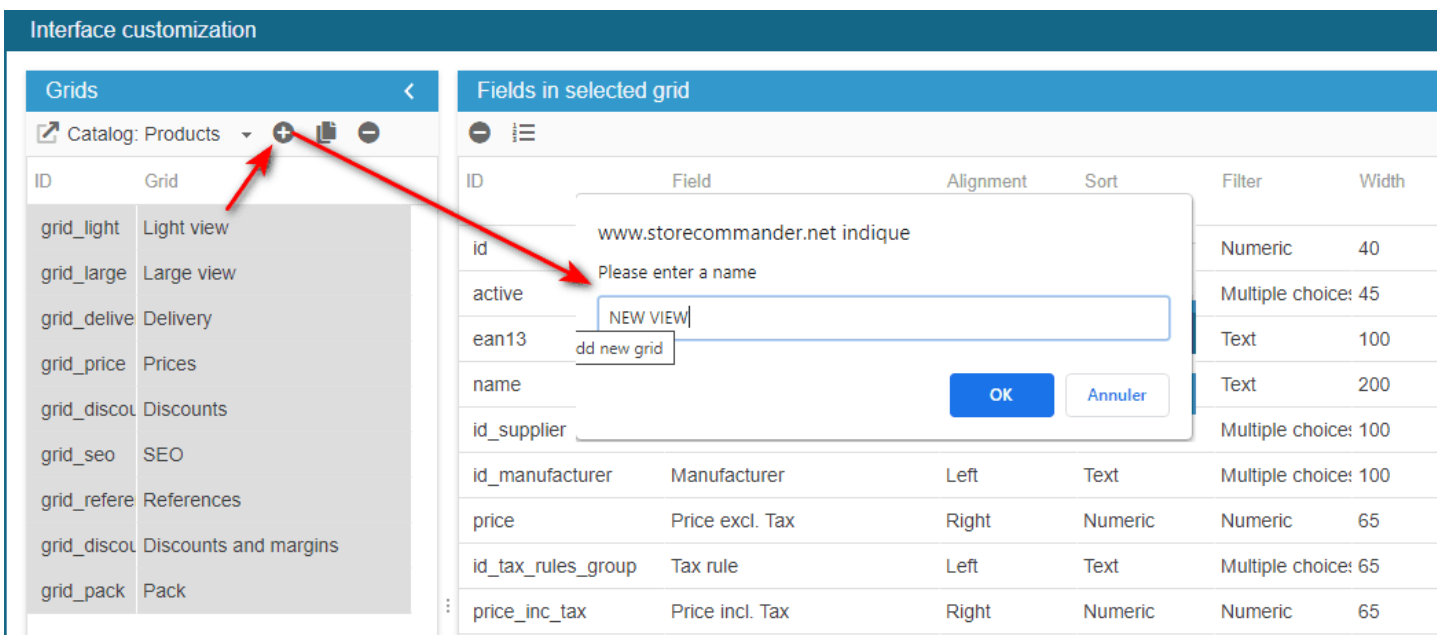
First choose the grid you want to add the view onto, from the drop down menu at the top of the left handside column.
Click on the + icon to create a new view, give it a name and validate on OK.
Select this new view in the list.
The right handside column shows all fields available that you can add.
Simply drag and drop fields you want to add to your new view, from the right handside to the central column.
Note that you can select multiple fields before dragging/dropping them.
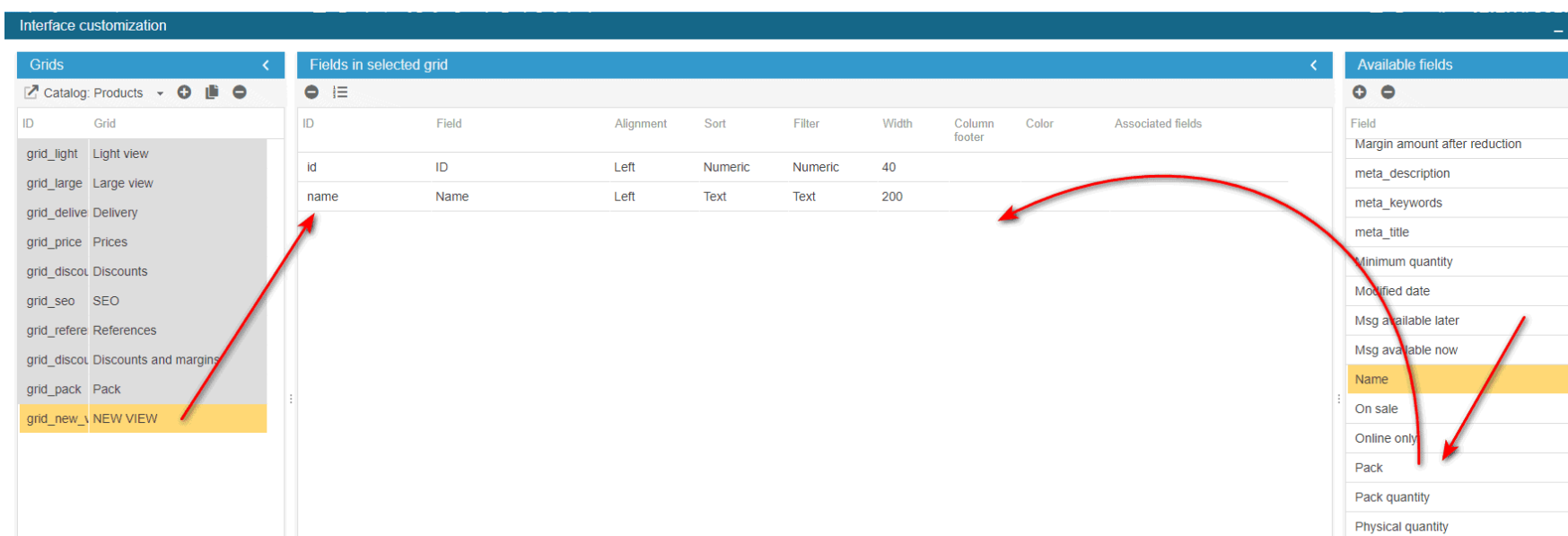
Once all the fields you need are present, you can re-arrange the order by a drag/drop, and do not forget to validate the new order by clicking on the 123 icon on the toolbar.
Once you're done, hit F5 (or CMD+R if on Mac), and you’ll see your new view in Sc.
Adding a field to a view
With the classic version of the interface customization tool, you can add existing fields to various views and grids in the interface of Store Commander.
Here is the procedure, quick and simple, to add a field in a view.
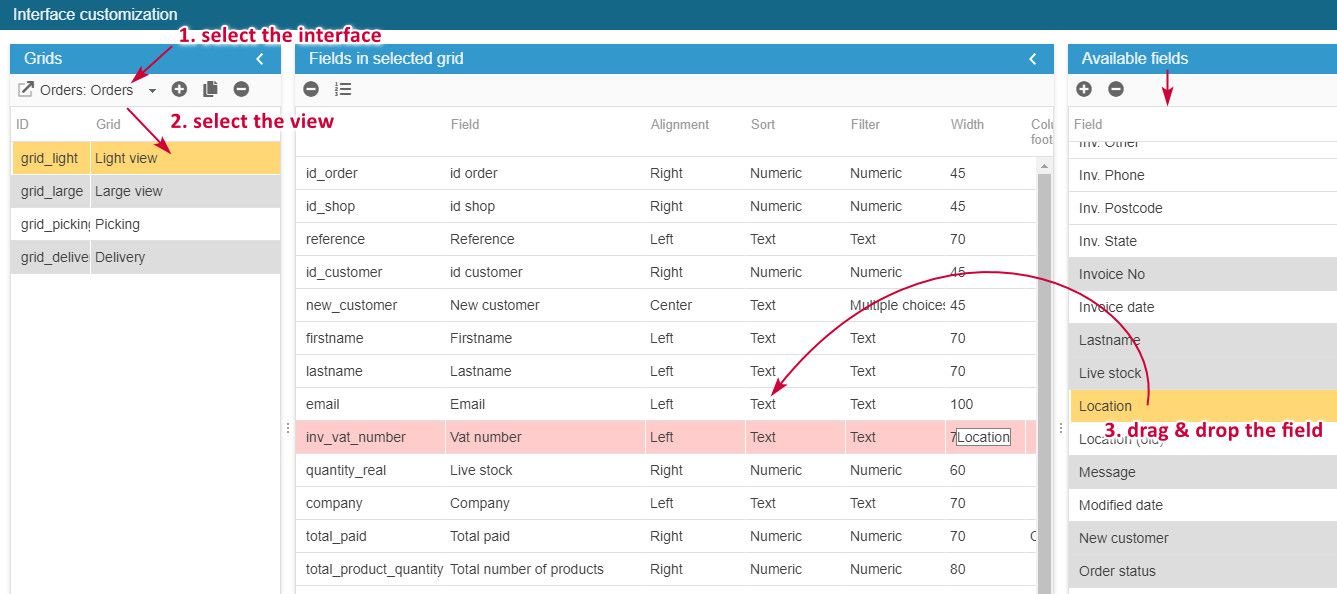
From the left handside column, choose the grid from the drop down menu and select the view you'd like to customize. The fields already included in the view are listed in the central column. From the right handside column, all fields you can add in the selected view are displayed. Select the field you wish to add and drag/drop it in the central column.
Note that you can select multiple fields before dragging/dropping them.
That's it, done :)
Resetting a field
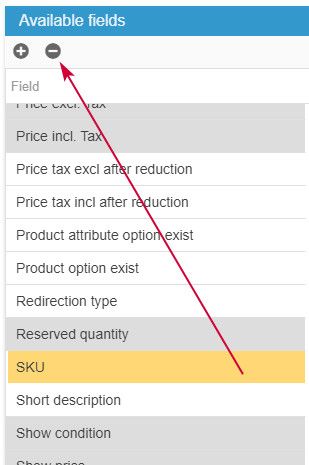
You have modified an existing field and would like to reset it to its default settings?
o do so, select it in the list of Available Fields (right hanside column) and hit the “delete” icon on the toolbar
Customizing fields
Not only this tool allows you to create and modify Store Commander's views, but options are also available for you to customize the interface even further, for instance:
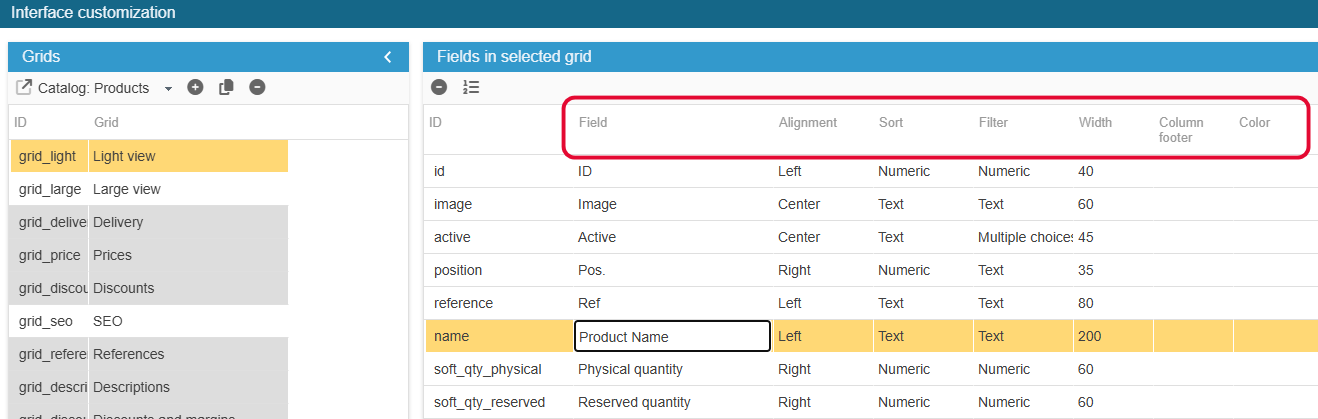
Rename columns titles: edit the cell to modify its name
Define columns titles alignment: select from the available options in the drop-down menu
Define sorting options: select from the available options in the drop-down menu
Define columns width: edit the cell to enter the width value
Define a background color: select from the colors selector
Removing or resetting a view
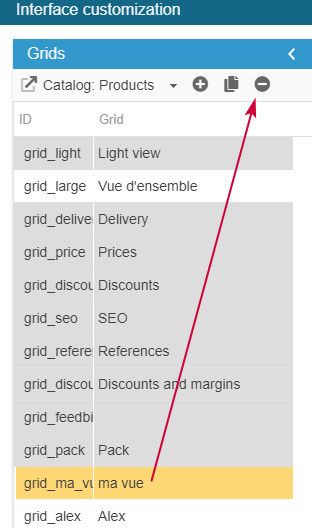
To remove a custom view, hit the “delete” icon once the view is selected.
If it’s a defaut view, it’ll be reset (with default configured fields)
If it’s a custom view, it’ll be deleted.
Color codes available
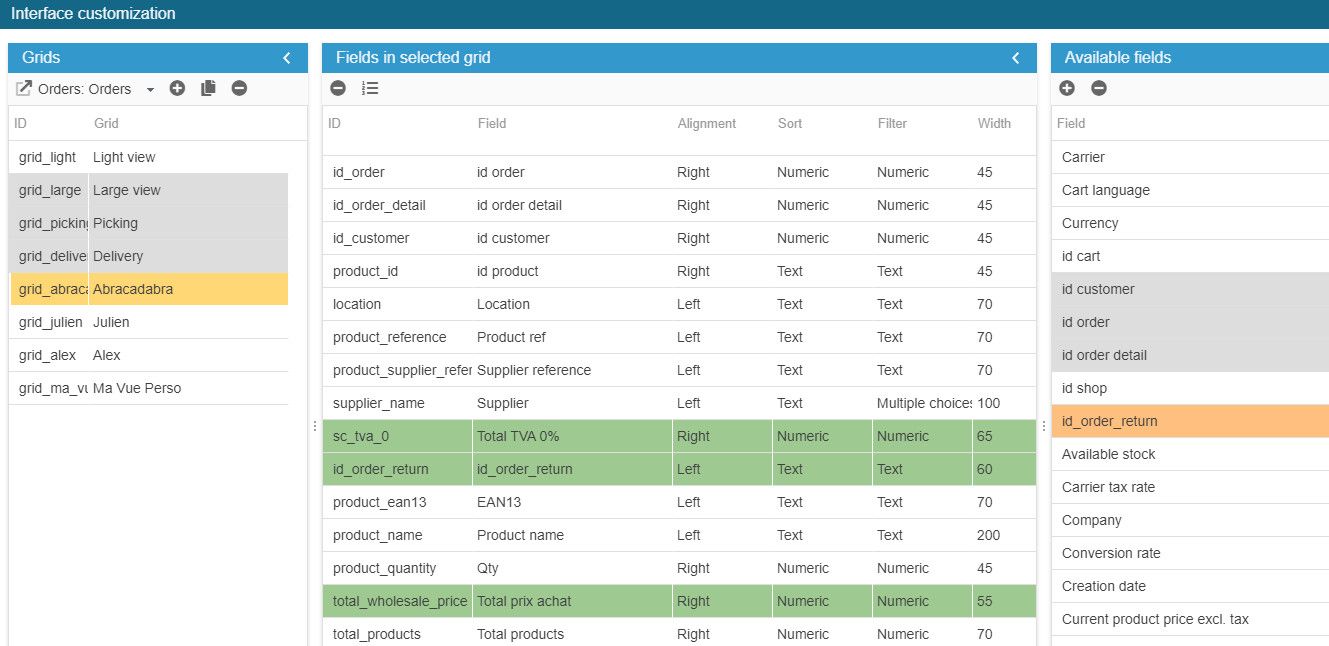
You'll find various color codes in the interface of the module to help you identify quickly what has been done. Here is the explanation of each color used.
Changing the default view in your Sc
When opening Sc, the light view is displayed by default. This view can be changed, and with one of your custom view!
This is a setting to change in your Sc > Tools > Settings - choose the view name from the drop down menu:
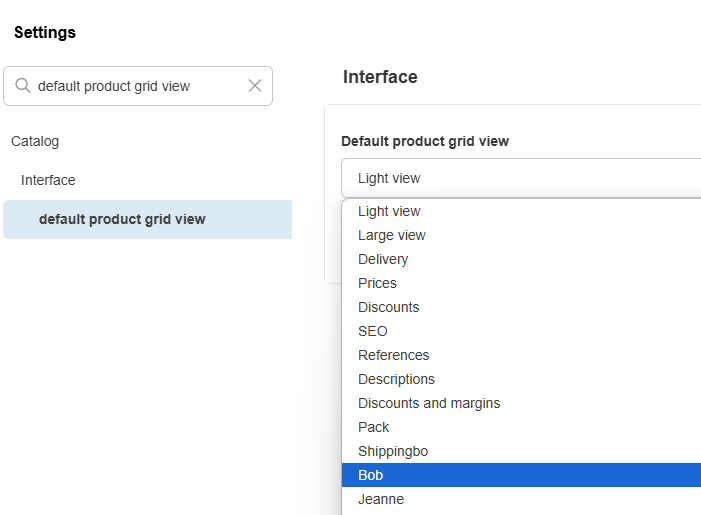
Once done, refresh your Sc interface, and the view you’ve just configured is now the default view.
Note that this can also be done for the other interfaces: Orders, Customers and CMS
Choosing the language for your Sc interface
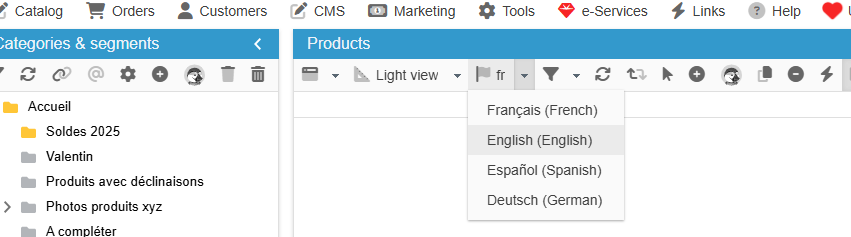
As soon as you have multiple languages available in your PrestaShop backoffice, you have the possibility to display your products in Store Commander in a language other than the one set by default for your store.
Simply select the corresponding language from the 'flag' menu on the main toolbar in the Products central panel:
If you wish to change the language of the complete interface, select the language from Tools > Settings > Interface Language
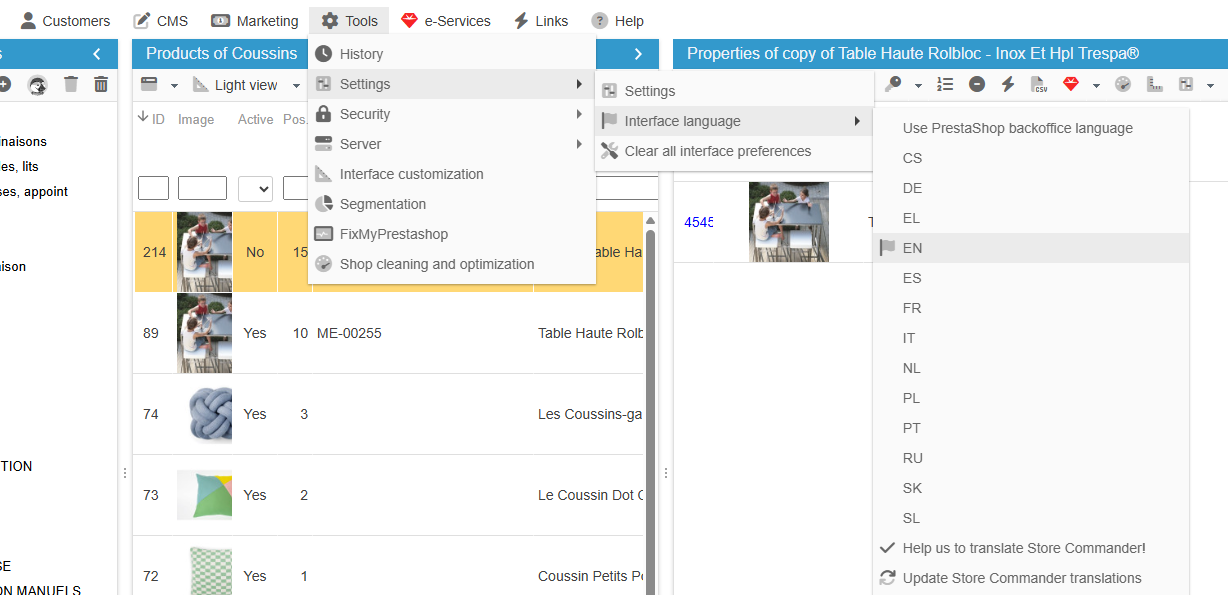
If a language has not yet been translated, please contact us to help us with the translation!
💡Not using all of Sc functionalities?
Simplify your interface to access what's more useful quicker. Thanks to Sc user permisions, available in Tools menu, select to display only the information that's useful to you, and hide what you don't need.
Remember that you can also create or customer grids and views of your Sc interface with the Interface Customization tool :)
💡Adding a bookmark to your Sc interface
To easily access external services, create shortcut links in the Links menu of your Store Commander interface.
Select 'Manage Links' in the links menu to open the Settings panel. In the 'Value' column, enter [name of your link;url of your link].
Validate, refresh and the link is available!