FAQ Import CSV Produits
What’s a TODO file for?
Once you've started the import process, Store Commander automatically makes a copy of your CSV file named 'yourfilename.TODO.CSV'.
Store Commander will then use this file to import the data, line by line.Once a line has been processed successfully, it will be deleted off the TODO file and so on.If for any reason a line cannot be processed, the import process will stopped and a message will be displayed in the 'Process' panel.
Because each successfully processed line is automatically deleted off the TODO file, if the process stops, it means that the problem comes from the first line of the TODO file.You can then download and edit the file to verify and fix the product the problem relates to.
If all the lines of the CSV file are imported, the TODO file will therefore be empty and automatically deleted.
Why do I have TODO categories?
During the import process, a hidden category with the name 'yourfile.TODO.csv' will be automatically created if no default category has been specified in the CSV file when the products created during the import process
This category is used when products are created during the import process and are not associated to an existing category. In this case, the products are still imported and assigned to this hidden category.
You can the dispatch these products in the categories of your catalog.
How can I download a CSV file?
If you need to download a CSV file from the import window, select the file and click the corresponding icon on the toolbar
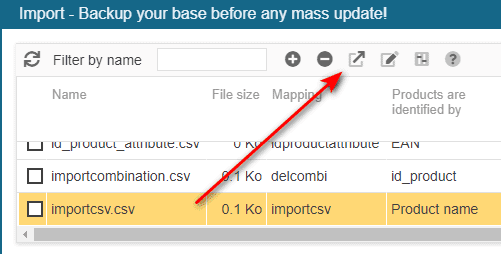
You can then modify your file to then upload it back to the CSV import window.
No need to remove the previous copy, Store Commander will automatically replace the file of the same name.
What’s the ‘Create elements (auto)’ for?
The import tool allows you to create new elements for your products, such as variation attributes, features, suppliers, or brands, as well as tags (website search keywords).
To save you from having to create this new data beforehand, the Sc import will check whether the values contained in your import file already exist. If so, they will be used; if not, they will be created for you.
If the “Create elements (auto)” option is not checked, the detection will still take place, but you will see a message asking you to confirm the creation of the new elements found in your file. Click and restart the import.
If you do not want to have to confirm, check the “create elements (auto)” option and the import will create the information automatically.
How can I delete import mappings?
To delete import mapping, you can load it and then hit the 'delete' icon on the toolbar:
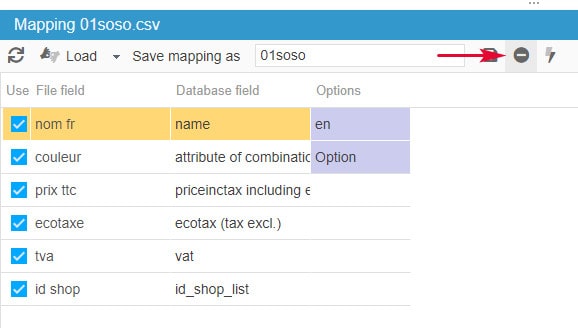
If you have a very long list of mapping to delete, you can do so via your FTP.
Indeed, mapping are saved on your server as .map.xml in /modules/storecommander/import/
How do I know if the import is working when the process icon does not stop?
When you start the import process, an icon is active at the top left-corner of the CSV import panel.

Feel free to click on the progress bar to reveal a surprise😁
You can also click on the refresh icon of the import toolbar to see the size of the corresponding TODO file decreasing each time you refresh the panel. This means that Store Commander is processing your file.
How can I delete products using the CSV import?
Store Commander's CSV import tool allows you to create and update your products in bulk.
It is however not possible to delete products from your store using the import process.
The workaround is to move the products you wish to delete into a hidden category using the import tool.
Once the import process is complete, you can then simply drag/drop this hidden category into the SC Recycle Bin, which will also delete the products contained.
Products IDs are not created during the import process
You would like to create products by import using a CSV file which includes a column 'id_product'?
Store Commander's CSV import tool does not allow the product ID specified in your CSV file to be created: the products will be created but their IDs (id_product) will not correspond to the one included in your CSV file.
This is normal behavior because products and combinations IDs will be automatically created by Store Commander's import process.
PrestaShop's import tool allows products IDs included in your CSV file to be created: why?
PrestaShop's import tool works with a simple computer logic: products IDs can be created by import.These IDs are only computer references (exclusively digital) and should not be used as product references.As a merchant, you will share products information:
with your suppliers to add products: these suppliers might not be using a digital format and you probably will not have a unique reference per product on multiple suppliers if they use a digital system.
with market places: it is not very professional to use '1' for instance as a reference.
You could use a combination of characters for your products references so that they read better than a simple digit.
Store Commander goes further than PrestaShop's import tool because it allows you to identify the products using their reference rather than their IDs when updating products and their properties.Store Commander makes the communication with your suppliers, market places, comparison sites, partners, etc a lot easier, because your products IDs do not mean anything to them, but the products references do.