Potential errors when importing a csv file
Identifying and understanding the error
A CSV import may not proceed correctly due to an error or a configuration issue.
The reason will always be indicated in the Process panel (bottom right), for example:
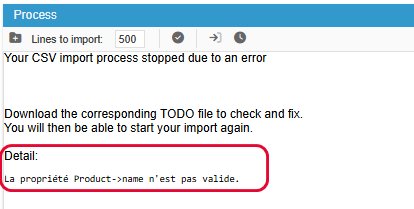
The vast majority of errors you may encounter are reported by PrestaShop. When a product is modified by the import process, PrestaShop checks numerous product elements, such as:
whether the product name contains any prohibited characters (in all languages)
whether the number of characters in the short description exceeds the number defined in your PrestaShop configuration
whether the date format matches the one used in the database
etc
These checks are performed on the product as a whole, and for this reason, the field containing the error is not necessarily in your import file.
If the field in question is present in your file, then you will need to apply the correction in the file.
If, on the other hand, the field is not present in your import, then you will need to correct the field reported as an error directly on the product in the Store Commander interface.
Once the problem fixed, you can restart your import, without having to change anything in your configuration, of course.
Fixing the error
During the import process, a copy of your file is created with the name yourfile.TODO.csv.
It will always be this file that will be processed line by line, one after the other.
When the first line is processed correctly, without errors, it is deleted.
The second line then becomes the first line of this TODO file.
It is processed correctly and deleted.
The next line then becomes the first line.
And so on.
When processing the first line of this TODO file, an error occurs and is displayed in the data import panel. What should you do?
Let's take the example of the error “name is not valid”: there are two possible scenarios.
The product name is present in the file: correct the CSV file
Use quick edit mode to view and correct the product name (which is on the first line of the TODO file).
Save the change after the modification.
Close the quick edit window, and restart the import of the file.
The product name is not present in the file: correct the product in the Sc interface
Use quick edit mode to see which product it is (the one on the first line of the TODO file) and search for it in Sc:
Modify the product name in Sc:
And finally close the quick edit window and restart the import of the file.
The identification and correction process will always, or almost always, be the same.
We have listed below the errors you may encounter during an import.
Why do I get skipped lines in the results?
Your import results display skipped lines?
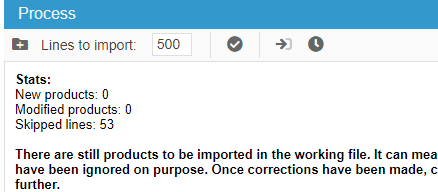
There are various reasons.
The identification actions are incorrect
Solution: select the correct action: create or modify products
The selected identifier does not exist in the catalog when 'modify products’ is selected
Solution: check that the exact identifier exists in the catalog
The selected identifier exist in the catalog, and action for existing products is on ‘skip’
Solution: check that the identifier used exist in the catalog
CSV Import: results are null (0 0 0)
You've started a CSV import and the results are:
Stats:
New products : 0
Modified products: 0
Skipped lines : 0
like the screenshot below, then this means that one or multiple columns of your csv file contains carriage returns - usually found in descriptions, but can eventually be located in other columns.
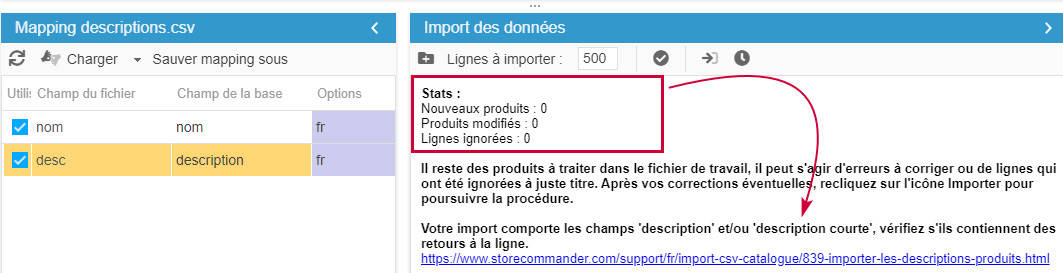
It'll be useful, even necessary to open your file with Notepad++ for you to spot the carriage return straight away.
Notepad++ is a free to download program, don't wait to install it to save yourself time.Use SublimText if you're working on Mac.🍏

Solution: You'll need to fix this directly in the file, by either removing the returns, or introducing the corresponding html code to keep them - refer to this article for the procedure.
Check and correct the level_depth field (id_category:XX)
Check and correct the level_depth field" from the menu Catalog > Tools to edit your categories (id_category: XX)
This message means that the category specified by its ID (end of the error) has been detected with an issue: ghost category or with a bad structure in the database of your PrestaShop store.
The first solution is to apply the option mentioned in the error, that you can find in Sc Catalog menu > Tools > Check and Fix categories
If the erreur persists, use FixMyPrestaShop (Tools menu in your Sc interface) and run controls specific to categories
Vérifier et corriger le champ level_depth (id_category: 0)
Check and correct the level_depth field" from the menu Catalog > Tools to edit your categories (id_category: 0)
This error indicates a problem with category ID 0 (in this example only) in your PrestaShop database. There are 3 possible solutions to fix this error.
The first solution is to apply the option mentioned in the error, that you can find in Sc Catalog menu > Tools > Check and Fix categories
If the erreur persists, use FixMyPrestaShop (Tools menu in your Sc interface) and run controls specific to categories
If none of the previous two solutions fix the error during, then it will need to be checked and fixed directly within your database. At this point, do not hesitate to contact your agency to help you fix this.
Here are some technical information you can pass onto.
Check in category table:
Root category of the shop should have: id_parent 0 level_depth 0 is_root_category 0
Home category should have: id_parent id of root category level_depth 1 is_root_category 1
Only Root category should have id_parent à 0
Only Home type categories should have is_root_category on 1
Check in configuration table
PS_ROOT_CATEGORY should have the same id as the Root category in table category
PS_HOME_CATEGORY should have the same id as Home category in table category (beware of multistore!)
Product → name is not valid
This means that the name of the product that is being processed includes one or more invalid characters such as ^<>;=#{}
If your shop uses multiple languages, don’t forget to check the product name in all languages.
Follow the instructions of this section to fix the error
Product → name is empty
This means that the name of the product that is being processed is empty.
If your shop uses multiple languages, don’t forget to check the product name in all languages.
Follow the instructions of this section to fix the error
Product → link_rewrite is not valid
This means that the link_rewrite of the product that is being processed one or more invalid characters such as ^<>;=#{}
If your shop uses multiple languages, don’t forget to check the product name in all languages.
Follow the instructions of this section to fix the error
Product → link_rewrite is empty
This means that the link_rewrite of the product that is being processed is empty.
If your shop uses multiple languages, don’t forget to check the product name in all languages.
Follow the instructions of this section to fix the error
Product → link_rewrite length (xx) must be between 0 and 128
This means that the number of characters used in link_rewrite of the product that is being processed is over the set limit of 128.
If your shop uses multiple languages, don’t forget to check the product name in all languages.
Follow the instructions of this section to fix the error
Product → ean13 is not
This means that the ean13 of the product that is being processed is incorrect
Please note that MS Excel has the unpleasant habit of converting the number format. You will therefore need to ensure that the EAN13 column uses the format 'number' with no decimals.
Follow the instructions of this section to fix the error
Product → date_add is not valid
This means that the format of the date field used in your import file is incorrect. The format needs to be YYYY-MM-DD hh:mm:ss
Follow the instructions of this section to fix the error
If you work with MS Excel, make sure you change the format of the date columns BEFORE entering the dates, because Excel converts the format automatically.
Also, Excel does not keep the modifications you might apply to columns in your file. So if you change the date formats, save and close the file, upon reopening the file, Excel would have not kept your format, and would automatically convert the dates again.
Once you have setup the correct format, entered the dates, save the file and upload it onto Store Commander Import window for the correct date format to be used during the import process.
Product → Description is not valid
This error occurs when there are video links (iframes ) in the description of the product being processed, and the corresponding option is disabled in your PrestaShop backoffice.
The solution is to activate the ‘Allow iframes in HTML fields in your PrestaShop backoffice, under the General Settings
SpecificPrice → from is not valid
This means that the format of the specific price: from date field used in your import file is incorrect. The format needs to be YYYY-MM-DD hh:mm:ss
Follow the instructions of this section to fix the error
Product → price is empty (multistore)
This error is related to multi-shop management, and specifically to the id_shop_list field in your CSV file.
The error indicates that the product being processed does not exist in the shop ID(s) specified in the import file.
Follow the instructions of this section to fix the error
FeatureValue → value is not valid
This means that one of the features on the line being processed includes one or more invalid characters such as ^<>;=#{}
Follow the instructions of this section to fix the error
Tag → name length (XX) must be between 0 and 32
This means that a tag name on the line being processed uses more than the set limit of 32 characters.
Follow the instructions of this section to fix the error
Tax doesn’t exist
To include VAT in your imports, the tax ID cannot be used.
The file must indicate the name of the tax rule, or simply the rate (which is included in the name), such as 20 for example.
Price including VAT found in CSV column but no VAT column found
Since a price including VAT implies a tax rule, you must enter the tax rule in your import file, hence the error message.
If you do not use tax, use the price excluding VAT in your import instead.
Combination → Reference length (XX) must be between 0 and 32
This means that the number of characters used in the combination reference being processed is over the set limit of 32.
Follow the instructions of this section to fix the error
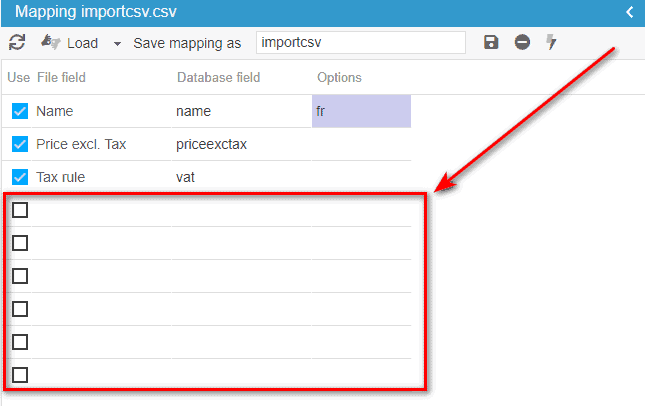
At least 2 columns have the same name

This message indicates that your file contains column headings with identical names: check the names of the columns in your file.
If no rows have the same name, then check the end of the mapping, which may display empty rows (with identical names: empty): delete all the last empty columns from your file.