Your customers' purchasing behaviour
Introduction
The Store Commander Customer interface displays information related to your customers' purchase statistics, starting from the date they registered with your shop.
Indeed, in the Customer interface of your Sc, you can see orders customers have made in numbers and amount), either using the native options or by adding the data you want using the Interface Customization Pro tool.
Purchase statistics since the account creation date
The Sc Customer interface includes several views (central column), including the Convert view, which displays the number of orders for each of your customers, as well as the total amount of these orders.
These are the columns entitled “Confirmed orders” and “Total confirmed orders”
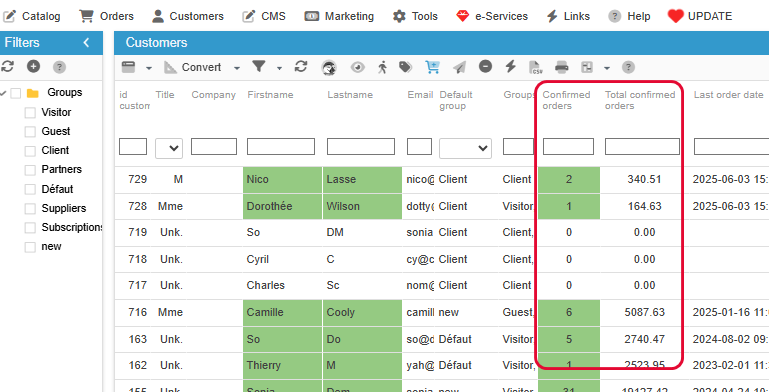
By sorting the columns or using operators in these columns, you can find out who your most loyal customer is, for example 👑
Customized customer orders statistics
You can display sales statistics by customers for specific periods in your Sc interface by adding new columns that will show the required values.
This can be done using the Interface Customization Pro tool.
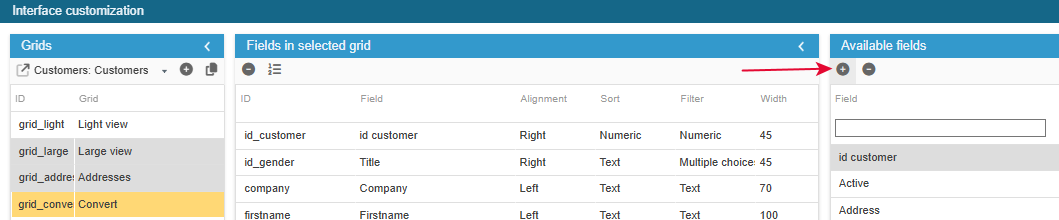
This tool is accessible from the Tools menu of your Sc, and via the + sign on the toolbar of the list of fields already available:
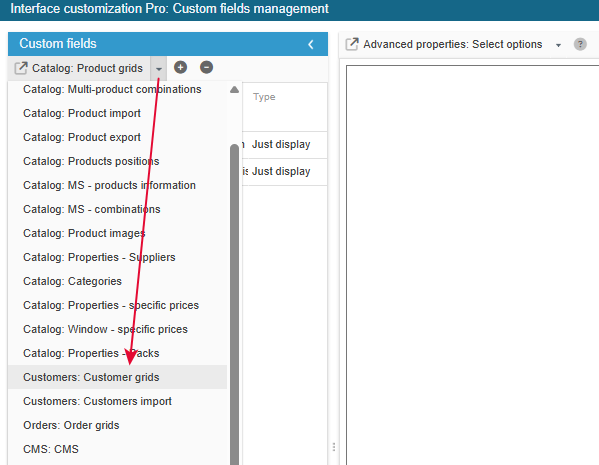
Then make sure you select the right grid into which you want to add your custom fields, in this case the Customer Grid:
This PRO version of the customisation tool is available in the Solo PLUS and MultiStore PLUS plans.
📊 We will now provide you with some concrete examples of product sales statistics that you can integrate into your Sc interface.
Number of customer orders over a specific period
Add the new field in the Customer grid and enter its ID:
valid_orders_period
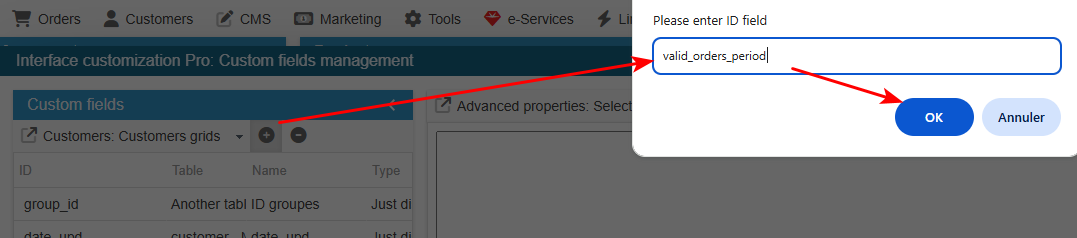
The field line is created in the list. You now need to fill in the information:
You then need to add the technical configuration items in the specific properties on the right-hand panel:
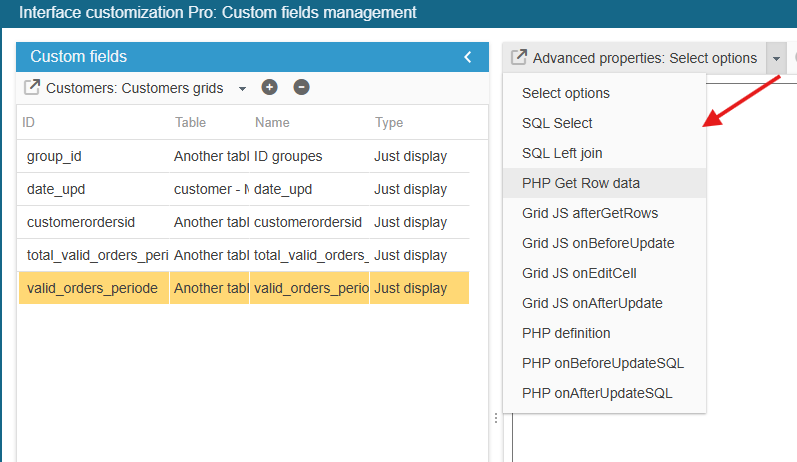
Copy/paste the content below into the SQLSelect menu and save:
return ' , 0 as valid_orders_periode ';Copy/paste the content below into the PHP Get Row Data menu and save:
if($col=="valid_orders_periode")
{
 $valid_orders_sql = Db::getInstance()->getValue('
                    SELECT COUNT(id_order)
                    FROM '._DB_PREFIX_.'orders
                    WHERE `id_customer` = '.(int)$gridrow['id_customer'].'
      AND invoice_date >= "2019-01-01 00:00:00" AND invoice_date <= "2019-12-31 23:59:59"
                        AND valid="1"');
                if(!empty($valid_orders_sql))
                    $gridrow[$col] = $valid_orders_sql;
}
You can now close this window.
Back in the previous window, the new field is in the list of available fields (highlighted in orange) and you can add it to the Client views of your choice.
Total amount of customer orders over a specific period
Add the new field in the Customer grid and enter its ID:
total_valid_orders_periode

The field line is created in the list. You now need to fill in the information:
You then need to add the technical configuration items in the specific properties on the right-hand panel:
Copy/paste the content below into the SQLSelect menu and save:
return ' , 0 as total_valid_orders_periode ';Copy/paste the content below into the PHP Get Row Data menu and save :
if($col=="total_valid_orders_periode")
{
 $total_valid_orders_periode_sql = Db::getInstance()->getValue('
                    SELECT SUM(total_paid)
                    FROM '._DB_PREFIX_.'orders
                    WHERE `id_customer` = '.(int)$gridrow['id_customer'].'
      AND invoice_date >= "2019-01-01 00:00:00" AND invoice_date <= "2019-12-31 23:59:59"
                        AND valid="1"');
                if(!empty($total_valid_orders_periode_sql ))
                    $gridrow[$col] = number_format($total_valid_orders_periode_sql, 2, ".","");
}
You can now close this window.
Back in the previous window, the new field is in the list of available fields (highlighted in orange) and you can add it to the Client views of your choice.