Viewing sales on combinations
Store Commander offers various solutions for viewing sales figures for your combinations, which we will discuss in this article.
You can view sales information for your combinationsin Sc Catalog interface, either using the native options or by adding the data you want using the Interface Customization Pro tool.
Visual graphics
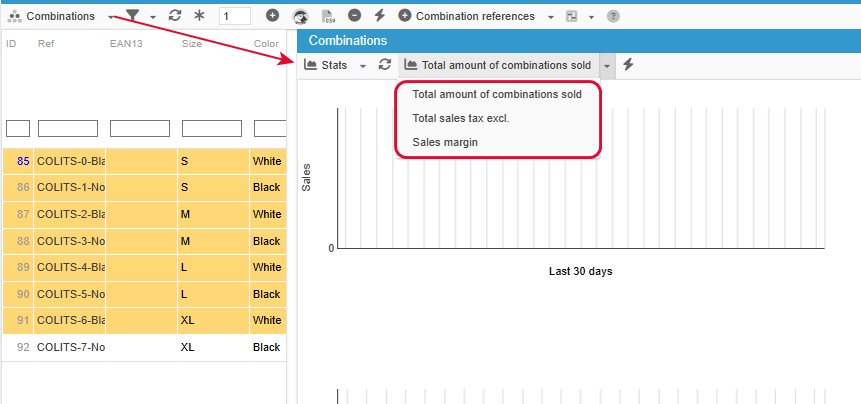
The Combinations properties includes a panel that contains information specific to combinations, one being the grid called Stats, and it will show the sales statistics for one or multiple combinations.
3 options are available in the drop down menu to display different types of statistics you want to see:
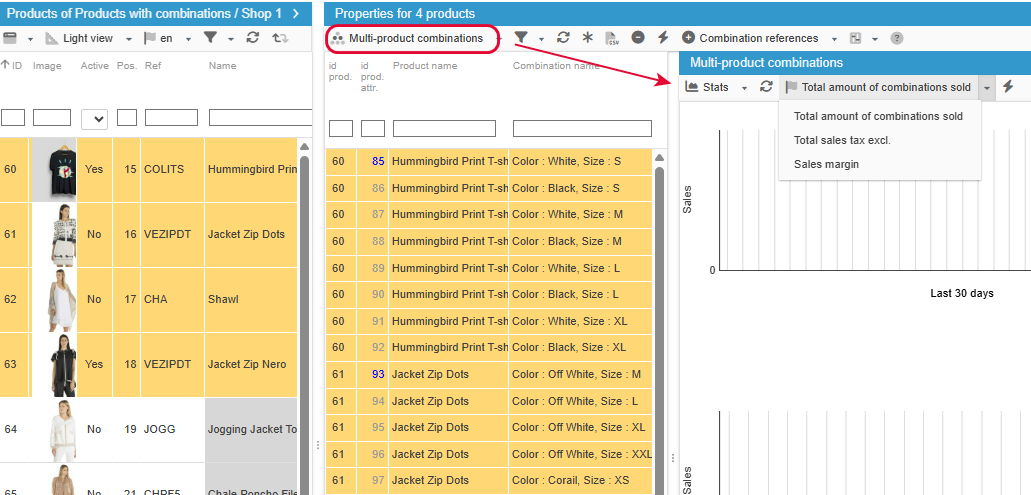
As well as within the Multi Product Combinations so that you can select combinations of multiple products:
Customized combination sales statistics
You can display sales statistics by combinations in your Sc interface by adding new columns that will show the number of sales for each of your combinations.
For example, in the screenshot below, we have added a column to show the number of sales for the whole of 2025 in the combinations panel.
But you can choose your own periods: a rolling month, from January to April, etc., and add as many statistics columns as you want to your Sc!
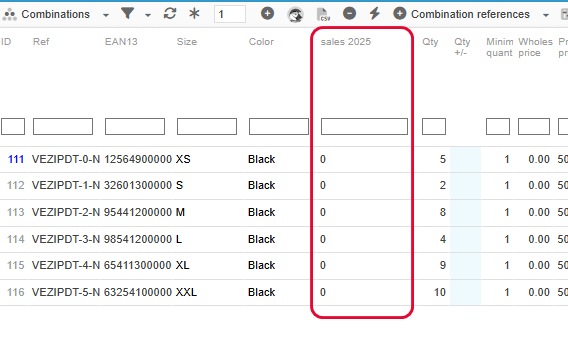

These custom fields can be added using the Interface Customization Pro tool, accessible from the Tools menu in your Store Commander interface, and via the + sign on the toolbar of the list of fields already available:
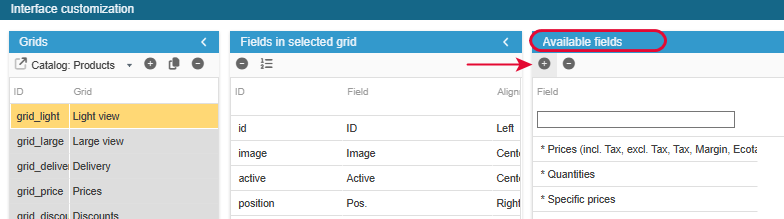
Then make sure you select the right grid into which you want to add your custom fields, in this case the Combination Grid:

This PRO version of the customisation tool is available in the Solo PLUS and MultiStore PLUS plans.
📊 We will now provide you with some concrete examples of combination sales statistics that you can integrate into your Sc interface.
Number of sales per combination: over 30 rolling days
Add the new field in the Combination grid and enter its ID:
nb_sale_1_month

The new field is created, and you now need to populate the line with:
Next, add the technical configuration elements in the specific properties in the right-hand panel:
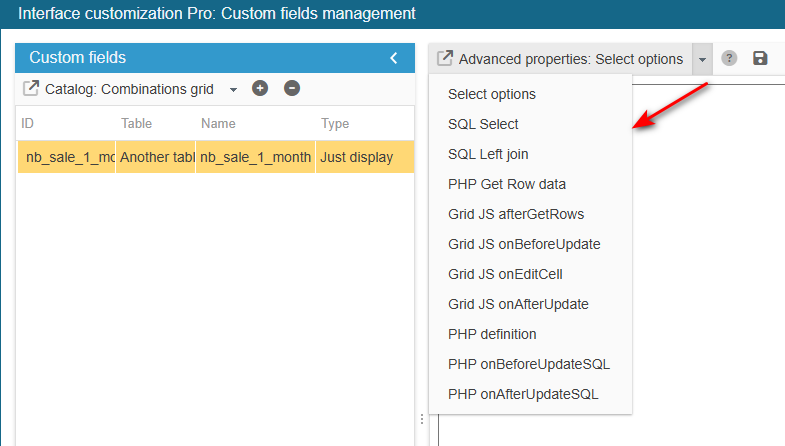
Select the menu SQLSelect and enter:
return ',(SELECT SUM(od.product_quantity) AS nb_opq
            FROM `'._DB_PREFIX_.'order_detail` od
            INNER JOIN `'._DB_PREFIX_.'orders` o ON (od.id_order = o.id_order)
            WHERE od.product_attribute_id=pa.id_product_attribute
            AND o.valid=1
            AND o.current_state IN (4,5)
            AND o.date_add >= (SELECT DATE_ADD("'.date("Y-m-d").' 00:00:00", INTERVAL -1 MONTH))
            LIMIT 1) AS nb_sale_1_month';
Select the menu PHP definition and enter:
$combArray[$combinaison['id_product_attribute']]['nb_sale_1_month'] = $combinaison['nb_sale_1_month'];In this example, we take into account valid orders with current status ID 4 and 5.
Please modify if required.
You can adapt the duration by modifying the setting INTERVAL -1 MONTH by INTERVAL -3 MONTH if you want statistics for the last 3 rolling months.
Finally, save the configuration:
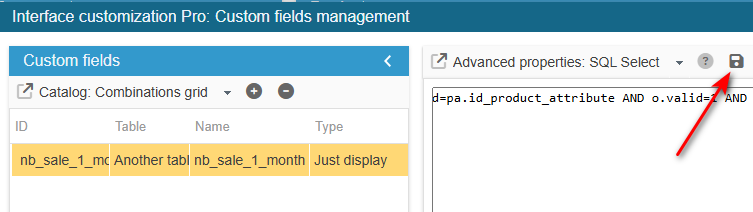
You can now exit the editing window.
The new field is now present in the list of available fields and you can add it to your combination grid.
Number of sales per combination: over a specific period
Add the new field in the combination grid and enter its ID:
nb_sales_2024
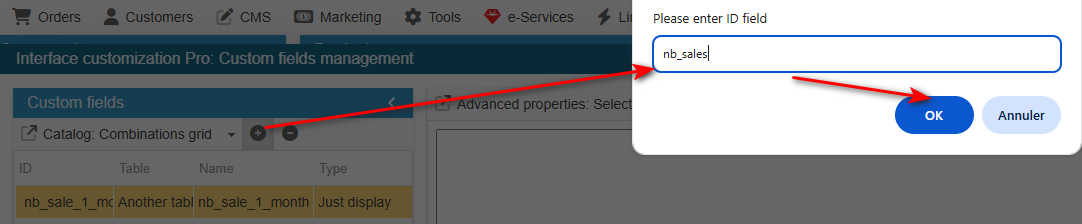
The new field is created, and you now need to populate the line with:
Next, add the technical configuration elements in the specific properties in the right-hand panel:
Select the menu SQLSelect and enter:
return ',COALESCE((SELECT SUM(od.product_quantity) AS nb
            FROM `'._DB_PREFIX_.'order_detail` od
            INNER JOIN `'._DB_PREFIX_.'orders` o ON (od.id_order = o.id_order)
            WHERE od.product_attribute_id=pa.id_product_attribute
            AND o.valid=1
            AND o.current_state IN (4,5)
            AND o.date_add BETWEEN "2024-01-01" AND "2024-12-31 23:59:59"
            LIMIT 1),0) AS nb_sales_2025';
Select the menu PHP Definition and enter:
$combArray[$combinaison['id_product_attribute']]['nb_sales_2024'] = (int)$combinaison['nb_sales_2024'];In this example, we take into account valid orders with current status ID 4 and 5.
for the period 01/01/2024 to 31/12/2024.
Please modify if required.
Finally, save the configuration:

You can now exit the editing window.
The new field is now present in the list of available fields and you can add it to your combination grid.
Exporting combination sales to a CSV file
You can also add custom fields to Store Commander's CSV export tool, so that you can obtain a list of your combination sales for the period of your choice.
Here again, you can add several fields for different periods; simply add the corresponding fields with their specific date settings.
Let's take the period from 2025-01-01 to 2025-04-30 as an example.
In the list on the right, select Catalogue: Export products:
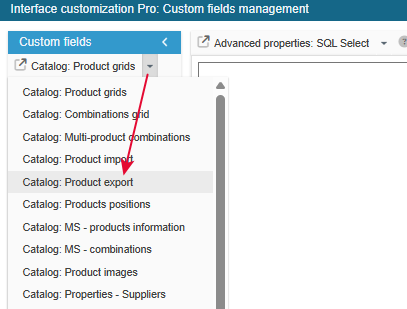
Then add the new field and enter its ID:
nb_sales
The new field is created, and you can modify the name if you wish.
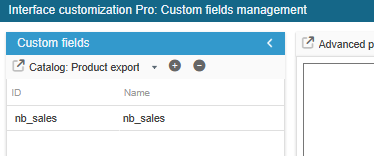
Next, add the technical configuration elements in the specific properties in the right-hand panel:
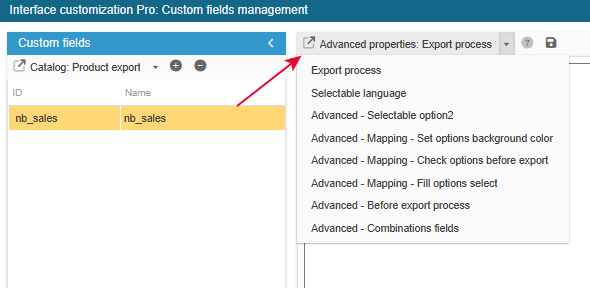
Select the menu Export Process and enter :
if (in_array($switchObject, ['nb_ventes']))
{
    $sql = 'SELECT COALESCE(SUM(od.product_quantity),0) AS nb_ventes
            FROM `'._DB_PREFIX_.'order_detail` od
            RIGHT JOIN `'._DB_PREFIX_.'orders` o ON (od.id_order = o.id_order)
            WHERE od.product_id = '.(int) $p->id
        .(isset($id_product_attribute) && $id_product_attribute > 0 ? ' AND od.product_attribute_id = '.(int) $id_product_attribute : '').
        ' AND o.valid = 1
          AND o.date_add BETWEEN "2025-04-01" AND "2025-04-30 23:59:59"';
    $field = (int) Db::getInstance()->getValue($sql);
}
You can now exit the editing window.
You’ll then find the field nb_sales in the list of available fields in the export mapping.