Need to create or modify categories in bulk?
Creating new categories in bulk
Not only the csv import tool updates category information, but it can also be used to create new categories.
To create categories, the identifier needs to be either the name or the full path (that contains the name).
If using the name, your file will also include the path, to indicate where to create the category in the tree structure.
Here’s an example using name + path:

And one using the full path:

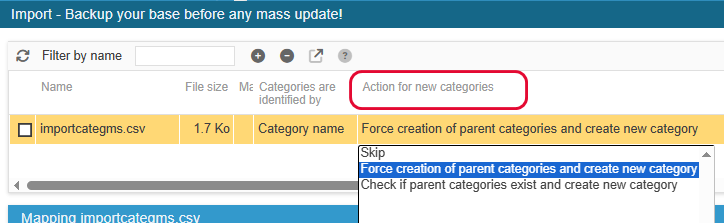
In the import configuration, 2 actions are possible, whether you need to create the categoy on its own or together with its path:
Updating categories in bulk
Your import file must include a unique identifier for each category. This can be the name (if and only if it's unique), the full path or its ID (uniqueness guaranteed).
If you exported your categories using Sc, then you should have the category IDs, which is the best identifier to use 😊
Then you can have all the information you want to update.
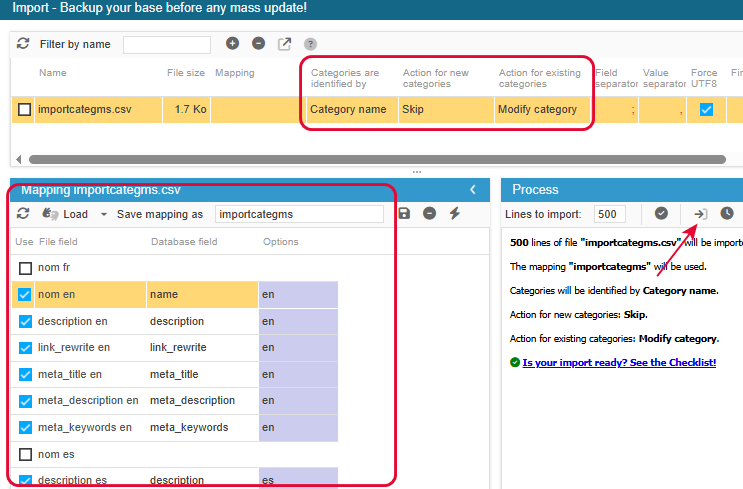
The import file configuration will have the identifier and the action at the top, the identifier and the information to update in the mapping.
When configured, hit the 'Import’ button on the right handside panel
Translating category information
If you are using multiple languages, you can also update them using the csv import.
Langages are available for name, description and seo data.
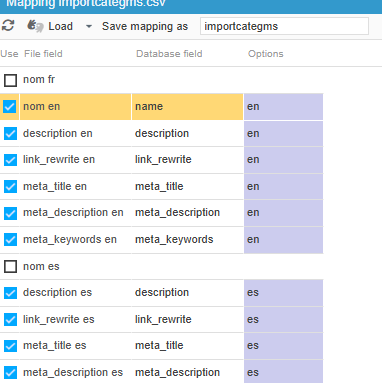
Your file will have a column per language, so that they can be mapped with the corresponding languages.
Associating categories to products through CSV import
When integrating new products to your catalog using the CSV import, you can specify categories the products need to be added to.
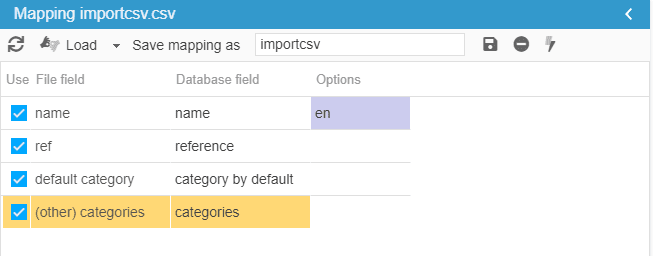
Because a product can be present in multiple categories, one of them being the default category (SEO), there are 2 fields available when importing:
- default category: the main category the product will be associated to- categories: any other categories the product can be present in
If products you are adding will be present in only one category, you will always use 'default category'.
In your CSV file, you can use category names (case sensitive), but also category IDs - both options are available in the import mapping - see examples below.


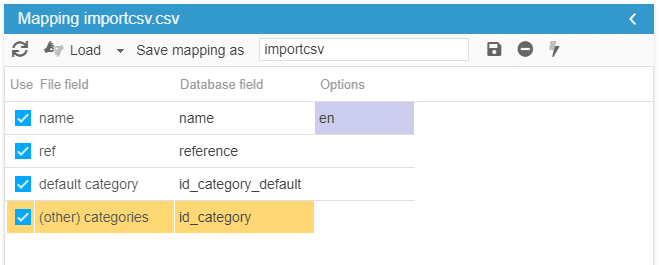
Note that if you do not specify a default category in your import file, Store Commander will automatically create a category named 'yourfilename.TODO.csv' and newly created products will be added to this category
This is because a product cannot be without a default category. Therefore we allow these new products to be created and associate them to that hidden category. You can then set the 'real' default category using the Categories panel in the Properties column - see related article below.
Moving products to another category through CSV import
You can change the default category of multiple products using the CSV import tool following this tutorial.
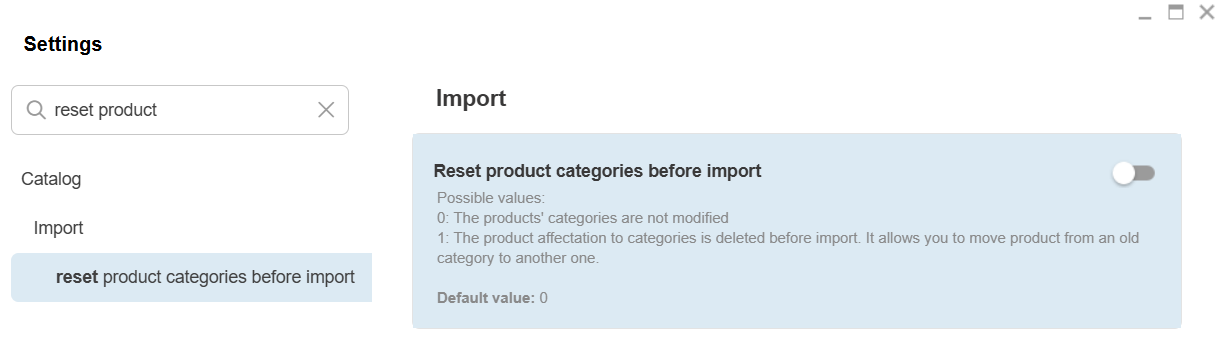
Change the option located in Tools > Settings > Import > Reset product categories before import = 1
Your CSV requires 2 category fields:

Once the import is done, do not forget to put back the option on 0.