Categorizing products in your shop
It's important for your products to be in different categories for a better visibility on your site.
To find out where your products are and categorize them in the best possible way, Store Commander provides you with some simple solutions.
Identifiying where products are
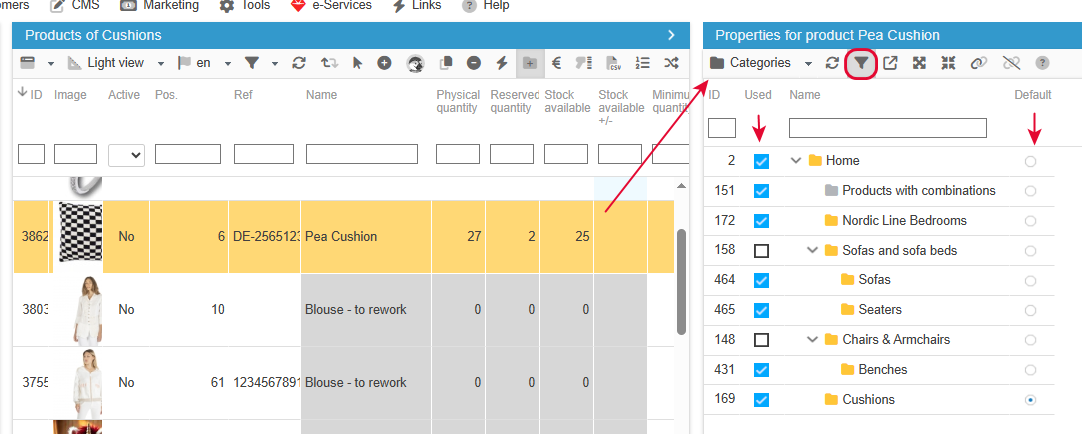
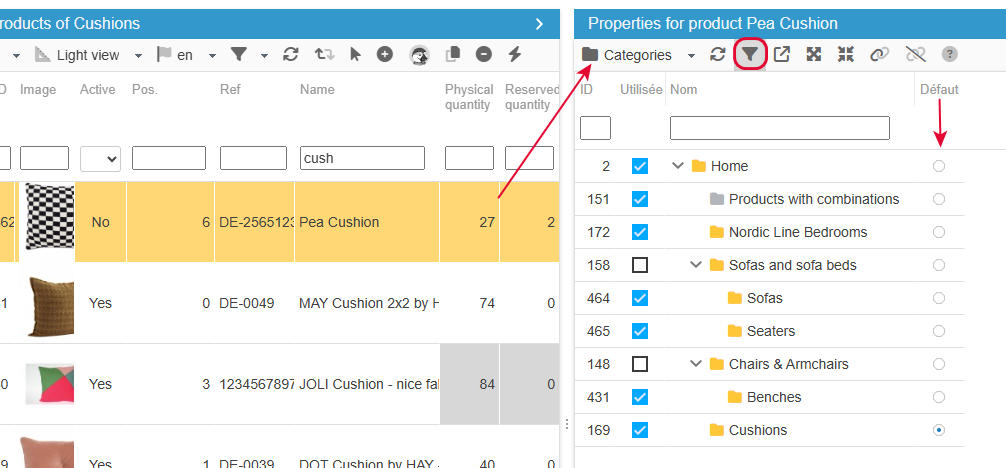
You can easily find out where a product is using the Categories property, in the right handside column.
To make it even easier, enable the filtering icon on the toolbar: only categories the selected product is will be displayed, with their boxes ticked. The default category will have its radio button enabled.
Categorizing products
You’re going to be able to optimize the visibility of your products very quickly by adding them to multiple categories in bulk in a very simple manner. And of course, in the same way, you can take them off categories.
Store Commander offers two methods: ticking/unticking and drag/drop
Ticking/unticking
From the Category property, you can add/remove products to/off your categories very quickly, and moreover in bulk, which means that you can add a whole range of products to one or multiple categories in just one action 😉
First select the product(s) in the central column, and then open the Categories panel in the property column.
You’re now ready to tick the box(es) of the category/ies you want to add your selected product(s) to:
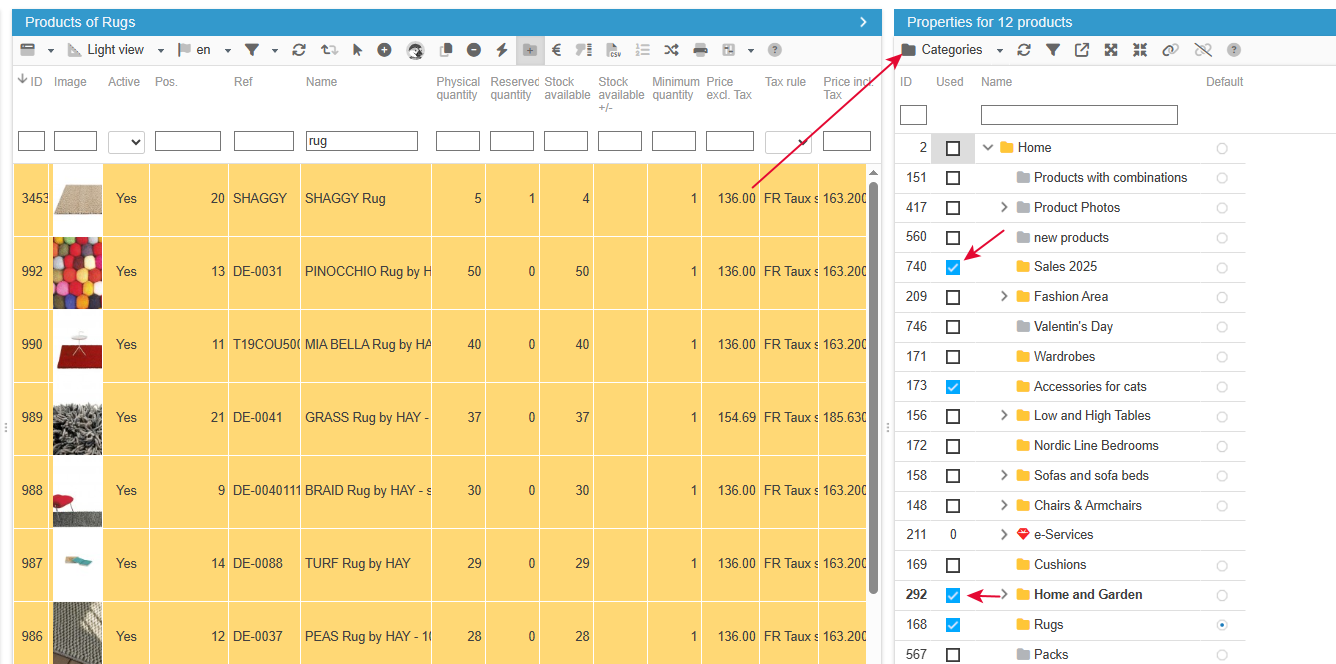
Conversely, uncheck to remove products from categories.
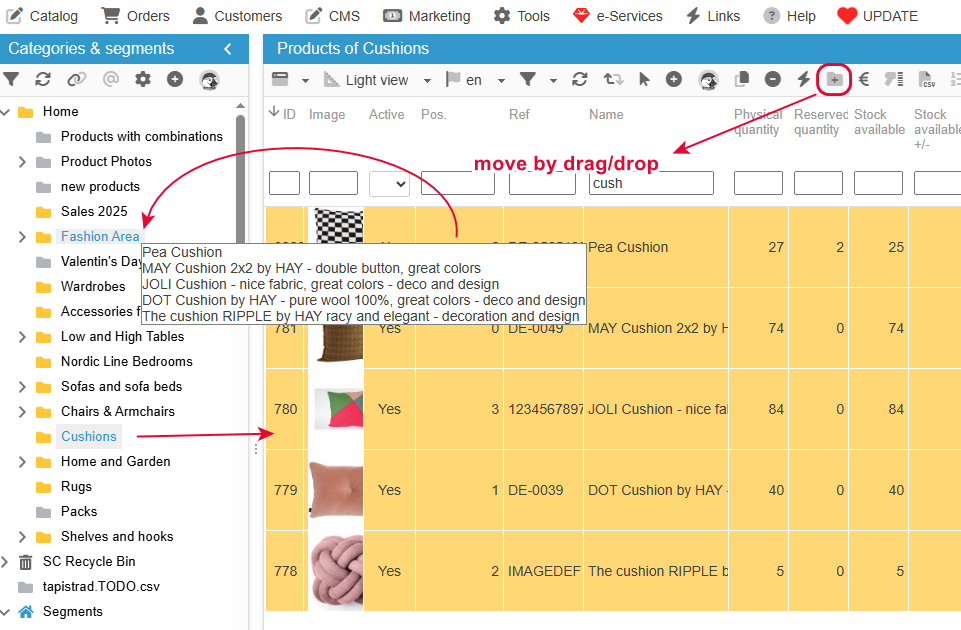
There is another method to quickly add products to categories: the drag/drop
Indeed, you can drag and drop a product into a category in the left handside column, which will either ADD the product to the target category, or MOVE it to from the current category to the target one!
The difference will be decided by the option on the toolbar:
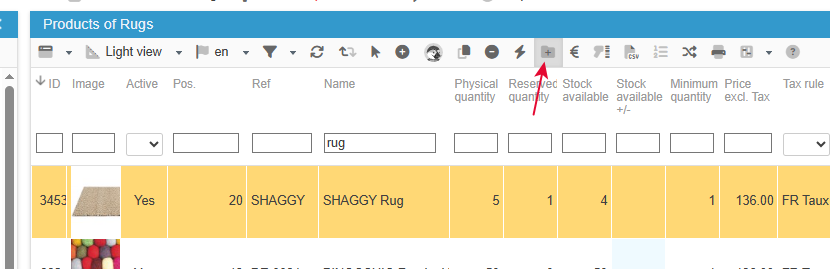
Option enabled (grey background) : add
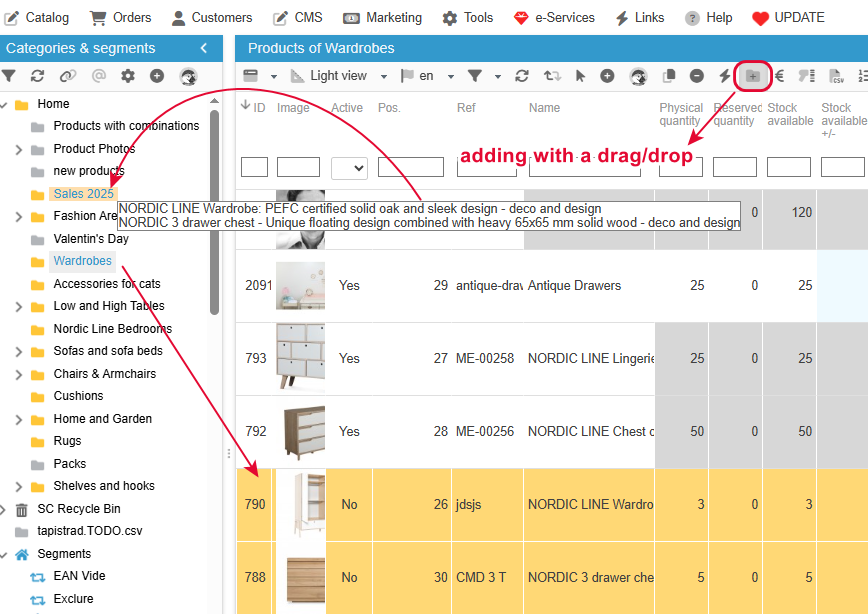
Option disabled: move
These two methods, tick/untick and drag/drop are explained in this video:
Modifying the default category
It’s important to correctly choose the default category for your products especially for the SEO of your shop.
To identify and change the default category, display the Catgories property.
Enable the filtering tool for a better visibility, and choose the radio button to set the default category.
Applying the categories of a product onto other products
With Sc, and specifically with its copy/paste function, you can apply the same category selection of a product onto another one, or multiple others:
This option is by default in the References view - but you can add it to any view you like - and it’s called ‘categories (copy/paste'):
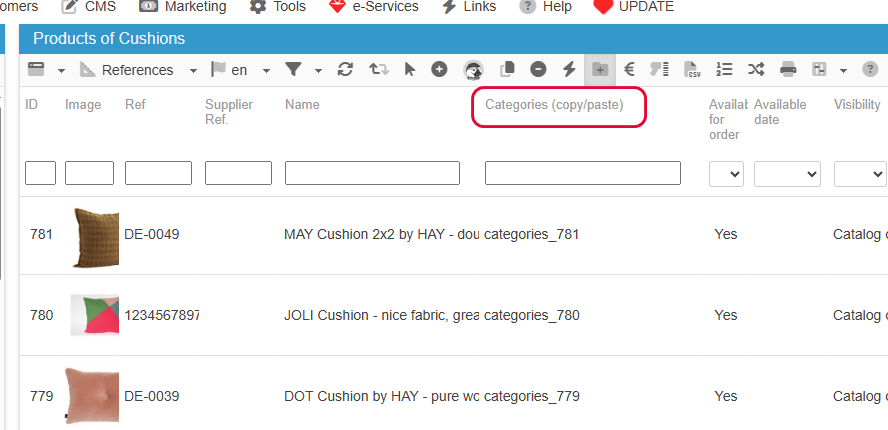
The value in the cell 'categories_xxx' corresponds to all categories associated to the product:
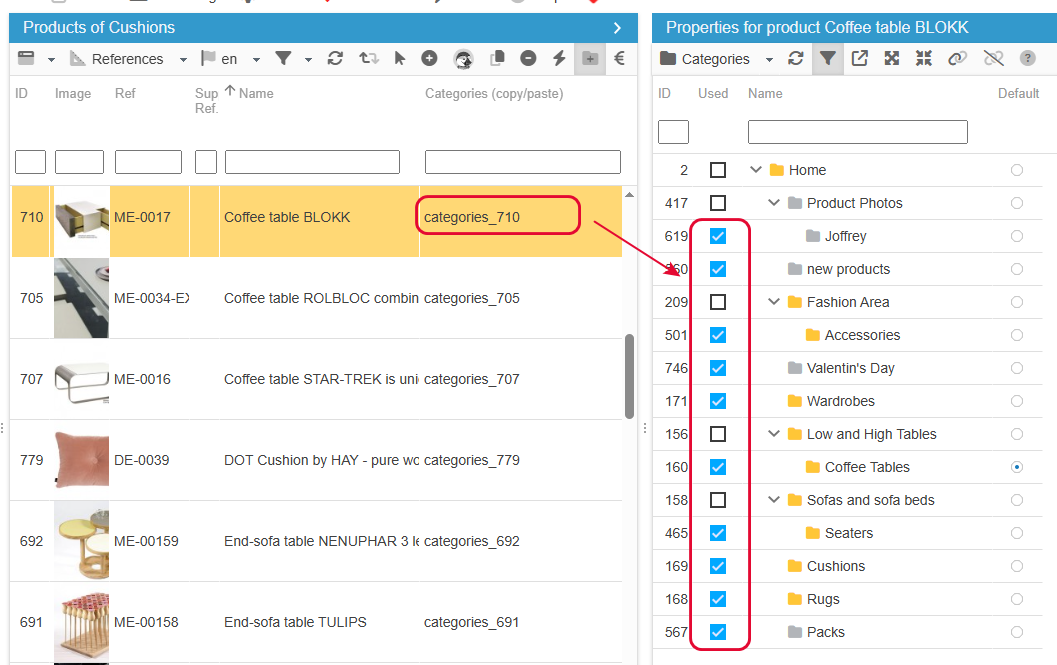
You can right click the cell to copy - this will take all the categories of that product - and paste onto other product(s) to add those catégories to these other products:
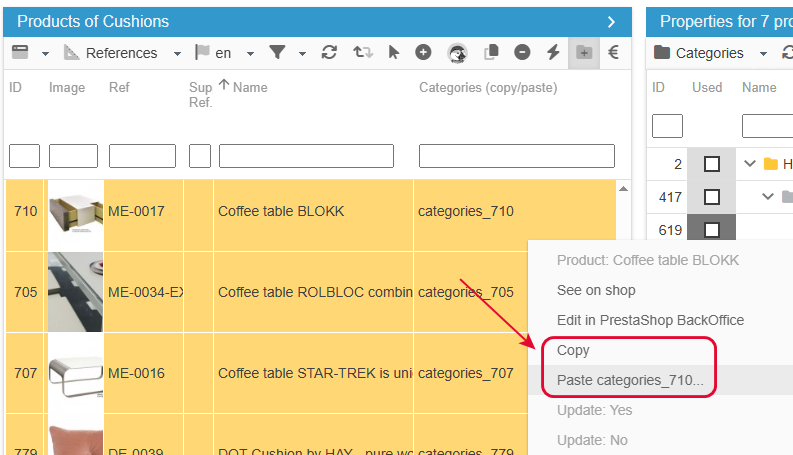
Note that This will not replace the categories of the target products, but simply add them