MultiStore - Modifying products & combinations prices in various stores
Products with combinations exist in various stores and you would like to update their quantities using different values in each store?
Modifying products prices in various stores
Ad hoc modification - interface
Store Commander's interface allows you to modify product quantities per store in the panel 'Multistore: Combinations'
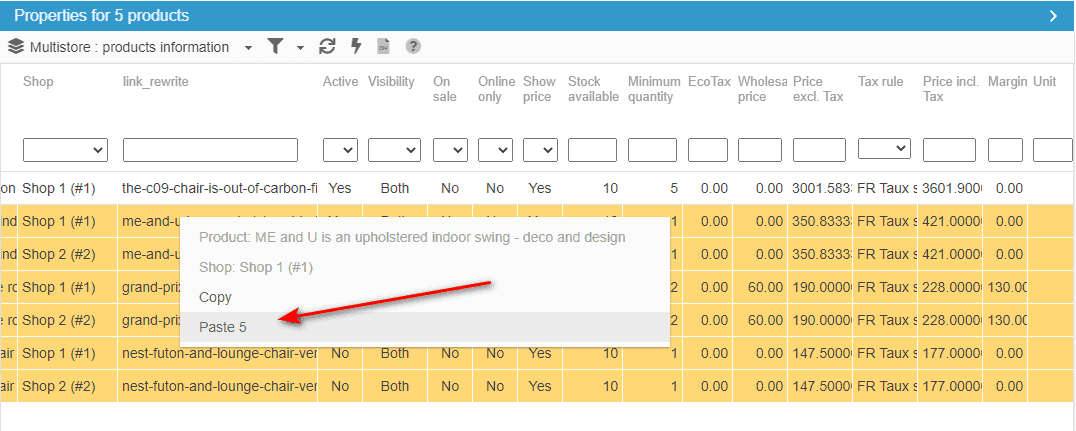
Double-click in the corresponding cell to edit and modify the value.
If you wish to apply the same stock value on various stores, use the copy/paste option in the pop-up menu.
Modification in bulk - CSV import
If you need to update quantities on hundreds of combinations, the CSV import tool will be more suitable for this task.
Please note that this process is applicable to products without combinations.
Your CSV file will include columns with the combination/product identifiers, the quantity and must include id_shop_list using the IDs of the stores you need to apply the stock modification onto.
If quantities need to be updated in multiple stores, then add the corresponding IDs in the 'id_shop_list' field.
If quantities need to be updated in multiple stores but with different values, then a line per store will be necessary with the ID of the corresponding store in the 'id_shop_list' field.
In this example, the identifier is the combination/product reference.

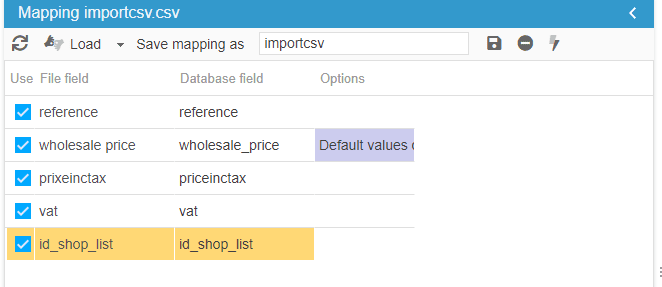
The mapping will be (id_shop_list required for all CSV import):
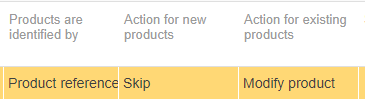
The identification options will be:
Setting combination prices per shop
If your're working in multistore mode, you can share your product combinations to various stores.
When combinations are available on multiple stores, you can set specific prices on each store.
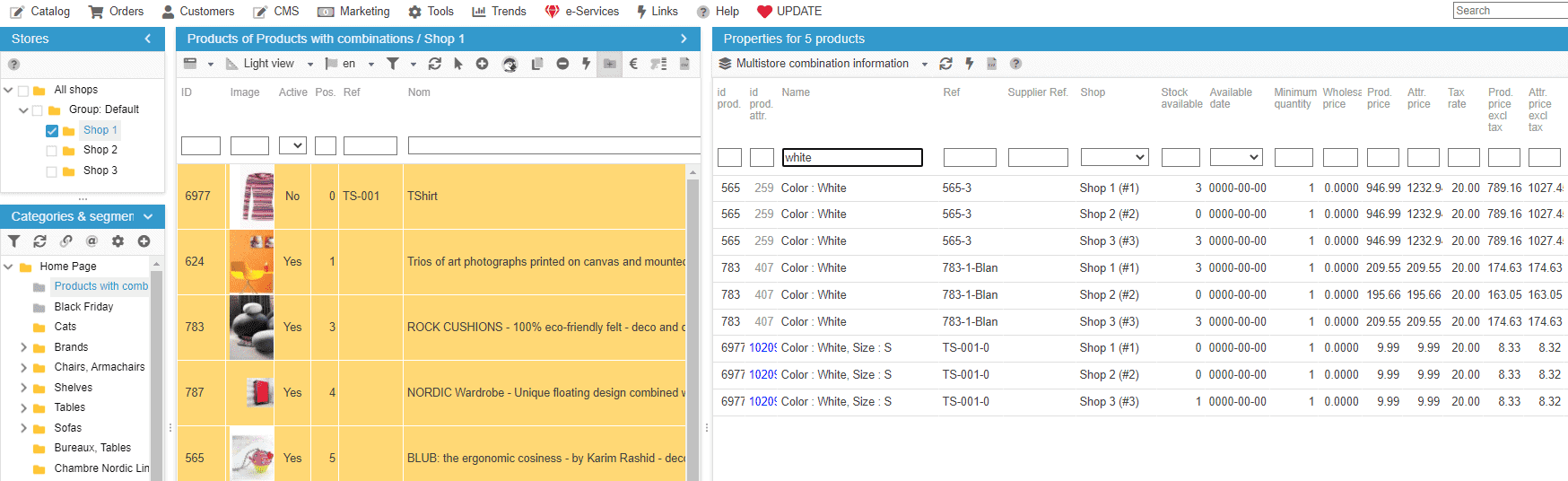
In Sc, to set prices on combinations per store, open up the MultiStore: Combination Information panel in the Properties column, on the right handside.
In this panel, you can visualize all combinations of a selected product in all stores they exist in, and differenciate them thanks to the 'Shop' column.
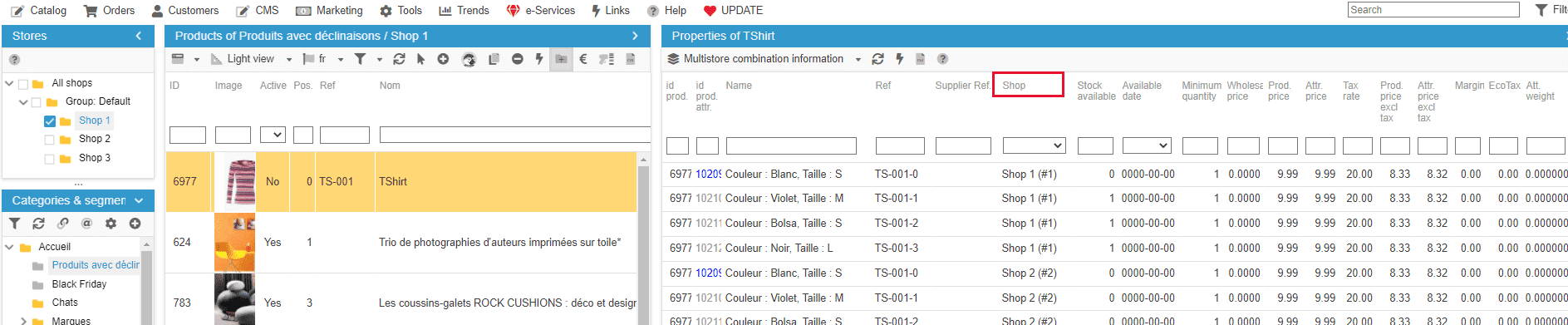
This where you can set the price of each combinations for each shop, in the 'Attr price ' and 'Attr price excl tax' (attr = attribute).
Don't hesitate to use the filtering tool to apply modifications in bulk, with the copy/paste functionality for example.
Also note that you can select mulitple products to work on a large range of combinations.On the screenshot below, combinations of multiple products aer displayed in order to modify prices of all 'White' combinations (filtered in 'combination name) on all shops.
Associating a tax rule to a specific store (PS 1.6)
In PrestaShop version 1.6 in multistore mode, you have the possibility to associate your tax rules to specific stores.
The configuration will be passed onto Store Commander's interface, allowing you to display and select only the tax rule you would have previoulsy associated to the store(s).
The setup can be found in PrestaShop backoffice > Localization > Tax Rules.
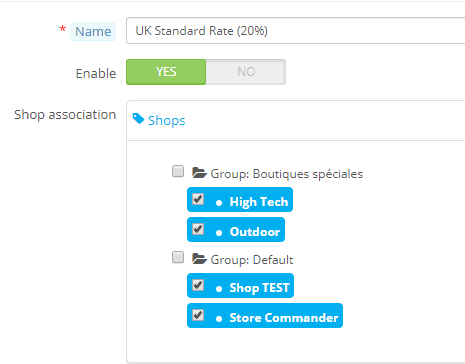
In Store Commander's interface, the VAT drop-down menu will only display the rules associated to the shop you are working on.