Learn how to manage your products in a multi-store environment
The advantages of multi-store management via Store Commander
Store Commander improves the interface and functionality of PrestaShop, particularly for multi-store management:
✅Ultra-fast, bulk management of products, prices, stock and categories.
✅Optimised interface with advanced tables and filters.
✅Bulk modification of products and associations between shops in just a few clicks.
✅Faster import/export of multi-shop data.
Advantages:
Huge time savings when managing multiple shops.
More user-friendly interface, adapted to bulk management.
Avoids the cumbersome nature of PrestaShop's native back office.
The essential concept: the Store Tree work in SC
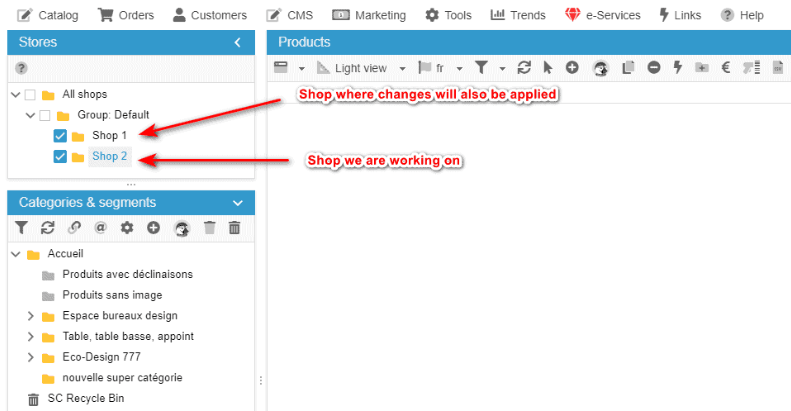
The shop tree is located at the top left of the interface. It lists all the shops that you have added and configured in the multi-shop mode of your PrestaShop back office.
Its role is simple: you must select a single shop (it will be ticked and highlighted). The categories and products of this shop will then appear in the interface.
👉 If you want the changes made to one shop to also apply to another, simply tick the box for the other shop as well.
⚠️ Please note regarding the ‘All shops’ option:
This option is only used to display all categories from all shops.
It should not be used to modify products.
If you use it to edit products, your changes may not be displayed, as the same product may have different data (price, stock, description, etc.) from one shop to another. Store Commander cannot display all these variants at the same time, which can be misleading.
This option is only used to display all categories from all shops.
It should not be used to modify products.
If you use it to edit products, your changes may not be displayed, as the same product may have different data (price, stock, description, etc.) from one shop to another. Store Commander cannot display all these variants at the same time, which can be misleading.
To sum-up :
Always select only one shop to work on products.
Only tick other shops if you want to apply the same changes to them.
Never use ‘All shops’ to edit products.
Thanks to the shop tree, Store Commander allows for centralised catalogue management in multi-shop mode. This makes it possible to create, modify or duplicate products and their combinations across several shops at once, without having to repeat the actions shop by shop. This feature saves considerable time while ensuring perfect consistency between the different catalogues.
How can I have a global view of product information for all stores?
When working in multistore mode, a product can have different information on each shop it's present in, such as name, price, stock, etc.
In the Property column in Sc, you'll find a panel called Mutlistore product information. Here you'll see a line per shop and the product information on each shop.

The only piece of information shared on all shops are the product ID, it reference and its supplier reference.
All other information can be specific on each shop.
How can I have a global view of combination information for all stores?
Combinations can exist on multiple shops and information such as prices or stock for example can be specific on each shop.
In Sc, you can visualize all combination information in all shops they exist in, in a single panel: the MultiStore Combinations Information
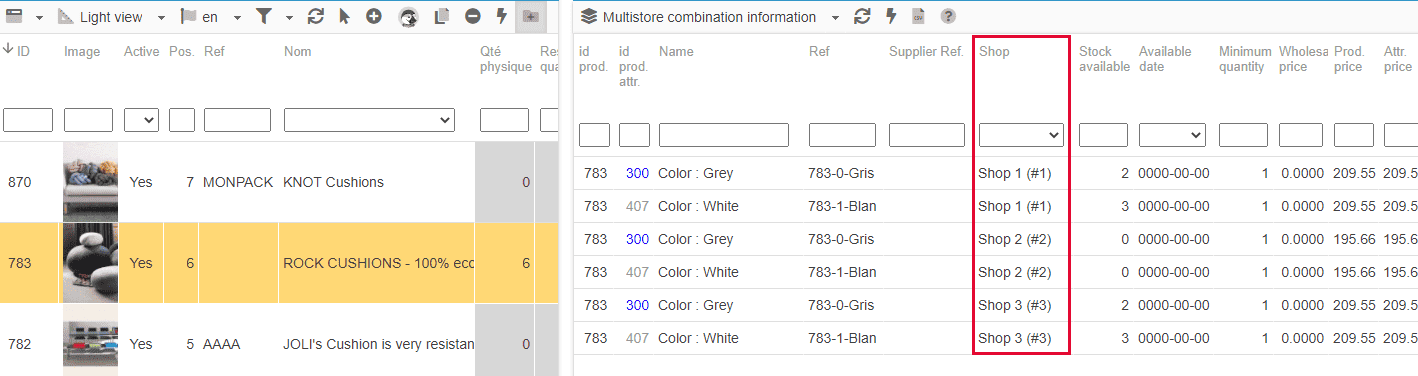
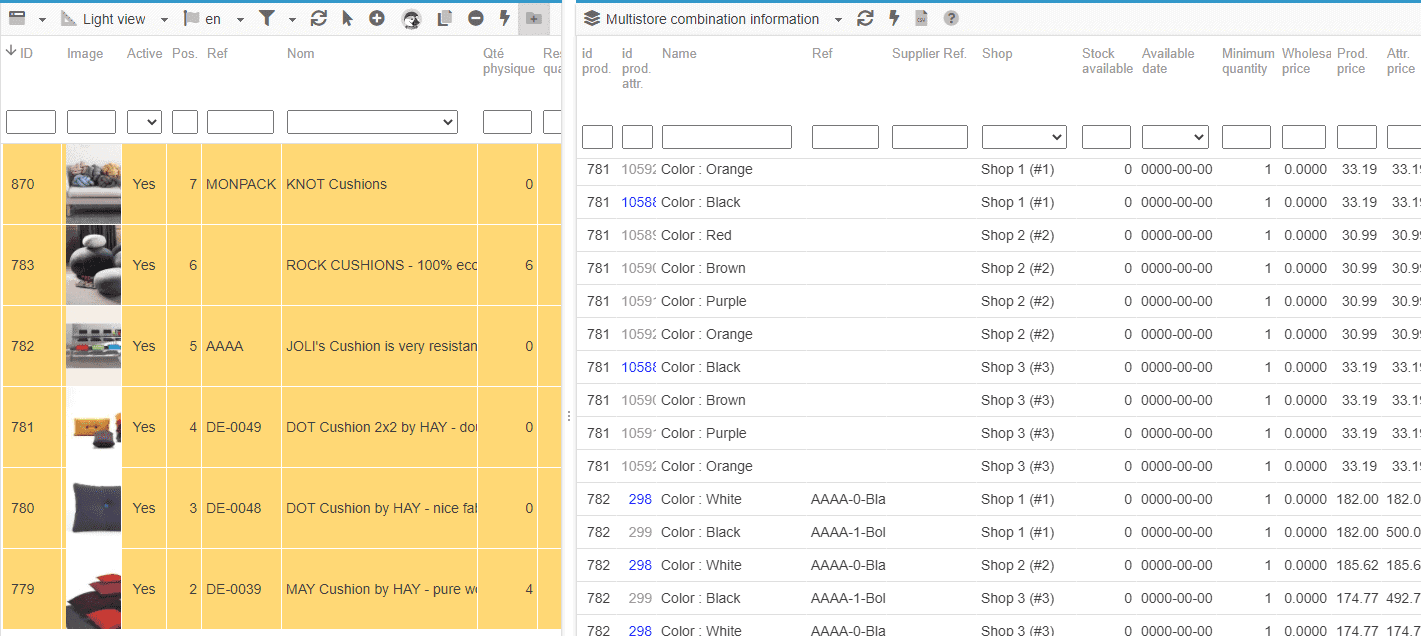
In this panel, you have the 'Shop' column allowing you to will see a line per combination per shop, and you can apply modification in this grid on each shop.
Also note that you can of course select muliple products to work in bulkk on multiple combinations.
Changing the default store for one or more products
You can change the default store of one or multiple products very quickly using Store Commander's multistore options.
Once you have selected the product(s) you need to make the change onto, open up the Multistore Sharing Manager panel from the Properties column.
All you need to do now is select the targeted default store by clicking on the corresponding radio button :
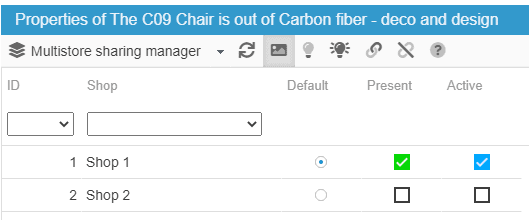
This is it! All selected products are now using the shop 'Store Commander' as their default store in a few clicks only! Fast and efficient!