Managing stocks on your shop
Introduction stock management in Sc
You can view and edit the stock levels of your products and variations in the Store commander interface, as well as using the import tool, which is explained in the articles in this collection.
There are 3 different 'stock' fields in PrestaShop and available in Sc:
Physical Quantity, Reserved Quantity and Available Stock.
You'll find the exact definition of the 3 fields on the PrestaShop Help page, when you're on the Stock page:
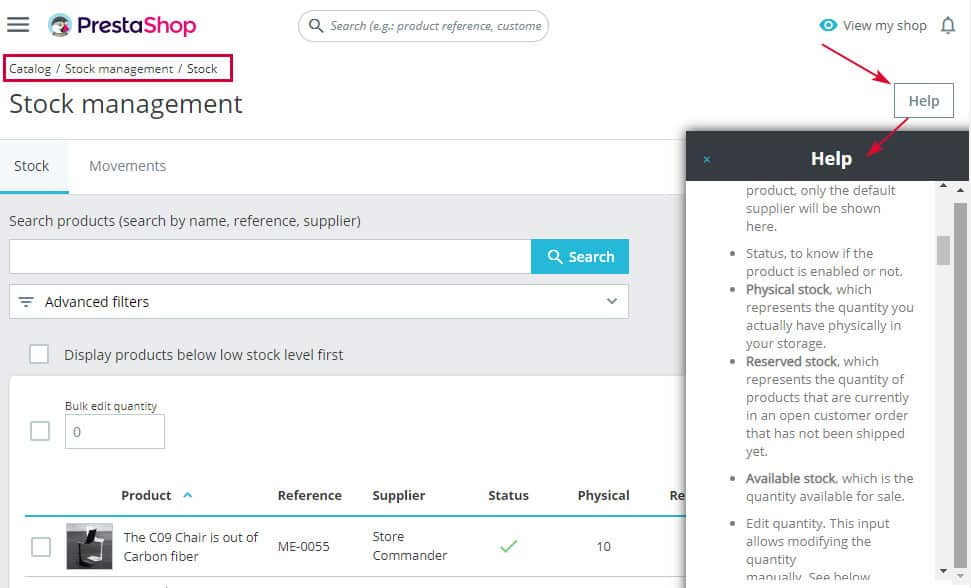
Only 'Available Stock' is editable, the other two are in read only because they're calculated fields. A double click to edit and modify quantities on your products.
If you have products with combinations, then quantities are managed directly on combinations in the dedicated property.
In this instance, the quantities displayed on the parent product correspond to the total quantities of all its combinations.
Additional options
There are other settings linked to product stock, such as:
Low stock threshold and alert
Allow/refuse orders when stock is null
Availability information displayed on product pages according to the current stock
Delivery information displayed on product pages according to the current stock

Low stock threshold and alert
These options allow you to be informed (by email) when the quantity reaches the threshold you have defined for the products and combinations.
Allow/refuse orders when stock is null
Here you can decide whether to allow orders for your products when stock is at 0, or to refuse them, while keeping the products visible on your site.
Availability information displayed on product pages according to the current stock
You can provide your customers with availability information based on quantities by displaying messages on product pages.
Delivery information displayed on product pages according to the current stock
You can inform your customers of delivery times based on quantities by displaying messages on product pages.
Mass modification: copy/paste feature
Quantities can be modified simply by editing the cells (double-click).
If the same stock value needs to be applied to several products, then you can use Sc's copy/paste feature.
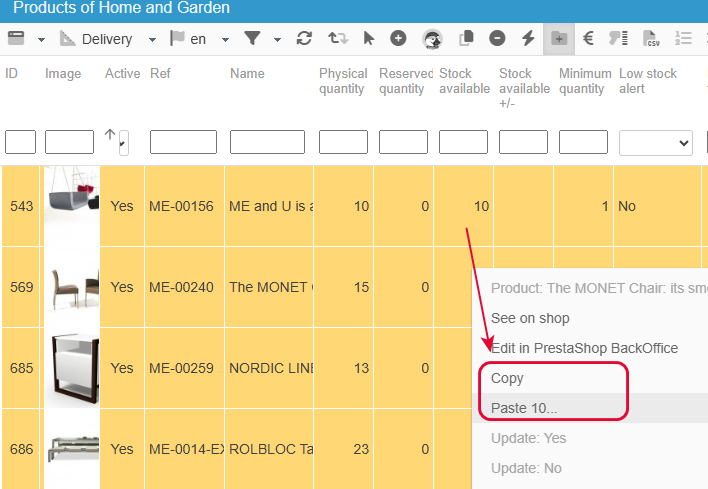
After changing the quantity on a first product, right-click on the new value and select “Copy”.
Then select the other products that need to have the same quantity (CTRL key or Sc's bulk selection icon), then right-click and this time select “Paste...”.
You're done!
Global modification: mass-update feature
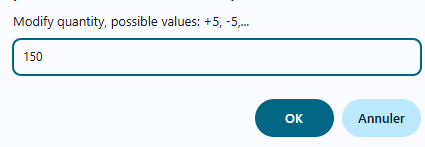
There is another option that allows you to modify the stock of your products in bulk, but this time by adding the same value to the existing quantities. For example, if you have a delivery of 150 pieces per product, and this involves all the products from the same manufacturer.
Note that this option does not replace the current stock, but adds the value you specify to the current stock.
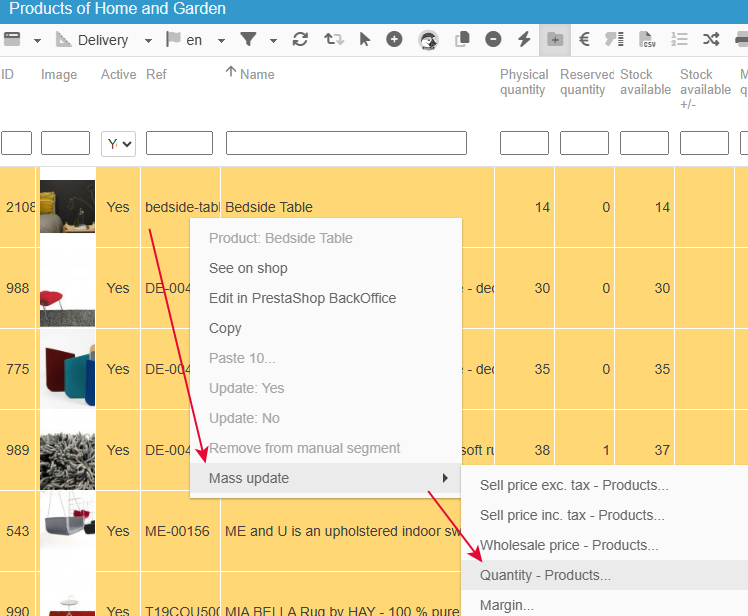
With Sc, you can identify and list the products of this manufacturer with a dynamic segment, and then apply the mass editing option found in the context menu (right click) :
Enter the value you want to add in the window that appears, and click OK, that's it!
This option also exists for your combinations. From the context menu, select combinations to display the quantity modification option.
🚿Are your products using barcodes?
With the barcode scanner tool in Store Commander, you can update stock on products and combinations by simply scanning the barcode on the actual product!
Updating means adding to, removing from, or even replacing wich is ideal for running an inventory.
Click on the icon on the toolbar to open the interface.

Once in the interface, select wether you want to add, remove or replace stock and enter the quantity. You can then place your mouse in the 'Code' field and scan the barcode on your product.
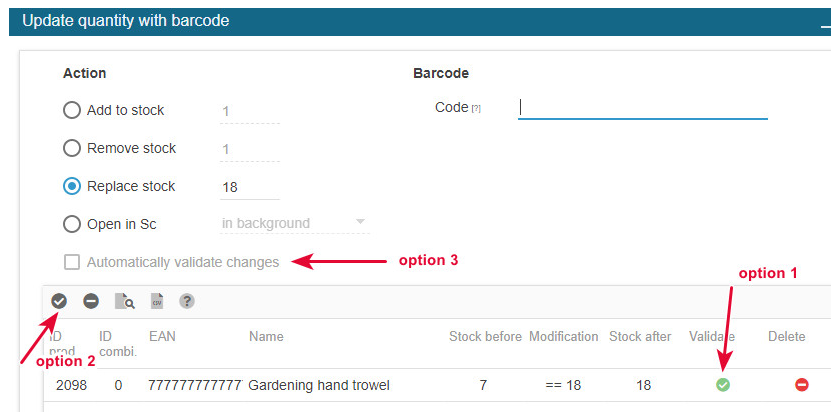
The product is found instantly and displayed in the panel. To then validate these modifications, 3 options are available for you to choose from:
Click the 'validate' button on each line of the list (option 1)
Click the 'tick' icon on the toolbar to validate the complete list (option 2)
Tick the option 'validate automatically' before you start scanning barcodes (option 3)
To replace the current stock on products/combinations of your PrestaShop stock with the true
stock by scanning the product barcodes.
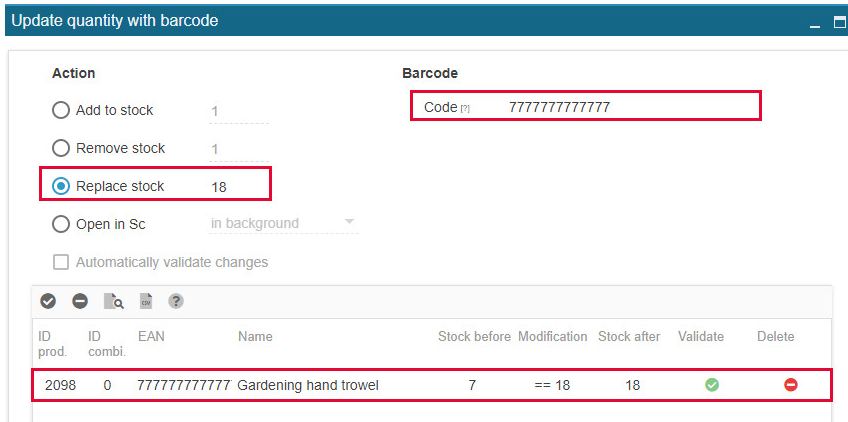
In the interface, select the option 'Replace stock' and add the value to apply.
Then place your mouse in the 'Code' field, and scan the barcode on the product.
Automatically, the corresponding product is found and the line is displayed in the panel.
The tutorial in images:
💡Tip: Quantity by default on new products sur vos nouveaux produits
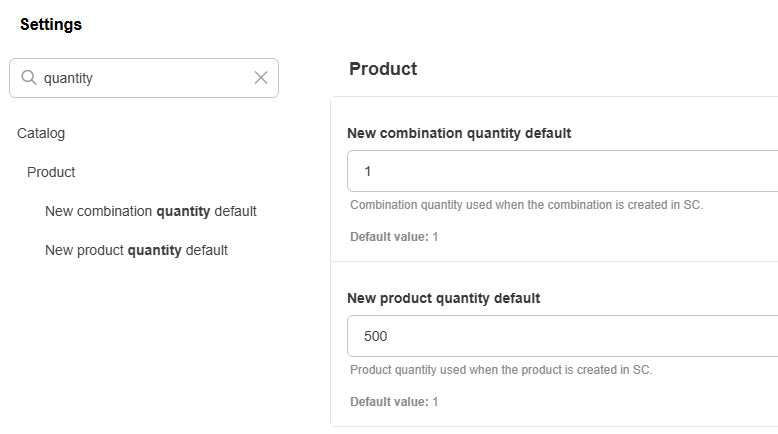
By default, when you create a new product in Sc, the quantity will automatically be set to 1.
If you always need to specify the same stock value when creating your products, 500 for example, you can set this value as the default quantity on the corresponding option in the Sc Preferences.
A guaranteed time saver, bearing in mind that it also exists for your combinations of course 😊
💡Tip: Selling out-of-stock and obsolete products faster!
You have out-of-stock products or products that have become obsolete?
Here is a Store Commander tip to help you sell these products faster!
Replacing the creation date on a product with today's date will automatically display the product in the New Products Block on the Home page of your online store (if the block is enabled in your PrestaShop backoffice of course).
You will find the 'Creation date' field in the References view, but you can of course add it to the view of your choice.
You simply need to change it to today’s date 😊
To apply the new date to multiple products, use Sc copy/paste feature:
change the date on a first product
right click the new date > copy
select the other products > right click > paste
You’re done!