Managing combinations
A dedicated grid for your combinations
Store Commander offers a dedicated grid for your combinations, which you'll find in the properties column (on the right).
This grid gives you complete visibility of all the information for your combinations in one place.

As you can see, PrestaShop offers a wealth of information, which we display in our interface. But you can of course adapt this grid to your needs using the interface customization tool - find out more here 😊.
Generating references for your combinations
Don't your product combinations have references? This is a real problem for stock management, for example, or for publication on various marketplaces too.
3 possible solutions:
You can manually enter the references for each of your variations, but this will take time...
You can also use CSV import, which is obviously the most efficient method.
Or use the reference generator built into the combination grid!
The reference generator is located on the toolbar of the variations grid, enabling you to generate references for your combinations with a single click!
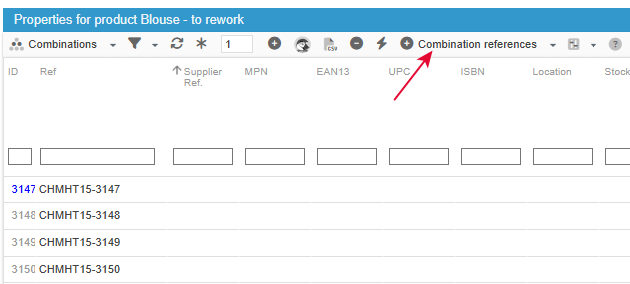
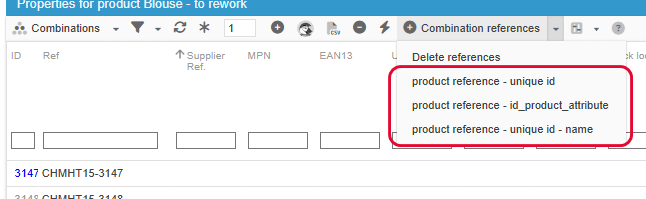
You have 3 options to create the references:
- product reference - unique ID
- product reference - ID combination
- product reference - unique ID - attribute name
You can also remove all current referencesif you wish, although the generator will replace any existing references anyway.
You can now create a multitude of unique references in just one click to fill the gaps in your catalog 😊
Updating stock on combinations in bulk
Stocks can be viewed and edited in the Sc combination grid: A double-click on the value to edit and modify it.
There are, of course, two methods you can use to update stocks en masse, both of which are explained in this article.
Adaptting prices
PrestaShop uses price impacts to define prices for your combinations, which can quickly become complicated and tedious. With Store Commander, on the other hand, you simply enter the final price (excluding or including VAT), no calculations required :)
The Combinations panel includes price excl. and incl. tax set on the parent product (read only) as well as the price excl. and incl. taxe set on combinations.
This data is differentiated by its title:
Prod. price: parent product price (prod = product)
Attr. price: combination price (attr = attribute)
Double click to edit Attr. price or Attr. price excl. tax to set the combination final price.
You’ll find more detailed information on how to manage prices on combinations in this dedicated article.
Associng images to combinations
For those of you who need to associate specific images to combinations - for example the image of the red t-shirt with the red combination of the t-shirt, and the green image with the green combination of the same t-shirt, etc., then Sc includes a grid dedicated to these images within the combination property.
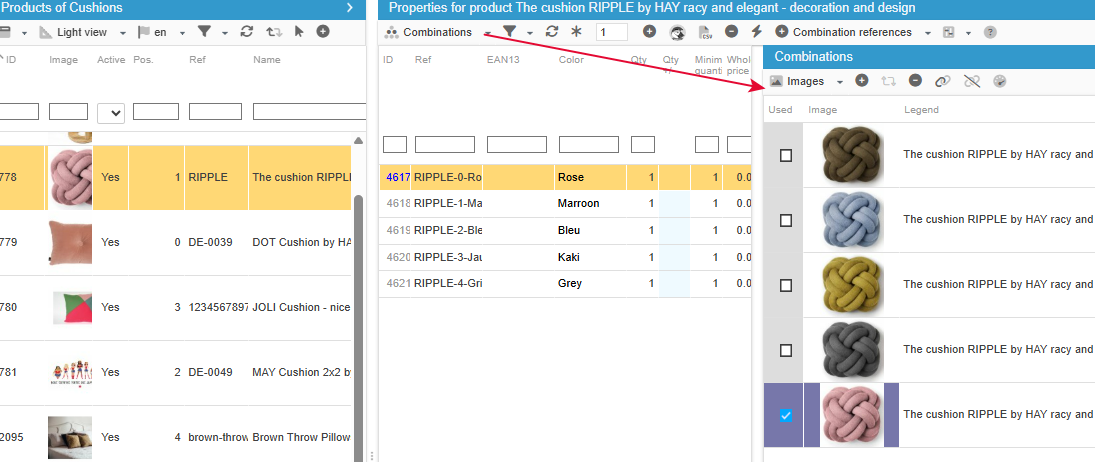
If the images are already present on the product, you can simply tick the boxes for the images to be associated with your combinations. In the above example, there is one combination and one image, but you can of course have several combinations to associate with several images.
Sc's multi-selection and multi-association principle also applies here 🤩
If the images have not yet been added, you can feed two birds with one seed by adding and associating the images with your combinations in the same “Images” grid.
First select the combinations concerned (all the reds, for example), and then drag/drop the corresponding images you want to associate into the images panel.
So effective!
💡Tip: Even more combinations!
Not only do you have access to all the product combinations and their information in a single grid, but Sc goes even further by offering you a grid entitled Multi-Product Combinations!
This grid displays the combinations of several products, that you select beforehand. And of course, you can apply mass modifications, such as copying and pasting prices, setting up a promotion, associating images, etc., and all in bulk, of course, with multi-selection!
💡Tip: Use a color palette on the front office
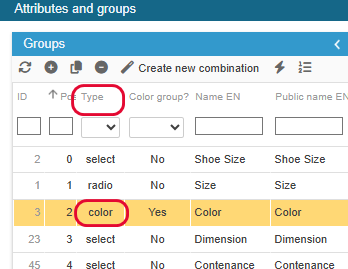
When you create your combinations with the colour attribute, you can add a palette of colours that will be displayed on the product sheet in your online shop.
The corresponding option is found in Sc Catalog > Attributes & Groupes, where you need to set the Type to Color
💡Tip: Deleting duplicated combination attributes
Attribute names are case sensitive and as such duplicates can appear in the list of attributes.
With Store Commander you can remove duplicate entries with the merge option, represented by the toolbar icon in the Groups and Attributes window.
To remove duplicate values, select them in the list and hit the merge icon on the toolbar.
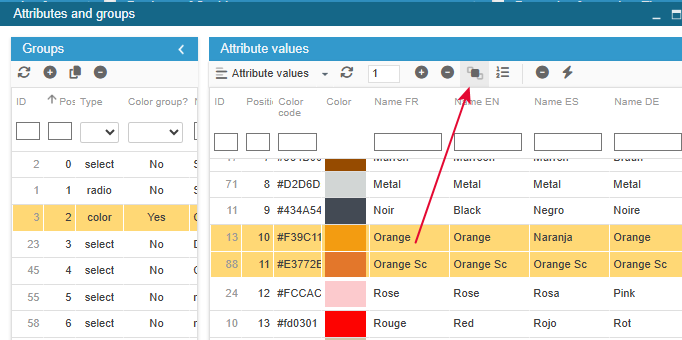
The attribute with the older ID (lower ID) will be used as the main attribute, and the other(s) will be deleted.
All products using the deleted duplicated attributes will automatically be updated after merging, so no action is required on products.
💡Tip: Setting the cheapest combination as default on all my products
With Store Commander, you can define your cheapest combination as the default one so that the display in the front office is more consistent for the customer.
When you are in the product grid (central part of the interface) select one or more products with combination then right-click > mass update > combinations > set the cheapest combination as default combination.
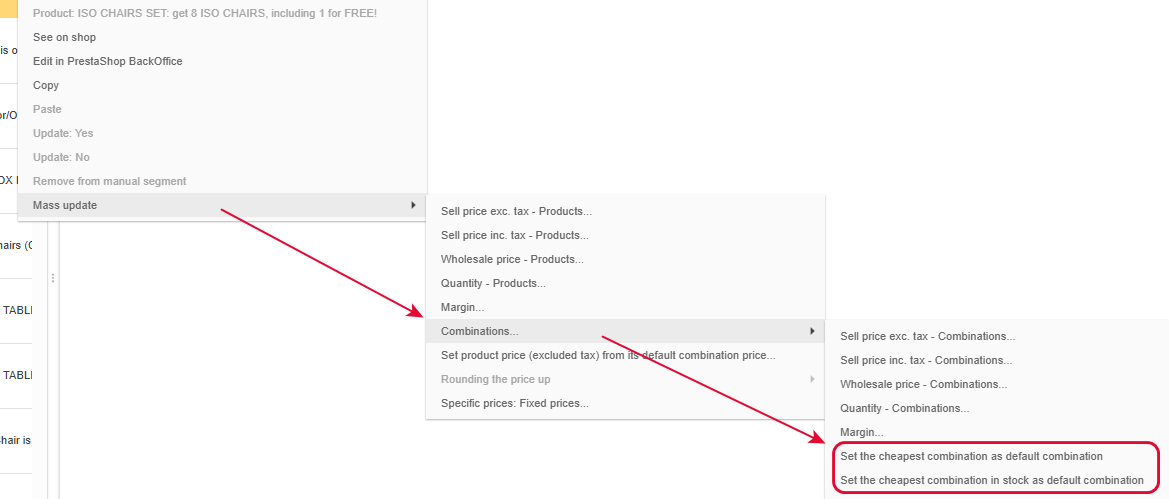
Note that you can use the other option to choose the cheapest combination in stock to be the default combination