Pricing management for your products
Introduction
You can manage the prices of your products and variations within Store Commander, including prices before tax, prices including t1ax and purchase prices to work out your margins.
There's also a PRICES view that brings together all the price fields:
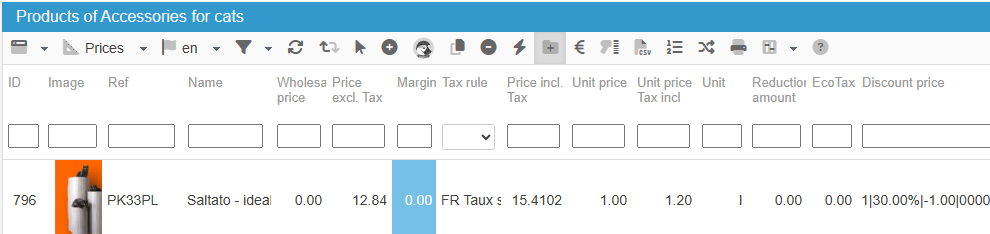
You can of course add these fields to any view using the interface customization tool.
The same applies to the combinations, with all pricing information visible in the grid dedicated to combinations:
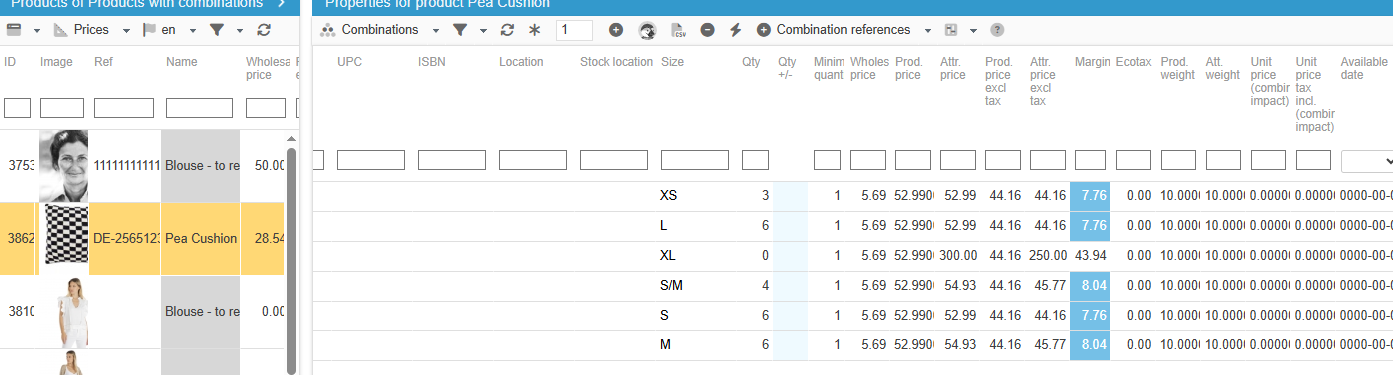
It's important to note that with Sc you enter the final price on your combinations and not the impact value, like you have to in PrestaShop backoffice.
This is a real time saver as you don't need to check the product price and calculate the difference with the final price of the combination. Simply enter the final price (excluding or including VAT) on each combination.
Updating prices in bulk
Prices can be modified by simply editing the cells (double click).
If the same price has to be applied to multiple products, you can then use the Sc copy/paste option.
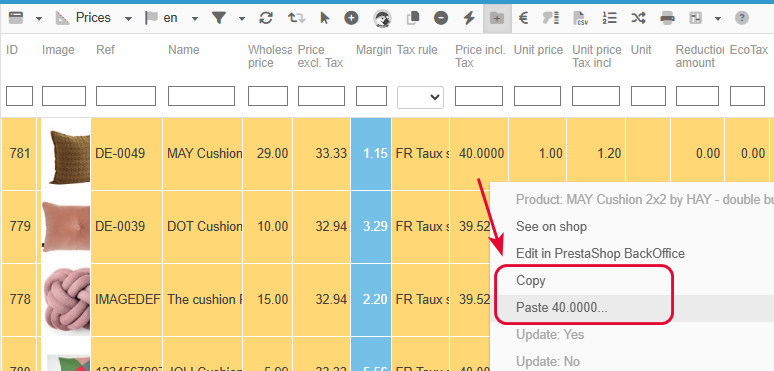
Once you’ve modified the price on a first product, right click the new value and select ‘Copy’
Then select all other products onto which you need to apply the same price (CTRL or the mass selection icon), right click and this time select ‘Paste…’
And you’re done!
The same action applies to combinations, directly in the Combinations property, or the Multi Product Combinations panel, if you want to display and modify combinations of multiple products.
Applying a price increase with a percentage
Besides the copy/paste option that allows to apply the same price to multiple products, it’s also possible to modify prices by applying a percentage.
Again, this is a real time saver because no calculator is required! Sc includes the option by default to make your life easier 😊
And this option is of course applicable to multiple products!
The video below shows you how to apply a 2% increase on products of a specific brand.
This mass edit option is available in the popu menu (right click), as well as the € icon on the toolbar. And the action will apply to products you previously selected.

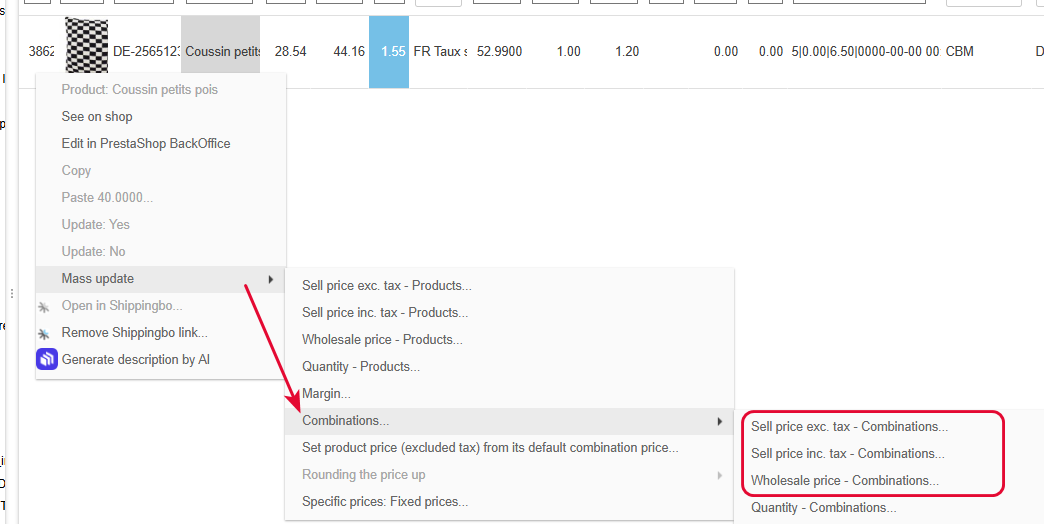
You can apply this increase on combinations as well, using Mass Edit > Combinations in the popup menu:
Rounding up prices
The mass editing options in this popup menu also allow you to round off the prices of your products, following the same principle, i.e. applicable to a selection of products.
The rounding options can be applied to the wholesale price, the price excluding tax and the price including tax. The choice is made by right-clicking in the corresponding price column.
Choosing the rounding rule
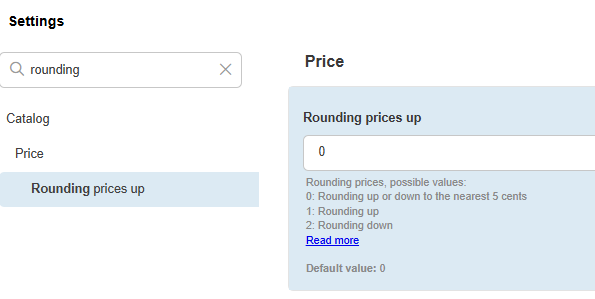
Before rounding up product prices with Sc functionality, the first step is to choose the rule in Sc Settings (Tools menu), i.e. round up or down to the nearest figure:
Choosing the rounding option
To see all different rounding option, do a right click in the price exc. or incl. tax to access the mass edit menu.
Beware: The option will be greyed out and unselectable if you click in any other column.
In the below example, we’ll be rounding up the price incl. tax.
Right click in the price incl. tax column to access the mass edit options and the rounding option. You now need to select the rounding value you want to apply.
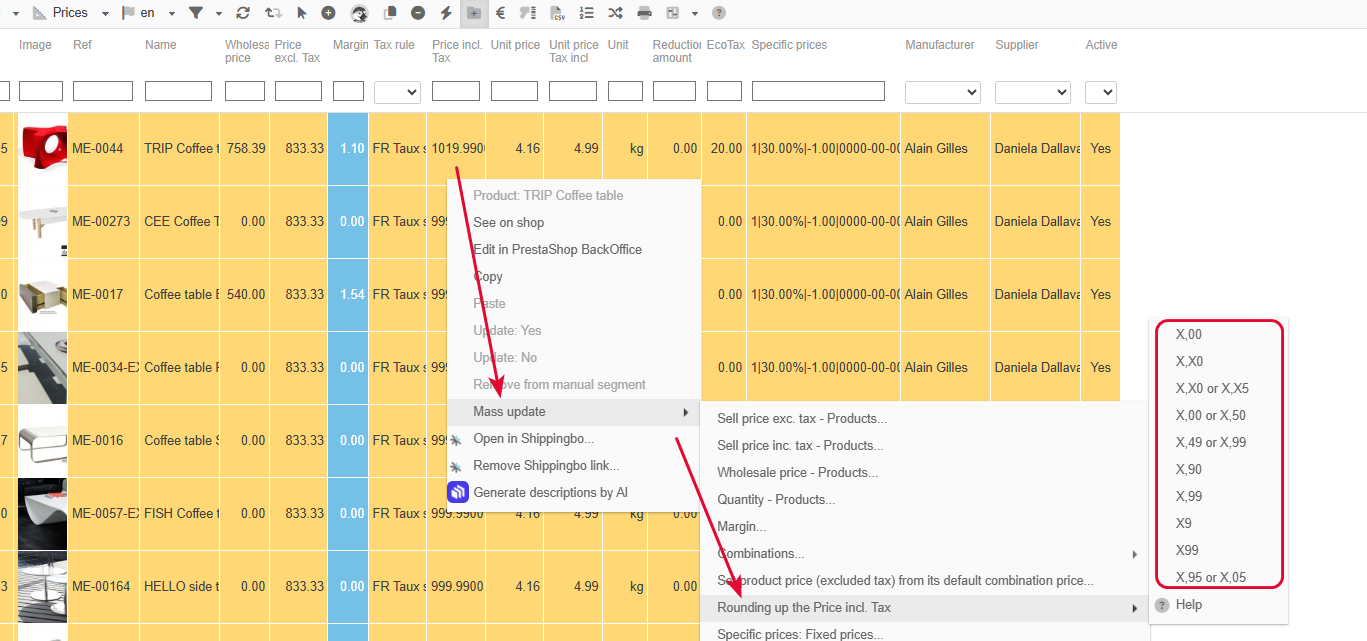
Of course this will apply to the price of all products you would have selected before hand.
For products with combinations, the options are the same, and are located in the mass edit menu > combinations > rounding up….
The video below shows you how to quickly make your prices psychologically correct by rounding the up in no time.
Visualizing product margins
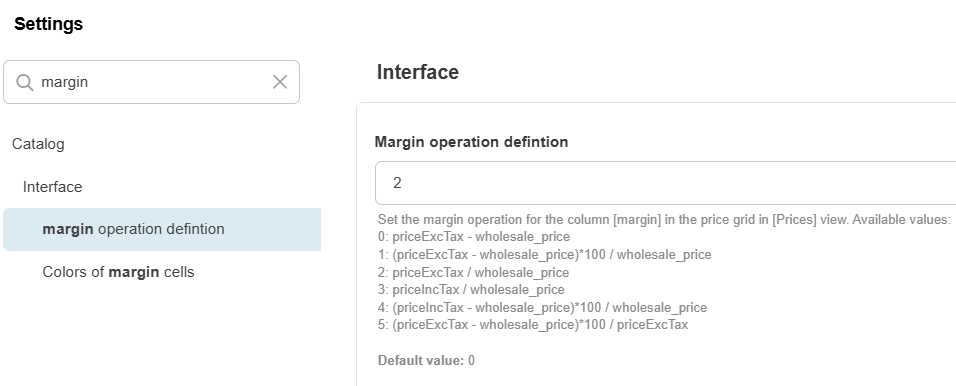
The Prices view in your Sc interface includes a column called Margin/Coeff, which will have the margin value on each product.
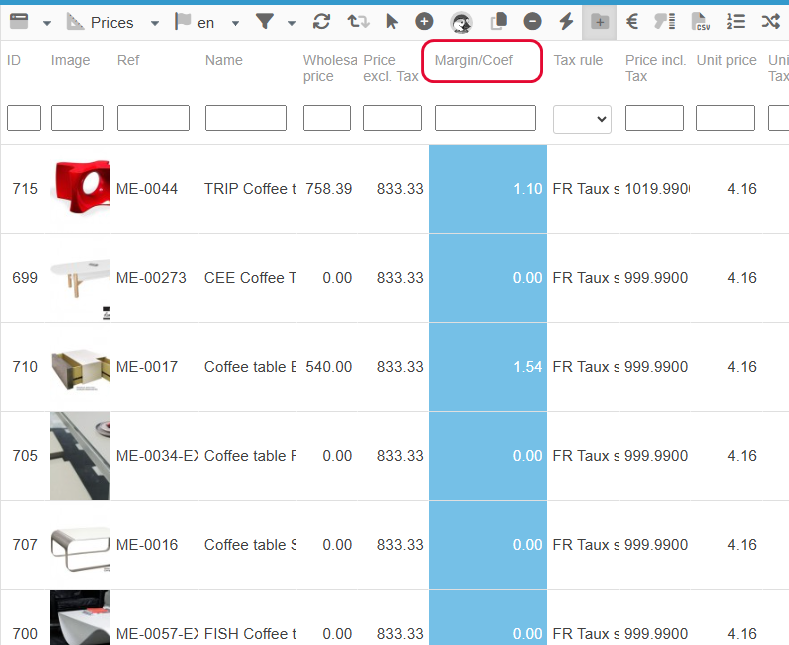
It’ll be an amount or a percentage depending on the formula you would have chosen in Sc Settings:
You can then control margins and adapt the prices accordingly.
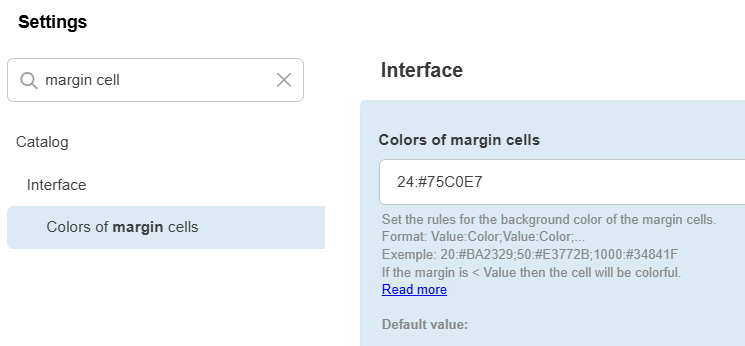
Bonus: you can also choose colors to easily identify margins lower than ‘Xvalue’!
Set your colors in Sc Settings:
Adapting prices by setting the margin value
The margin is a calculated field based on the formula you have chosen in your Sc Settings (see above). This field in the grids is read-only and cannot be edited.
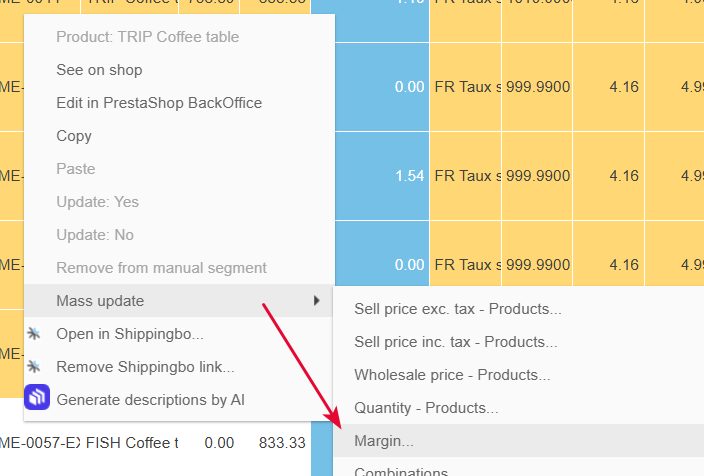
However, it is possible to change the value using the mass edit option in the popup menu (right click).
The formula set for the margin will then be used to recalculate the price incl. VAT of products onto which you are going to modify the margin value.
Enter the margin value in the popup window:
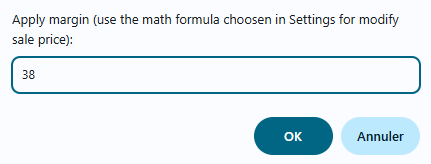
Once you validate, the margin on all products previously selected is now modified a,d replaced by 38 (in this example)
Note that this modification will not be applied to products with combinations.
To modify the margin on combinations, use the same popup menu > Combinations > Margin.
Adding quantity-based discounts
With PrestaShop you can apply a discount on your products according to the quantity ordered.
You could see this on a site for example:
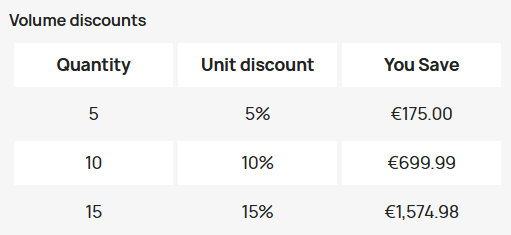
To set this up, you need to use the Specific prices, property column in Sc.
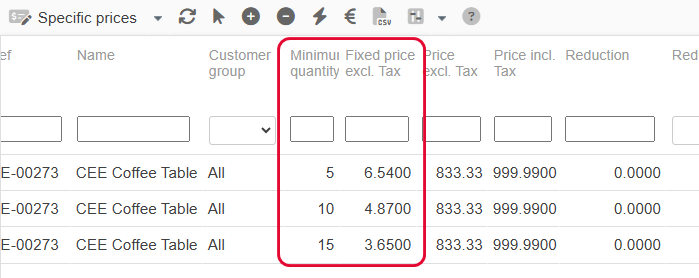
Add a new line for each discount price, whether you use an discount amount, a discount percentage or even a fixed price (which replaces the product default price excl. tax).
In the below exemple, we’ve setup prices with a percentage discount:
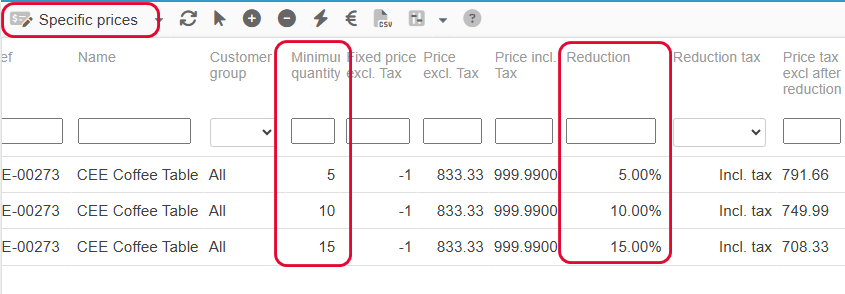
When using fixed prices:
Tip: it’s possible to use volume discount prices of a product and create them onto other products using Sc copy/paste option!
You can indeed copy/paste the content of this field called ‘Specific prices’ that you’ll find in the Prices view:
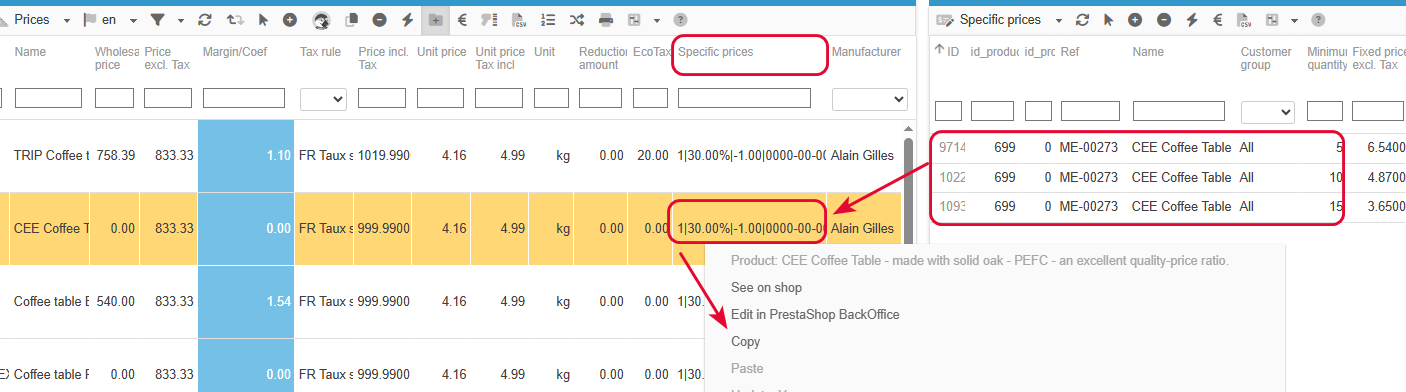
But be careful, this field includes ALL specific prices that you can see in the Specific prices panel in Sc, which means sliding scale priceds as well as other discount prices.
Understanding ecotax in Store Commander
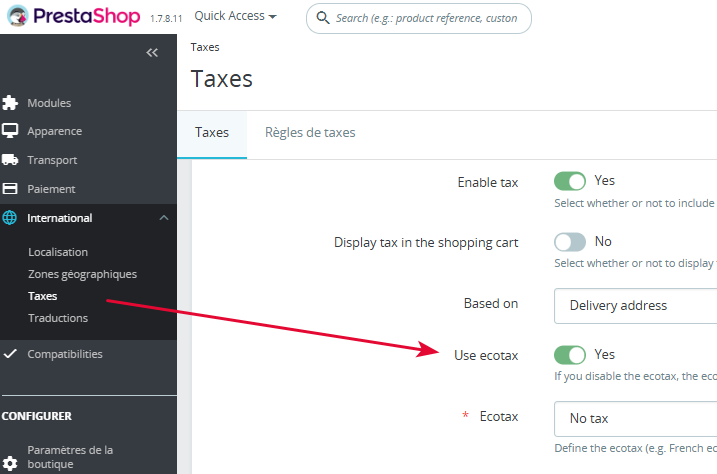
Once you have enabled the ecotax option in your PrestaShop backoffice, you’ll then see the ecotax field in Sc product grids.
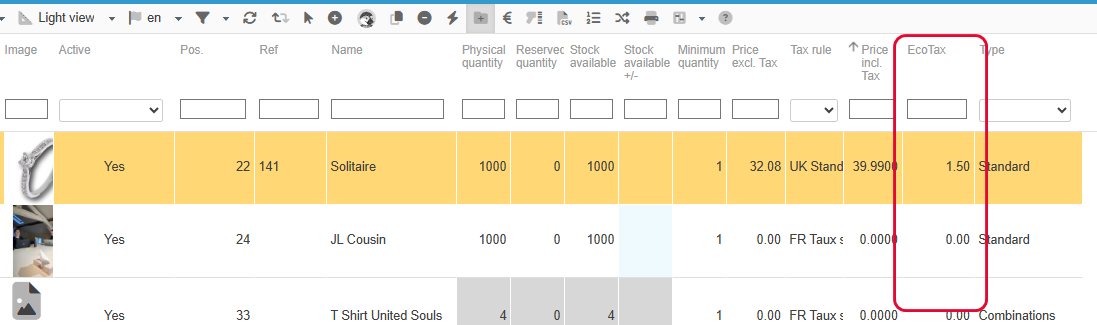
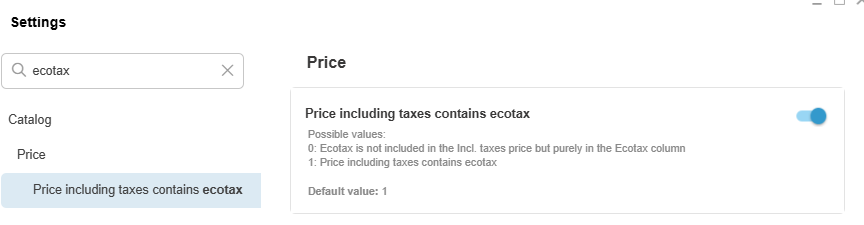
There is also an option in Sc settings to choose whether to include the ecotax amount in the price incl. tax to display in Sc.
By default, the price incl. tax displayed in Sc includes the ecotax:
If you cannot see the ecotax column in Sc, please check that the option is enabled in your PrestaShop backoffice: