Knowing everything about discounts
Definition and rules
PrestaShop offers various ways to apply discounts to your shop, which we will discuss here.
Reductions: amount or percentage, configurable on products only.
Specific prices: amount or percentage, applicable to specific products and combinations.
Catalog price rules: Can only be configured in the PrestaShop back office (outside Sc). Visible in Sc specific prices property, but not editable.
Cart rules (discount codes): Configurable only in the PrestaShop back office (outside Sc).
Visible in the Sc discount voucher window, but editable via PS only.
The information managed by Store Commander, namely discounts and specific prices, is available in the Sc interface and via a csv import, allowing you to manage your offers and promotional campaigns efficiently and quickly 😊
Reductions
The discount fields in Store Commander, particularly in the Discounts view, allow you to set up discounts on your products.
reduction amount: the value entered will be the amount deducted from the product price excluding VAT
reduction percentage: the value entered will be the percentage deducted from the product price excluding VAT
discount starts: date which the reduction will begin
discount ends: date which the discount will end
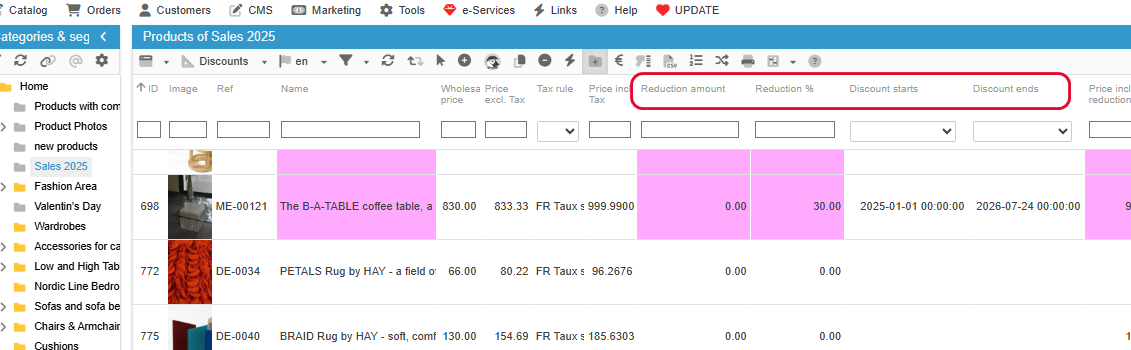
Setting up a discount on a full product range
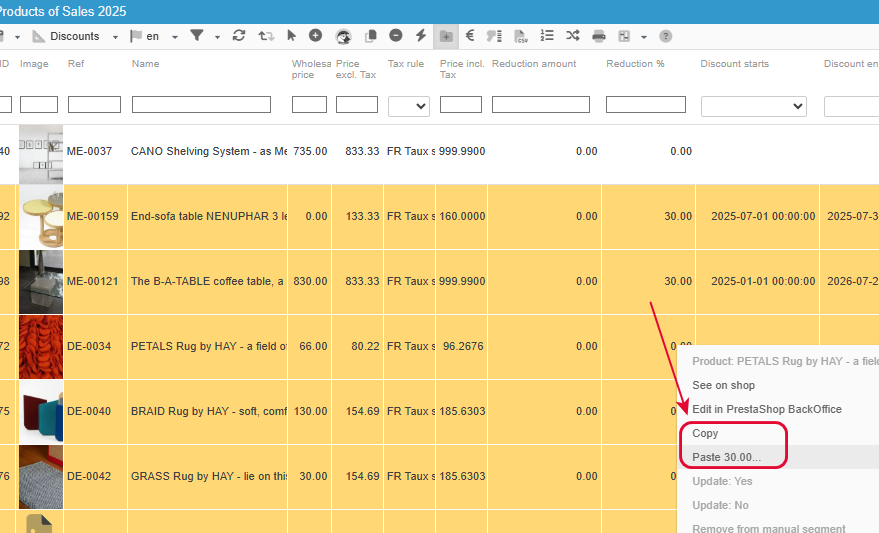
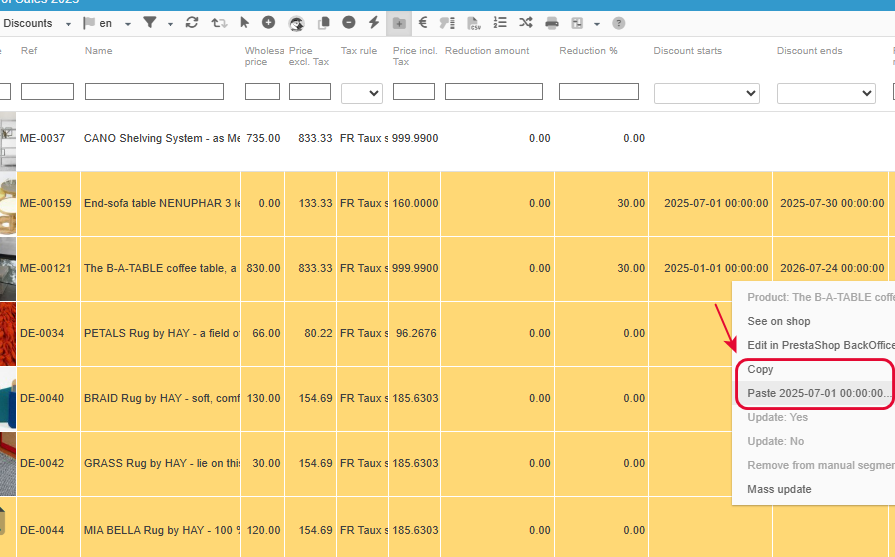
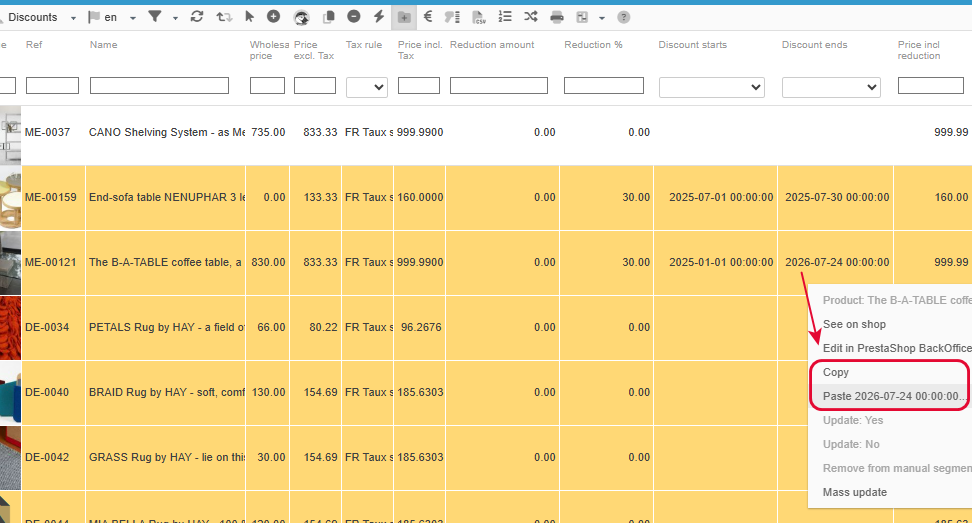
To apply the same discount percentage (or amount) across an entire product range, you can copy and paste the information: the discount value, start date and end date.
Enter the information for the first product.
Then copy/paste it onto the other products concerned, one field at a time:
Specific display
Since it is possible to schedule future campaigns while a promotion is ongoing, the central product view, particularly the Discounts view, can only display information for a single promotion.
In this case, we display information for the current promotion by default.
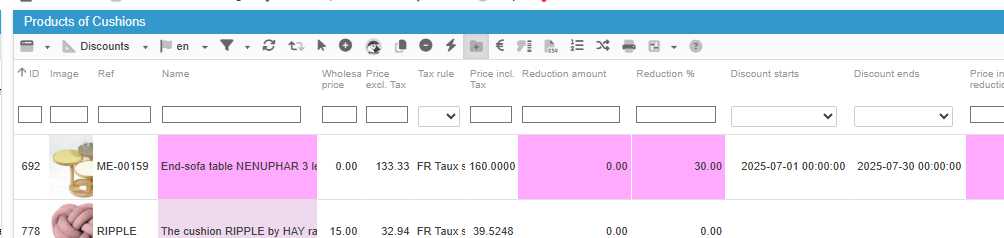
If you add a discount with a future start date, after a refresh of the Discounts view, the information will not be displayed, and this is because it’s a future promotion and not a current one.
However, you will find the promotion you have just created in the Special Prices property, in the right-hand column.

Going further: additional information
There are a few additional fields, which are calculated fields (not editable), to help you with current promotions, mainly on statitics and to help adjusting your prices.
These fields are:
price tax excl. after reduction
price tax incl. after reduction
margin amount after reduction
margin percentage after reduction
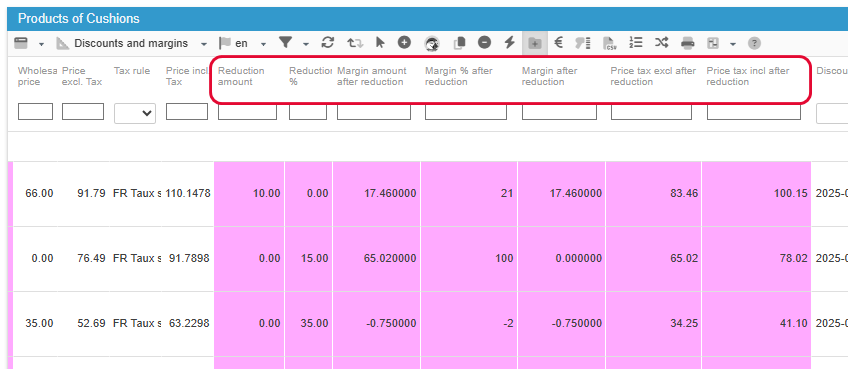
To learn more about managing margins on your products in Sc, click here.
Using these “Discount” fields applies to products only.
If you have combinations, then the promotion created on the products will apply by default to all product combinations.
If you wish to set up reduced prices specifically for your combinations, then you will need to use the Specific Prices section below.
Specific prices
Specific prices are designed to set up all your promotional campaigns with numerous criteria, which are more elaborate than the discounts explained in the previous chapter.
Unlike discounts, you can define promotions on your combinations, for specific customer groups, or even for a particular customer, using the specific price options.
These specific prices are also used to set up volume discounts and quantity-based pricing.
A dedicated article is available here.
Store Commander goes even further in managing special specific by providing a dedicated interface within your Sc!
With all the options and possibilities offered by these specific prices, we have dedicated this article to them.
Catalog price rules
Catalog price rules allow you to apply discounts to your products based on global criteria defined within the rule.
These rules are managed exclusively in your PrestaShop back office, under the Catalog > Promotions menu.
However, if a product is subject to a catalogue price rule, the corresponding discount will be displayed on the product in the specific prices property, identifiable by its type:

Attention, cette réduction n’est pas éditable dans Sc, uniquement via la règle de prix catalogue correspondante.
Cart rules (discount codes)
Cart rules are discount codes that your customers can apply to their carts on your shop.
These rules are managed exclusively in your PrestaShop back office, under the Catalog > Promotions menu.
However, in your Store Commander interface, you can display all discount codes and view the associated orders under the menu Orders > Discount voucher.

💡Tip: Enabling the 'On Sale' logo on products
When setting up discount on your products, you can enable the 'on sale' logo that will be displayed on the products on your online shop.
The corresponding field is located in the Large view as well as the Discount view.
To enable (or disable) this option, select the concerned products > right click > Update: Yes
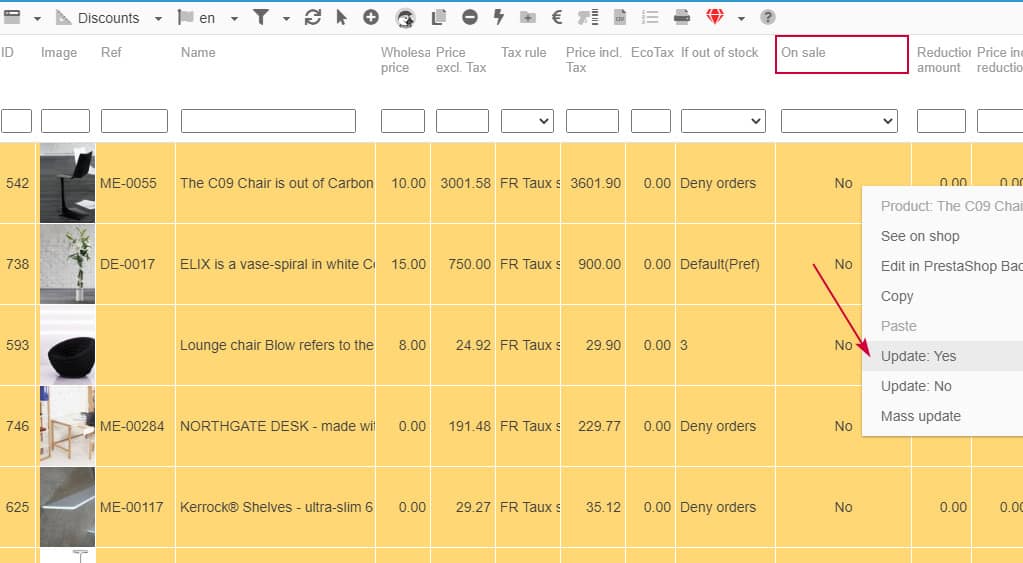
This option Update: Yes/No is available for all yes/no field throughout Sc interface.
🚮Deleting discounts
To delete a promotion, you must delete the corresponding line from the Specific Prices grid.
Because, deleting the discount amount/percentage or the dates does not delete the promotion, but replaces the discount value with 0, and the dates will become the default ones, i.e. unlimited.
You can select multiple products to display the associated specific prices and then delete them in bulk.
You can also use the dedicated specific prices interface to find and delete all old, obsolete discounted prices.
.