Discovering the options linked to categories
Find out here about the options available to make your life easier
Where can I find the category IDs?
With Store commander you can easily and quickly find the ID of your categories.
To do so, several possibilities are available to you and are listed below.
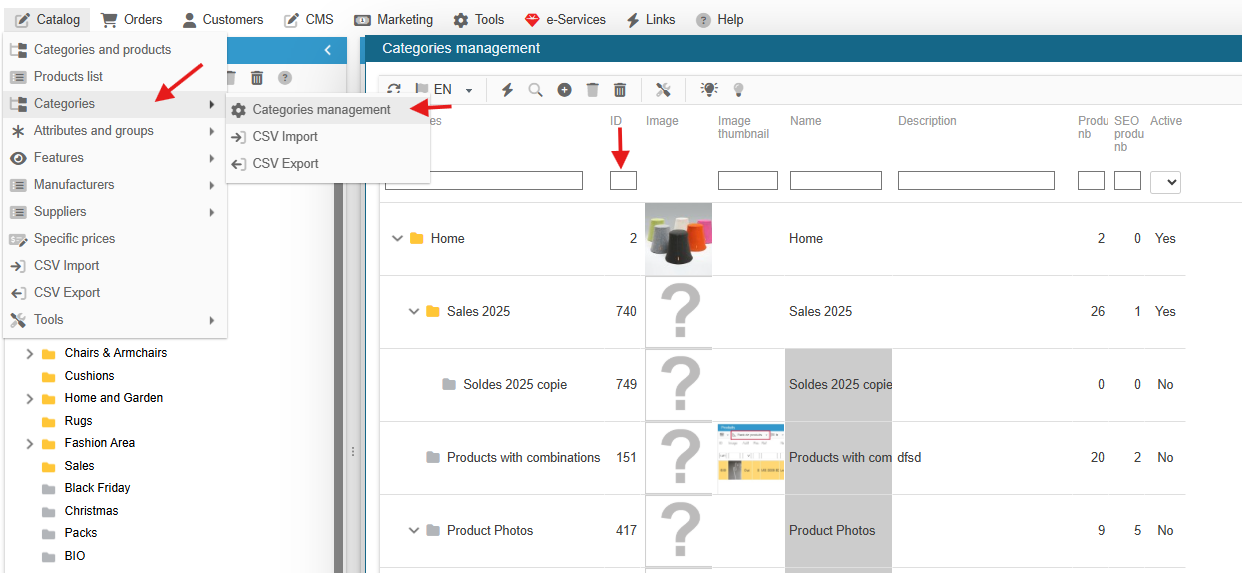
From the Store Commander interface > Catalogue > Categories > Category management
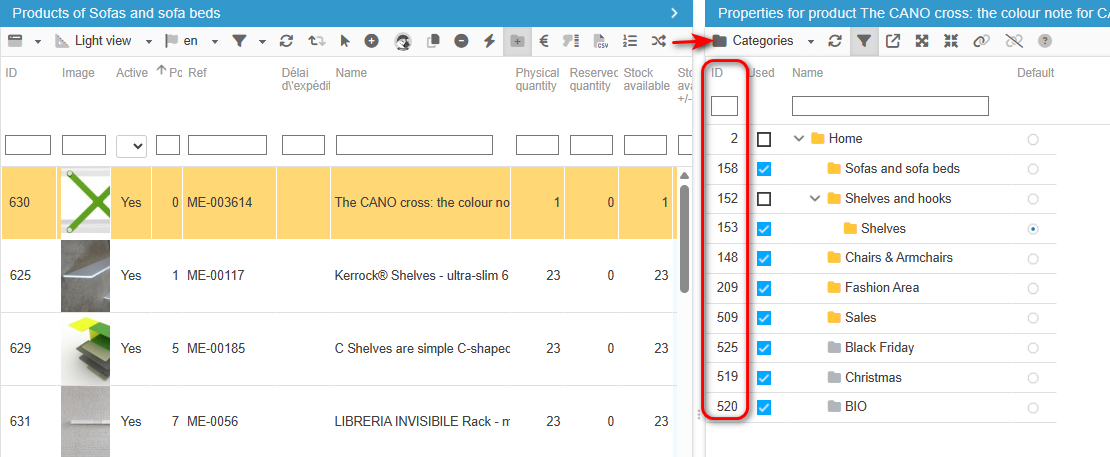
From the Categories property
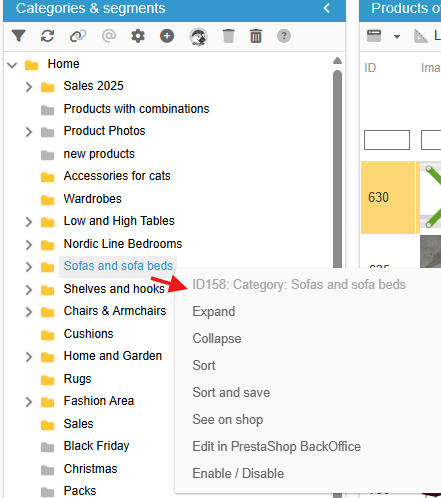
Through a right click directly on the category
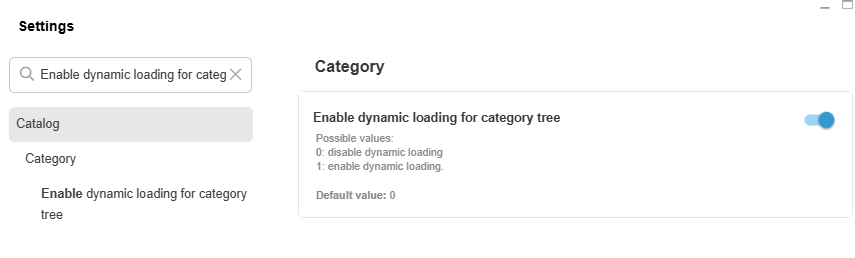
Loading categories dynamically
There is an option allowing you to load categories (in the left hanside column) dynamically, which is very useful if your shops has a large number of categories as it would improve the display performance. Ineed, when the option is enabled, only parent categories are loaded. Sub-categories will only be loaded when you expand their parent category.
To improve display performances when working with your categories, enable this option in Tools > Settings > Catalog > Category > Enable dynamic loading for category tree
Expand/collapse categories in the dedicated interface
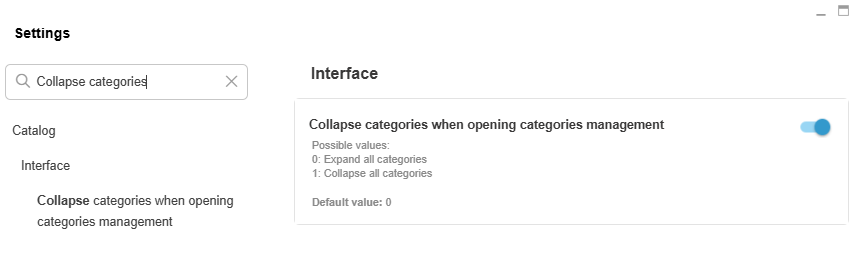
By default, when you open the category interface (menu Catalog), the full tree structure is open (expand) completely.
If you wish have the tree structure closed (collapsed), you can modify the corresponding option in SC > Tools > Settings > Catalog > Interface > Collapse categories => 1
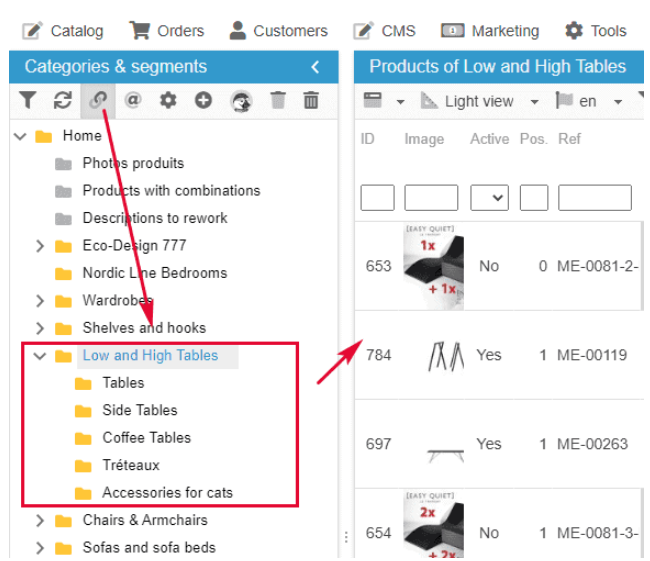
How can I display products present in multiple sub-categories?
The category tree in Store Commander allows you to easily navigate through the various categoies of you site.
Select a categori to display the products present.
In the case where you have parent categores with sub-categories, it's possible to display products in all of these categories (of the same parent) without having to change sub-category one by one. To do so, enable the option on the category toolbar and then select a parent category.
All products will then be displayed in the central column, allowing you to work on a family of products.
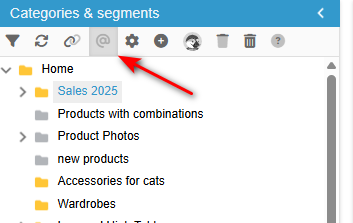
Display products in their default category
You can also choose to display only products in their default categories by using the toolbar icon as shown here:
Duplicating your sub-categories easily
You can 'copy/paste' a category and all its sub-categories onto another category in seconds! This option is located in the Category management interface, Catalog menu.
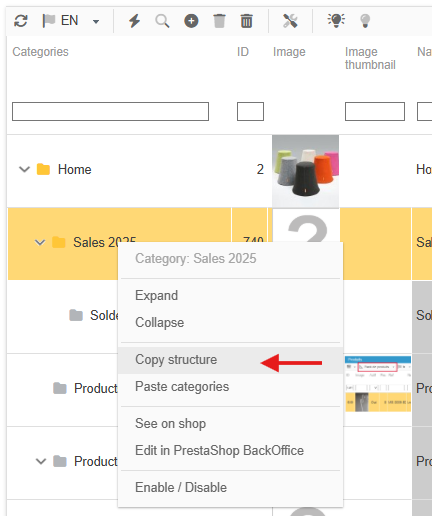
Once you have selected the category you want to duplicate, right click to display the pop-up menu and select 'copy the structure'.
This means that we are going to copy the (selected) parent category and all its sub-categories.
You then need to select the target category, right click > Paste categories.
This means that we are going to paste the parent category (previously copied) and all its sub-categories onto this other selected category.
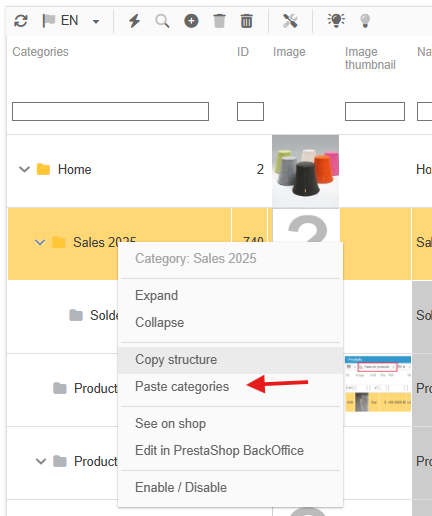
Please note that only the structure and the name of categories are duplicated, products are not taken into account.
Associating categories to customers groups in bulkssocier
With the interface dedicated to categories in Store Commander, you can quickly associate customer groups to your categories.
The interface is accessible from Catalog > Categories > Category management
In the interface, select your categories in the left handside panel, and then open up the Customers Groups panel on the right hand-side.
You now simply need to tick the boxes against the customer groups you need to associate.
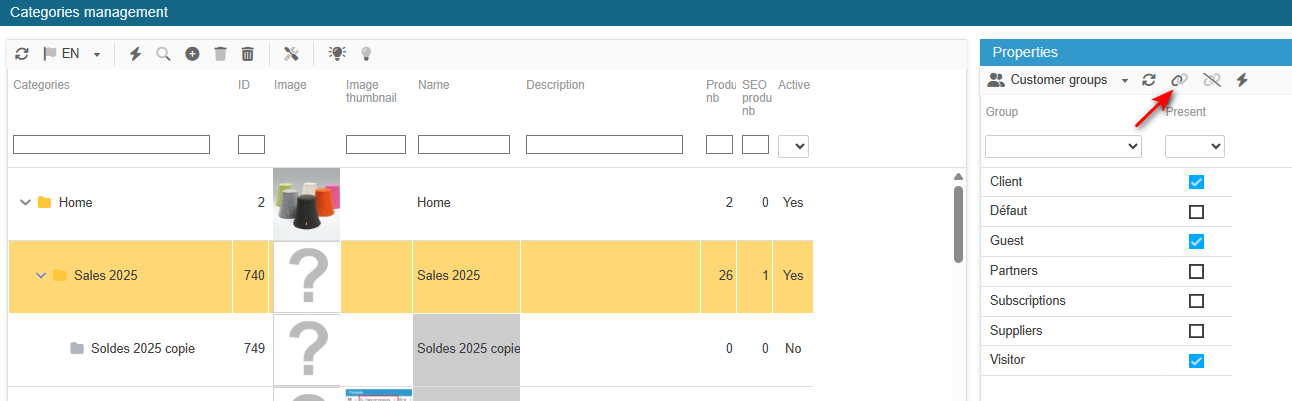
Alternatively, you can use the mass association icon on the toolbar once you have selected the groups to associate.
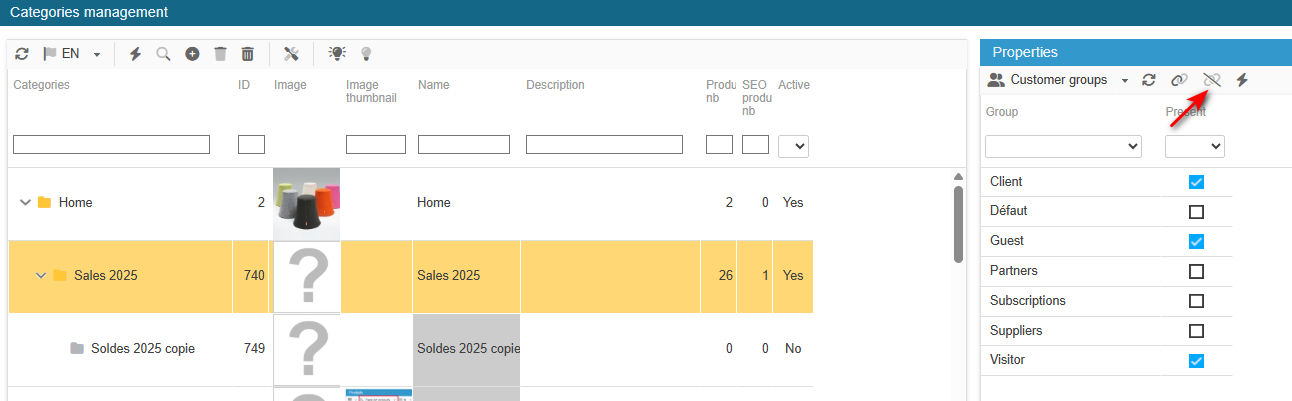
To dissociate groups, untick the boxes or use the mass dissociation icon once the groups are selected.
🔧Check and fix categories: what is it for?
The 'check and fix categories' located in the menu Catalog > Tools as well as in the category interface (Catalog > Categories) is used to check specific information on categories within the database.
On a technical point of view, the option recalculate the nleft and nright of each category, to eventually fix the category tree.
It's strongly recommended to apply this option when you rework the category tree, especially when dragging/dropping to re-organize the order of your category.
When you open the option, the check is launched automatically and, once completed, the status Done appears in green :
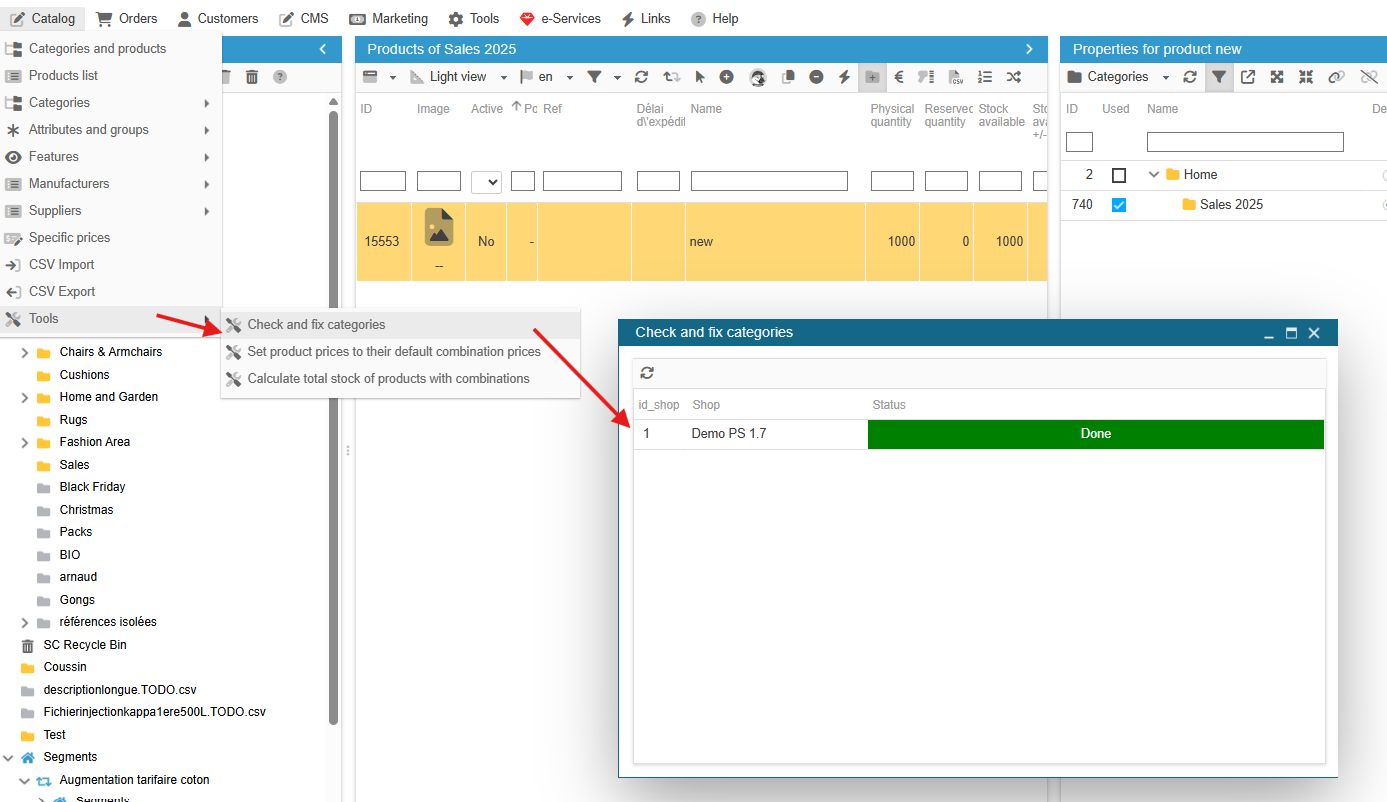
Once the status goes green, you can refresh your Sc interface with F5.
.