Updating combination stock by csv import
Store Commander's built-in csv import tool let’s you make modificatin to your combinations in bulk, including stock.
The most important configuration point: the identifier
The most important point when importing is the identifier, which is used to find the combination to update.
There are multiple identifiers available in the drop down menu (in the import window), such as reference, ean13, upc and even the combination ID.
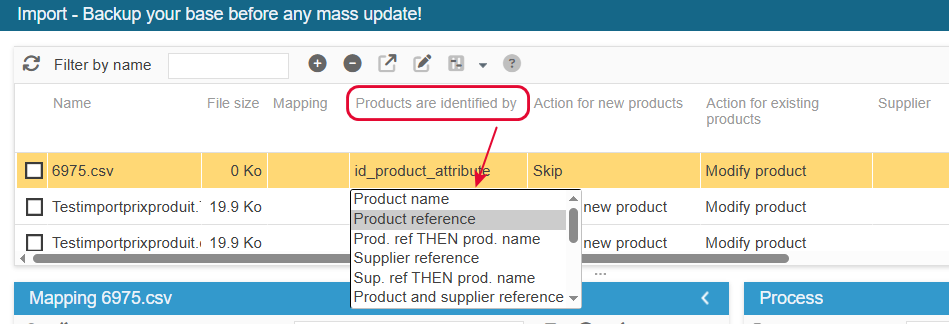
This identifier is a key point, as it must be unique if the import process is to modify the correct combination.
If you choose the reference, then each combination (and product) must have its own reference. Avoid duplicates!
In the case of duplicates, the import will modify the first reference found in your database, i.e. on the basis of the combination ID.
It is therefore likely that the combination which stock has been modified is not the one you wanted to update.
We strongly recommend using the id_product_attribute (combination ID) ; no duplicate possible in your PrestaShop database 😉
To identify possible duplicated reference, ean13 or upc on your shop, run the corresponding control of FixMyPrestaShop, accessible in Tools menu of your Sc interface.
The second part of the configuration: choosing the actions
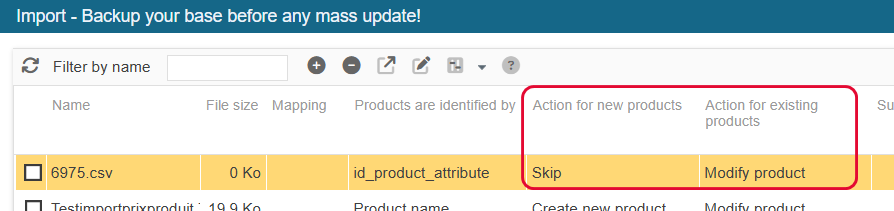
In this example, we’re aiming at updating stock on combinations.
Therefore the actions to choose are ‘skip’ + ‘modify’
Information to modify: the mapping
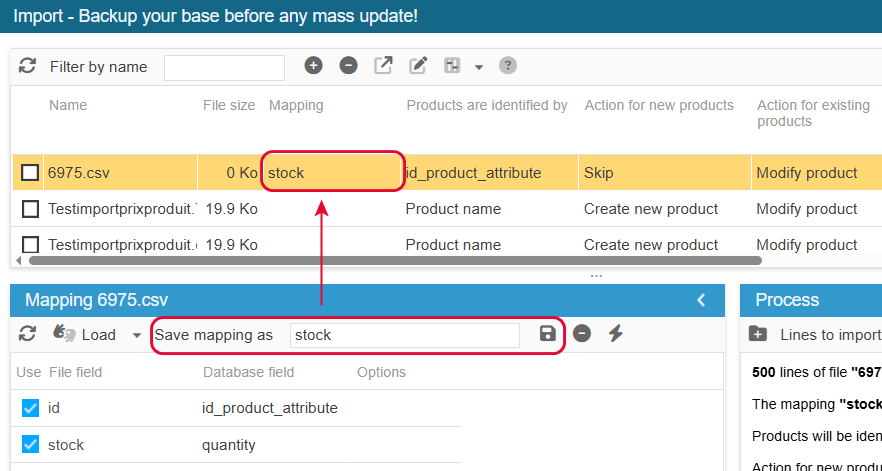
The section called ‘mapping’ allows you to first choose the identifier selected for your import, as well as the information you want this import to modify.
All fields mapped and ticked will be taken into account during the import.
Here, we want to update the stock on combinations: the corresponding field is ‘quantity’:
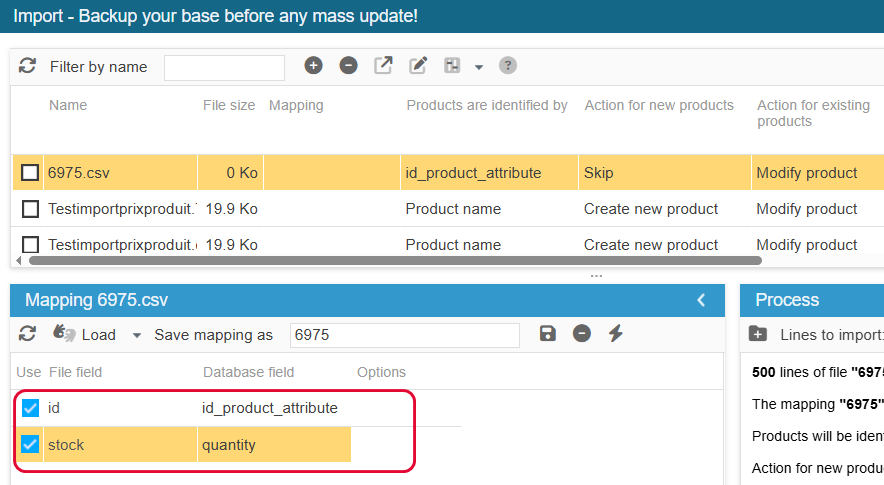
You can name and save the mapping, to reuse it later on with another stock update file.
You can also associate it to your file - not necessary if you run the import manually, but required if you automate this file with a cron task.
Importing the data
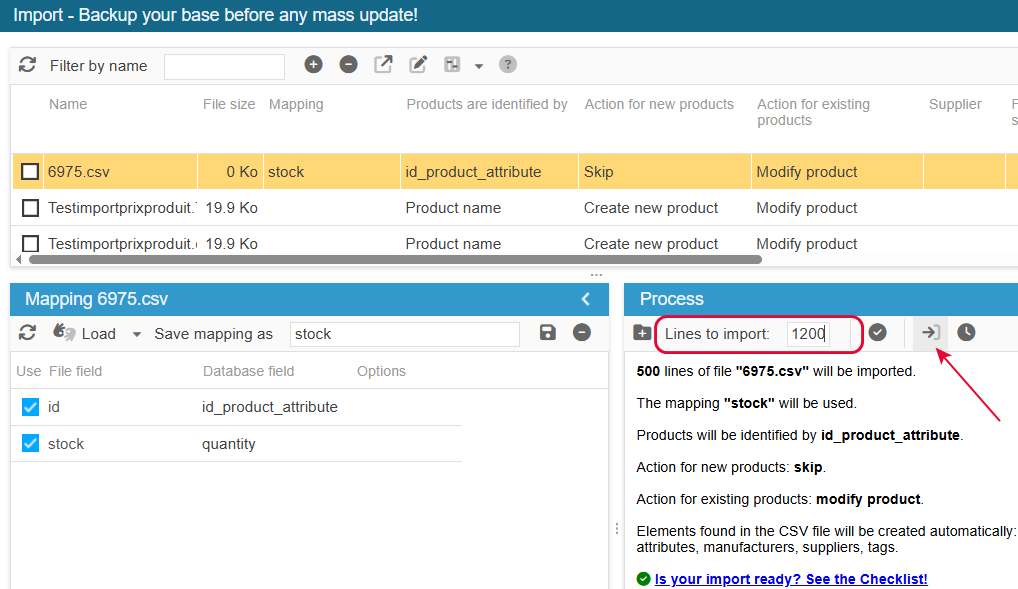
The very last step is to adapt the number of lines to import in the ‘Process’ panel.
500 is set by default:
- if your file contains less than 500 lines, you can keep 500.
- if your file contains more than 500 lines, modify the value
Do note that it’s not necessary to enter the exact number of line, as long as it’s above, it’s fine.
And finally, start your import by clicking on the corresponding icon: