Applying changes to your categories
Store Commander includes a csv export tool as well as an import tool for you to manage and optimize your categories like a pro!
Indeed, all category information can be exported, usually in order to be modified thereafter via a file import.
And the csv import tool dedicated to categories allows you to update all category information, as well as creating new categories too.
Extracting category information
Store Commander includes tool for you to export all category information, such as names, descriptions seo, etc and also in all languages availbale on your shop.
If you’re working in multistore mode, you’ll also have category information for all shops.
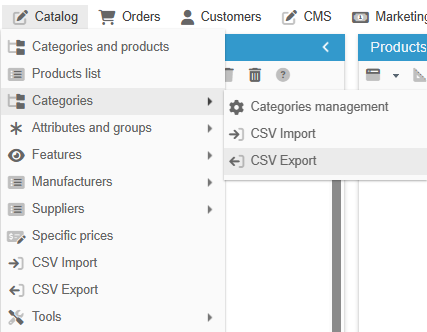
The tool can be found in Catalog > Categories > CSV Export
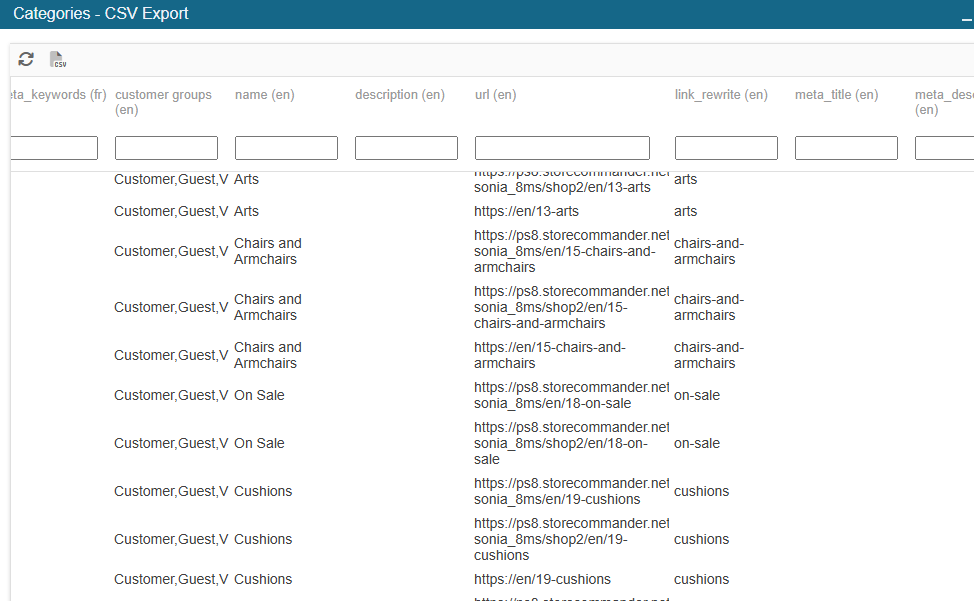
In this window, you’ll have the list of all your categories, with all their information, languages and shops included if applicable to your store.
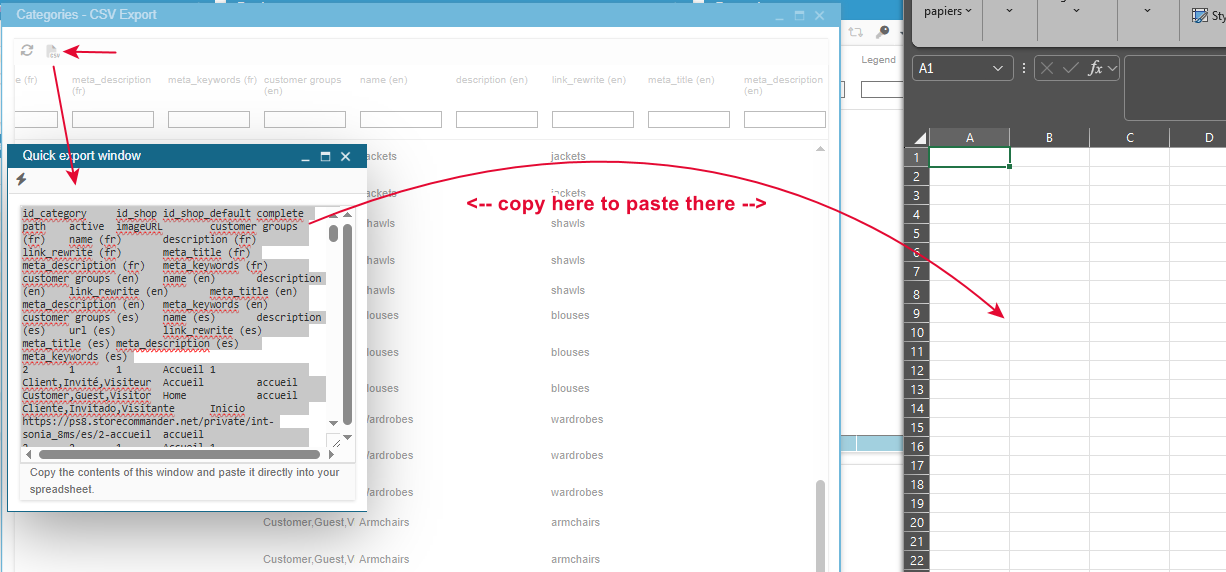
Exporting is very simple, using the quick export function - icon on the toolbar - which is a copy/paste onto a spreadsheet.
Choosing the information to export
Exporting categories is a simple matter of copying and pasting the information displayed in the window, using the quick export option.
You can customize this export by :
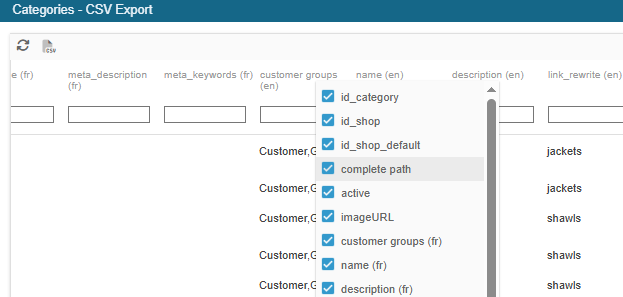
choosing the columns to take into account, by hiding those you don't want to export.
Indeed, if you right click on the column header, you’ll see the list of fields, this is where you can tick/untick what you want to export.ordering the columns; drag & drop the columns where you want them to be
filtering the data to only export what you need
Updating categories by import
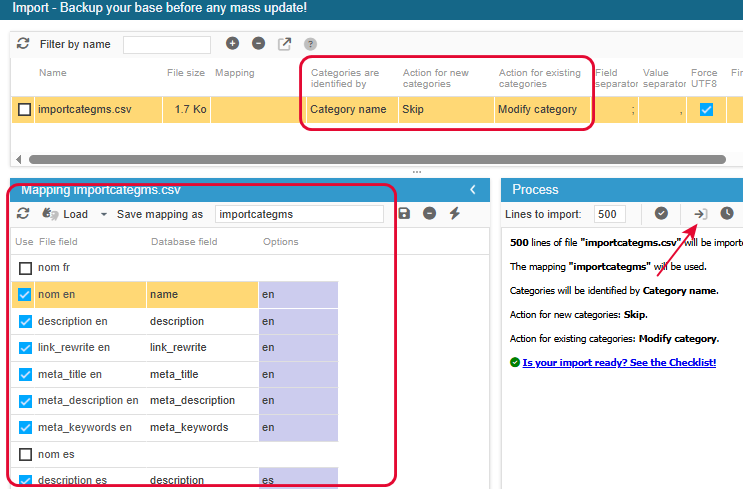
Your import file must include a unique identifier for each category. This can be the name (if and only if it's unique), the full path or its ID (uniqueness guaranteed).
If you exported your categories using Sc, then you should have the category IDs, which is the best identifier to use 😊
Then you can have all the information you want to update.
The import file configuration will have the identifier and the action at the top, the identifier and the information to update in the mapping.
When configured, hit the 'Import’ button on the right handside panel
Translating category information
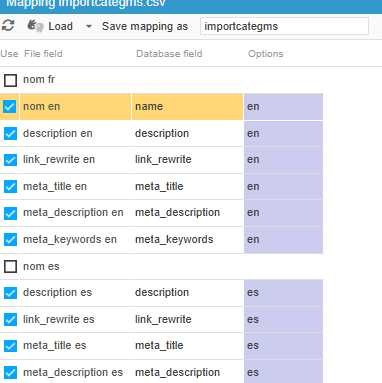
If you are using multiple languages, you can also update them using the csv import.
Langages are available for name, description and seo data.
Your file will have a column per language, so that they can be mapped with the corresponding languages.
Creating new categories in bulk
Not only the csv import tool updates category information, but it can also be used to create new categories.
To create categories, the identifier needs to be either the name or the full path (that contains the name).
If using the name, your file will also include the path, to indicate where to create the category in the tree structure.
Here’s an example using name + path:

And one using the full path:

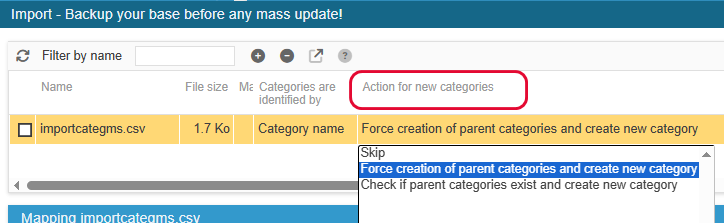
In the import configuration, 2 actions are possible, whether you need to create the categoy on its own or together with its path: