Creating new products with their combinations in bulk
Creating new products with their combinations
With Store Commander, you can create products and their combinations using the CSV import tool. This means that you can integrate as many products and combinations as you need using a CSV file.
1 - CSV file
It will include:
- the product name (used to create the product and onto which the combinations will be added)
- a column for each of the attribute groups (color, size, etc)
- any other fields you wish to associate to combinations (reference, supplier reference, supplier, ean13, upc, quantity, prices, weight, images)
- any other fields you wish to associate to parent products (description, categories, supplier, manufacturer, etc)

2 - The mapping used
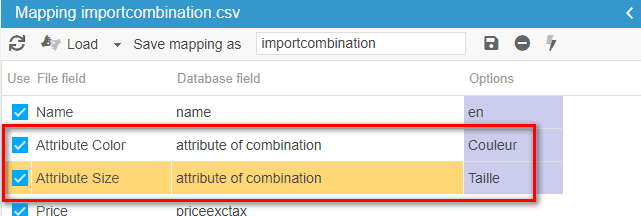
Please remember that if 'attribute of combination' is included in an import mapping, this means that combinations will be created. These fields are NOT used to update existing combinations, but to create combinations.
3 - The identification options used :

The product name will be created together with its first combination (1st line of the CSV file) ==> creating new product name
The next combination will be added to the product name (2nd line of the CSV file) ==> modifying the product name (created on the previous line)… Etc.
Find the steps in image:
💡Tips
If an attribute used in your CSV file does not exist in the list of attributes in your catalog, it will be created automatically and added to the list of attributes during the import process.
Note that attributes names are case sensitive. Therefore, if the attribute 'Yellow' exists and your CSV file includes 'yellow', the latter will be considered as a new attribute and will then be automatically created.
In the case where your products already exist in your catalog with combinations, and you would like to change those combinations.
Adding a reference on parent products
When creating products + combinations using the CSV import tool, references are by default only associated to combinations, leaving the parent product with no reference.
If you want to indicate a reference to parent products, you can use one of SC options, under Tools > Settings > Catalog > Import > product reference:
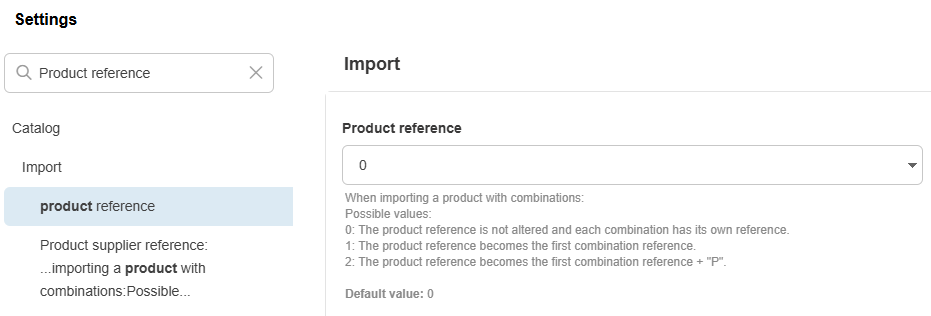
0: references are added to combinations, parent product has no reference [REF01 - ]
1: references are added to combinations, the reference added to the parent product will be the same as its first combination [REF01 - REF01]
2: references are added to combinations, the reference added to the parent product will be the same as its first combination and the letter P [REF01 - REF01P]
If you wish to specify your own references on parent products, then in your CSV file, the first product line will indicate the reference and no combination attributes (keeping the above option on 0):

Associating images to products and combinations
Since Store Commander is a 100% web application, your images needs to be stored on a server (FTP).
In your CSV file, the column dedicated to images will indicate the location of the image files (for SC to fetch during the import process).
2 options are available to you:
Store your image files on your server, for example in https://www.yourstore.com/files/images/TE-01.jpg
> in this instance, this full URL will be used in the CSV file
Store your image files on your FTP in /modules/storecommander/import/images/TE-03.jpg
> in this case, your CSV file will only need to include the filename TE-03.jpg
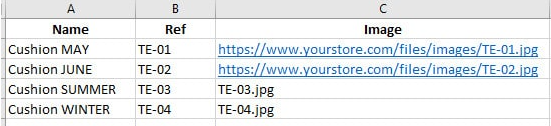
Note that you can create sub-folders in /modules/storecommander/import/images, such as /modules/storecommander/import/images/cushions.
In this case, your CSV file will need to include /cushions/image01.jpg.
2 - The mapping
The dedicated fields will be :
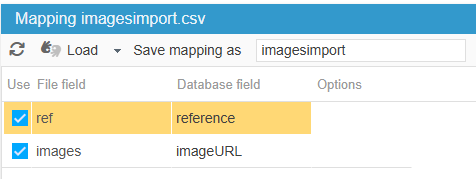
Loading a texture combination attributes by CSV import
Using the CSV import tool, you can create and associate a texture attribute during the creation of a combination.
The Texture attribute can be loaded in bulk using the CSV import tool only when the corresponding combination attribute does not exist and will be created by the import process.It is therefore not possible to add a texture to an existing attribute.
The image file used for the texture needs to be stored in /modules/storecommander/import/images/.
The CSV file
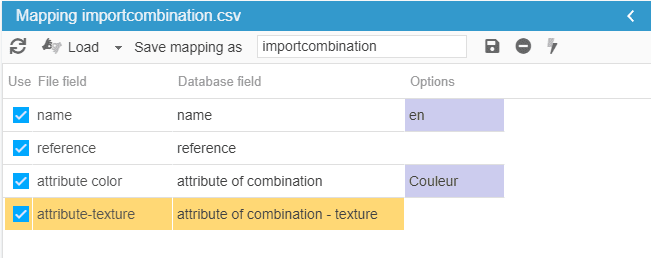
We are creating a product and its combination, which will use a texture attribute. The CSV file will include the name of the product, the combination attribute, its reference and a texture attribute column with the name of the image filename.

The mapping
The identification options
We are creating a new product with combination, therefore the options will be:
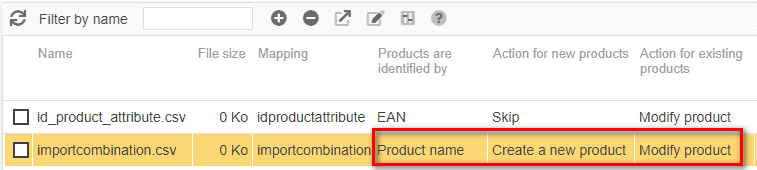
Store Commander's built-in csv import tool let’s you make modificatin to your combinations in bulk, including stock.
Adding combinations to a product WITH NO combinations
Store Commander's CSV import feature allows you to add variations to a product that already exists in your catalogue.
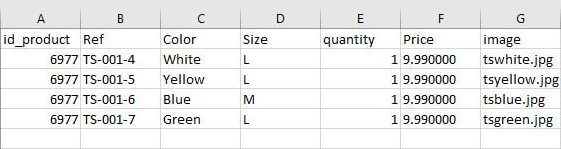
1 - The CSV file
This file must contain:
the ID of the product to which you are adding variations (here we will use the name)
one column per attribute group (here colour & size)
a column for the reference (which will be associated with the variation in this row)
the price columns
...and any other columns you wish to add.
2 - The configuration :
And the import configuration as follow:
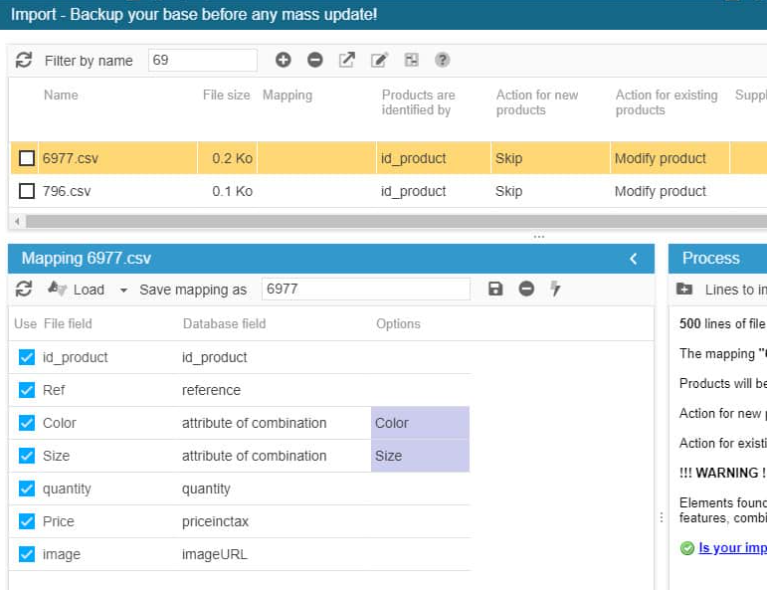
3 - The configuration options :
Here you will use : Id_product + Skip + Modify product
Adding combinations to a product WITH combinations
Store Commander's CSV import feature allows you to add new variations to a product that already has combinations.
There are two scenarios:
Adding combinations using existing attribute groups (adding additional attributes)
Adding combinations by adding a new attribute group
Add combinations using the same attribute groups
The product exists and has variations with, in this example, the Size & Colour attribute groups, and we want to add additional variations.
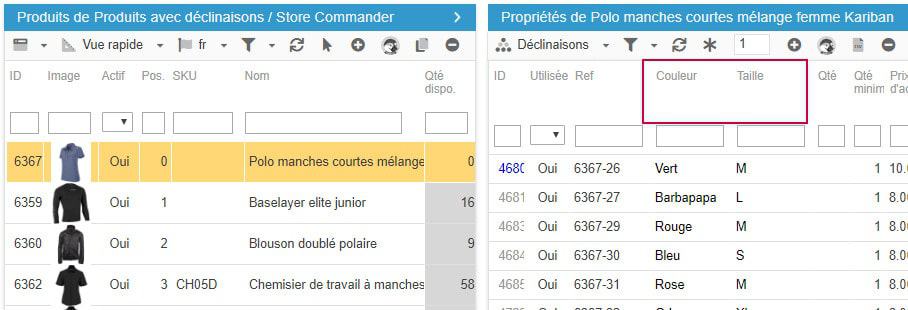
The CSV file will contain :
the product name
the combination group(s) (colour, size, etc.)
the reference (for each variation)
any other information to be associated with these new combinations (quantity, price, supplier reference, etc.)
Add combinations with the introduction of a new attribute group
In most cases, all combination attribute groups for a product are created at the same time. If an attribute group needs to be added to a product that already has combinations, it will be necessary to delete the existing combinations and recreate them with the new attribute groups. The procedure is as follows.
1 - Perform a CSV export of the products in question and their combinations with the following fields:
2 - In the CSV file obtained, insert:
This procedure is necessary because Store Commander cannot recreate and recalculate all combinations when a new attribute group is introduced.
Create your combinations with different prices
Store Commander allows you to create combinations with different prices for each one thanks to its CSV import tool, which enables bulk integration of products and combinations.
Since each combination will have its own price, your CSV file will contain one line per combination.
Here is a concrete example of a CSV file showing the creation of the product Cushion with 4 combinations that have different prices: one line = one combination.

Create attribute groups
When importing combination attributes with Store Commander, new attribute values detected in the csv file will automatically be created, thanks to the option 'Create elements (auto)', if they do not exist already of course.

As soon as the import process starts, attribute values present in the csv file will be checked. If they exists, they'll be used, if they don't exist, they'll be created automatically.
Please note that if the above option is not ticked and unknown values are detected, a message will be displayed for you to validate the creation before restarting your import.
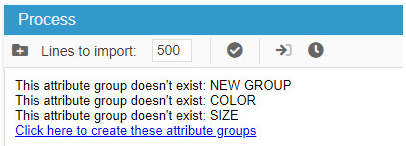
It's also possible for new attribute groups to be created during an import process, but this requires to have very specific column titles in your csv file beforehand.
The column title needs to be: Group Name EN
Then, once the csv file is uploaded in the import window, in the Mapping panel, click straight away on the icon 'Load fields by name' on the toolbar .
This is when the combination fields will be automatically filled in with the name of the group in the Options column.
Using the 'Load fields by name' to automatically fill in the combination group name is what's going to create the new group. It's therefore necessary to respect the correct syntax in the column title if you want new combination groups to be created during the import process.

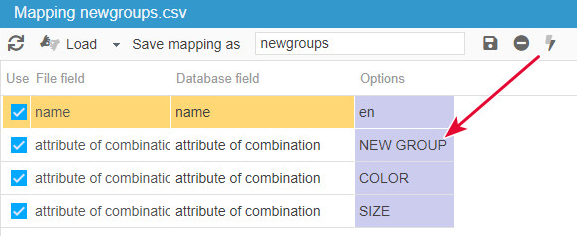
If the names of the new groups are not automatically completed in the Options colunm after clicking on the 'Load fields by name' icon, this means that the column titles of your files do not match the required syntax.
Supprimer/remplacer toutes les déclinaisons des produits
Store Commander's CSV import and export tools allow you to modify your products in bulk, such as deleting products combinations in a specific category for example, or even replace the combinations of specific products in bulk.
The first step is to run an export, using Store Commander's CSV export tool, which will include the corresponding category or categories, as well as the following database fields in the mapping:
Within the CSV file generated, insert a column at the very beginning of the file (column A), called 'delete combinations' which will use the value 1 (meaning yes) to delete all combinations associated to the product on that line.

Warning: if you are deleting and recreated new combinations during the same import process, the delete action has to occur only once on the product - as shown in the below CSV file example.
You can then load the CSV file in Store Commander's CSV import tool to delete and/or replace combinations on products listed in the file.
The mapping will be :
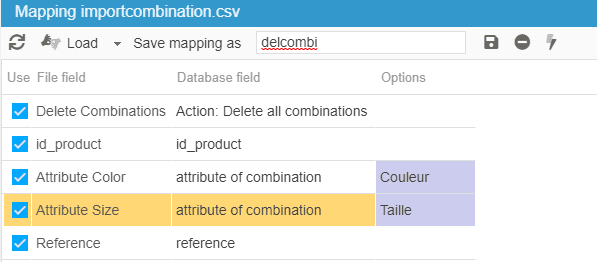
The identification options will be :
In this example, all combinations of products listed in the CSV file are first deleted, and new ones are created and associated to the products, during the same import process, feeding 2 birds with one seed!
Different mapping fields for 'attribute of combination'
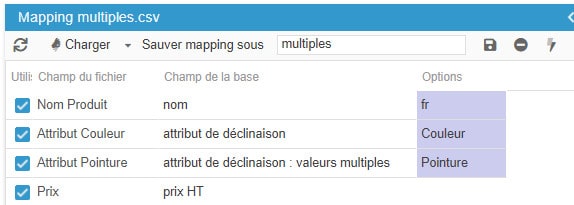
Store commander's CSV import tool includes various mapping fields to import your combinations. Here is an explanation of each field.
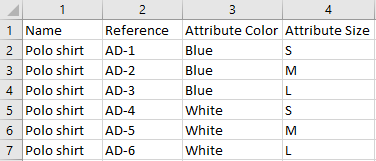
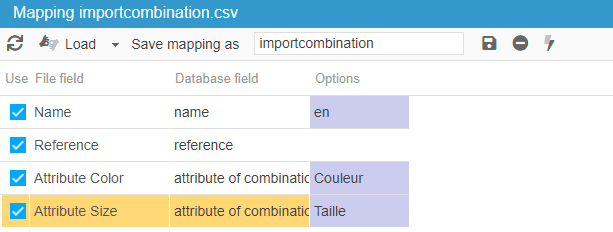
Attribute of combination
The column in the CSV file includes one attribute in the corresponding cell.
The corresponding attribute group is selected in the Options column in the mapping.
Attribute of combination - multiple values
The column in the CSV file includes multiple attributes in the same cell, separated by a comma (if the comma is the value separator used in your import configuration). The corresponding attribute group is selected in the Options column in the mapping.

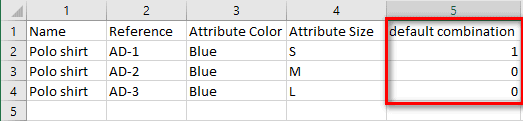
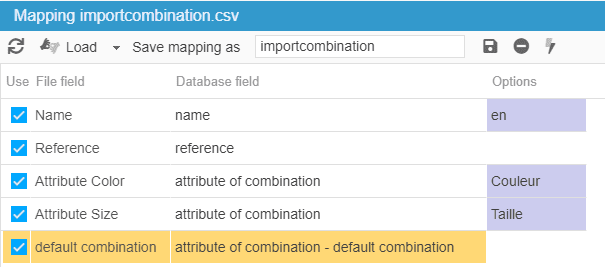
Attribute of combination - default combination
This field sets the combination by default. The column of the CSV file includes the value 0 (no) or 1 (yes).
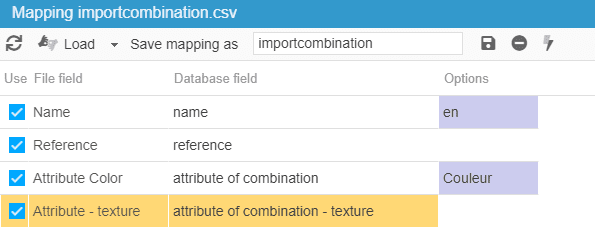
Attribute of combination - texture
This fields adds an image to the combination attribute during its creation

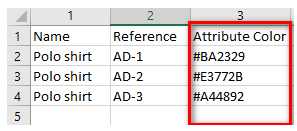
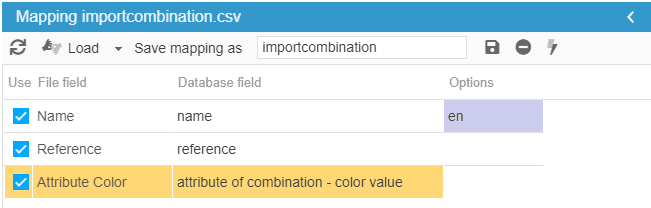
Attribute of combination - color value
This fields corresponds to the HEX color (RGB) which is included in the corresponding column in the CSV file