Adding fields to features
Access the PRO section of the tool to add custom fields:
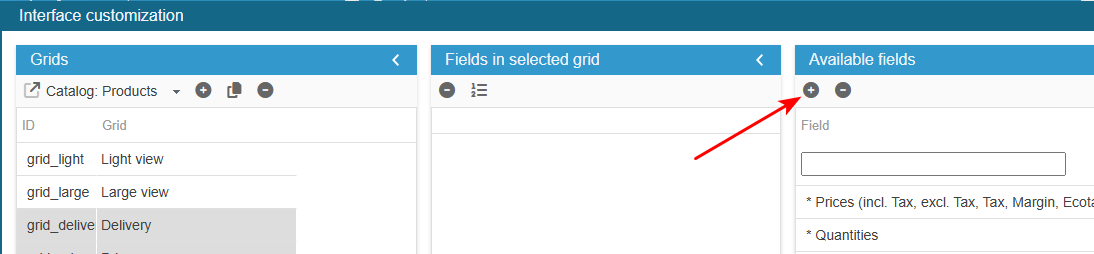
To access the PRO section, click on the + icon in the right-hand column entitled “Available Fields”.
Adding a column displaying a product preset feature (read only)
Ensure you select the correct grid to which you wish to add your field – in this example, it will be the Product Grids.
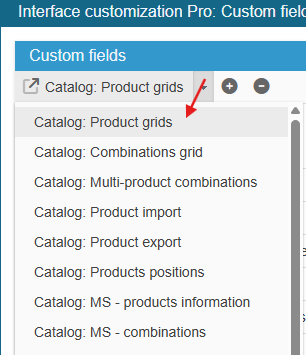
Click on the add icon to create the new field line and enter its myfeature ID.
What is the field ID?: myfeature
SC creates the field, you now need to populate the grid with:
From the Advanced Properties panel on the right handside:
- select the menu SQL Select and enter:
RETURN ', (SELECT fvl.value FROM `' . _DB_PREFIX_ . 'feature_product` fp
            LEFT JOIN `' . _DB_PREFIX_ . 'feature_value_lang` fvl
            ON fp.id_feature_value = fvl.id_feature_value
            WHERE fp.id_feature = 3
            AND fp.id_product = p.id_product
            AND fvl.id_lang = pl.id_lang) as myfeature ';
In this instance, we use feature ID3. You can change the feature by looking for its ID in the Features panel (SC Catalog>Features)
Here we take the id_lang=2 which corresponds to the French language of our shop. This may vary depending on the configuration of your shop.
Exit the editing window.
The new field is now present in the list of available fields and you can add it to your product grids.
Adding a column displaying a product preset feature (editable)
Ensure you select the correct grid to which you wish to add your field – in this example, it will be the Product Grids.
Click on the add icon to create the new field line and enter its myfeature ID.
What is the field ID?: myfeature
SC creates the field, you now need to populate the grid with:
From the Advanced Properties panel on the right handside:
- select the menu SQL Select and enter:
return ' , (SELECT fp.id_feature_value FROM `' . _DB_PREFIX_ . 'feature_product` fp
            WHERE fp.id_feature = "3"
            AND fp.id_product = p.id_product) as myfeature ';
- select the menu Select options and enter:
$sql = 'SELECT fvl.*
        FROM ' . _DB_PREFIX_ . 'feature_value_lang fvl
        INNER JOIN ' . _DB_PREFIX_ . 'feature_value fv ON (fv.id_feature_value = fvl.id_feature_value)
        WHERE fvl.id_lang=1
        AND fv.id_feature = 3';
$res = Db::getInstance()->executeS($sql);
$tmp = [0=> '-'];
if($res) {
    foreach ($res as $row)  {
        $tmp[$row['id_feature_value']] = $row['value'];
    }
}
return $tmp;
- select the menu PHP onAfterUpdateSQL and enter:
if (isset($_POST['myfeature']))
{
    $feature_value = (int) Tools::getValue('myfeature', 0);
    $sql = 'SELECT * FROM '._DB_PREFIX_.'feature_product WHERE id_product='.(int) $idproduct.' AND id_feature=3';
    if (Db::getInstance()->executeS($sql))
    {
        if ($feature_value)
        {
            $sql = 'UPDATE '._DB_PREFIX_.'feature_product SET id_feature_value='.(int) $feature_value.' WHERE id_product='.(int) $idproduct.' AND id_feature=3';
            Db::getInstance()->execute($sql);
        }
        else
        {
            $sql = 'DELETE FROM '._DB_PREFIX_.'feature_product WHERE id_product='.(int) $idproduct.' AND id_feature=3';
            Db::getInstance()->execute($sql);
        }
    }
    else
    {
        $sql = 'INSERT INTO '._DB_PREFIX_.'feature_product (`id_feature`,`id_product`,`id_feature_value`) VALUES (3,'.(int) $idproduct.','.(int) $feature_value.')';
        Db::getInstance()->execute($sql);
    }
}
In this instance, we use feature ID3. You can change the feature by looking for its ID in the Features panel (SC Catalog>Features)
Exit the editing window.
The new field is now present in the list of available fields and you can add it to your product grids.
Adding a column displaying a product custom feature (editable)
Ensure you select the correct grid to which you wish to add your field – in this example, it will be the Product Grids.
Click on the add icon to create the new field line and enter its myfeature ID.
What is the field ID?: myfeature
SC creates the field, you now need to populate the grid with:
From the Advanced Properties panel on the right handside:
- select the menu SQLSelect and enter:
return ' , (SELECT fvl_cus.value
                FROM `' . _DB_PREFIX_ . 'feature_product` fp1_cus
                INNER JOIN `' . _DB_PREFIX_ . 'feature_value_lang` fvl_cus ON (fp1_cus.id_feature_value = fvl_cus.id_feature_value)
                WHERE fp1_cus.id_feature = "36"
                AND fp1_cus.id_product = p.id_product
                AND fvl_cus.id_lang = pl.id_lang
                LIMIT 1) as myfeature';
- select the menu PHP onAfterUpdateSQL and enter:
if (isset($_POST['myfeature']))
{
    $feature_value = Tools::getValue('myfeature');
    $sql = 'SELECT * FROM '._DB_PREFIX_.'feature_product WHERE id_product='.(int) $idproduct.' AND id_feature=36';
    $res = Db::getInstance()->executeS($sql);
    if ($res)
    {
        if ($feature_value)
        {
            $sql = 'UPDATE '._DB_PREFIX_."feature_value_lang SET value='".pSQL($feature_value)."' WHERE id_feature_value=".(int) $res[0]['id_feature_value'];
            Db::getInstance()->execute($sql);
        }
        else
        {
            $sql = 'SELECT custom FROM '._DB_PREFIX_.'feature_value WHERE id_feature_value='.(int) $res[0]['id_feature_value'].' AND id_feature=36';
            $isCustom = Db::getInstance()->getValue($sql);

            $sql = 'DELETE FROM '._DB_PREFIX_."feature_product WHERE id_product='".(int) $idproduct."' AND id_feature='36'";
            if (Db::getInstance()->execute($sql) && $isCustom)
            {
                $sql = 'DELETE FROM '._DB_PREFIX_.'feature_value WHERE id_feature_value='.(int) $res[0]['id_feature_value'];
                if (Db::getInstance()->execute($sql))
                {
                    $sql = 'DELETE FROM '._DB_PREFIX_.'feature_value_lang WHERE id_feature_value='.(int) $res[0]['id_feature_value'];
                    Db::getInstance()->execute($sql);
                }
            }
        }
    }
    elseif ($feature_value)
    {
        $sql = 'INSERT INTO '._DB_PREFIX_.'feature_value (id_feature,custom) VALUES (36,1)';
        if (Db::getInstance()->execute($sql))
        {
            $id_value = Db::getInstance()->Insert_ID();
            $sql = 'INSERT INTO '._DB_PREFIX_.'feature_value_lang (id_feature_value,id_lang,value) VALUES ('.(int) $id_value.','.(int) $id_lang.',"'.pSQL($feature_value).'")';
            if (Db::getInstance()->execute($sql))
            {
                $sql = 'INSERT INTO '._DB_PREFIX_.'feature_product (id_feature,id_product,id_feature_value) VALUES (36,'.(int) $idproduct.','.(int) $id_value.')';
                Db::getInstance()->execute($sql);
            }
        }
    }
}
In this instance, we use feature ID 36. You can change the feature by looking for its ID in the Features panel (SC Catalog>Features)
Exit the editing window.
The new field is now present in the list of available fields and you can add it to your product grids.