Multistore : managing your products and combinations
Creating products on muliple shops simultaneously
With the Store Tree in Sc, you're going to be able to create new products in different shops simultaneously.
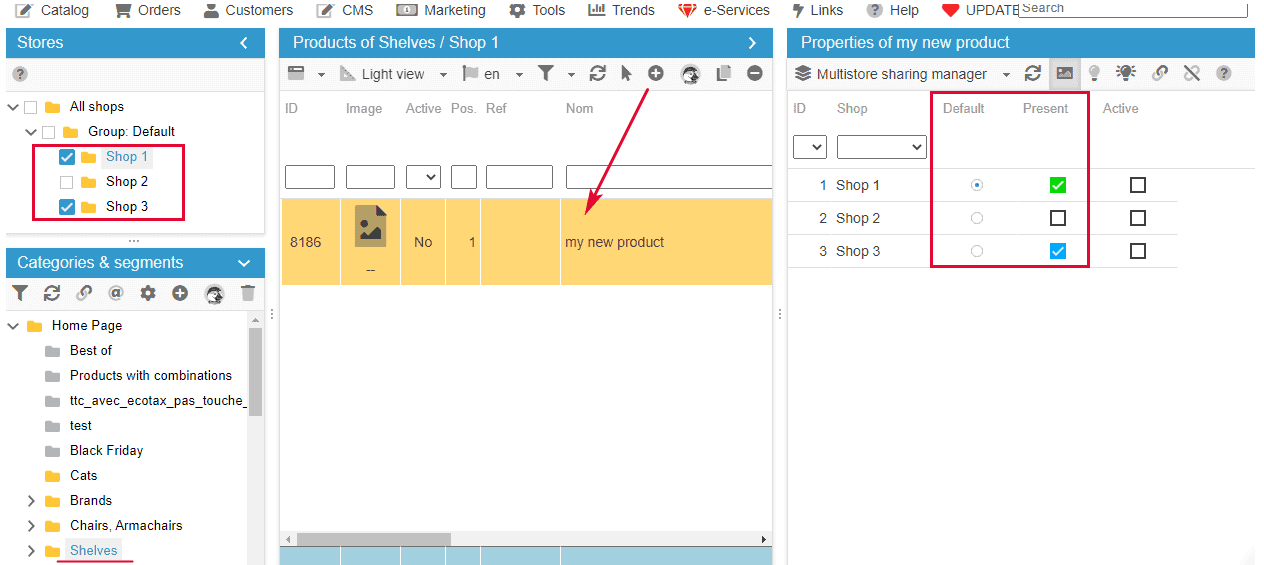
In the Store Tree, first select the main shop (the product's default shop).
Then tick the boxes across the other shops you want the new products to be created in.
You're ready: Select the category where you want to add your product, and hit the icon on the toolbar in the central column to create your new product.
In just one manipulation, your product is created and associated to all shops configured in your store tree, and you can verify in the MultiStore Sharing Manager panel in the Properties column.
Creating combinations on muliple shops simultaneously
Product combinations can be present in various shops, but it's of course necessary that the parent product also exists in those shops. It's not possible for a combination to be present in a shop if its parent isn't.
Taking the example of a 2 shop store:
The parent exists in Shop 1 only.
Combinations we need to create can only be available in Shop 1.
The product exists in Shop 1 and in Shop 2.
Combinations we need to create can be available in Shop 1, Shop 2 or both.
With Sc Store Tree, you can create your combinations and make them available in the shops you need.
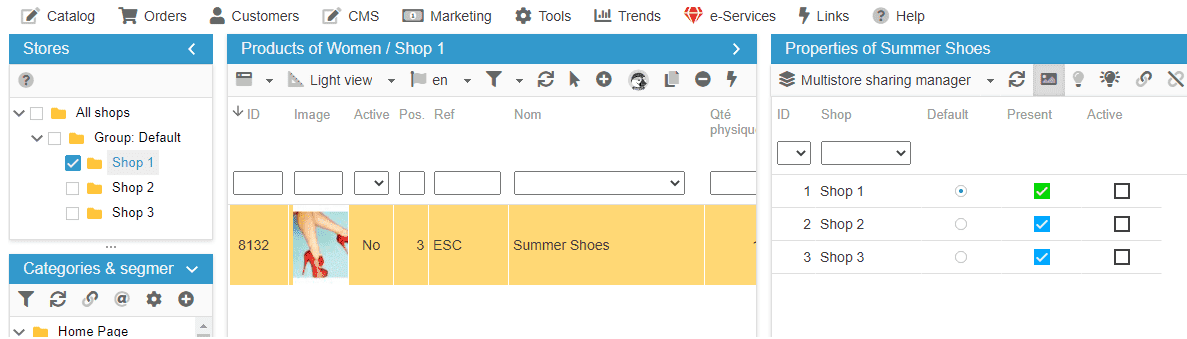
The parent product exists and is present in the shops you want, visible in the MultiStore Sharing Manager panel.
In this example, the product is present on all 3 shops.
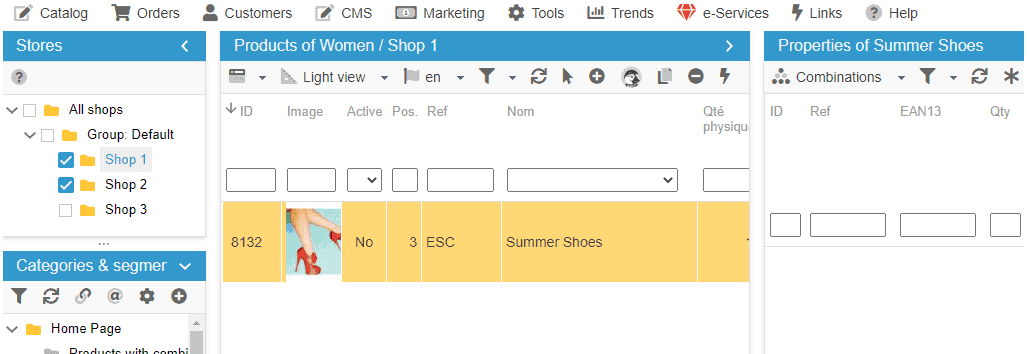
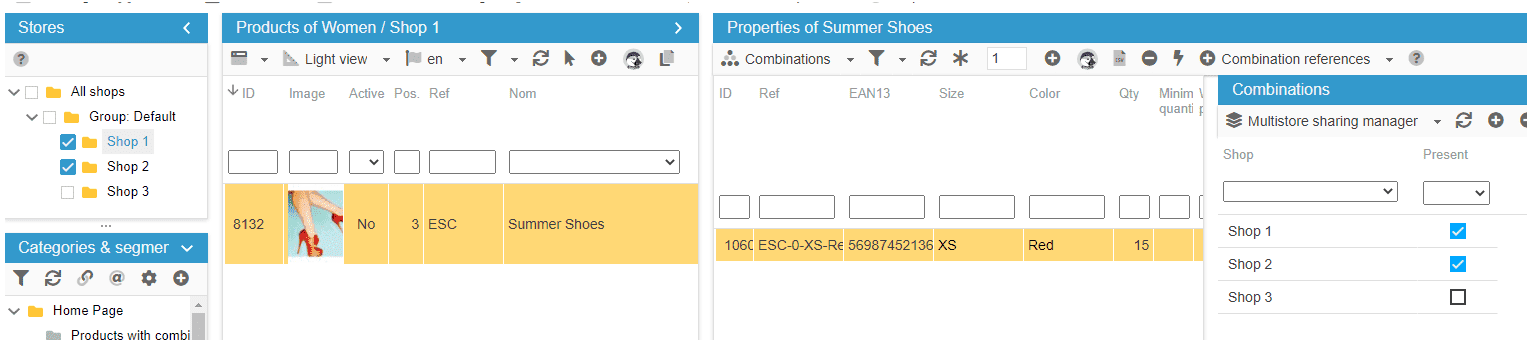
Now use the store tree to select the shops you want the combinations you're just about to create to be available in. In this example, the first combination will be available in Shop 1 and Shop 2.
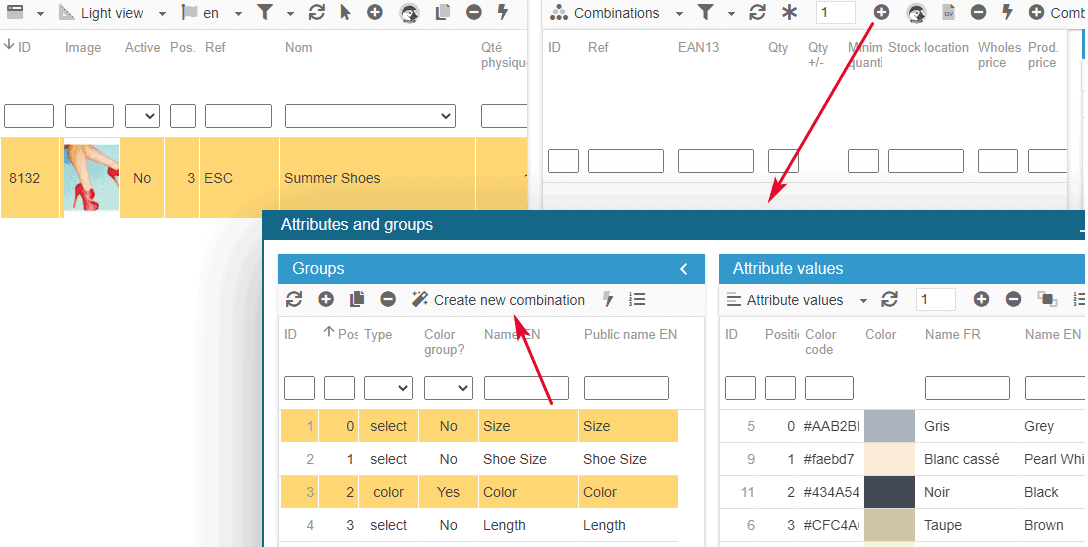
Create your first combination by clicking on the + icon on the toolbar of the Combination panel. The Groups window opens up and yuo can select the groups that will make your combinations. Here Color and Size.
Back in the Combinations panel, both Color and Size are now present in the grid and the line of the first combination is created. Select the color and size attributes, and enter any other information to complete your combination (reference, ean13, stock, price, etc).

The combination created is available in Shop 1 and in Shop 2, that you can verify in the MultiStore Sharing Manager panel, and this corresponds to the configuration of your store tree.
Creating products with their combinations in bulk on several stores
Store Commander's CSV import tool allows you to integrate new products and their combinations in bulk for one or several stores in a single manipulation.
In this article we assume that you CSV file contains all the information needed to create new products and their combinations, following instructions of this article.
In order to associate products and combinations to several stores at once, you need to insert a couple of additional columns:
id_shop_list : ID of stores on which products and combinations shall be added
id_shop_default : ID of the default store of products and combinations
The corresponding mapping will be:
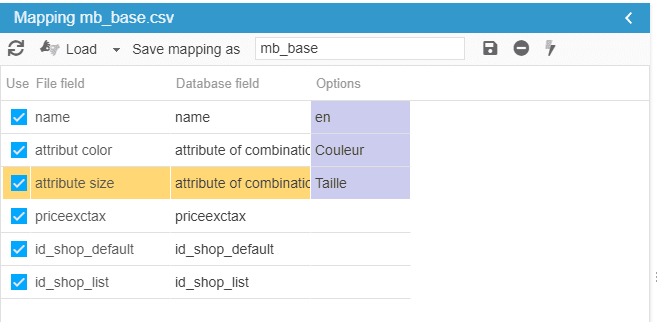
You'll find the shop ID in the Multistor Sharing Manager in the Property column in Store Commander, or in the Multistore section of your PrestaShop backoffice.
Applying modifications made one product onto several stores in bulk
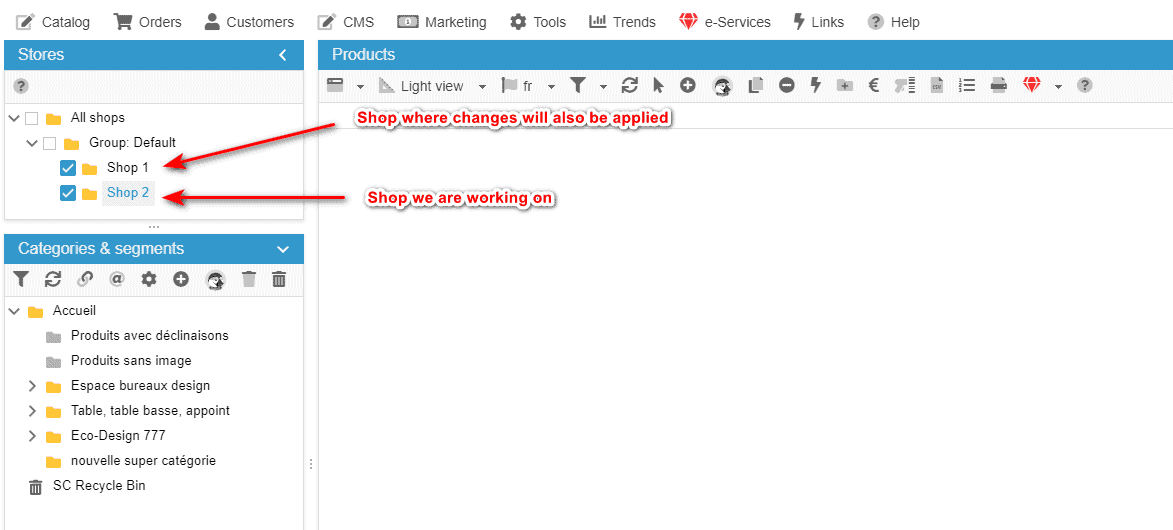
Using the Store Tree in Store Commander, a modification made to a product can be applied onto several stores in just one step.
The best way of using the Store Tree is to select just one store (ticked and highlighted).
If you then need the modifications you are about to make to be applied on other stores, then tick the box against these other stores.
Adding/activating multiple products on several stores in 1 click
In Multistore mode, you can add a selection of products to other shops and/or make them active (or not) in other shops too.
Products can be available in various shops, and this sharing action can be done in the MultiStore Sharing Manager in the Properties panel.
Tick/untick 'Present' for the corresponding shops.
In this panel, you can also enable/disable products in each shop by ticking/unticking 'Active'.
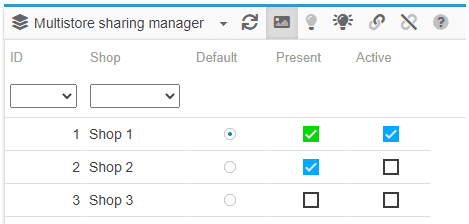
Present means the product exists in the store(s)
Active means the product is active in the store(s)
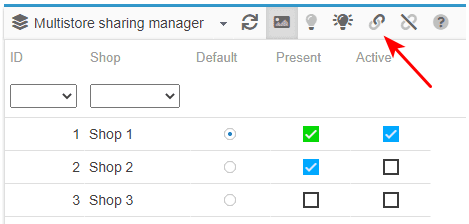
You could also use the mass-association icons / on the toolbar after selecting the concerned stores (selected lines) :
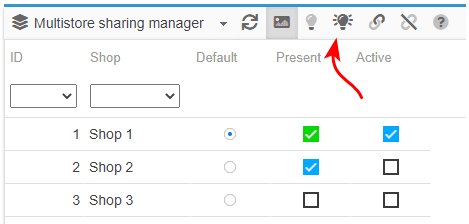
and mass activation, after selecting the desired shops (lines):
MultiStore - Managing combinations in Multistores mode
When working in multistore mode, you can associate your combinations to specific shops, in the Multistore Sharing manager panel dedicated to combinations.
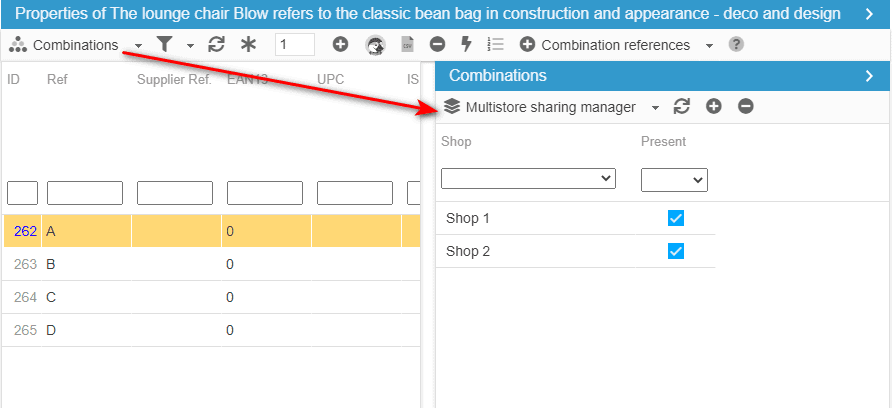
in this panel you can visualize the stores a combination exists in- enable/disable a combination in one or more shops
MultiStore - Sharing combination groups
When you work in MultiStore mode, PrestaShop allows combination groups to be available in specific shops.
In Store Commander interface, you will find the sharing option in the attributes panel within Catalog > Attributes and Groups > Attribute and Group Management
You simply need to tick/untick the shops to associate/dissociate groups to/off your various stores.
Following the multistore sharing principle used across Store Commander interface, you can of course select multiple groups to associate/dissociate in bulk!
Sharing product images on various shops
When working in MultiStore mode, your various shops will be displayed in the Images panel (Properties column on the right handside) shown as columns with their names. This allows you to decide on the image(s) to share (make available) on your different shops, by simply ticking the corresponding boxes.
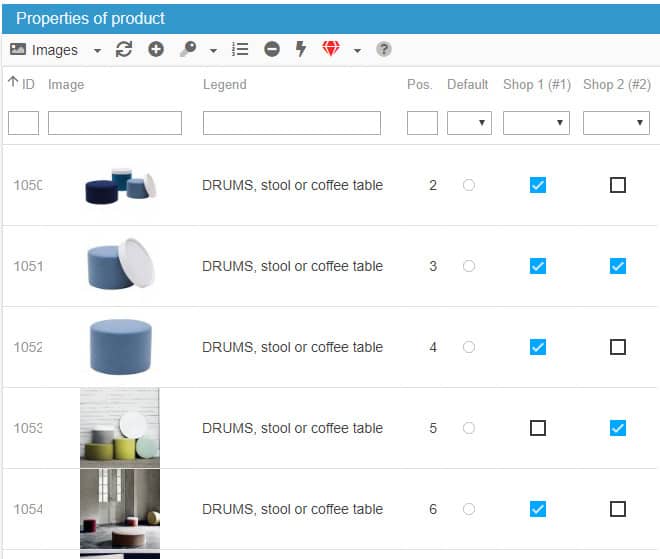
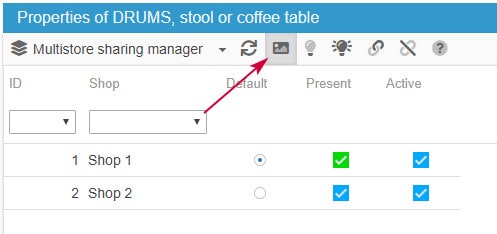
Note that when you share a product via the MultiStore Sharing Manager panel, then images associated to that product will be automatically shared on the same shops. This is an option enabled by default on the toolbar of the MultiStore Sharing Manager panel - slightly greyed out when enabled.
You can of course disable this option (click on it) if you want to decide which images to share on our shops, rather than having images shared automatically when you share the product.
Optimizing product SEO information on each shop
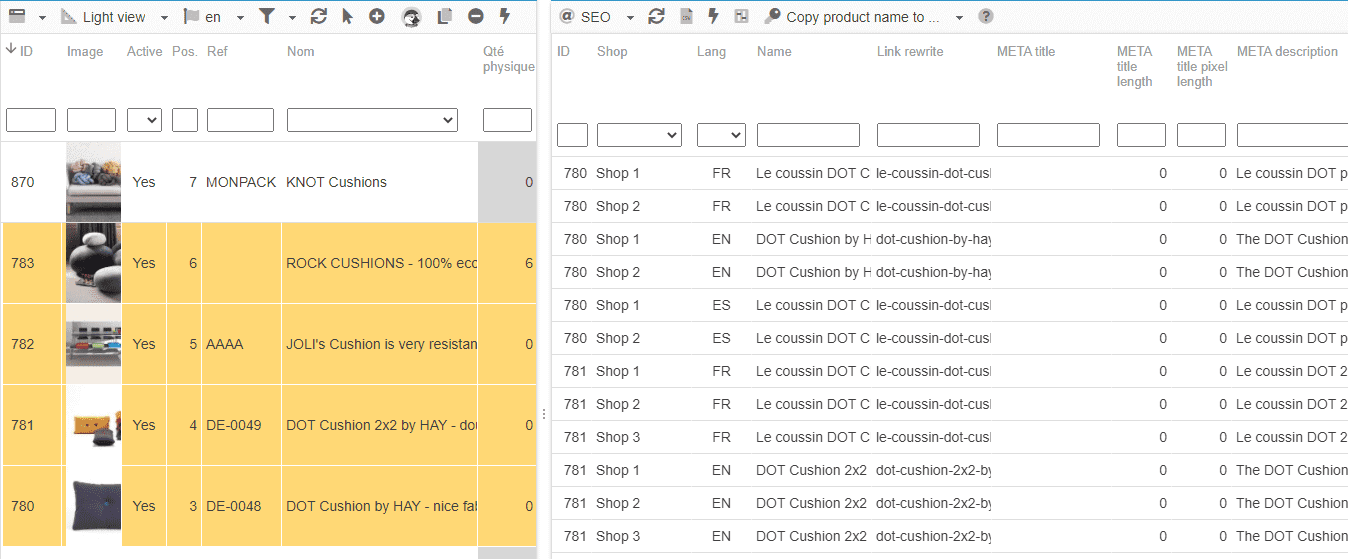
In the Properties column of Store Commander, you'll find a panel called SEO. This is where you can visualize and modify the product SEO information on each of your shops.
Indeed, the panel includes a 'Shop' column that helps you identify the product information on each shop - and any language installed on your store.
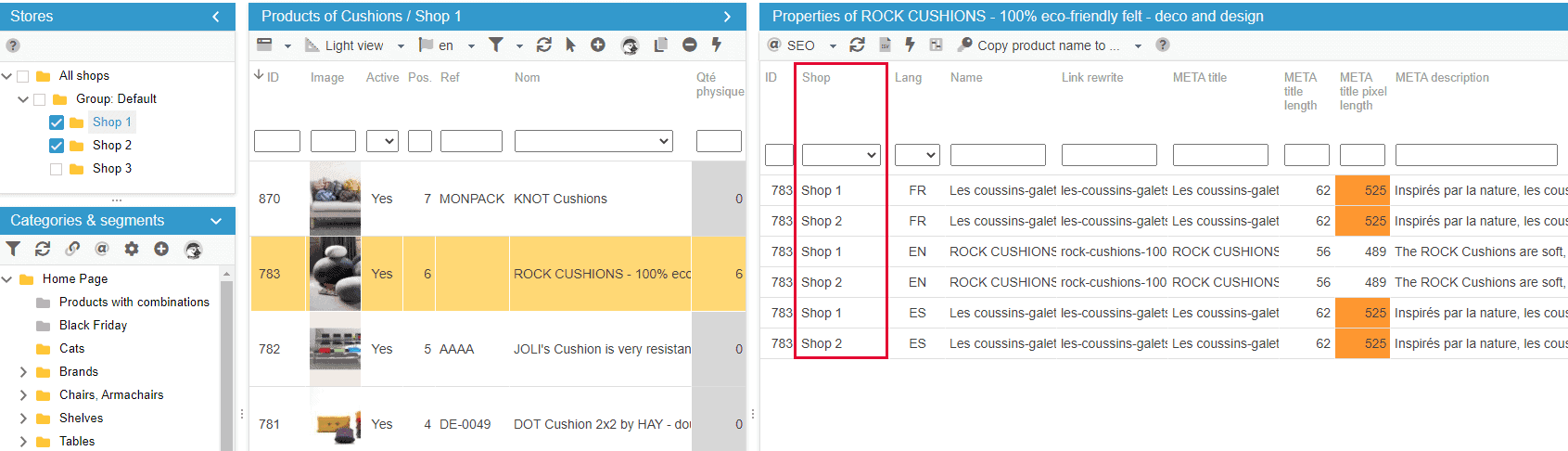
Double click to edit and modify the corresponding information.
Don't hesitate to use the filtering tool in the Shop or language columns if need be.
And of course, you can select multiple products to work in bulk even more!
MultiStore - Writing a different product description for each shop
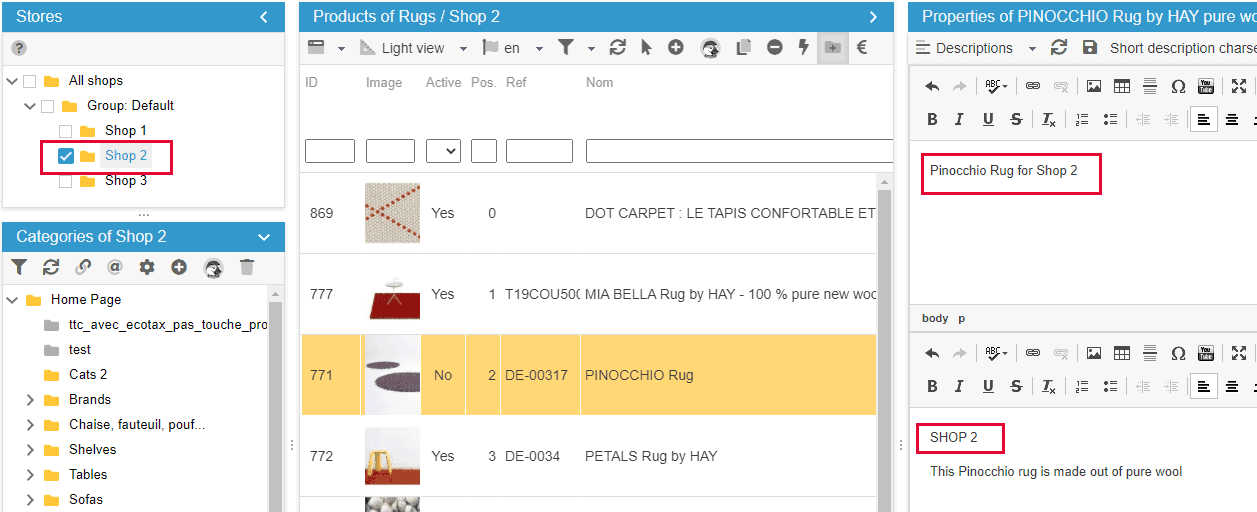
When a product exists in multiple shops, you can set a description specific to each shop, or the same for multiple shops.
This is where Sc Store Tree comes into action.
The description you'll be writing on a product will be applied to shops selected in the store tree.
In this first example, the description will be applied on Shop 1 only.
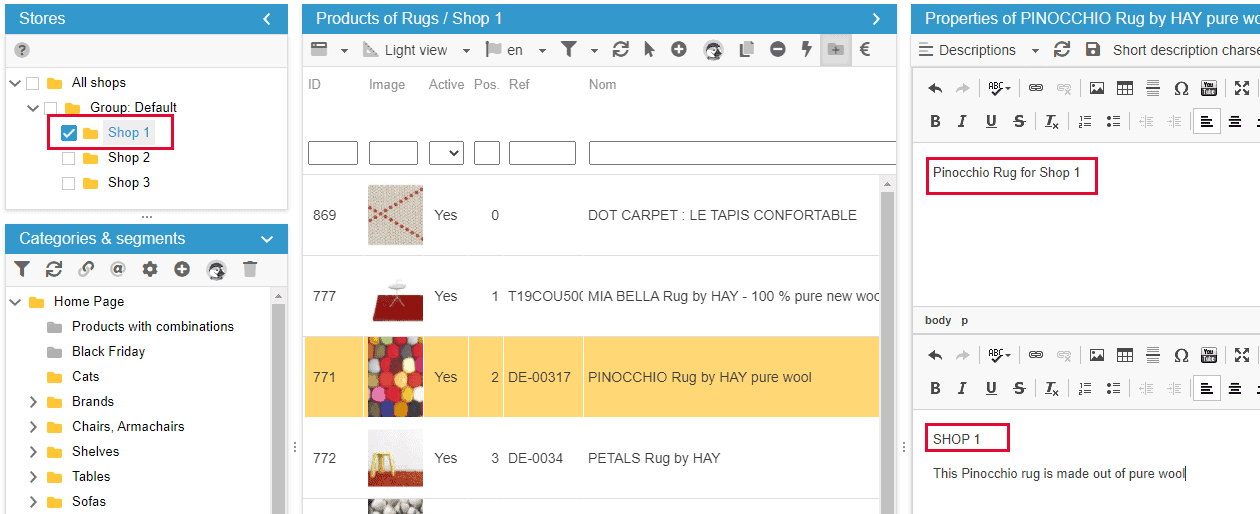
In this second example, for the same product, the description you'll be writing will be applied on Shop 2 only.
In this third example, the description you'll be writing will be applied on both Shop 1 and Shop 2.
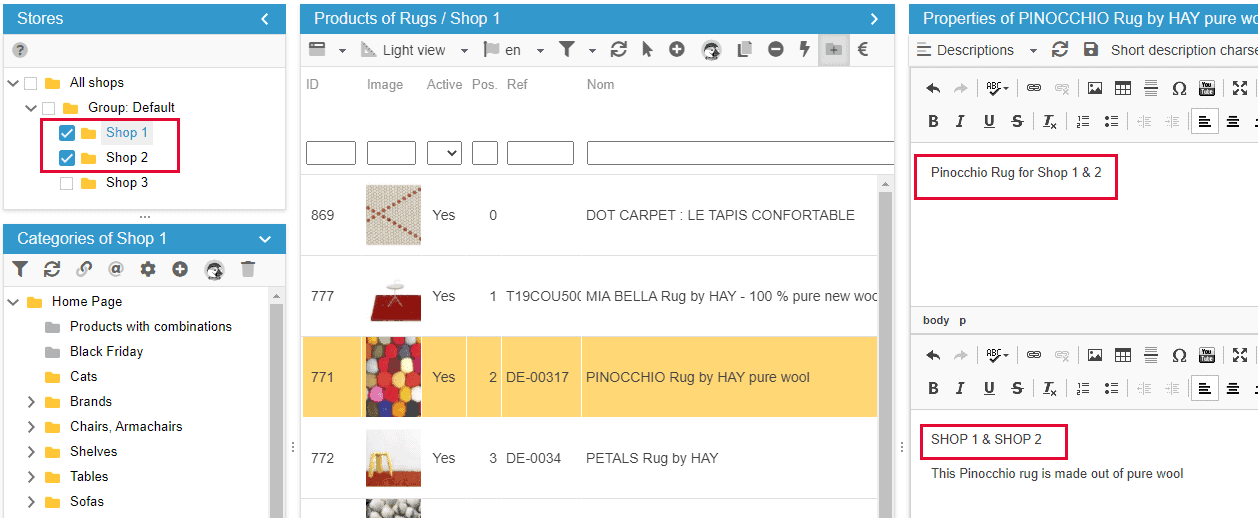
Sc Store Tree has a very important role when working in multistore mode. It allows you to set the various product properties in all your different shops, as you wish in a very easy and simple manner.