Combinations Grid: Adding a field from ps_product_attribute table
Instructions for adding a column to the combinations grid, indicating the value of a field found in the ps_product_attribute table
Prerequisites
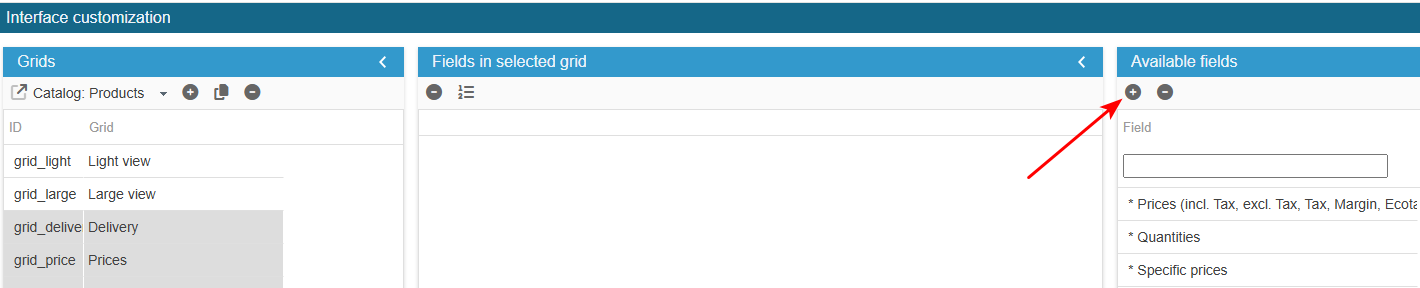
Access the PRO section of the tool to add custom fields:
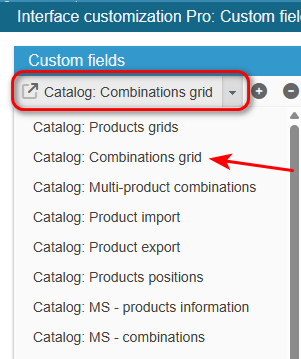
Ensure you select the right grid : ‘Catalog: Combinations grid’:
For this example, this field is located in ps_label table id_product_attribute; label_bio (0/1).
To add the field to the list of available fields for your grids, click on the in the 'Add a field' panel and enter the following information:
What is the field ID?: label_bio (should be exactly the name as it is in the database).
SC creates the field, you now need to populate the grid with:
From the Advanced Properties panel on the right handside:
- to add a yes/no choice, select the menu ‘List of choices’ and enter:
return [1 => _l('Yes'), 0 => _l('No')];Finally, register the configuration :
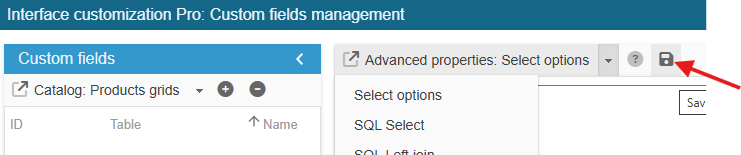
Exit the editing window.
The new field is now present in the list of available fields and you can add it to your product grids.