Multistore - How can I setup discounts on my various shops?
Setting discount prices from interface
Setting up promotions on products can be done in the Specific Prices panel in the Properties column.
In this panel, you'll find a column called 'Shop', used to decide on which shop to apply the discount price: a specific shop or all shops.
Check how in this video:
Setting up discount prices on specific shops by import
From Store Commander version 2018-02-27 de Store Commander, we have improved the process of creating specific prices on products using the CSV import, by introducing the field specific price: id_shop
This field allows you to setup a discount price on a product or on a combination on specific shop(s).
For example, applying a 10% discount on shop A and a 20% discount on shop B, for the same product.
In this case, your CSV file will be as follow:

The corresponding mapping will be:
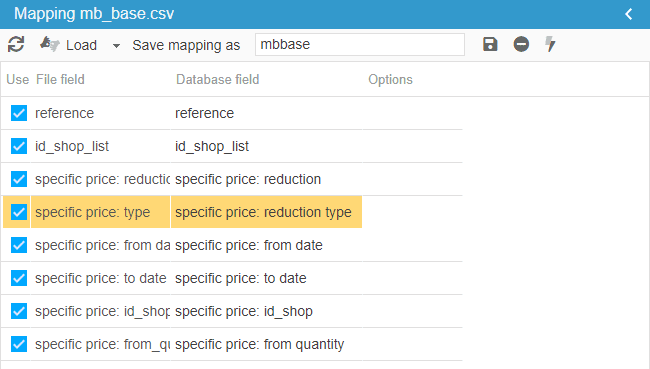
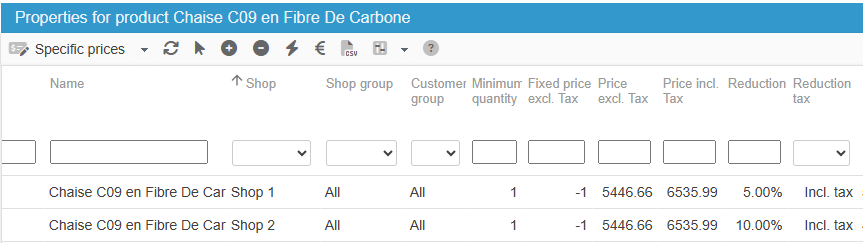
And we will have the 2 specific prices on that product in both shops specified by id_shop :
If you wish to apply the same discount to all shops, then you use 0 in id_shop in your CSV file:
Note that as always, id_shop_list is still required in all CSV imports in Multistore mode.
You'll find the shop ID in the Multistor Sharing Manager in the Property column in Store Commander, or in the Multistore section of your PrestaShop backoffice.
Modifying specific prices per shop
When using the Specific Prices panel, in the Properties column, you can see the shop the discount is applied onto with the Shop column.
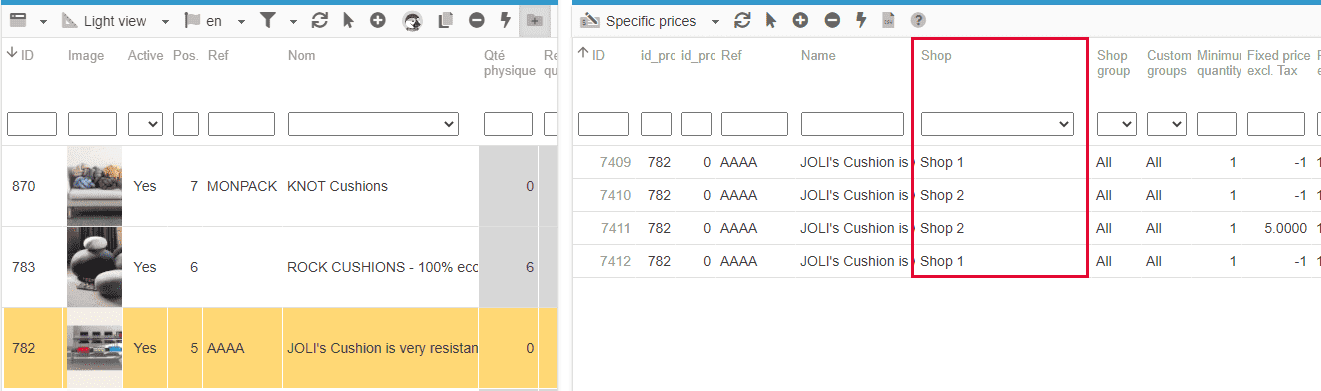
You can select multiple products to see all associated specific prices, and then use the filteing tool to display only the discount for that filtered shop.
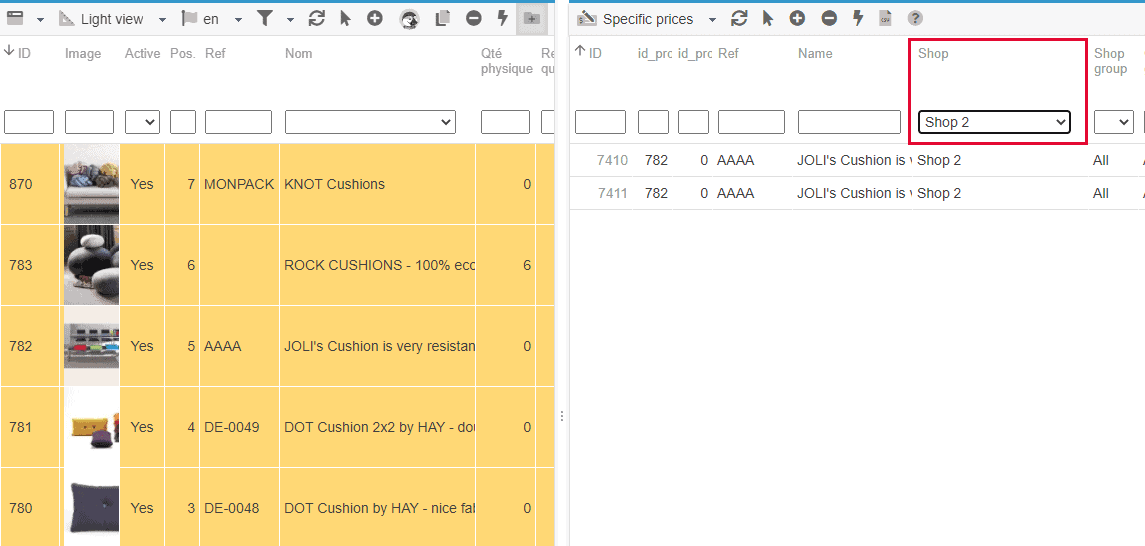
Depending on the number of products selected and the number of existing specific prices to display, it might take a long loading time.
To make simplier and more efficient, you should be using the interface dedicated to the specific prices, accessible from Sc Catalog menu.
You'll then be able to display all existing specific prices for a specific shop, by selecting it in the Store Tree.
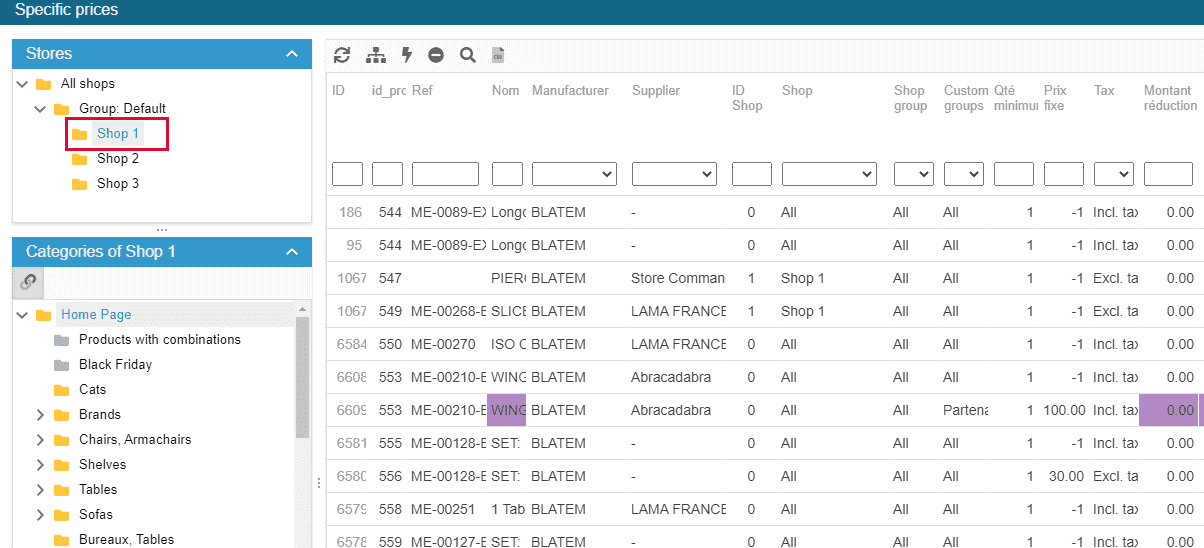
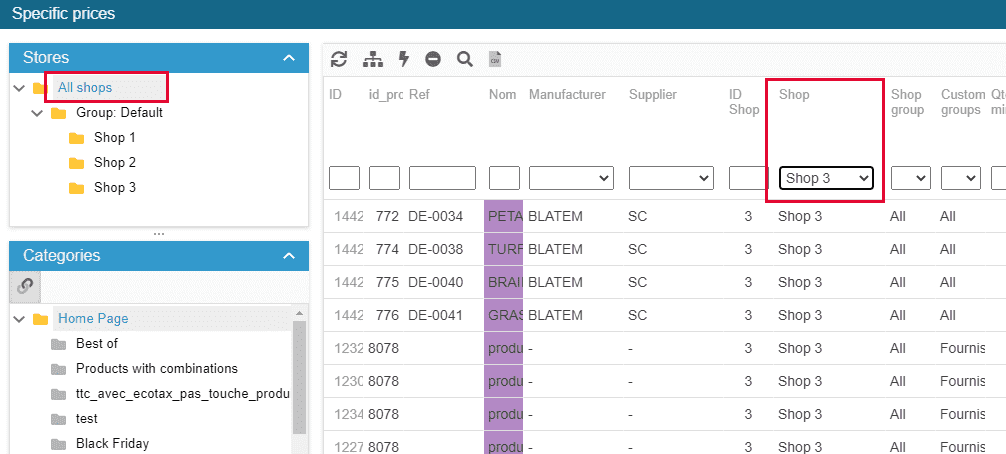
You could eventually select 'All Shops' and then use the filtering tool on the 'Shop' column - but be aware of the loading time.
Deleting/replacing specific prices on specific shops by import
To delete specific prices on products via CSV import, on specific shop, you need to include 'id_shop_list' in your csv file'.In the below example, we delete all specific prices on product ID 5072 in ID shops 1, 2,3, and on product ID 6715 only in ID shop 3.

Using the same import, you can to add a new specific price, then you need to include 'specific price: id_shop'.
Below, we delete all specific prices on product ID 5072 in ID shops 1, 2, 3, and we then create a new specific price (25€ discount) in ID shop 1 only.

You'll find the shop ID in the Multistor Sharing Manager in the Property column in Store Commander, or in the Multistore section of your PrestaShop backoffice.