Order Data Export
Export des données commandes pour faciliter votre comptabilité
Get Your Orders in a File
The Quick Export option is available thanks to CSV icon ! Then, you can copy/paste onto the spreadsheet. You can use the quick export in all different views in the interface, so that you can decide what information to export.

To obtain a more precise export of your order information (for accounting purposes for example), our Order Export Pro would be more suitable as explained hereunder.
Generating a Custom Order Export
With our Order Export Pro tool, you can export detailed order information such as Total Paid, Invoice n°, VAT breakdown, etc.
This Order Export Pro is available in SOLO+ & MULTISTORES+ plans.
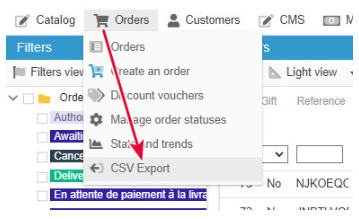
The tool is accessible from your Store Commander interface > Orders > CSV Export
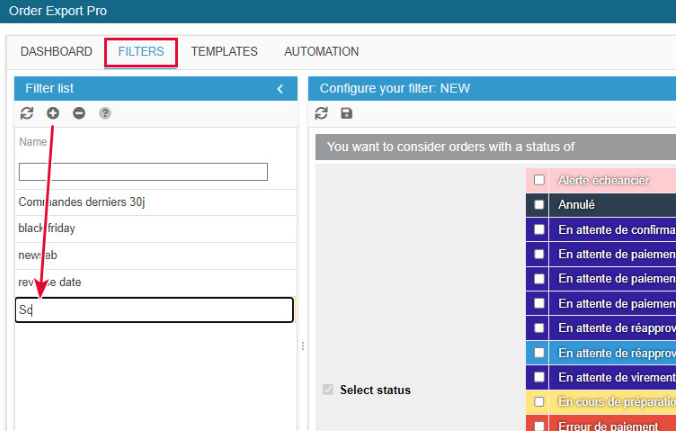
1 - FILTERS : Choose filtering options to take into account all orders of your shop according to the selected options (order dates, order status, payment methods, etc)
To create a new list, click on 'Add a filter list' icon at the top right of the page.
Double click to edit and name your new list.
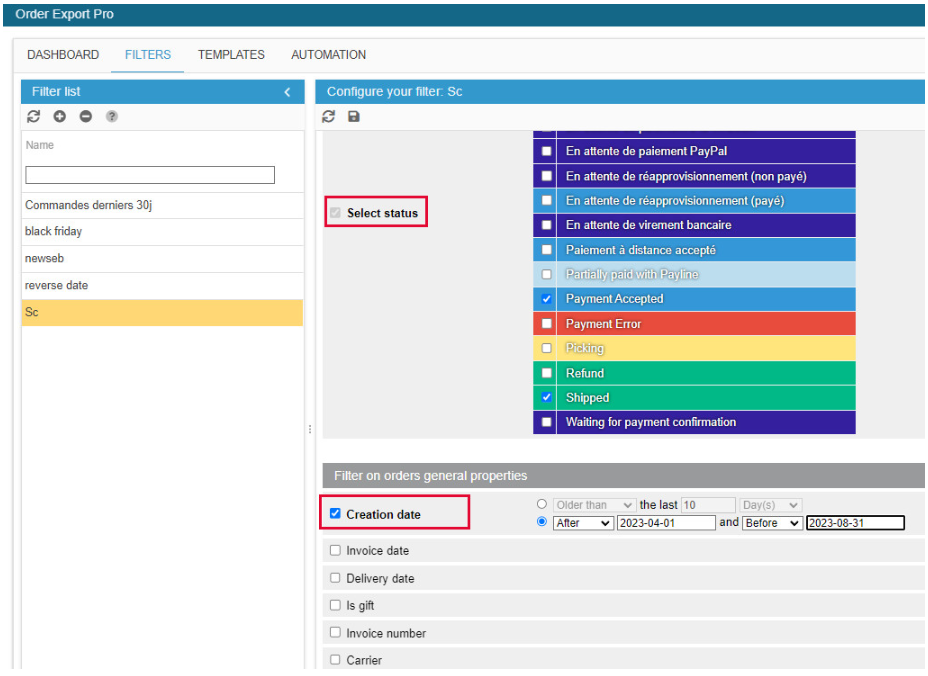
Then select the options that will be used when exporting the order data of your shop.
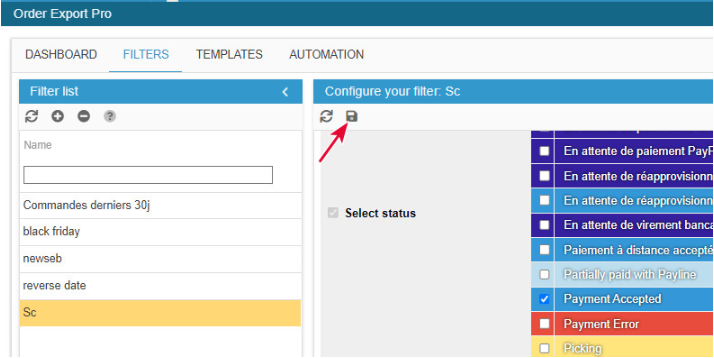
Once your criteria have been selected, save the configuration:
2 - TEMPLATES : include fields you want to include in your exported file (id order, invoice n°, total paid, etc).
To create a new template, click on the 'Add a template' button . Double click to edit and give a name to your new template.
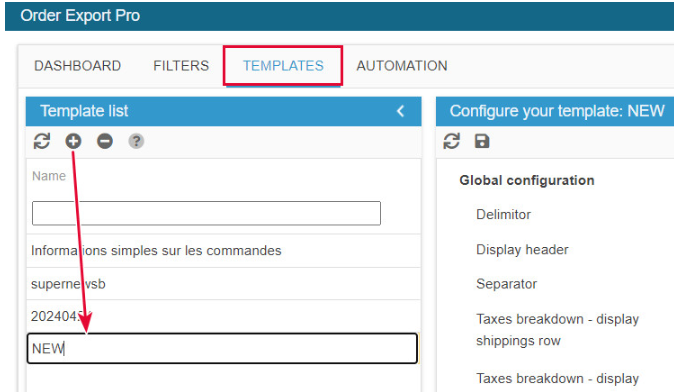
Then, in the central column, add fields you want to include in your export file, by selecting them in the various drop down menus:
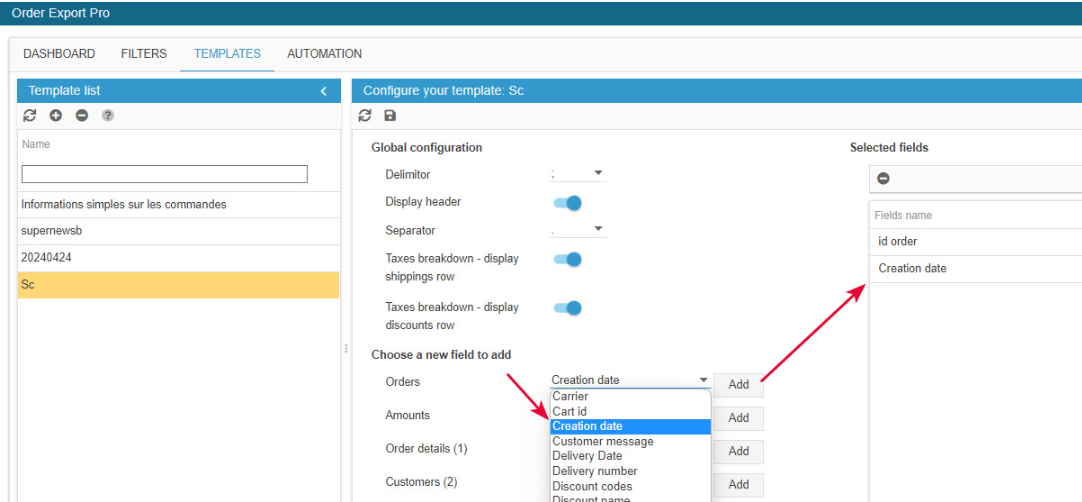
Note 1:
if you include fields from the 'Order details' list, which are product information, the export fille will display 1 line per product - as opposed to 1 line per order. Therefore, column total will not be correct.
Note 2 :
if you want to include VAT breakdown, only use 1 field (not VAT breakdown + VAT breakdown by order, etc).
Finally, save your template at the end of the page:
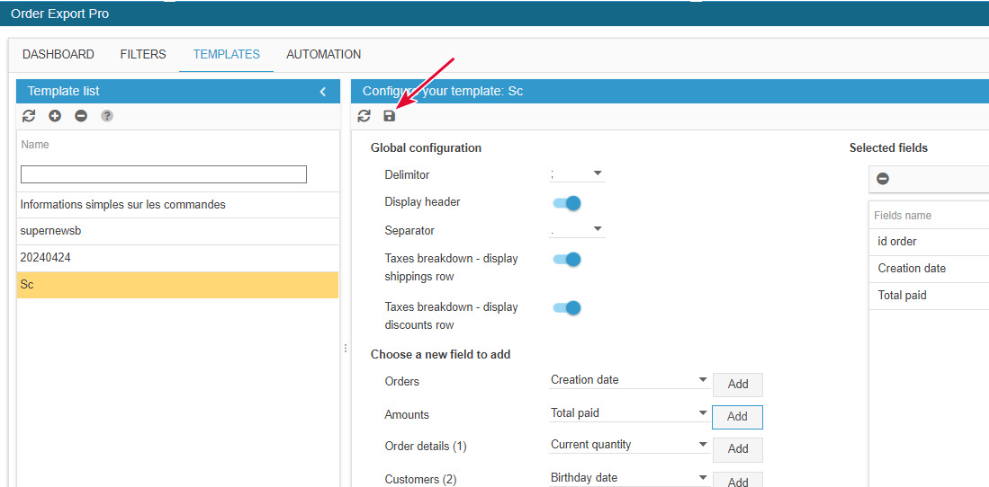
3 - EXPORTING the file
This is on the Dashboard that you select a filter and a template that will define your export file.
On the Dashboard tab, click the icon to create a new export.
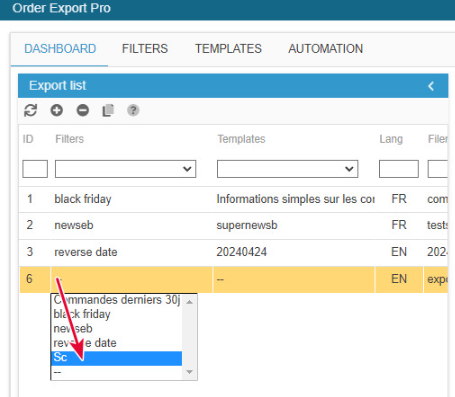
A line is created onto which you will select your filter and your template.
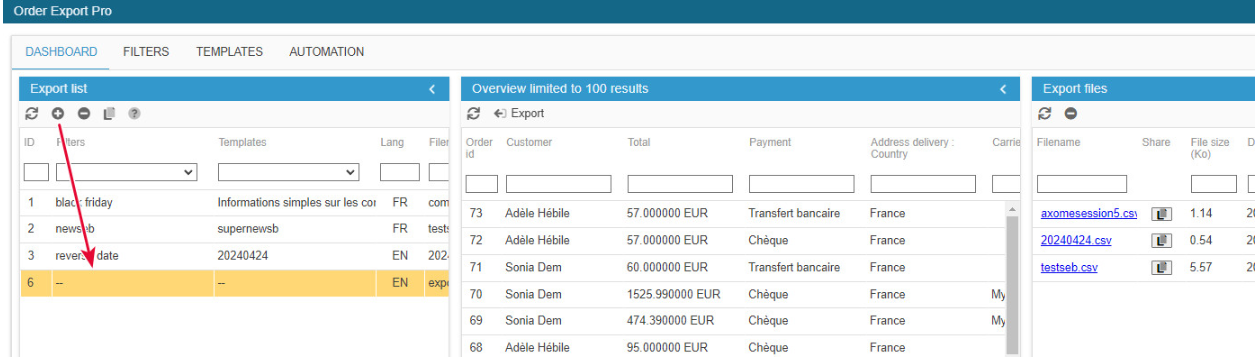
Select the filter, the template and the language by double clicking the field (drop down menu):
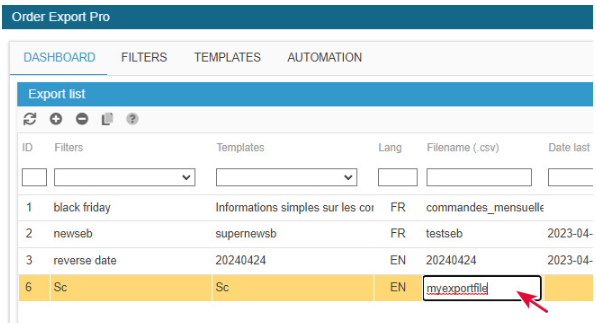
Name your file in the corresponding cell:
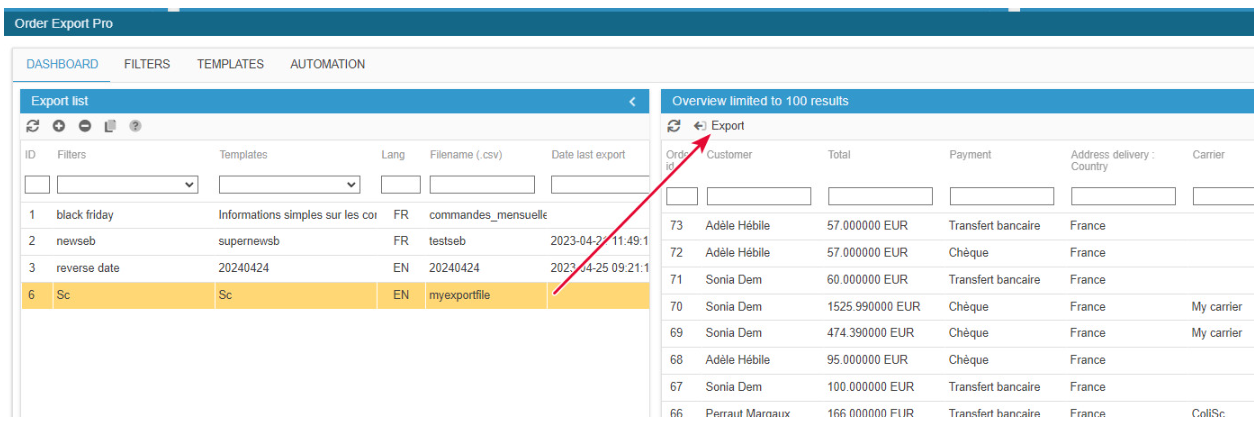
In the central colum, a preview of your export is displayed. Start the export by clicking on the corresponding icon in the central column:
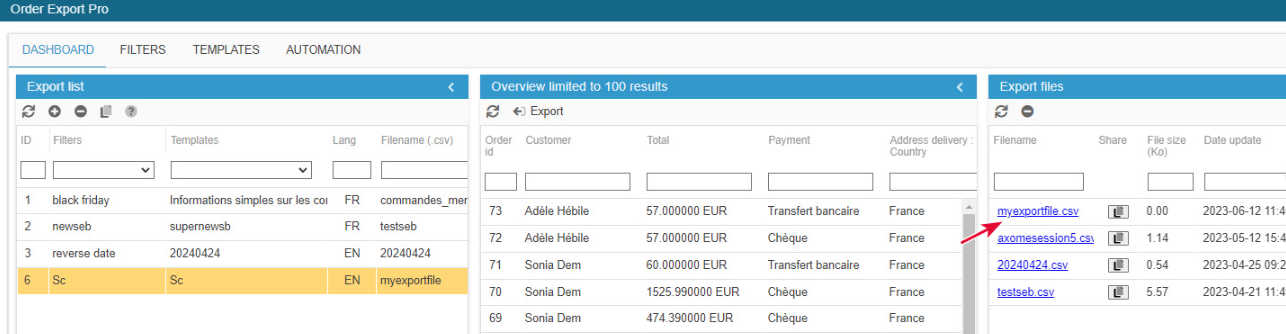
The exported file will then be available in the 3rd column - click the link to download it.
Scheduling an order export file
You can run your Order exports automatically using a CRON task.
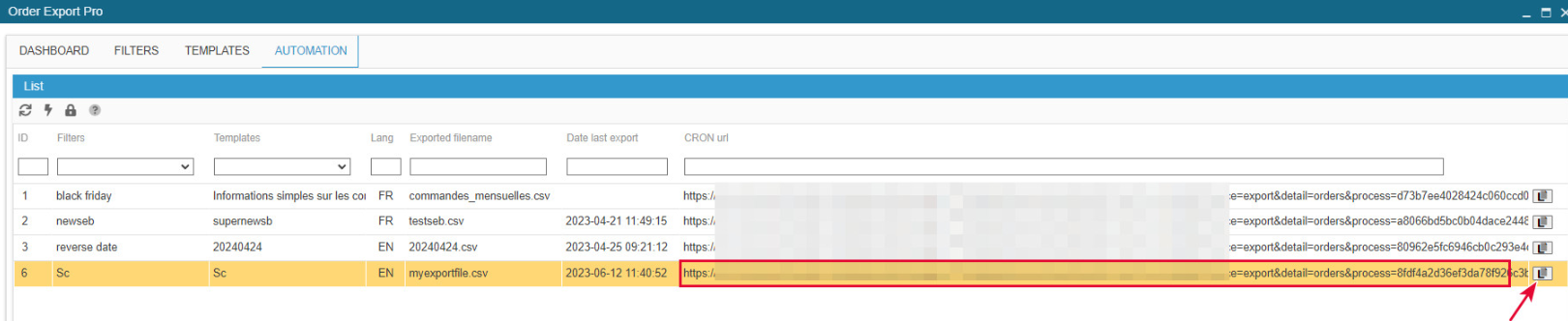
All the exports that you configured, visible on the Dashboard are available in the AUTOMATION tab.
We provide the CRON url to be used when setting up the cron task on your server.
Click the icon at the end of the line to copy the url.
Obtaining the list of orders with a specific discount voucher
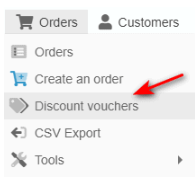
In Store Commander interface, you will find a panel dedicated to Discount Vouchers (cart rules) under Orders menu, where you can for instance view and extract the list of orders that used a specific discount voucher, contact details included.
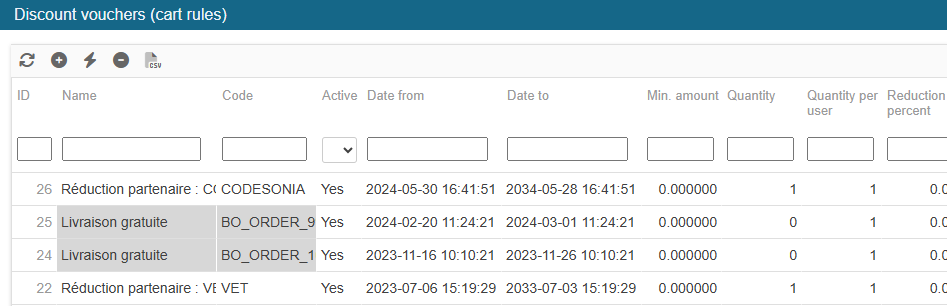
In this window, you can see the details of all cart rules you might have created in your PrestaShop backoffice:
On the right handside column, open the Order details panel to display the list of all orders that used the selected discount voucher, including customer contact details. You then only need to export this list using the quick export option.
