Segmentation: some examples
The segmentation tool offers numerous possibilities for retrieving products, orders and customer lists that meet specific criteria. For example, products from manufacturer A, customers without orders, products without descriptions in Spanish, etc.
We have listed a few examples here, but feel free to consult the list of all the types available in your Store Commander :)
Segmenting combinations data
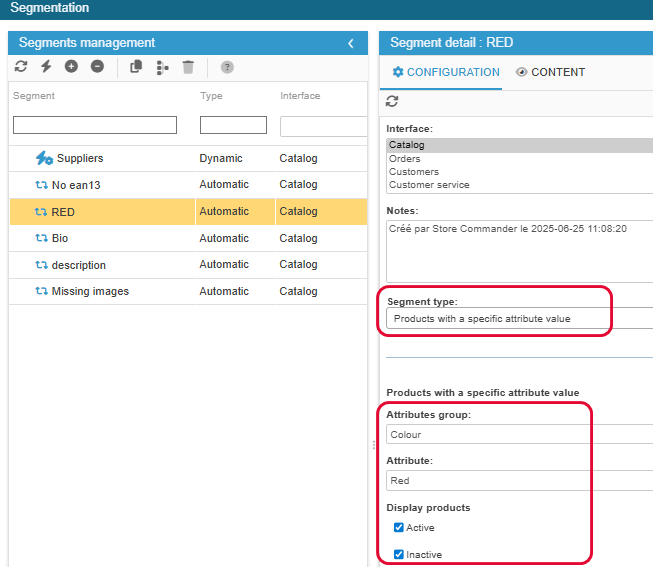
It is sometimes necessary to find products that use a specific combination attribute, such as all red combinations, in order to set up a promotional campaign on all “red” items in the shop for Valentine's Day.
To obtain the list of products using this red attribute, the segment Products with a specific attribute value will provide the list of products concerned.
You can then display all product variations in the Multi-Product Variations grid and create the promotion in one click!
Obtaining a list of products that use a specific feature
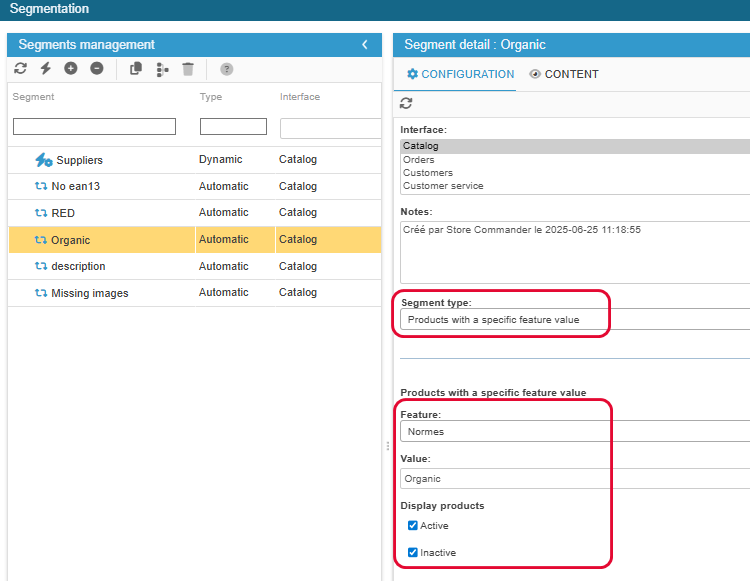
For example, we have just created a new ORGANIC category to which we need to add all products that use the ORGANIC characteristic.
The automatic segment Products with a feature value will be the solution for obtaining the list of these products, which can then be selected and added to this ORGANIC category with a single click.
Identifying and displaying products with no image
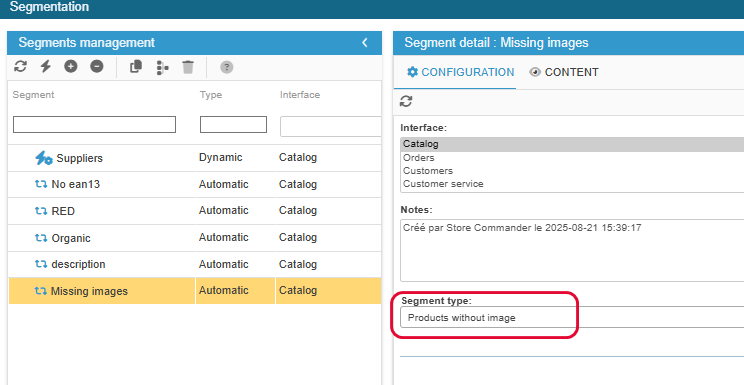
The segmentation tool also helps you stay on top of your product information, such as identifying products that do not have images with a single click.
There is a dedicated segment called Products without images.
Select the segment in the Sc interface and if any products do not have images, they will be displayed in this segment.
If, on the other hand, the segment is empty, then you can rest assured :)
Please note that the automatic segment is also dynamic. As soon as you add images to one of the products in the segment, it will no longer meet the criteria and will disappear from the segment.
Identifying products with missing ean13?
When your shop has a large number of items, identifying products without an ean13 code can be a long and tedious process.
Using the same principle as the segment for products without images above, you can create a segment with the type Products: Empty field with the ean13 option.
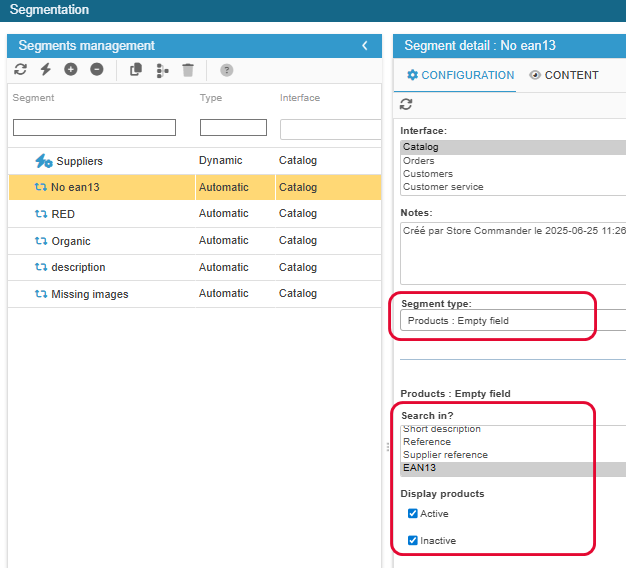
You'll then have the list of all products in your shop without any ean13 by selecting that segment.
Please note that the automatic segment is also dynamic. As soon as you add the ean13 to one of the products in the segment, it will no longer meet the criteria and will disappear from the segment.
Finding products with a description using a specific word
The segment Manual Expression Search allows you to search for products on the fly using a specific term, which you enter in the search window.
For example, we want to display products using terms contained in the product descriptions, and then associate the corresponding features, in order to optimize the faceted navigation on the site.
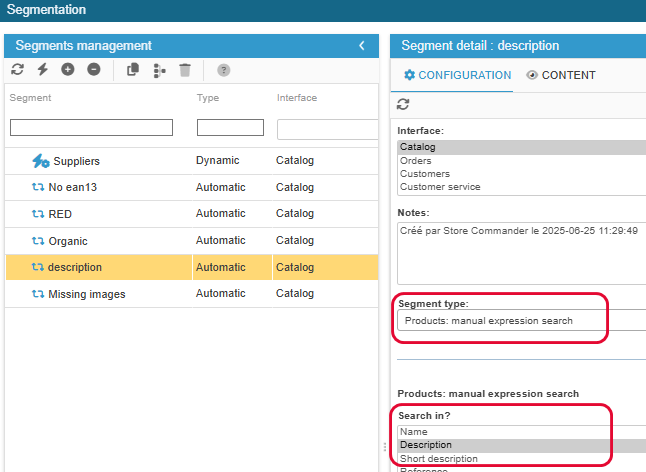
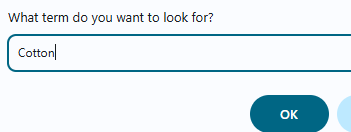
A search window appears when the segment is selected: I enter the specific term I want to use to find the products, and the relevant products will be displayed in the grid.
We can then associate the corresponding characteristic with them in one click.
Refresh the central grid to start a new search.
Changing order status by products
You can easily change the order status in the Sc Order interface - individually or in bulk - in the various views in the central column, except in the Picking view.
Why?
A status belongs to an order, and can therefore only be modified on the line of an order.
However, the Picking view shows order details, meaning product information, and therefore this view will display a line per product and not a line per order. In this instance, order status cannot be modified.
But there is a solution thanks to Segmentation!
You need to create 2 segments:
A manual segment in the Catalog interface into which you can add the products you need
An automatic segment Orders with products of segment… linked to the manual segment, and orders associated to these products will be listed in that segment.
You will then have the corresponding orders in the Light view of the Orders interface (or any other view that does not include product information) and you'll be able to change statuses.
🎥 The webinar
A webinar dedicated to the segmentation tool is available as a replay on this page of our website.
The Segmentation tool is available in the Solo PLUS and MultiStore PLUS plans.