Managing categories in Sc interface
Creating categories
With Store Commander, you can create categories in just a click, and a click on the ➕ icon on the toolbar:
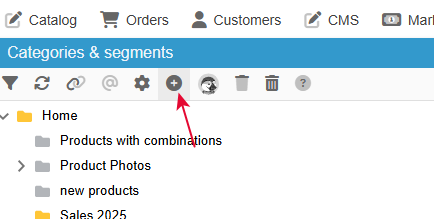
And then enter the name of the new category in the popup window:
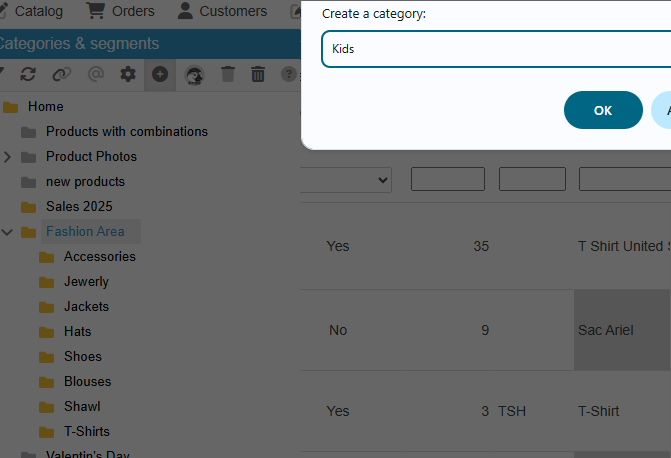
That’s it, the new category is created.
By default, the new category is created beneath the category you had selected just before. In this example, Fashion Area was selected
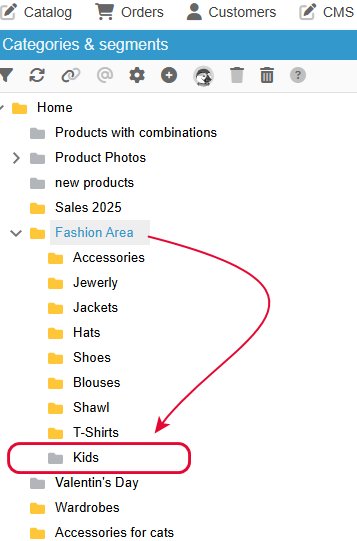
If the category is not in the right place, no need to panick 😉
You can simply drag and drop it where it’s supposed to be - check the following section for more details.
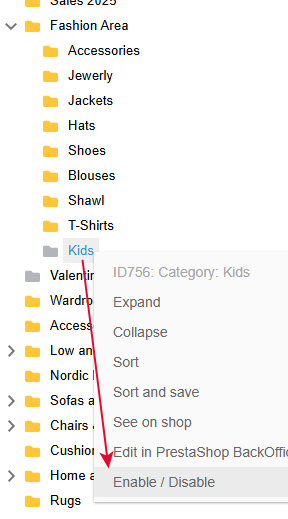
Also, any new category will be disabled when created. The grey folder indicates that status.
Right click the category to enable it on your shop
Rearranging the category structure for a better browsing
With the drag/drop function native in Sc, you can quickly rearrange the order of your categories.
Simply select the category you want to move and drag/drop it where you want it to be. The modification is of course applied in real time on your online shop 😉
IMPORTANT: when working on the category structure, which is not a simple listing), you’ll need to apply the option located in Catalog > Tools > Check and Fix categories - this will resynchronize the tree structure between your database and Sc.
Sorting categories in a click
The popup menu (right click on a category) includes a sorting option, actually two.
One is to sort categories alphabetically in your Sc interface only, and the other will apply the sorting action to your online site.
Because an image is worth a 1000 words, here’s the video to explain the sorting options:
Hiding inactive categories
The list of your categories might include some inactive categories which can impact the display of the list in your Sc interface.
What you can do is simply hide these inactive categories off the list, using the corresponding icon on the toolbar:
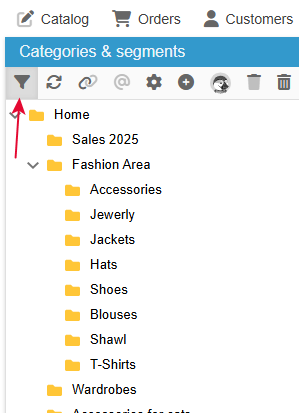
When this option is enabled (on a darker background), all disabled categories are hidden.
Please note that this does not impact your online site, only the display in Sc
Enabling/disabling categories in bulk
The popup menu on a category allows you to enable or disable the selected category.
On the other hand, this cannot be applied on multiple categories.
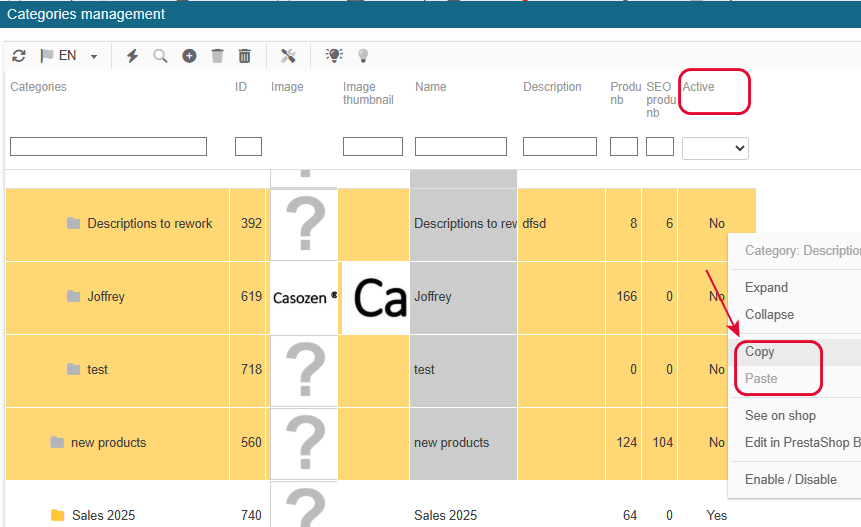
To do so, you’ll need to open the interface dedicated to categories, from the Catalog menu > Categories.
On the left handside colonne, you’ll the the ‘active’ colum against each category.
This is where you can select multiple categories, and use the copy/paste to set them to Yes (enabled) or to No (disabled).
Editing and modifying categories
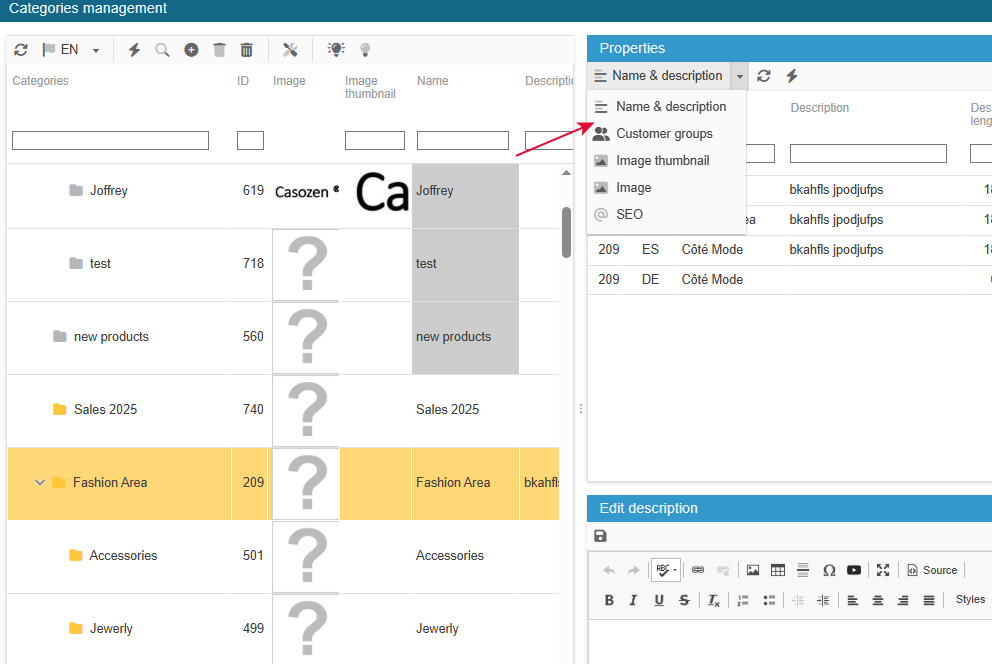
All category related information, such as name, descriptions, images, or even SEO, are found in the interface dedicated to categories, Catalog menu of your Sc.
They’re all available in the property column, where you'll find the drop down list of all properties
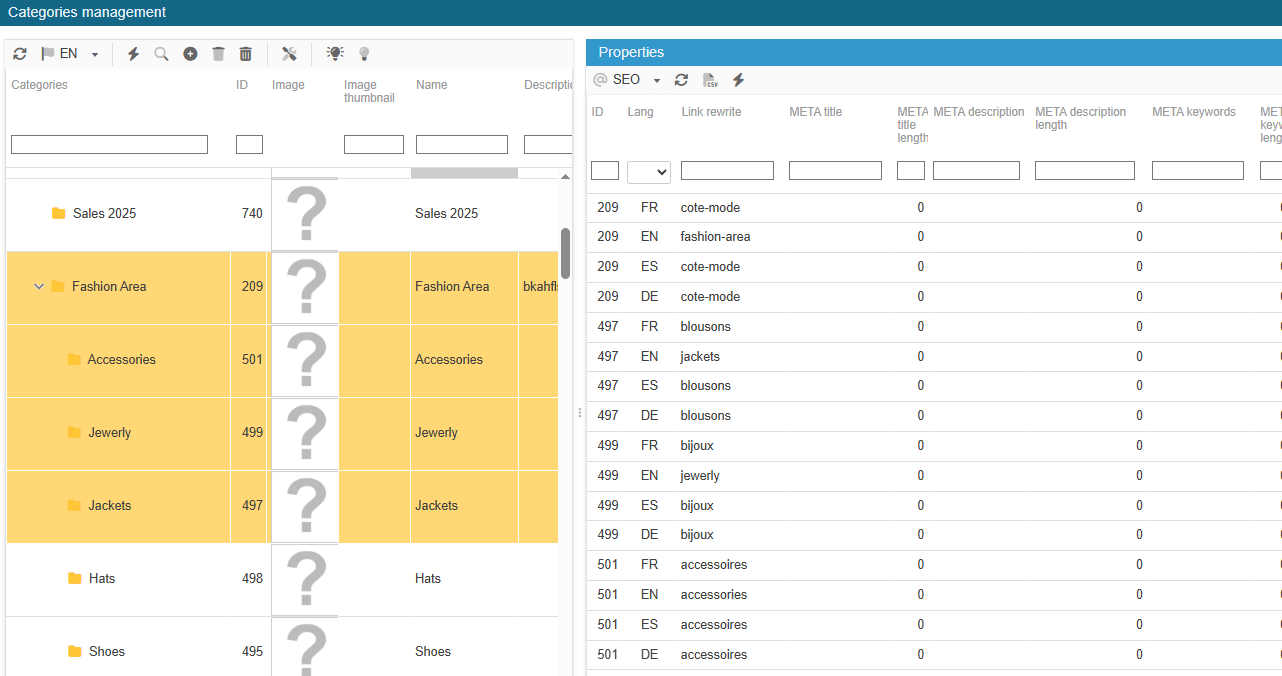
Of course, you can work in bulk by selecting multiple categories, to then display and modify the information on all selected categories.
Very useful if you have multiple languages and/or have multiple shops.
Deleting a categorie
You will not find an option to delete categories in Store Commander's interface, it would be rather dangerous to delete a category from the database because you might also be deleting products included in that category.
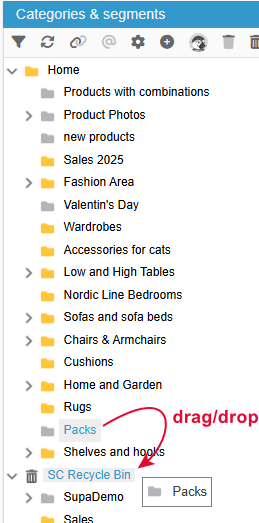
If you need to delete a category, simply drag/drop it into the Sc Recycle Bin:
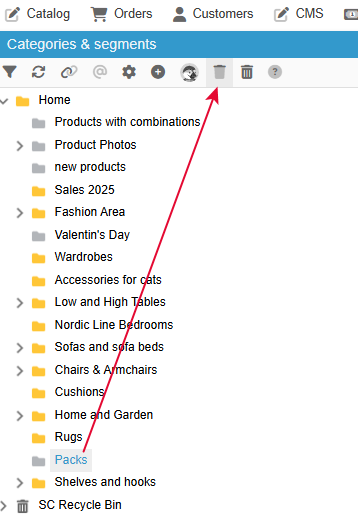
or use the corresponding icon on the toolbar
To make sure products do not get deleted off the database by mistake, check that there are no products in the category you want to delete. If products are present remove them off the category - using the Category property Make sure there are no products in this category, and if there are, remove them by dissociating the products off that category, using the Category panel located in the Properties column - check the article below if you need more detailed information.
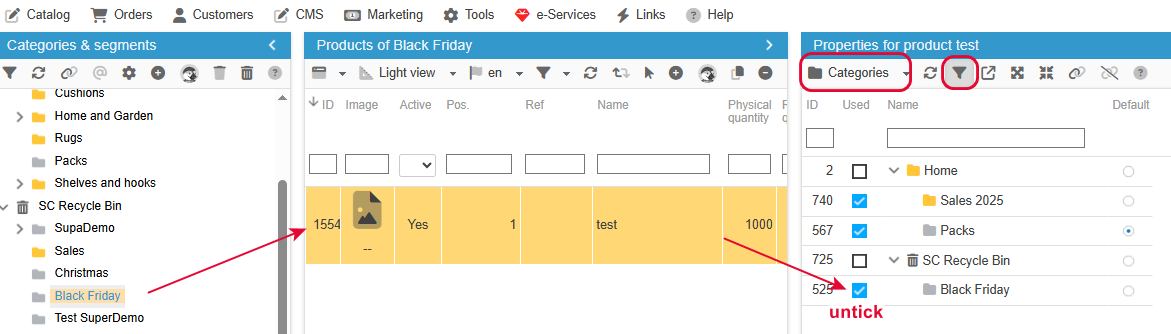
Note that anything in the Recycle bin still exists in your database, so a category or a product
can be taken off with a simple drag/drop
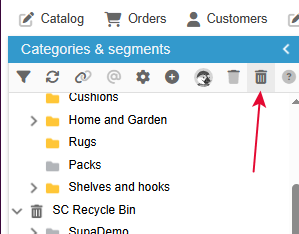
When you are ready to delete the contents of the Recycle bin - this will delete off the database definitely - hit the corresponding icon on the toolbar
IMPORTANT: when working on the category structure, which is not a simple listing), you’ll need to apply the option located in Catalog > Tools > Check and Fix categories - this will resynchronize the tree structure between your database and Sc.
Identifying and deleted empty categories
Here’s how you can remove empty categories off your shop/
🚮Sc Recyle Bin - what is it for?
As soon as Store Commander is installed on your PrestaShop store, you'll see a category called Sc Recycle Bin, automatically created, at the same level as Home.
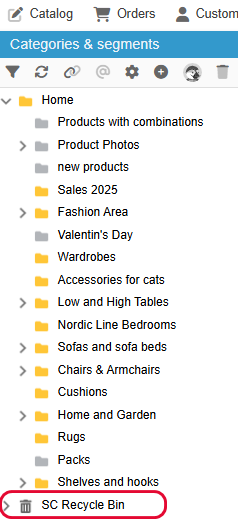
Although you can defintely delete products off your shop using the delete option on the product toolbar, you have the possibility to add products to the Recycle bin (using the drag/drop function).
At this point, products will not be removed from the database, and can be moved back to a categoy if need be.
Deleting products definitely will occur when you empty the Recycle Bin, using the corresponding icon
At this point, products present in the Recycle Bin will definitely be deleted off your shop.
Note that products present in the Recycle Bin will be definitely deleted off the database if and only if they're not present in any other categories.
If a product exists in another category, then it will not be deleted.
Categories can also be dragged to the Recycle bin, and will also be definitely removed from the shop when the bin is emptied.
Note: if the Recycle Bin has been emptied by mistake, and therefore categories and products contained have been deleted, the only solution to get them back is to restore a database backup.
At this point, you'll need to contact your web agency or service provider who will be able to help you with this procedure.