Managing suppliers in Sc
Adding new suppliers to your store
There is a interface dedicated to suppliers in Sc interface, accessible under the main menu Catalog > Suppliers
This is where you can add a new supplier, by clicking the + icon on the toolbar.
The new line is created, at the end of the list, and you can edit it to insert the name.

You can then add any other information by switching the central view to the Large and the SEO view. You can also add a logo and a description via the property column.

Note that all of Sc default options are available in this interface, such as filtring, sorting, copying/pasting as well as mass association (to products).
Setting a default supplier on new products
There’s an option in Sc Settings where you can set a supplier that will be automatically associated to all new products you’ll be creating on your shop via Store Commander - interface or csv import.
You’ll find this option under Tools > Settings - select the name from the list

Associating suppliers to your products
1. Using the Supplier property
You’ll find a panel dedicated to suppliers in the property column, right handside, where you can associate suppliers to products but also enter the supplier reference, a wholesale price and a currency eventually. This also where you set the default supplier.

To associate in bulk your products to suppliers, first select the products in the central column, and then simply tick the boxes of the corresponding suppliers you want to associate.

You can also select the lines of the suppliers and hit the associating icon on the toolbar (instead of ticking boxes)

Note: the supplier displayed in the central column (large view for example) will be the one set as default - we can only show one in the views.
Same goes with the wholesale price.
If no supplier is displayed, then no supplier is set as default.
For products with combinations, suppliers can be managed directly on combinations, in the Suppliers panel :

Only the default supplier is set on the product.
2. Using the copy/paste function
Since everything is simple with Store Commander, if you need to associate a supplier to multiple products, you can use the copy/paste option.
In the central column, right click the supplier name on a product to copy it, and then do another right click once you have selected the other products (onto which you want that supplier) and this time hit ‘paste’.

Conversely, you can copy/paste the “ - “ at the end of the drop down list if you want to remove the supplier.

3. Associating suppliers to product and combination in bulk by importing
The database fields displayed in the Suppliers grid of Store Commander are also available within the CSV Import tool, allowing you to add or modify the suppliers information in bulk.
To associate a supplier and the additional information (reference, wholesale price and currency) to your products, your mapping fields are:
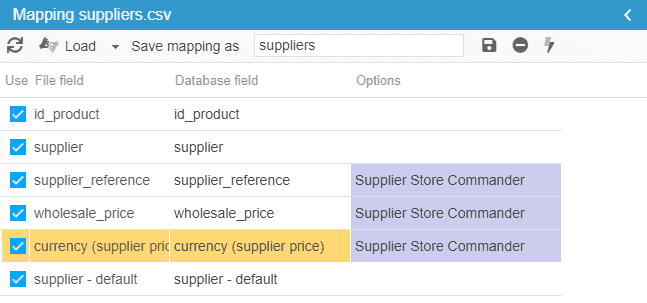
The supplier reference, wholesale price and currency will then be associated to the supplier you would have selected in the Options column.
Please note that a supplier must exist in the database to be able to associate a reference, a wholesale price and a currency.The same goes to set up a default supplier. Suppliers have to exist in the database and have to be associated to products.
You can associate suppliers to combinations, following the above procedure with just one difference: the identifier will have to be the combination's (id_product_attribute, reference, etc). The results will be displayed in the Suppliers grid within the Combinations panel.
Associating other supplier to products/combinations by import
PrestaShop allows multiple suppliers to be associated to your products and your combinations. There will be a main supplier, known as the default supplier, and other supplier(s), know as additional supplier(s).
This article relates to associatiing additional suppliers to your products and combinations, which means that a default supplier is already associated to the products.
Associate suppliers to products by import
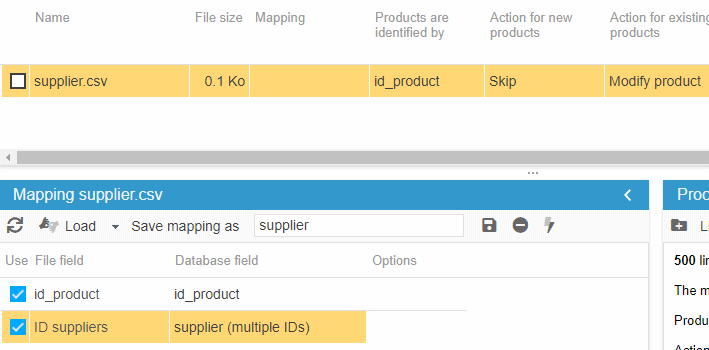
Here's an example of a csv file to be used to associate an additional supplier to your products, as well as the import configuration.
We'll use the id_product as the unique identifier.
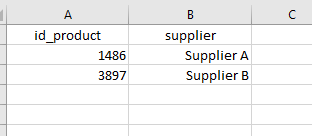
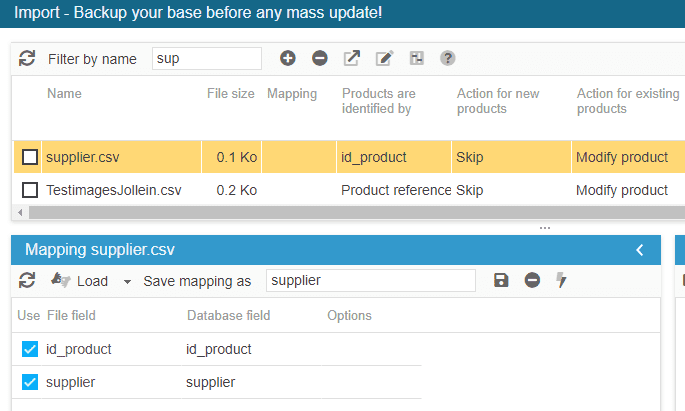
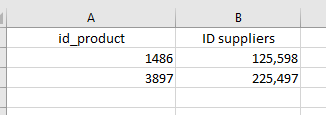
If you need to associate multiple suppliers to a products, you'll need to specify the supplier IDs - visible in Sc Catalog > Suppliers > Supplier management.The file and the mapping will then be:
Associate suppliers to combination by import
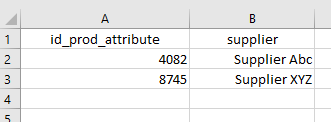
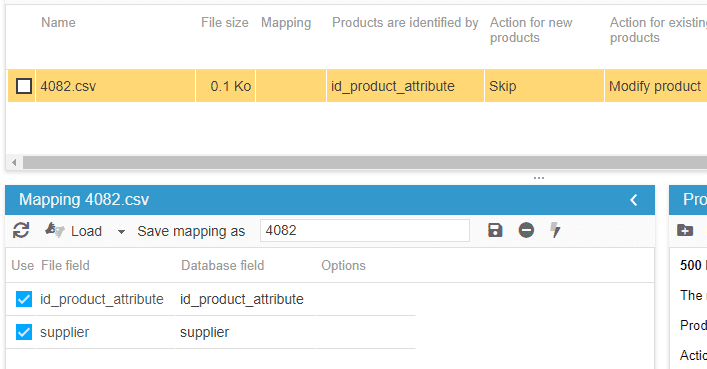
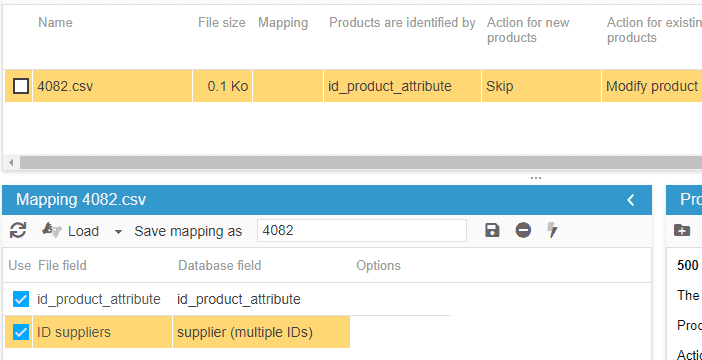
Below is an example of a csv file used to associate a supplier to combinations, as well as its import configuration.
We'll use id_product_attribute (ID combination) as the unique identifier.
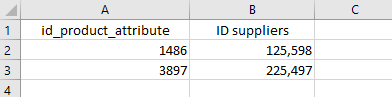
If you need to associate multiple suppliers to a combinations, you'll need to specify the supplier IDs - visible in Sc Catalog > Suppliers > Supplier management.The file and the mapping will then be:
Disassociate products from a supplier
You can remove the association between your products and your suppliers using the same copy/paste steps explained above.
The difference here is that we will select the following option in the cell belonging to the suppliers. Then all you have to do is apply your copy/paste to unlink the supplier from your products.

💡Dynamic Segmentation
Do you have a catalog with many suppliers? Don't panic, thanks to the Segmentation tool (included in premium subscriptions) you'll be able to automatically segment your products by supplier name.
Indeed, you can have a segment per brand in your Sc interface that will include the products associated. So very useful 🤩
Segmentation is accessible in Tools menu.
Click the ➕ to add the new segment, choose the Dynamic Type, name it, and validate

Then select the ‘products by supplier’

You also have additional options to filter even more your segment

There you go, back to Sc interface, you’ll see a segment for each of your supplier, with corresponding products within.
