The basics of the PRO interface customisation tool
The PRO interface customisation tool allows you to add non-native PrestaShop fields to your Store Commander tool (interface, import, export, etc.). This extraordinary tool is included in our premium subscription packages (SOLO+ and MULTISTORE+).
It's a real ‘game changer’ when you have custom fields on your PrestaShop shop or if you want to display sales statistics quickly, for example.
How to access it
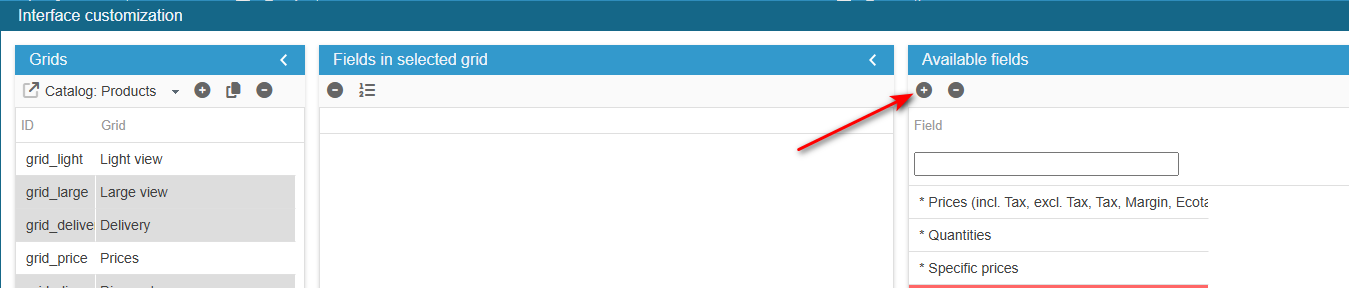
To access the PRO part, click on the icon on top of the right hand side column, called 'Available fields'
Adding a field
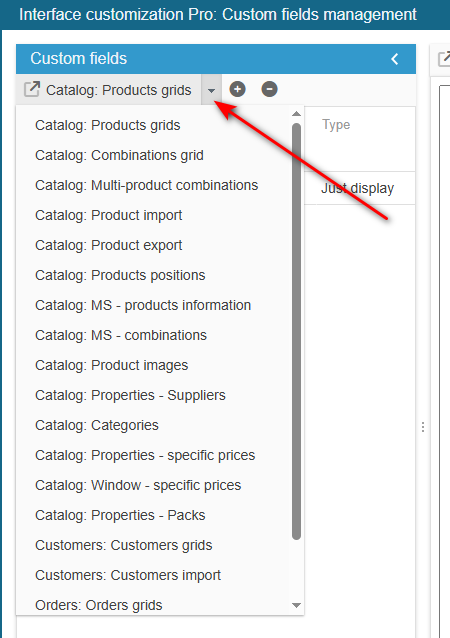
To add a field, first select where you need to add the field, from the drop down menu in the left hand side column.
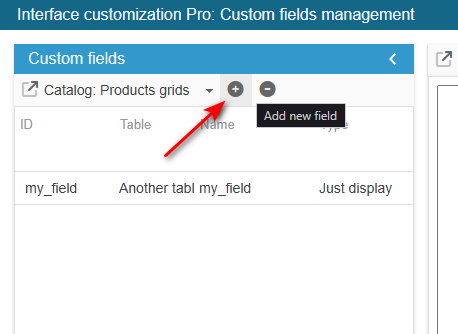
To create the field, click on the icon: name the field, enter the name of the table it's in and the type.
To configure the new field, select the corresponding property panel where you will be entering the SQL queries.
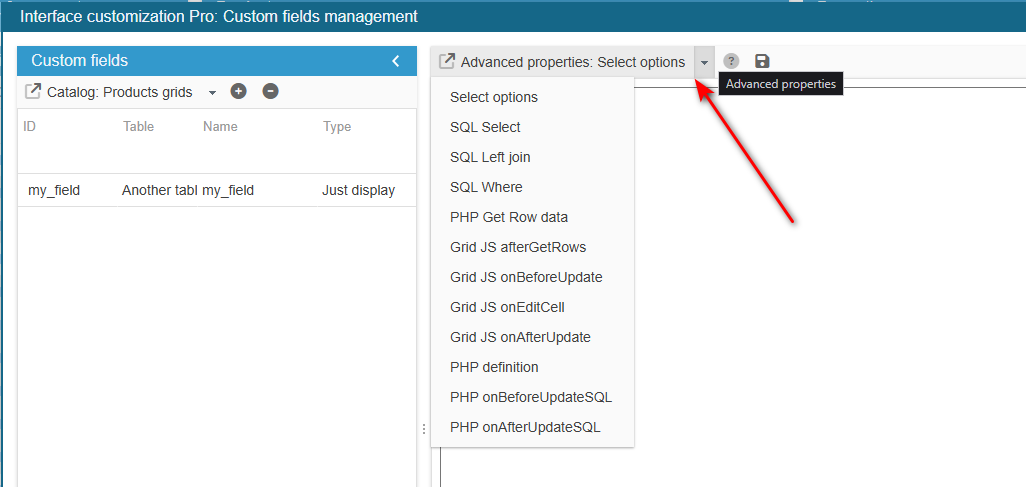
Code index
Select options
To use this tool, the cell type of your field must be 'multiple choice'. This section allows you to set the select box options when the user click to edit the cell.
To set the options, you need to return a PHP array:
return array(1=>'Yes' , 0=>'No');You can use a more complex code to get the options from a table:
$sql = 'SELECT id_logistician,name_logistician FROM ps_logistician ORDER BY name_logistician';
$res = Db::getInstance()->ExecuteS($sql);
$tmparray = array(0 => 'NA');
foreach ($res AS $row) {
    $tmparray[$row['id_logistician']] = $row['name_logistician'];
}
return $tmparray;
SQL Select
Here you need to return the name of the field that will be displayed in your grids. This will be used in our main query to get products/orders information.
You can use these variables:
$view - name of the current grid view
$cols - array of columns of the grid
$id_lang - language used in the interface
Example:
return ' ,myTableAlias.myTableFieldName AS myFieldName';You can use a more complex code to get the feature value of the product:
return ' , (SELECT fvl.value FROM `ps_feature_product` fp
                LEFT JOIN `ps_feature_value_lang` fvl
                ON (fp.id_feature_value=fvl.id_feature_value and fvl.id_lang=2)
                WHERE fp.id_feature = 3
                AND fp.id_product = p.id_product) as myFeature ';
An other example to add the ordered products name on an orders grid (full example available on our support platform):
return ' , (SELECT GROUP_CONCAT(product_name SEPARATOR '')
                FROM `'._DB_PREFIX_.'order_detail` od
                WHERE od.id_order = o.id_order) as orderProductsNames ';
SQL Left Join
You should not use aliases corresponding to standard Prestashop tables for fields coming from external tables (do not use "p.", "a.", etc.)
You can use these variables:
$view - name of the current grid view
$cols - array of columns of the grid
$id_lang - language used in the interface
Examples:
return " LEFT JOIN "._DB_PREFIX_."myTable myTableAlias ON (myTableAlias.id_product= p.id_product) ";Warning: if you use several fields from the same external table (myTable) you need to set this information only once for all the fields.
Grid JS onBeforeUpdate
Work in progress...
Grid JS onEditCell
This event is triggered when a cell is edited by the user in the interface.
// onEditCell(stage,rId,cInd,nValue,oValue)
// rId is the row ID
// cInd is the column INDEX
// nValue is the new value
// oValue is the old value

if (nValue != oValue) {
    idxDeliveryInfo = cat_grid.getColIndexById('DeliveryInfo');
    if (cInd == idxDeliveryInfo) {
// here we truncate the data entered by the user
        cat_grid.cells(rId, idxDeliveryInfo).setValue(cat_grid . cells(rId, idxDeliveryInfo).getValue().substr(0, 100));
    }
}
Grid JS onAfterUpdate
Work in progress...
PHP definition
When you add a field to the combinations grid, you need to declare it in this section.
$combArray[$combinaison['id_product_attribute']]['myFieldName'] = $combinaison['myFieldName'];PHP onBeforeUpdateSQL
Work in progress...
PHP onAfterUpdateSQL
This event is triggered when the user's browser sends the data to the server. In this section we need to store the new value in the database.
You can use these variables:
$id_product
$id_lang
Example:
$sql = "SELECT * FROM "._DB_PREFIX_."myTable WHERE id_product=".(int)$id_product;
$res = Db::getInstance()->ExecuteS($sql);
$myFieldName = Tools::getValue('myFieldName', -1);
if (count($res)) {
    if (in_array($myFieldName, array('North', 'East'))) // we check if the new value is in the expected range of values
    {
        $sql = "UPDATE "._DB_PREFIX_."myTable SET myFieldName=".psql($myFieldName)." WHERE id_product=".(int)$id_product;
        Db::getInstance()->Execute($sql);
    } else {
        $sql = "DELETE FROM "._DB_PREFIX_."myTable WHERE id_product=".(int)$id_product;
        Db::getInstance()->Execute($sql);
    }
} else {
    $sql = "INSERT INTO "._DB_PREFIX_."myTable (id_product,myFieldName) VALUES (".(int)$id_product.",'".psql($myFieldName)."')";
    Db::getInstance()->Execute($sql);
}
Tables used in queries
Database fields that you add are used in queries already calling some tables in the database
Below is the list of tables used by grid, and you can use the aliases provided.
Modifying the value entered in a grid - Grid JS onEditCell
Prerequisites
Follow instructions Products Grid: Adding a field from ps_product_lang table to create a field 'shipping info'.
Target
We would like to modify the value in field 'shipping info' to truncate the data if it goes over 100 characters, and then send this value to the server to get registered in the database.
Setup
From the Advanced Properties panel on the right handside:
- select the menu Grid JS onEditCell and enter:
// onEditCell(stage,rId,cInd,nValue,oValue)// rId is the row ID// cInd is the column INDEX// nValue is the new value// oValue is the old valueif (nValue != oValue) { idxDeliveryInfo = cat_grid.getColIndexById('infos_livraison'); if (cInd == idxDeliveryInfo) { cat_grid.cells(rId, idxDeliveryInfo).setValue(cat_grid.cells(rId, idxDeliveryInfo).getValue().substr(0, 100)); }}You will need to reset Store Commander to apply the new modifications.