Specific Prices (Properties): Adding a field from a table outside the specific prices table
Instructions for adding the “On Sale” field to the Specific Prices grid
Prerequisites
Access the PRO section of the tool to add custom fields:
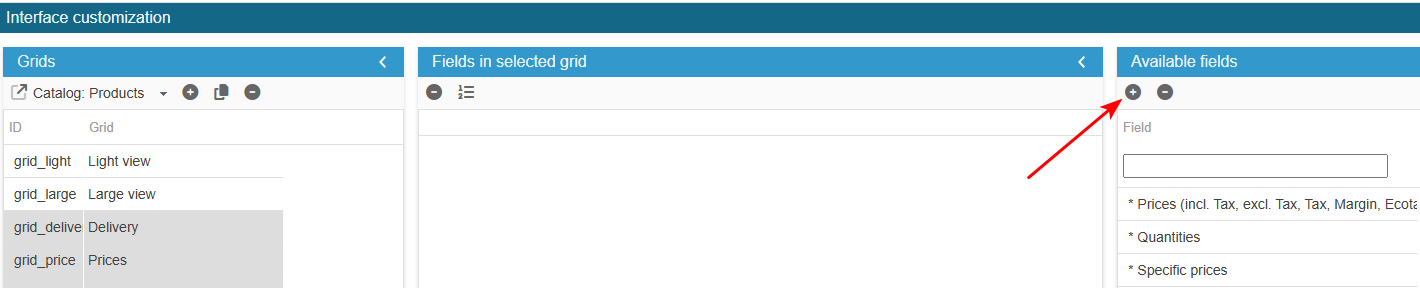
Ensure you select the right grid : ‘Catalog: Properties – specific prices’:
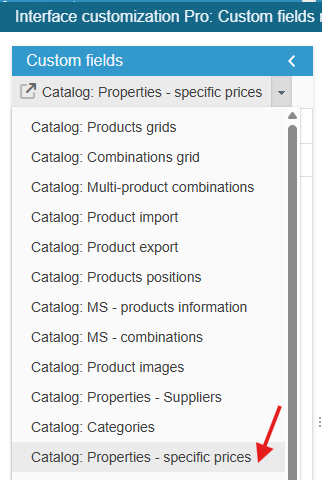
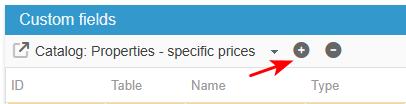
Add the field
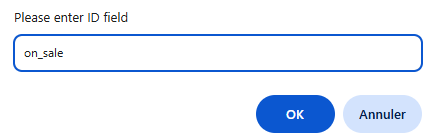
Click on the add icon to create the new field line and enter its ID on_sale.
It should be exactly the name as it is in the database
Setup
Sc creates the field, you now need to populate the grid with:
From the Advanced Properties panel on the right handside:
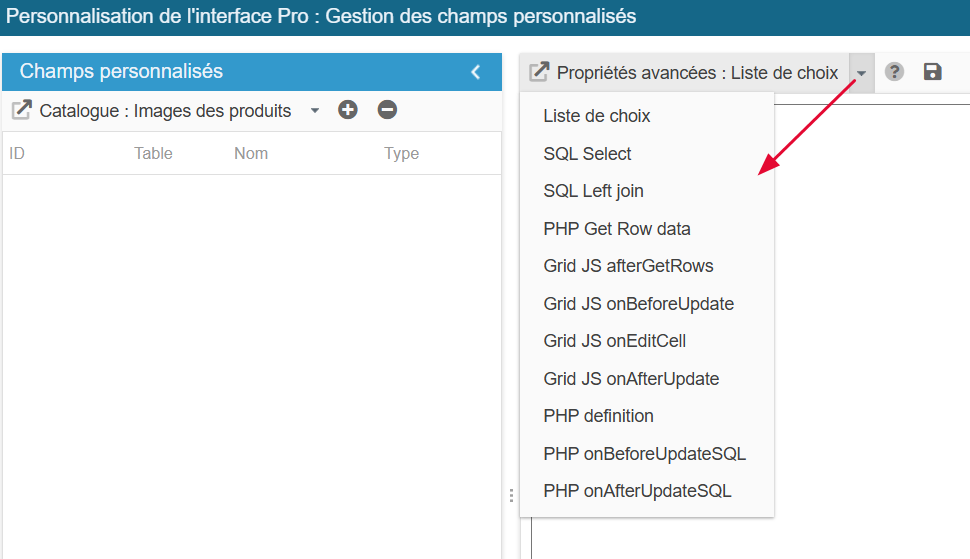
Select the menu List of choices (if field type is 'multiple choices, otherwise leave blank) and enter :
return array(1=>_l('Yes') , 0=>_l('No'));Select in the menu SQL Select and enter :
return ' ,prs.on_sale as on_sale';Copiez/collez le contenu ci-dessous dans le menu SQL Left Join et enregistrez :
return " LEFT JOIN "._DB_PREFIX_."product_shop prs ON (sp.id_product= prs.id_product AND prs.id_shop=".(int) SCI::getSelectedShop().")";Copiez/collez le contenu ci-dessous dans le menu PHP onAfterUpdateSQL et enregistrez :
if (isset($_POST['on_sale'])) { $sql = 'UPDATE '._DB_PREFIX_.'product SET on_sale='.(int) Tools::getValue('on_sale').' WHERE id_product=' .(int) $specificPrice->id_product; Db::getInstance()->Execute($sql); $sql = 'UPDATE '._DB_PREFIX_.'product_shop SET on_sale='.(int) Tools::getValue('on_sale').' WHERE id_product=' .(int) $specificPrice->id_product . ' AND id_shop='.(int) SCI::getSelectedShop(); Db::getInstance()->Execute($sql); }Exit the editing window.
The new field is now present in the list of available fields and you can add it to your Specific Prices window.