Mettez vos produits en valeur avec un catalogue PDF sur-mesure
Introduction
Catalogue PDF de Store Commander est un outil qui permet aux e-commerçants de générer des catalogues produits au format PDF à partir de leur boutique PrestaShop. Ce module facilite la création de documents professionnels et personnalisables, qui peuvent être utilisés pour la vente, la distribution ou le marketing des produits d'une boutique en ligne. Voici une explication détaillée de ce qu'est le Catalogue PDF de Store Commander, à quoi il sert, et comment il fonctionne.
A quoi sert-il concrètement
Le module Catalogue PDF de Store Commander a plusieurs usages pratiques pour les e-commerçants :
Création de catalogues produits : Vous pouvez générer des catalogues produits complets au format PDF, que vous pouvez ensuite imprimer ou envoyer par email à vos clients.
Promotion et marketing : Il est possible des catalogues promotionnels pour des campagnes marketing, des salons ou des événements commerciaux.
Distribution et ventes : Ce module permet de créer des documents professionnels contenant des informations clés sur vos produits, que vous pouvez distribuer à vos clients ou à vos partenaires commerciaux.
Amélioration de l’expérience client : Un catalogue bien conçu permet à vos clients de consulter vos produits de manière claire et structurée, même sans se connecter à votre site web.
Installation
PDF Catalog module is available in our Solo+ and MultiStore+ plans.
Apply an update in your Store Commander interface (Help>Update), and you'll then find PDF Catalog in the list of modules in your PrestaShop backoffice.
Click the 'Install' button.
The PDF Catalog will then be available under the Modules menu in your backoffice.
Création de votre catalogue
Sur la page de configuration du module, plusieurs champs sont à sélectionner pour configurer votre catalogue.
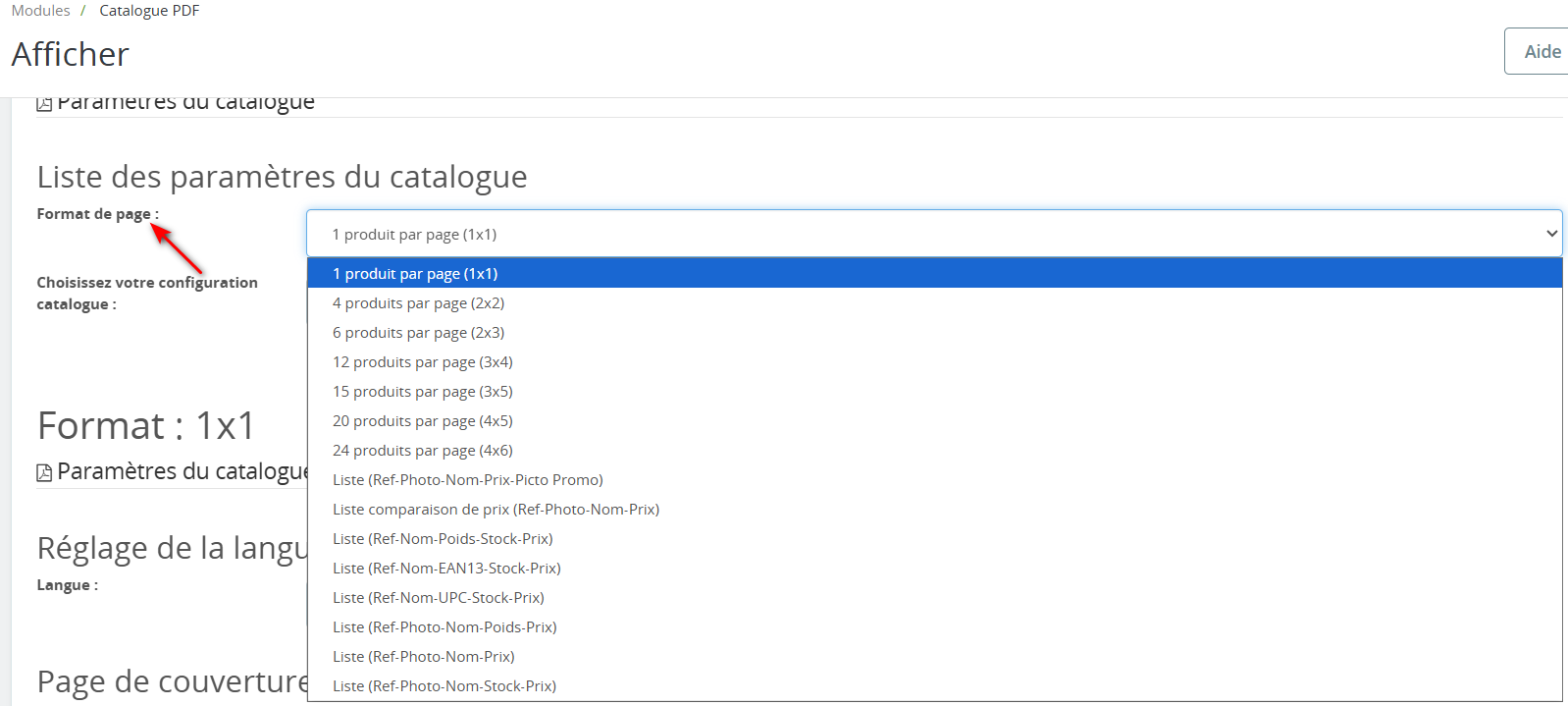
1- Format
Sélectionnez le format de votre catalogue parmi les 14 proposés. Pour ce tutoriel, nous choisirons le format 2x3, c’est-à-dire 6 produits par page.
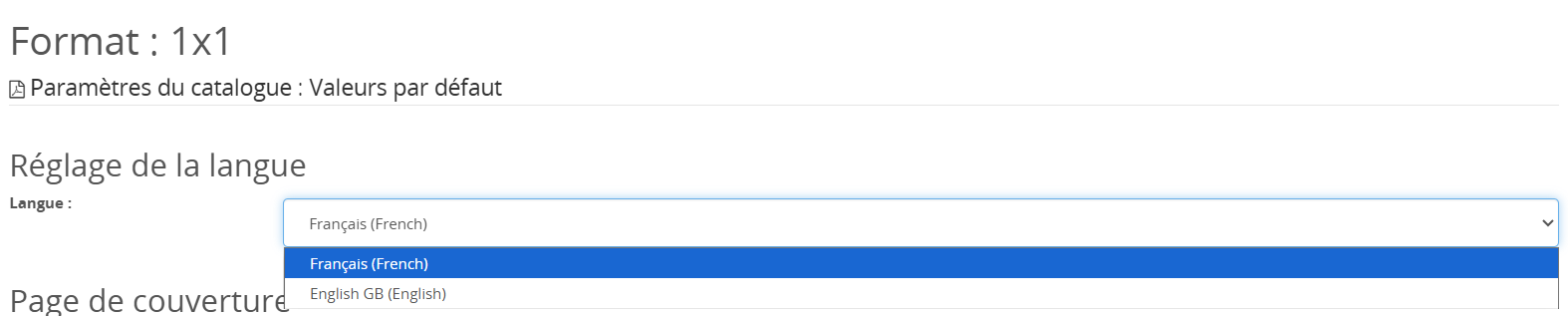
2- Paramétrer la langue
Le module vous permet de générer des catalogues dans des langues différentes. Les langues affichées dans le menu déroulant correspondent à celles existantes dans votre backoffice PrestaShop.
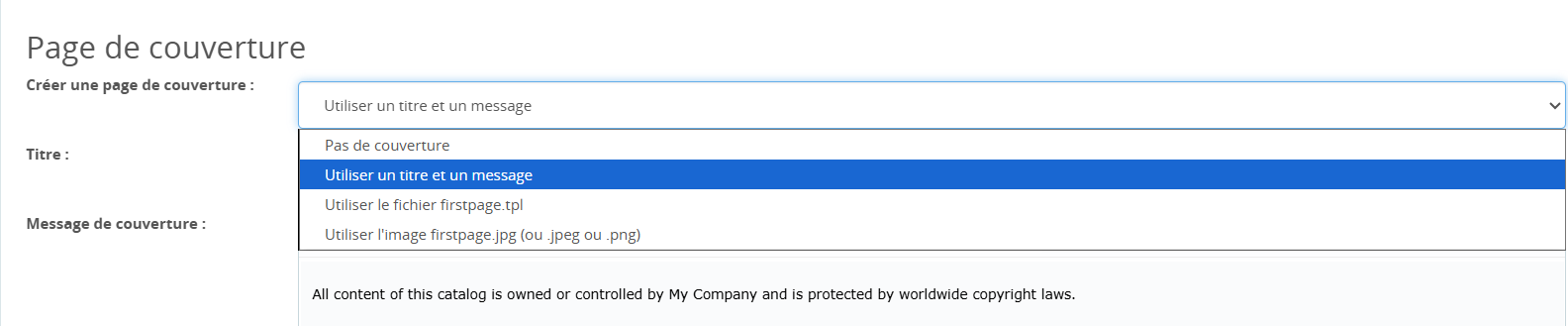
3- Page de couverture
Vous pouvez personnaliser la page de couverture du catalogue, en saisissant les données (titre & message) dans les sections correspondantes, ou bien configurer un fichier template (.tpl) pour une page de couverture personnalisée (Référez-vous à la section ‘Fichiers Template’ ci-dessous). Ou encore sélectionner un fichier image dans le menu déroulant pour afficher une image sur la page de couverture de votre catalogue.
4- Sommaire
Sommaire Vous pouvez ensuite ajouter un sommaire à votre catalogue. Les catégories choisies sont affichées et incluent les numéros de page et les liens hypertextes.

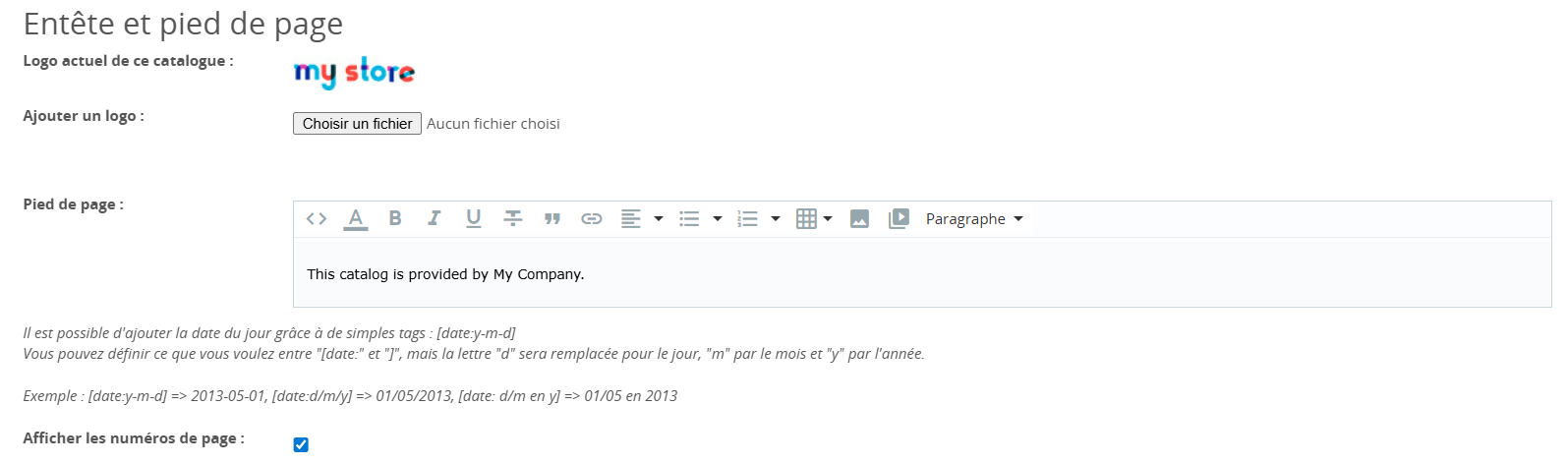
5- Entête et pied de page
Entête et pied de page Choisissez ensuite un fichier image (jpg, gif ou png) pour votre entête et saisissez le texte de votre pied de page. Tout comme la page de couverture du catalogue, vous avez la possibilité d’insérer la date de création du catalogue avec de simples tags.
6- Produits du catalogue
Vous devez maintenant choisir les catégories des produits que vous souhaitez inclure dans votre catalogue.
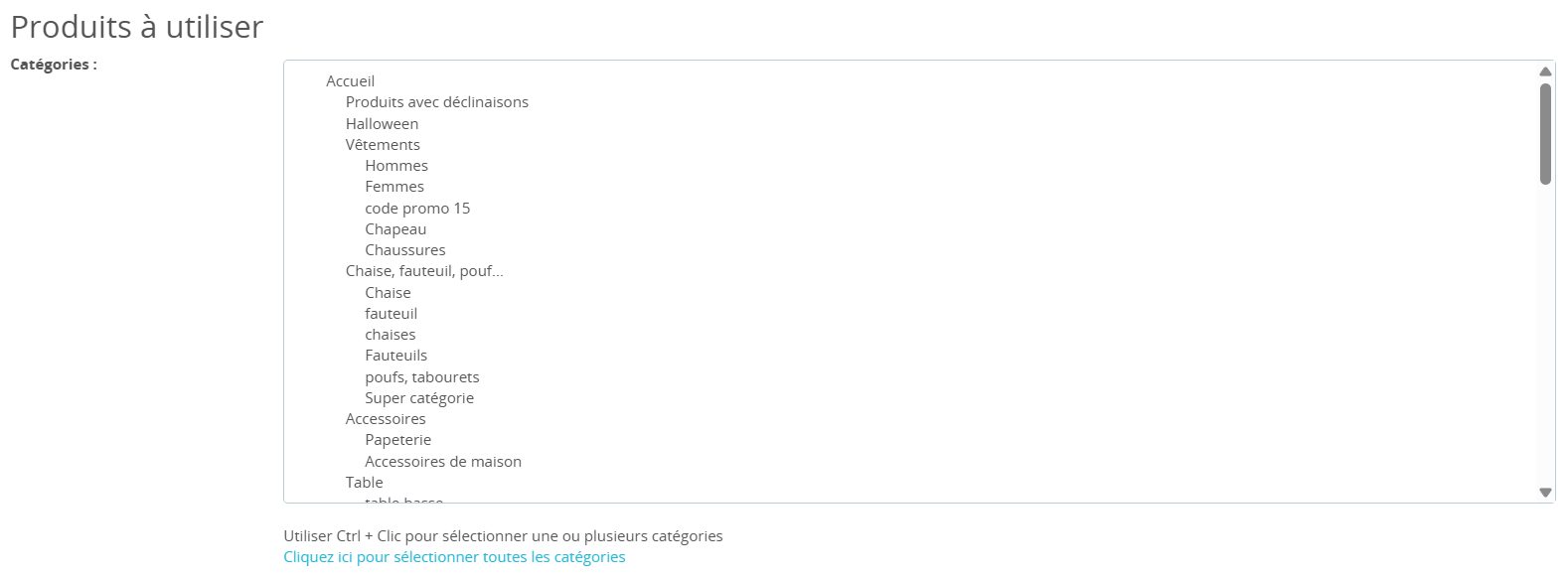
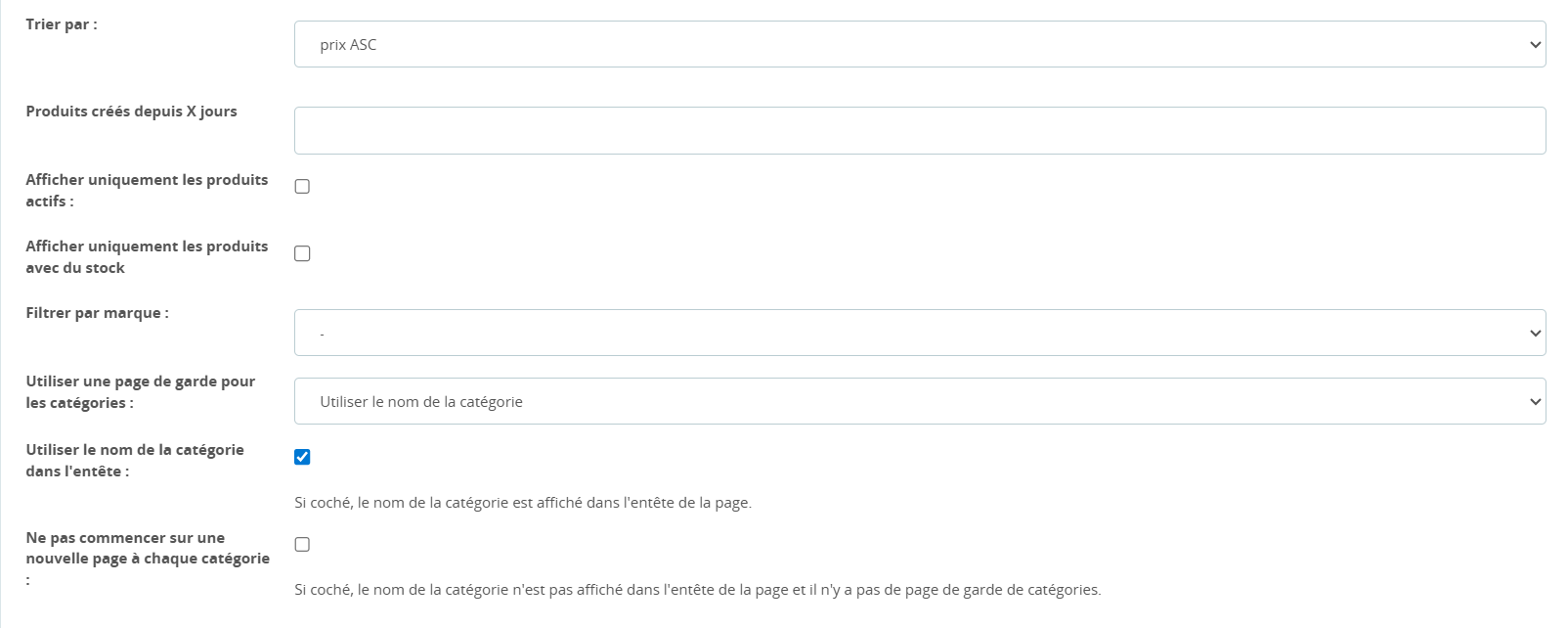
Puis, d’autres options liées aux catégories et produits sont disponibles :
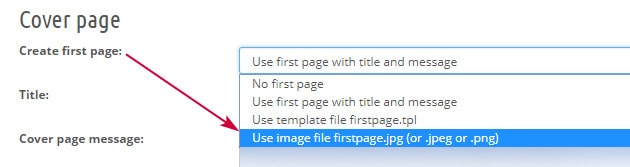
Using an image as the first page cover
With PDF Catalog module, you can configure the cover page of your catalog in different ways.One option is to use an image that you create yourself. And it would correspond to the choice of firstpage.jpg in the module configuration page
To use this option:
Create your image
Save it as firstpage.jpg
Browse your FTP to add the image file in /modules/scpdfcatalog/views/templates/admin/FORMAT of concerned catalog. For instance, if you want to use the image for 1x1 format, add the image file under /modules/scpdfcatalog/views/templates/admin/1x1
Back in your PrestasShop backoffice, select the option 'user image file firstpage.jpg'
Including combinations in catalogs
Your product combinations are displayed by default in format 1x1 (one page per product).
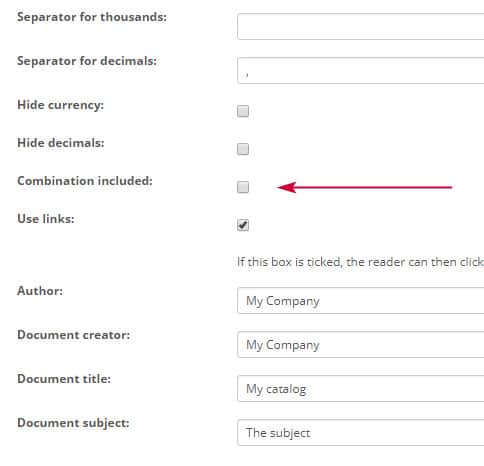
Then, in all LIST format, you can enable the option called 'combinations included' in the configuration page, to display combinations in the PDF List catalogs.
Making my PDF Catalogs available for download online
Within the PDF Catalog configuration page, you can setup a 'Block' on your front office to make your PDF catalog available for download by visitors on your shop.
First open the block options page

Once you have selected the location of the block and entered a name, right click on the catalog you need to add > Copy link address
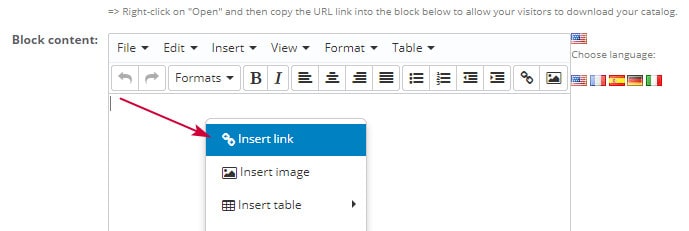
In the block content, right click to 'Insert link'
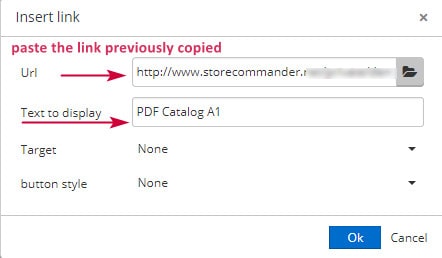
Paste the link, and give a name to the catalog, and validate OK
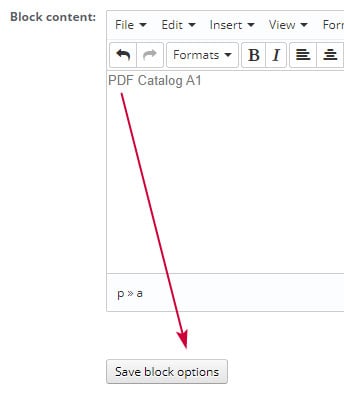
The name is now in the Content window, you can save the block configuration
You can now see the block on your front office.
Be 'careful' not to add catalogs intended for specific customers groups only.
Generating PDF catalog per shop
When working in multistore mode, you can create your various PDF catalog for each of your shops individually, or for all shops.
The shop selection needs to be done from the drop down menu in your backoffice:
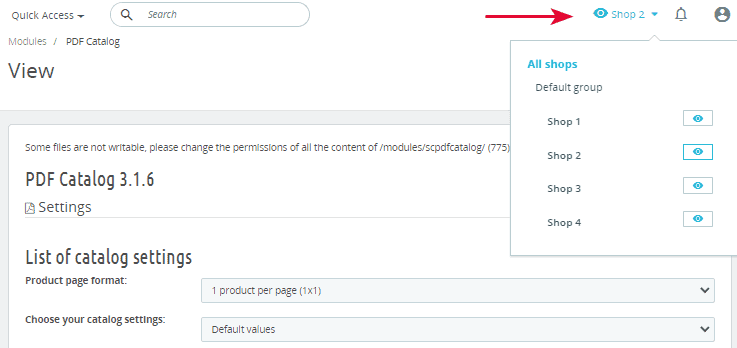
The shop you choose will take into account the categories you can select under 'Data Source: Categories':
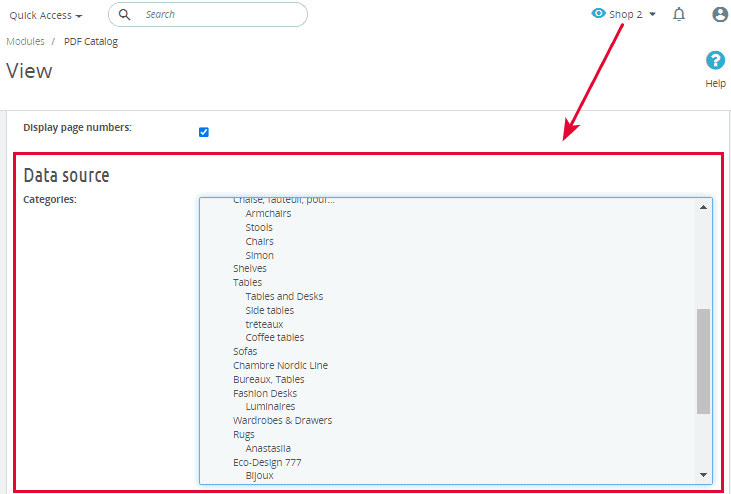
If you select 'All Shops', the all categories of all shops will be available to select.
💡Creating a PDF catalog based on a customer group
If you need to create a PDF catalog showing prices associated to a specific customer group, you can select this group within the configuration page:
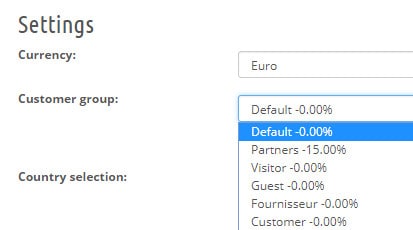
Note that there is a price comparison format you could use if you need to generate a catalog with default prices and customer group prices for example.
💡Creating a PDF catalog with specific products
When setting up a PDF Catalog, you need to select categories within the configuration that will take into account the products present in the selected categories.
However, it is not possible to select specific products. The workaround is to create a hidden category on your PrestaShop and add products to it.
You'll then be able to select this specific category within your PDF Catalog configuration, and the catalog will include products you would have added to that hidden category.
You can use our Store Commander module to make this task easy and fast, with a simple drag and drop 😊.
💡Creating a PDF catalog with comparison prices
A new format is available called 'List Prices Comparison'.
This new format allows you to generate a PDF catalog with a comparison between prices with a choice of different currencies and customer groups. You can display price excl. tax, price incl. tax or both.
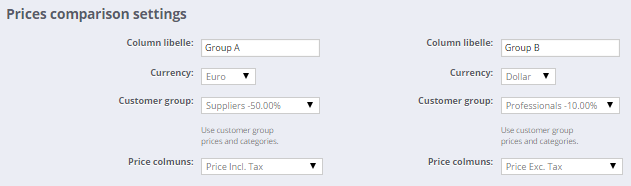
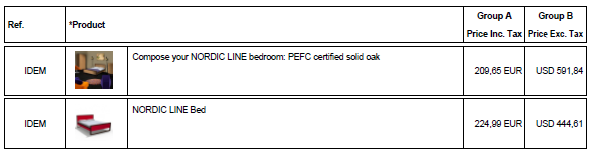
You can use this format to generate a catalog displaying comparison currencies (in this example Euros & Dollars), and/or prices associated to two specific customer groups.
Various combinations are possible using the different choices: currencies, customer groups and prices (excl. tax, incl. tax, or both).
Multistore - Generating PDF catalog per shop
When working in multistore mode, you can create your various PDF catalog for each of your shops individually, or for all shops.
The shop selection needs to be done from the drop down menu in your backoffice:
The shop you choose will take into account the categories you can select under 'Data Source: Categories':
If you select 'All Shops', the all categories of all shops will be available to select.