Products Grid: Modifying colors dynamically
Prerequisites
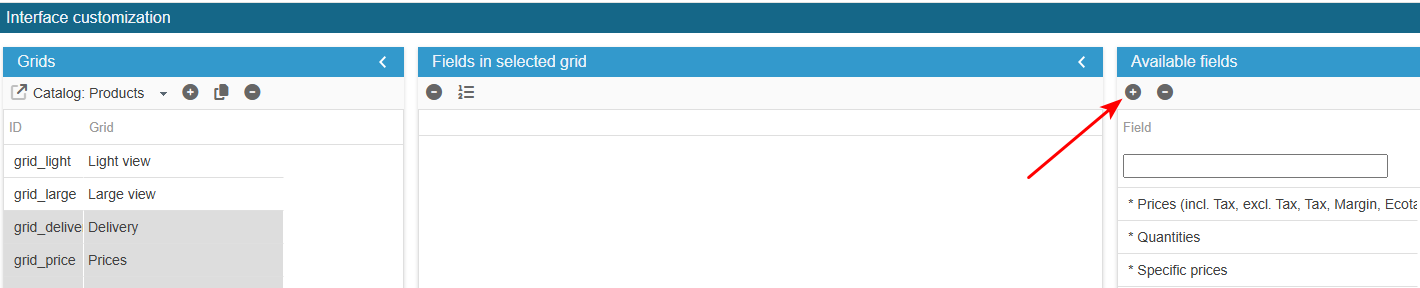
Access the PRO section of the tool to add custom fields:
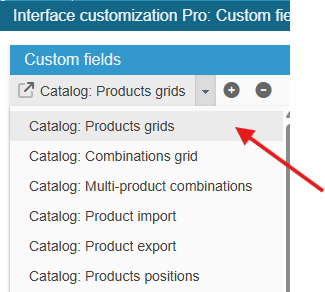
Ensure you select the right grid : ‘Catalog: Products grids’:
In the left-hand column, select the relevant field. If it does not exist, create a virtual field (which does not exist in the database) with the ID cellColor (for example).
In the Advanced Properties panel on the right handside:
- select the menu Grid JS afterGetRows and enter:
echo "
idxCustomColumn=cat_grid.getColIndexById('quantity');
cat_grid.forEachRow(function(rid){
    if (cat_grid.cells(rid,idxCustomColumn).getValue() <= 0){
        cat_grid.cells(rid,idxCustomColumn).setBgColor('#FF0000');
        cat_grid.cells(rid,idxCustomColumn).setTextColor('#FFFFFF');
    }
});";
This code highlights all cells in the ‘quantity’ column that have a value <= 0 in red.
Finally, register the configuration :
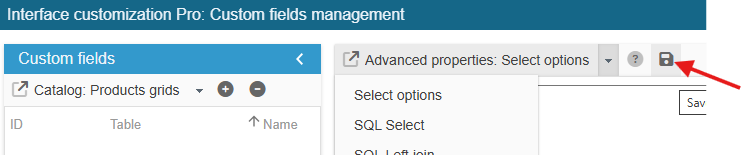
Exit the editing window.
The new field is now present in the list of available fields and you can add it to your product grids.
This colour applied by the code takes precedence over the colour you can set in the view configuration grid in the Interface Customisation module.
This code applies to all product grids.